How to Rename Drive Labels in Windows 11

You rename drive labels in Windows 11 to give your storage devices custom names for easier identification.
A drive label acts as a personalized nickname for your disks, distinct from their system-assigned drive letters like C: or D:. This helps you quickly distinguish between your various hard drives, SSDs, or external storage solutions.
For example, you might label your D: drive “Games” to instantly locate your game installations.
This straightforward process is safe for your files and installed applications.
To rename a drive label in Windows 11, open File Explorer, right-click the desired drive, select Rename, type the new name, and press Enter. Administrator privileges may be required.
Renaming a drive using File Explorer
You can rename a drive label in Windows 11 quickly using File Explorer by right-clicking the drive and choosing ‘Rename’.
- Open File Explorer by pressing the ⊞ Win+E keys on your keyboard.
- Find the drive you want to rename.
- Right-click the drive and select Rename, or press F2.
- Type your new name and press Enter.
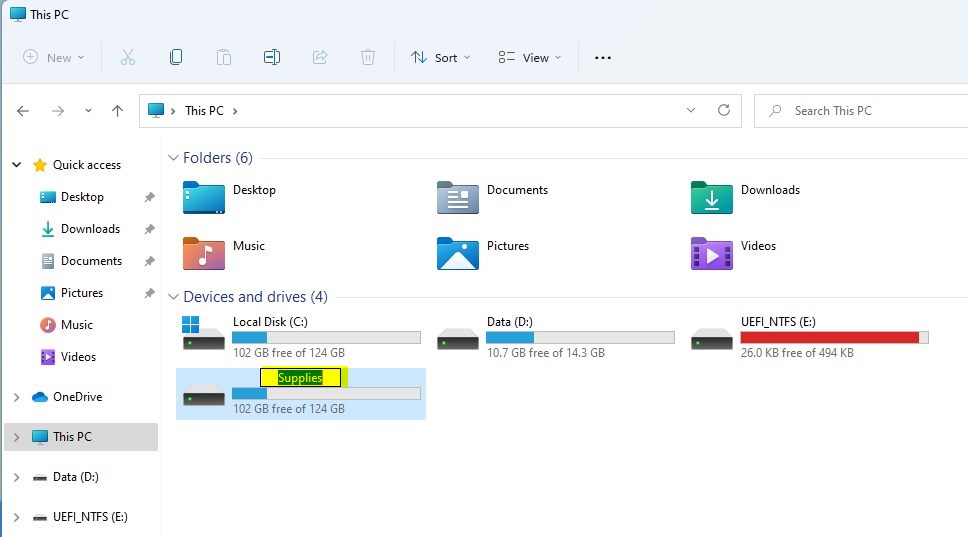
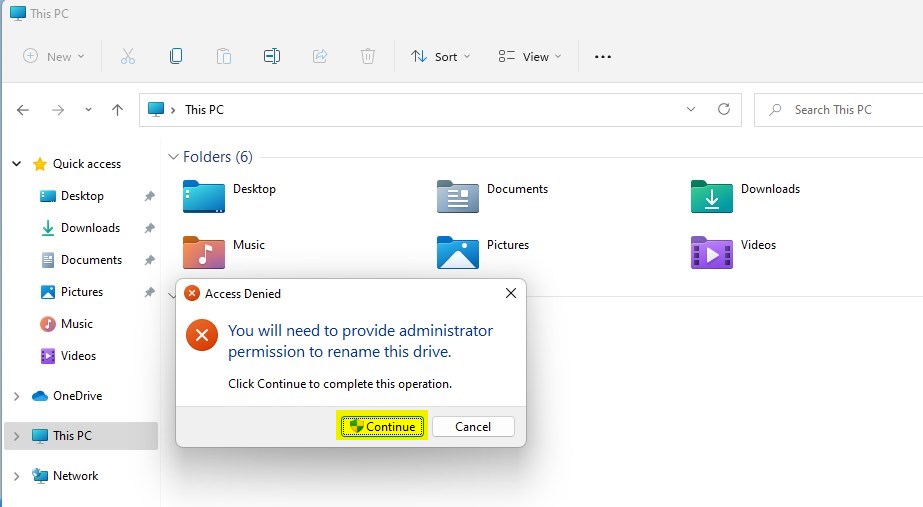
- If a window pops up asking for permission, click Continue. Note: This step requires administrator privileges.
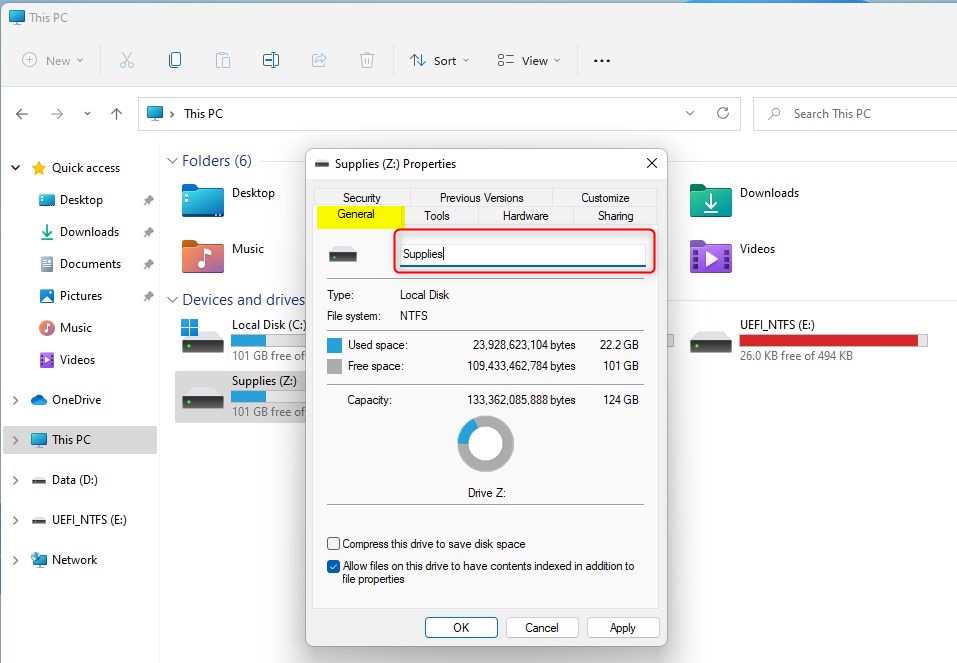
Alternatively, right-click the drive and select Properties. Type a new name under the General tab and click OK.
Renaming a drive using Disk Management
For more control, use the Disk Management utility.
- Right-click the Start button and select Disk Management.
- Right-click the volume you wish to rename.
- Select Properties.
- Under the General tab, type the new name in the box.
- Click Apply and then OK.
Renaming a drive using Command Prompt
If you’re comfortable with more advanced tools, you can use the label command.
- Press ⊞ Win+S, type cmd, and select Run as administrator. (Requires administrator privileges)
- Type the following command and press Enter:
label D: NewName(Replace D: with your drive letter and NewName with your desired label).
Troubleshooting
If you cannot rename a drive, check these items: 1. Do you have administrator privileges? 2. Is the drive read-only or write-protected? 3. Is the drive currently in use by another program? If you receive an ‘Access Denied’ error, ensure you are running your tools as an administrator.
Summary
Renaming drive labels in Windows 11 helps keep your files organized, and you can do it using File Explorer, Disk Management, or Command Prompt.
Can I rename my C: drive?
Yes, you can rename your C: drive label. However, be careful not to change the drive letter itself. Renaming the label is purely cosmetic and will not affect your operating system or installed applications. Always ensure you have administrator privileges before making changes to system drives.
What is the character limit for a drive label?
The limit depends on your file system. NTFS drives support up to 32 characters. Older FAT32 drives are limited to 11 characters. If you exceed these limits, Windows will automatically truncate the name or prevent you from saving the changes. Stick to simple alphanumeric characters for the best compatibility.
Was this guide helpful?

About the Author
Richard
Tech Writer, IT Professional
Richard, a writer for Geek Rewind, is a tech enthusiast who loves breaking down complex IT topics into simple, easy-to-understand ideas. With years of hands-on experience in system administration and enterprise IT operations, he’s developed a knack for offering practical tips and solutions. Richard aims to make technology more accessible and actionable. He's deeply committed to the Geek Rewind community, always ready to answer questions and engage in discussions.



[…] the next window, type in a Label (what you want to call the partition), choose a Drive letter, File System, and click the Format […]
[…] the drive a name name (label) you like (example: “My […]