How to Cancel Print Job in Windows 11

You cancel a print job in Windows 11 by stopping the print spooler service or clearing the print queue directly.
A print job gets stuck when a document fails to send correctly to your printer, halting subsequent print requests.
Clearing a stuck print job, often due to a large file that won’t print, ensures your Windows 11 printer processes new documents without interruption.
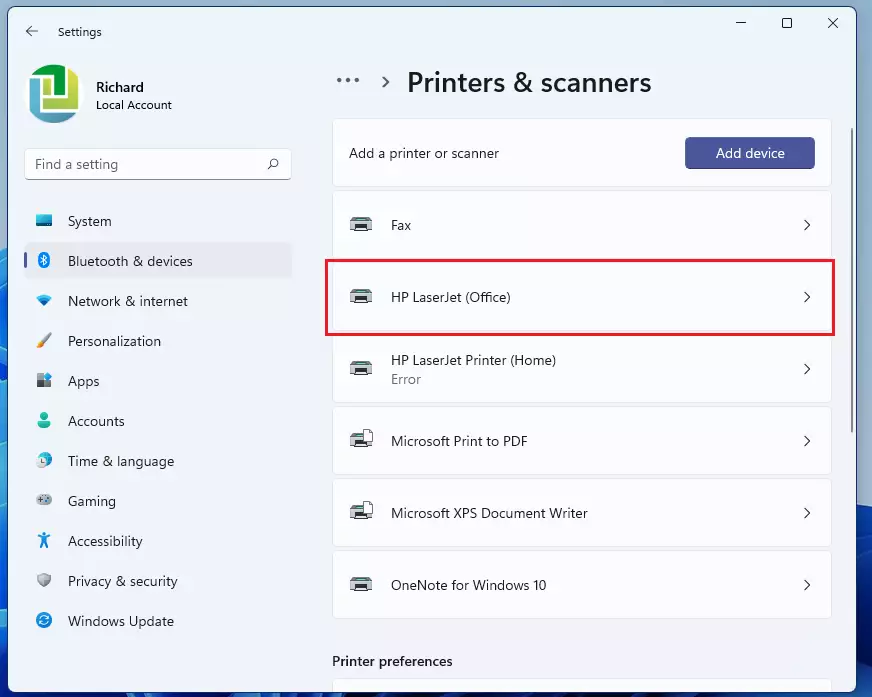
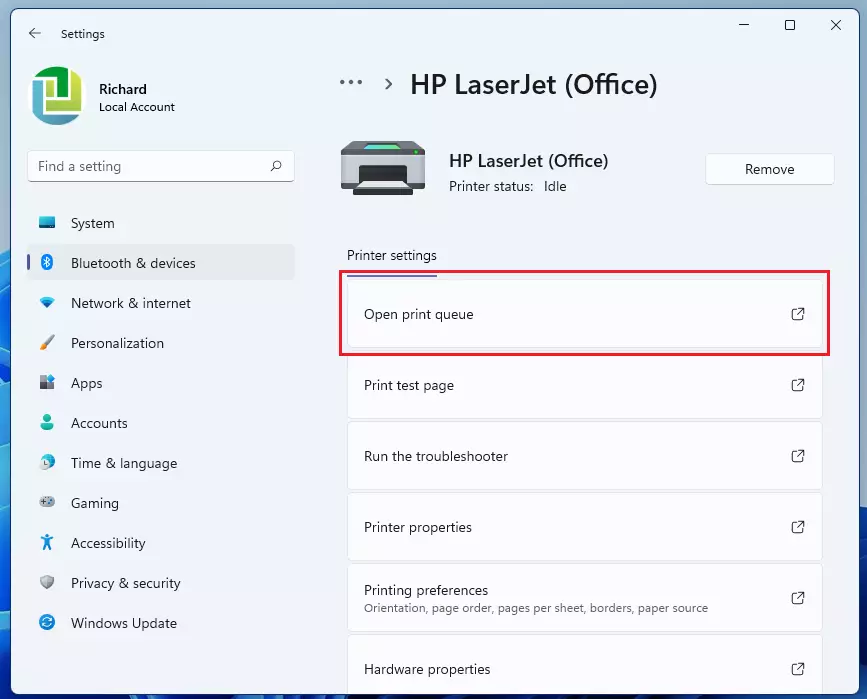
Open the print queue by right-clicking the printer icon in the taskbar or navigating to Settings > Bluetooth & devices > Printers & scanners. Then, select your printer and click “Open Print Queue” to cancel individual jobs or clear the entire queue.
How to cancel a print job from the notification area
When you are printing, a small printer icon often appears in your taskbar. Look for it near the clock.
Right-click the printer icon and select Open All Active Printers.
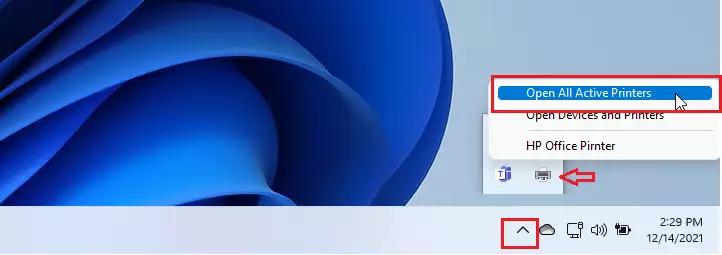
How to open the print queue using Settings
If you do not see the icon, use the Settings app instead.
- Open the Start menu and click Settings.

- Click Bluetooth & devices, then select Printers & scanners.
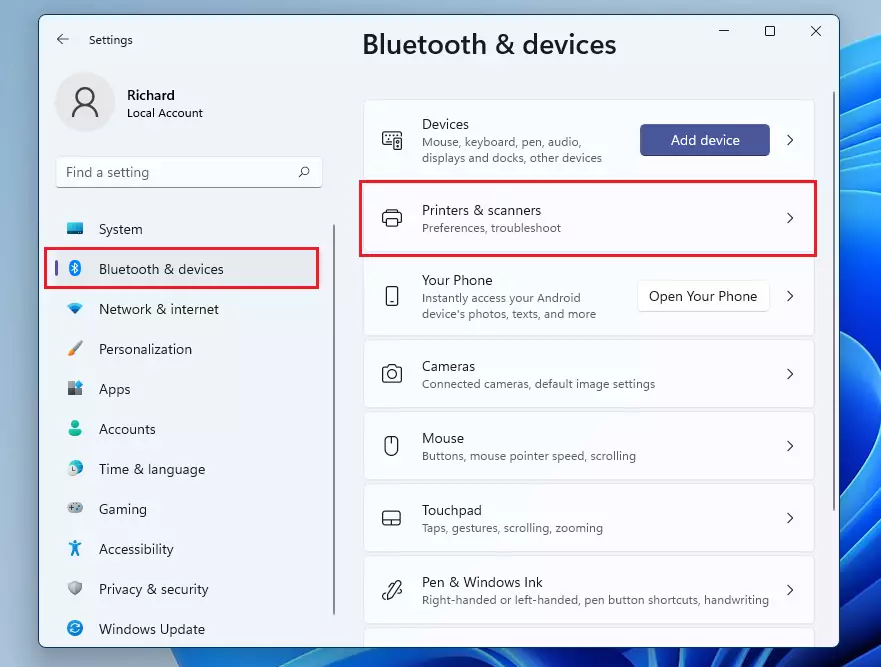
- Click on the name of your printer from the list.
- Click Open Print Queue.
Troubleshooting a stuck print queue
When a print job gets stuck in Windows 11 and you can’t cancel it, the Print Spooler service is usually the culprit, and you can fix this by restarting it.
[ADMIN PRIVILEGES REQUIRED]: You’ll need to run these commands as an administrator. Open the Start menu, type ‘cmd’, right-click it, and select ‘Run as administrator’.
net stop spoolerdel /Q /F /S %systemroot%\System32\Spool\Printers\*.*net start spooler
After running these commands, your print queue should be empty. If issues persist, try the official Microsoft Print Troubleshooter.
Summary
Canceling a stuck print job is usually quite straightforward. You can reach the queue through the taskbar icon or the Windows Settings menu. If a job refuses to go away, use the command line to restart the Print Spooler service. Keeping your queue clear ensures your printer runs smoothly.
Why does my print job say ‘Deleting’ but never disappears?
This happens when the Print Spooler service gets stuck, or if your printer is still trying to communicate with the computer. The job is marked for deletion, but the system cannot finish the task. Restarting the Print Spooler service usually forces the system to clear the stuck file immediately.
Do I need to restart my printer after canceling a job?
Usually, no. Once you cancel the job in Windows, the printer should stop automatically. However, if the printer remains unresponsive or shows an error light, turning the printer off and back on can help clear its internal memory and reset the connection to your computer.
How do I cancel a print job from a network printer?
Canceling a network print job works the same way as a local printer. Open the print queue on your computer using the Settings app or the taskbar icon. Because the job is sent from your machine, your computer manages the queue, allowing you to cancel it locally.
Was this guide helpful?

About the Author
Richard
Tech Writer, IT Professional
Richard, a writer for Geek Rewind, is a tech enthusiast who loves breaking down complex IT topics into simple, easy-to-understand ideas. With years of hands-on experience in system administration and enterprise IT operations, he’s developed a knack for offering practical tips and solutions. Richard aims to make technology more accessible and actionable. He's deeply committed to the Geek Rewind community, always ready to answer questions and engage in discussions.



No comments yet — be the first to share your thoughts!