How to Clear Printer Queue in Windows 11

You clear a printer queue in Windows 11 by stopping the Print Spooler service, deleting the pending print jobs, and then restarting the service.
A printer queue is a holding area for documents sent to your printer; when a job gets stuck, it blocks all subsequent printing.
This problem commonly occurs when a print job fails or a driver conflict arises, preventing new documents from being processed by your printer.
Clearing the queue often resolves these issues, allowing you to print again quickly.
Stop the Print Spooler service via the Services app, delete all files in the 📂%windir%System32spoolPRINTERS folder, and then restart the Print Spooler service. This process clears any stuck print jobs preventing your printer from working.
Why clear the print queue?
When you send a file to your printer, Windows creates a temporary file in a “queue.” If that file becomes corrupted or stuck, it blocks everything else behind it. Clearing the queue removes these stuck files so your printer can start fresh.
What happens when you are done?
Once you finish these steps, all pending print jobs will be deleted. Your printer will be ready to accept new documents, and the service will be running normally again.
Windows allows users to view and cancel print jobs after accessing the print queue via the notification area or the Windows Settings app. To learn how to cancel a single job, check out this guide: How to cancel a print job in Windows 11. .
How to force clear the printer queue
If regular cancellation doesn’t work, follow these steps to clear the queue forcefully.
Step 1Stop the Print Spooler
Note: This step requires admin privileges.
You need to open the Services console to stop the service that manages printing. Press the Windows key, search for Services, and open the app. Find the Print Spooler service in the list, right-click it, and select Stop.
Step 2Delete stuck print files
Note: This step requires admin privileges.
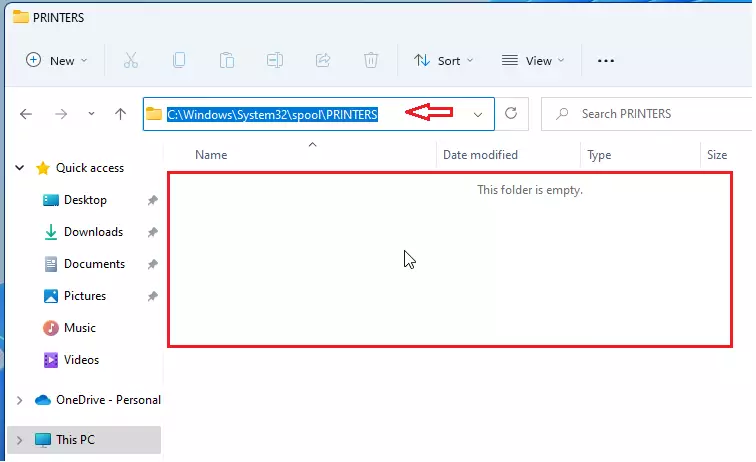
Press the Windows key + E to open a File Explorer window. Use the environment variable in File Explorer to navigate to the printer folder. Copy and paste the following path into the address bar at the top:
%windir%\System32\spool\PRINTERSOnce inside this folder, delete every file you see. This clears out all the stuck print jobs.
Step 3 Restart the Print Spooler
Go back to the Services window. Right-click the Print Spooler service again and select Start. You can also simply restart your computer to finish the process.
Summary
Clearing your print queue is a simple way to fix a printer that isn’t responding. By stopping the Print Spooler service, deleting the temporary files in %windir%\System32\spool\PRINTERS, and restarting the service, you clear out any errors and allow your printer to function properly again.
Was this guide helpful?

About the Author
Richard
Tech Writer, IT Professional
Richard, a writer for Geek Rewind, is a tech enthusiast who loves breaking down complex IT topics into simple, easy-to-understand ideas. With years of hands-on experience in system administration and enterprise IT operations, he’s developed a knack for offering practical tips and solutions. Richard aims to make technology more accessible and actionable. He's deeply committed to the Geek Rewind community, always ready to answer questions and engage in discussions.




No comments yet — be the first to share your thoughts!