You add or edit PATH variables in Windows 11 to make it easier for you to run programs and commands directly from the Command Prompt or PowerShell.
PATH variables essentially create a list of directories where Windows looks for executable files when you type a command, ensuring you don’t have to specify the full file path every time.
This feature is fundamental for developers and power users, allowing them to access tools like Python or Git from anywhere in the terminal without navigating to their specific installation folders.
For example, adding a tool’s directory to your PATH lets you simply type its name, like `mytool`, instead of the full path, `📁C:\Program Files\MyTool\mytool.exe`.
⚡ Quick Answer
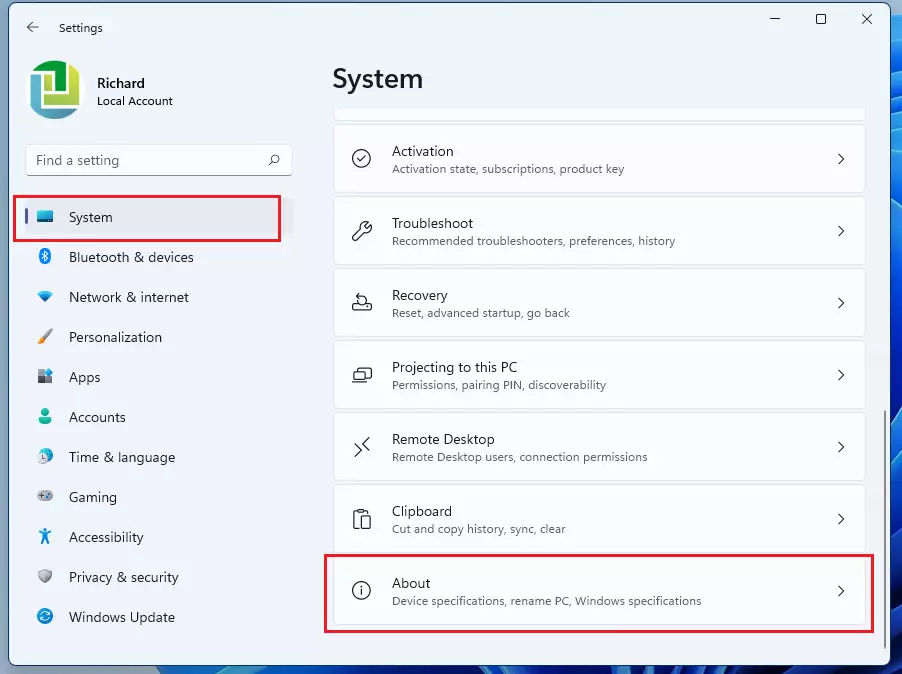
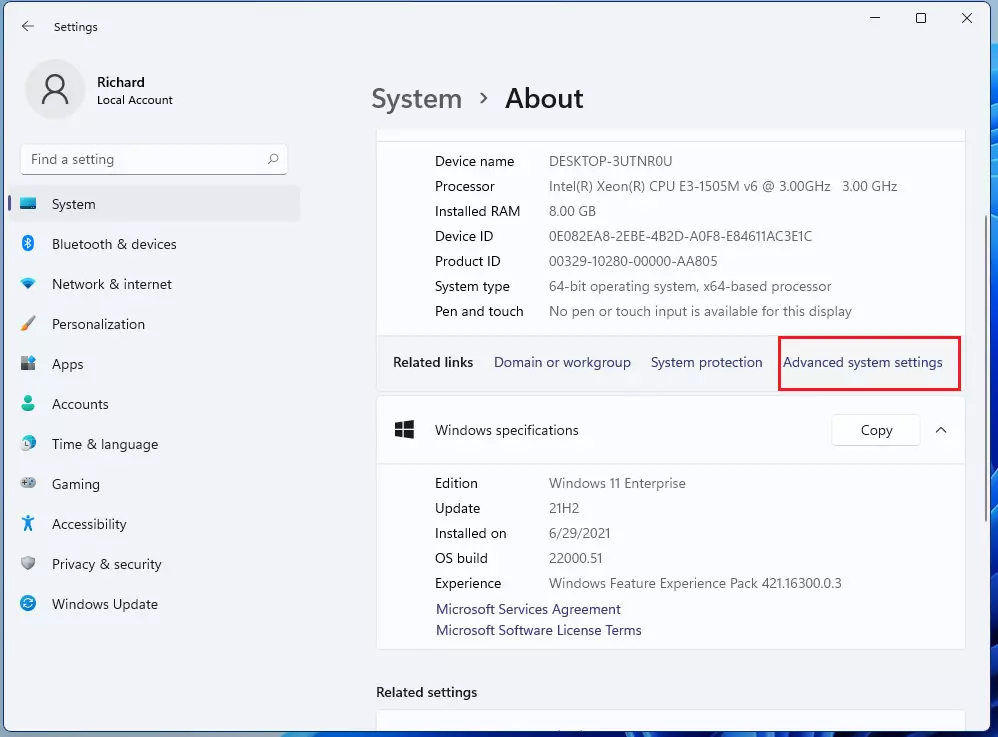
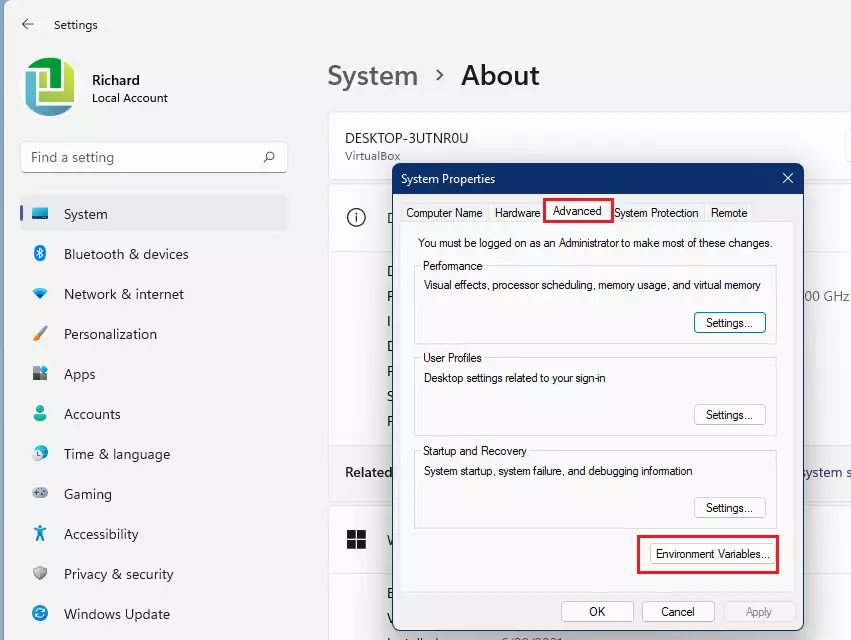
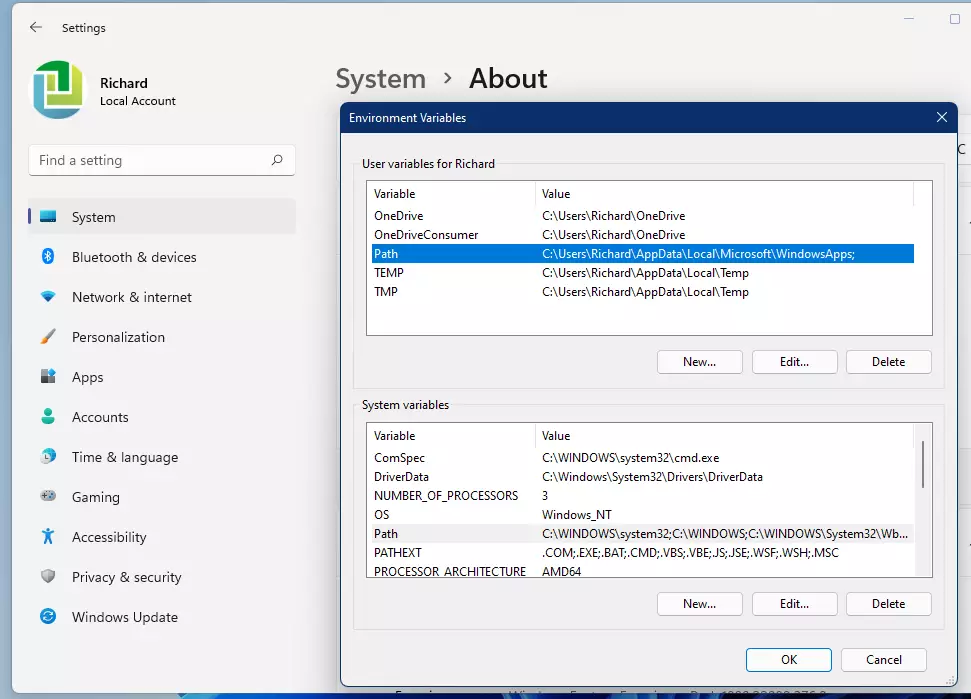
Edit PATH variables in Windows 11 through the Environment Variables window by opening Settings, going to System > About > Advanced system settings, clicking Environment Variables, selecting Path, and then clicking Edit. Alternatively, use the `setx` command in Command Prompt as an administrator.
How to Back Up Your PATH
Backing up your PATH variables in Windows 11 before you change them is a smart move, just in case you need to put things back the way they were.
💻Code
C:\Program Files;C:\Winnt;C:\Winnt\System32

add evironment variables in windows 11
This creates a file named path_backup.txt on your desktop. If something goes wrong, you can copy the original text back into the editor.
Method 1Using the Environment Variables Window
You can edit PATH variables in Windows 11 using the Environment Variables window, which is a straightforward way to manage them, though you’ll need admin rights for system-wide changes.
To see your current PATH in a readable list, open PowerShell and run this command:
⬛PowerShell
$env:Path -split ';'
Troubleshooting and Permissions
If you cannot save changes, you likely lack User Account Control (UAC) permissions. Ensure you are logged in as an administrator. If you delete a critical entry, some apps will stop working. Use your backup file to restore the original string if needed.
Summary
Editing PATH variables in Windows 11 allows you to run programs from any location. You can use the System Properties GUI or the setx command. Always back up your settings before editing and remember that system-wide changes require administrator access.
Do I need admin rights to edit PATH variables?
You only need administrator rights to edit System variables, which affect all users on the computer. You can edit User variables for your own account without special permissions. Always use caution when modifying system-level settings to avoid breaking installed applications or Windows features.
What happens if I delete an existing PATH entry?
If you delete a required PATH entry, Windows will no longer be able to find the programs located in that folder. This often results in ‘command not found’ errors when you try to run those specific tools. Always back up your path string before deleting any entries.
Does editing PATH require a system restart?
Usually, you do not need to 🔄 restart your computer. However, you must close and reopen any open Command Prompt or PowerShell windows for the changes to take effect. If the changes do not appear, a simple restart of the application or the system will force the update.
Richard, a writer for Geek Rewind, is a tech enthusiast who loves breaking down complex IT topics into simple, easy-to-understand ideas. With years of hands-on experience in system administration and enterprise IT operations, he’s developed a knack for offering practical tips and solutions.
Richard aims to make technology more accessible and actionable. He's deeply committed to the Geek Rewind community, always ready to answer questions and engage in discussions.






I cant edit the bottom part with the System Variables. Is there a way I can fix that?
Do you have administrator privileges?
I can’t do it, let me have a problem, when I press Edit PATH it shows Edit User Variable not showing Edit environment variable can you help me?
You can just type “env” in the search field (magnifying glass) to go directly to the Environment Variables in Windows 11.