How to View Your Print Queue on Windows 11

The printer-queue-in-windows-11/" class="sal-link" rel="noopener" target="_blank" data-sal-id="12305">print queue acts as a digital waiting room for your documents. When you click print, your computer sends the file to the Windows 11 print spooler. This service organizes your files and sends them to the printer one by one. You should check the queue when a document fails to print, if you sent the wrong file, or if you want to see how many pages are left in the line.
What happens when done? Once you open the queue, you can see all pending jobs. You can then pause, resume, or cancel any stuck print job to fix delays.
How to view your print queue on Windows 11
Follow these steps to find your printer’s waiting list using the Settings app.
- Click the Start button and select Settings.
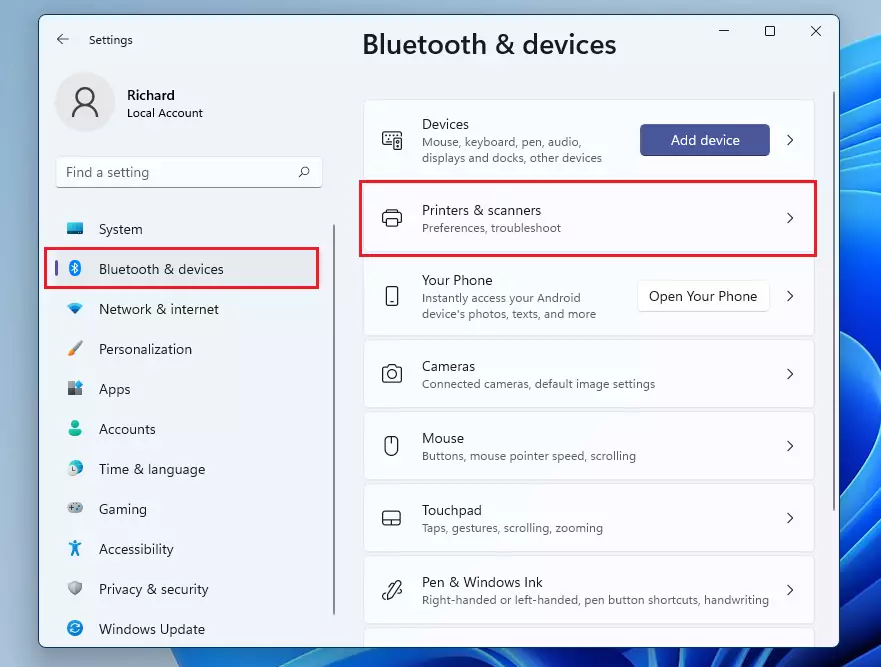
- On the left side menu, click Bluetooth & devices.
- Click on Printers & scanners link to printer driver guide.
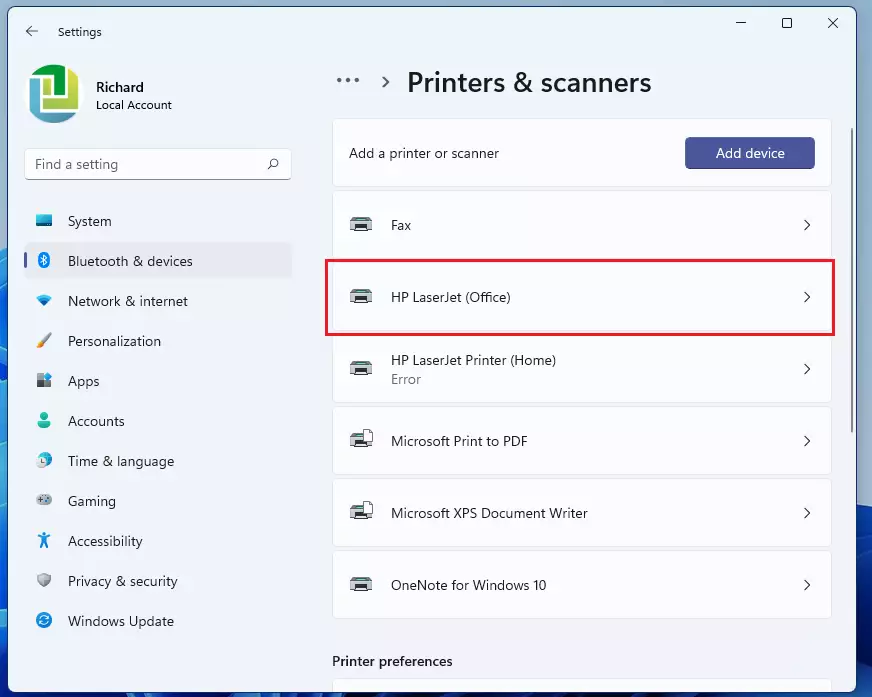
- Find your printer in the list and click its name.
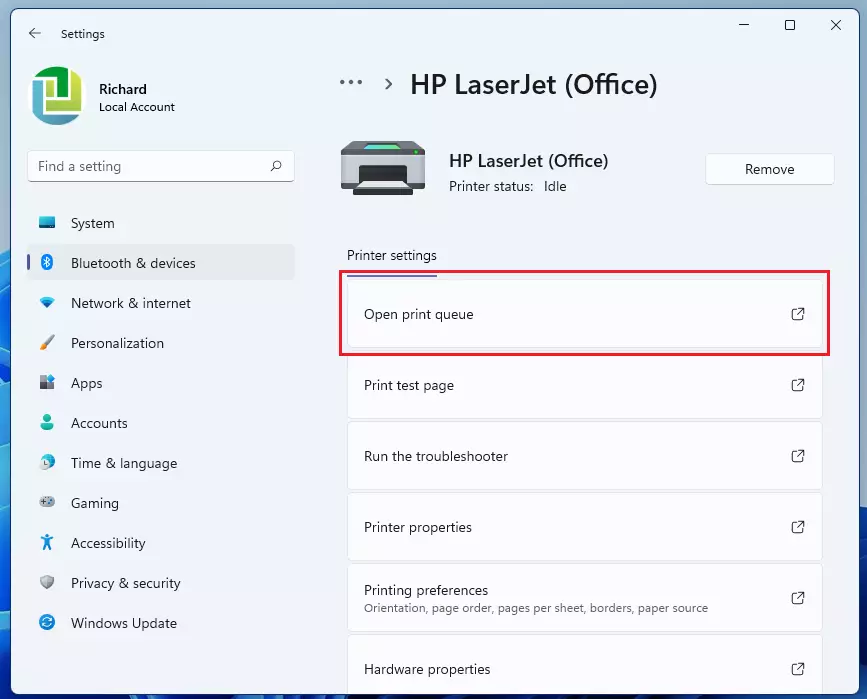
- Look for the button labeled Open print queue and click it.
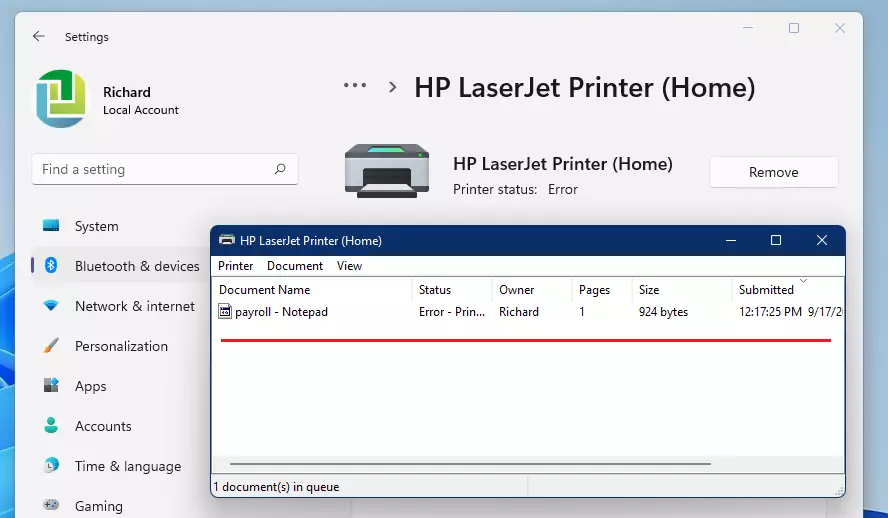
A new window will appear showing all your pending files. If the list is empty, your printer is ready for new jobs.
Troubleshooting: Why is my print queue not clearing?
Sometimes a print job gets stuck because of a communication error between your PC and the printer. If the file stays in the queue even after you click cancel, the print spooler service might be frozen. You may need to restart this service to clear the backlog.
Advanced: Clearing stuck jobs via Command Prompt
If the standard method fails, you can force the system to clear the queue. Note: This requires admin privileges.
net stop spoolerdel /Q /F /S C:\Windows\System32\spool\PRINTERS\*.*net start spooler
Pro Tip: If your printer frequently gets stuck, try updating your printer driver from the manufacturer’s website. A corrupted driver is often the root cause of queue management issues.
Summary
Managing your print queue is essential for smooth printing. By using the Windows 11 Settings app, you can easily view, pause, or cancel documents. If you encounter persistent issues, restarting the print spooler service or using the Command Prompt are effective ways to clear stuck jobs and restore printer functionality.
How do I restart the print spooler on Windows 11?
Press Win + R, type services.msc, and hit Enter. Find Print Spooler in the list. Right-click it and select Restart. This refreshes the service and often clears stuck jobs. Note that this action requires admin privileges to stop and start system services on your computer.
Can I view the print queue for a network printer?
Yes. The process for viewing a network printer queue is identical to a local printer. As long as your computer is connected to the same network and the printer is installed, you can access the queue through the Printers & scanners menu in your Windows 11 Settings.
What is the difference between the Settings app and Control Panel?
The Settings app is the modern, user-friendly interface for Windows 11. The Control Panel is a legacy tool that offers more advanced, granular settings for printer drivers and port configurations. For basic queue management, the Settings app is usually faster and easier to use.
Was this guide helpful?

About the Author
Richard
Tech Writer, IT Professional
Richard, a writer for Geek Rewind, is a tech enthusiast who loves breaking down complex IT topics into simple, easy-to-understand ideas. With years of hands-on experience in system administration and enterprise IT operations, he’s developed a knack for offering practical tips and solutions. Richard aims to make technology more accessible and actionable. He's deeply committed to the Geek Rewind community, always ready to answer questions and engage in discussions.




When I open the box to cancel the printing, no name appears in regard to what is printing just a line at the bottom which I believe is the amount of printing completed.