How to Move Windows 11 Taskbar to the Left

You can move the Windows 11 taskbar to the left side of your screen using a simple settings adjustment.
The Windows 11 taskbar defaults to centering its icons and the Start button, a change from Windows 10’s left-aligned layout.
Many users prefer the taskbar on the left for a more familiar and intuitive PC navigation experience. This tutorial shows you exactly how to make that switch within the Windows 11 Settings app.
Open Settings, go to Personalization, then Taskbar. Expand Taskbar behaviors, click Taskbar alignment, and choose Left from the dropdown menu. Your taskbar icons will immediately shift to the left.
How to Move the Taskbar to the Left Using Windows Settings
You can move your Windows 11 taskbar to the left using the Settings app, which brings back the familiar look of older Windows versions.
- Open Settings: Click the Start menu button (the Windows icon in the bottom center) and then click Settings. Or, press the Windows key + I on your keyboard to open Settings quickly.
- In the Settings window, click on Personalization from the left menu.
- Next, click Taskbar on the right side.
- Scroll down and find Taskbar behaviors. Click it to expand more options.
- Look for Taskbar alignment. Click the drop-down menu and select Left.
What happens? The Taskbar icons will immediately move to the left side of your screen.
If you want to go back to the default centered Taskbar, just follow the same steps and choose Center in the Taskbar alignment menu.
How to Move the Taskbar to the Left Using the Registry (Advanced)
If you’re comfortable with advanced steps, you can move the Windows 11 taskbar to the left using the Registry Editor, which is useful for changing it for all users.
Warning: Be careful when using the Registry Editor. Making wrong changes can cause problems with your system.
Here’s how to do it:
- Press Windows key + R to open the Run box.
- Type
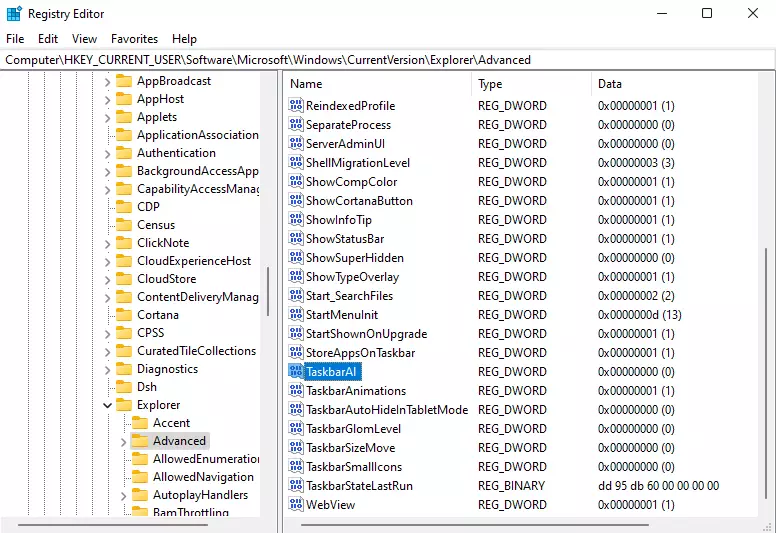
regeditand press Enter to open the Registry Editor. [Requires admin privileges] - In the Registry Editor, navigate to this path:Registry
HKEY_CURRENT_USER\Software\Microsoft\Windows\CurrentVersion\Explorer\Advanced - Look for a value named TaskbarAl (or TaskbarAI in some versions).
- Double-click it, and change its value data to:
- 0 = Taskbar on the left
- 1 = Taskbar centered (default)
- After you change this, restart your computer or sign out and back in to see the changes.
Summary
Moving your Windows 11 taskbar to the left is simple and can make your screen easier to use, especially on wide monitors, giving it a familiar look from older Windows versions.Was this guide helpful?

About the Author
Richard
Tech Writer, IT Professional
Richard, a writer for Geek Rewind, is a tech enthusiast who loves breaking down complex IT topics into simple, easy-to-understand ideas. With years of hands-on experience in system administration and enterprise IT operations, he’s developed a knack for offering practical tips and solutions. Richard aims to make technology more accessible and actionable. He's deeply committed to the Geek Rewind community, always ready to answer questions and engage in discussions.


No comments yet — be the first to share your thoughts!