How to Mount Drives as Folders in Windows 11
This guide explains how to mount a drive as a folder instead of a drive letter in Windows 11. Windows allows you to connect a drive to an empty folder. This makes your drive look and act like a regular folder on your computer. Your files stay on the drive, but you access them through a folder path. Anything you save in that folder is actually stored on the drive.
Why mount a drive as a folder?
Mounting as a folder helps you organize your files better. It is useful if you have run out of drive letters or want to keep your file structure clean. It allows you to expand your storage capacity seamlessly within your existing directory tree.
What happens when you do this?
Your external or internal drive will no longer show up as a separate letter (like D: or E:) in File Explorer. Instead, it will look like a sub-folder inside your existing file system. If you disconnect the drive, the folder will appear empty, and you will not be able to access the files until the drive is reconnected.

Prerequisites and Limitations
Before you start, ensure your drive is formatted with the NTFS file system. This feature does not work with FAT32 or exFAT partitions. There is no hard limit to how many drives you can mount, but keep your file structure simple to avoid confusion. Mounting a drive as a folder does not negatively affect system performance; it simply changes how the operating system maps the storage volume.
Method 1: Using Windows Settings (GUI)
To begin, create an empty folder. Then, open your Windows Settings app.
You can open Settings by pressing the Windows key + I or by clicking Start > Settings. 
In the Settings app, click System on the left, then click Storage on the right. 
Click on Advanced storage settings to see more options. 
Next, click Disks & volumes. 
Select the drive you want to mount, then click Properties. 
Find the Paths section and click Add. (Requires Admin Privileges) 
Type the path to an empty folder or click Browse to find one on your computer. 
Your folder is now linked to the drive. Anything you save inside will be stored on that drive. 
Method 2: Using Disk Management
You can also use the Disk Management utility. (Requires Admin Privileges)
- Right-click the Start button and select Disk Management.
- Locate the drive in the list.
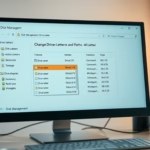
- Right-click the partition and select Change Drive Letter and Paths.
- Click Add and select Mount in the following empty NTFS folder.
- Click Browse to select your empty folder and click OK.
Method 3: Using Command Prompt
You can also use the Command Prompt to do this. (Requires Admin Privileges)
From Windows Terminal, follow these steps:
- Open Command Prompt as an administrator.
- Type
diskpartand press Enter. - Type
list volumeto see your drives. Note the volume number. - Type
select volume X(replace X with your volume number). - Type
assign mount=C:\Your\Empty\Folder\Pathto link the drive.

Removing or Unmounting a Drive
To remove the mount point, go back to the same menu where you added it (Settings or Disk Management). Select the path and click Remove. This will not delete your files, but it will disconnect the folder from the drive.
Pros and Cons Table
| Feature | Drive Letters | Mount Points |
|---|---|---|
| Visibility | High (File Explorer) | Low (Hidden in folders) |
| Flexibility | Limited (26 letters) | Unlimited |
| Complexity | Simple | Moderate |
Summary
Mounting a drive as a folder is a great way to manage storage space without using extra drive letters. By using the Windows Settings menu, Disk Management, or the diskpart command, you can easily integrate external or internal storage into your existing folder structure. This keeps your files organized and easy to find. For more technical details, visit the official Microsoft documentation.
Can I mount a drive as a folder on a FAT32 partition?
No, you cannot mount a drive as a folder on a FAT32 partition. This feature requires the NTFS file system to function correctly. If your drive is formatted as FAT32 or exFAT, you must convert it to NTFS or reformat it before you can use the folder mount feature.
What happens to the mount point if the drive is disconnected?
If you disconnect the drive, the mount point will remain on your computer, but the folder will appear empty. You will not be able to access the files stored on that drive until you reconnect the hardware. Once the drive is plugged back in, the folder will automatically regain access to the files.
Was this guide helpful?
[…] we showed you how to mount an external or internal drive in a folder rather than a drive letter. This makes the drive appear as just another […]