How to Map Local Folders as Drives in Windows 11

You map a local folder as a drive in Windows 11 by assigning a letter, like `Z:`, to a specific folder on your PC.
This lets you access that folder as if it were a separate drive, simplifying navigation for frequently used or deeply nested directories.
For instance, you can map `📁C:\Users\YourName\MyWork\ImportantDocs` to the `Z:` drive. You then simply click `Z:` in File Explorer to open that folder instantly.
This method, often called creating a `subst` drive, is a built-in Windows feature that doesn’t require any third-party software.
Any files you save to this new mapped drive are stored directly in the original local folder.
Map a local folder as a drive in Windows 11 by creating a shortcut that uses the “subst” command. Type subst [DriveLetter]: “[FolderPath]” into the shortcut’s location, then place the shortcut in your Startup folder to make it persistent after restarts.
How to map a local folder as a drive letter
Mapping a local folder as a drive letter in Windows 11 is simple and lets you access your files faster by giving them their own drive icon.
- Right-click on a blank area of your desktop.
- Select New, then Shortcut.
In the box that asks for the location, type the subst command. For example, if you want to turn the folder C:\Users\GenericUser\Documents\Supplies into the Z: drive, type this exactly:
subst Z: "C:\Users\Username\Documents\Supplies"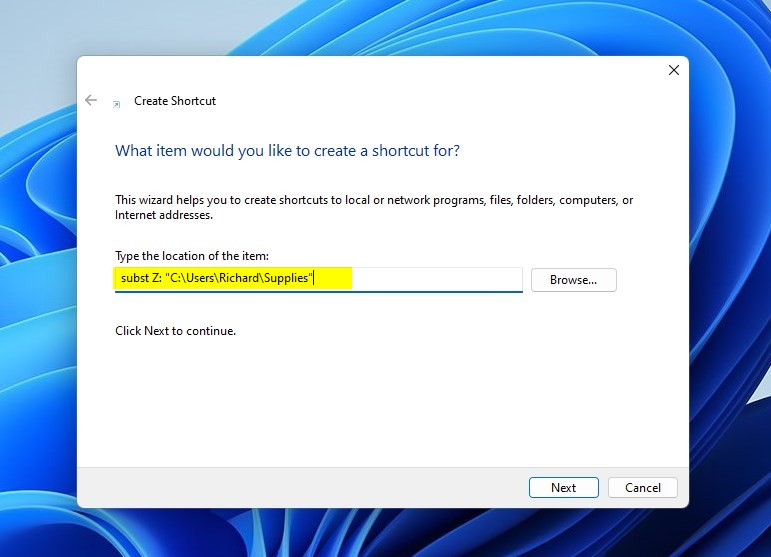
- Click Next.
- Give your shortcut a name and click Finish.
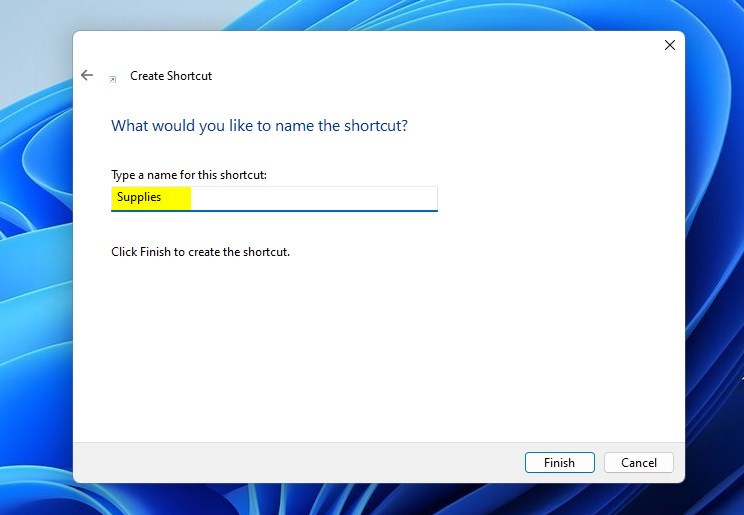
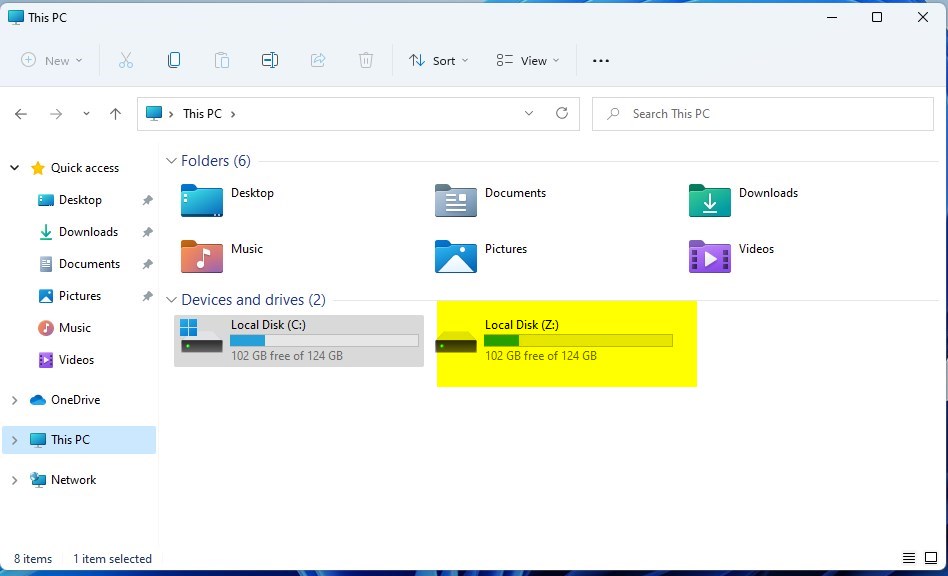
When you double-click this shortcut, a new Z drive will appear in File Explorer. This drive acts just like a real hard drive.
Make the drive start automatically
To make your mapped drive appear every time you start Windows 11, you just need to add its shortcut to the startup folder.
- Right-click the shortcut you created on your desktop and select Copy.

- Press the Windows key + R on your keyboard to open the Run box.
- Type the command below and press Enter:
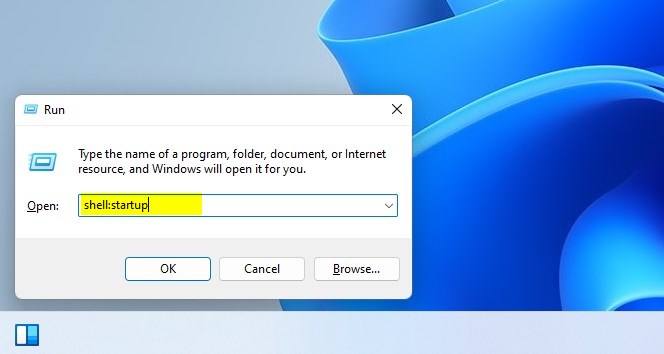
- This opens the Windows Startup folder in File Explorer. Note: This step may require admin privileges depending on your system settings.
- Paste your shortcut into this folder.
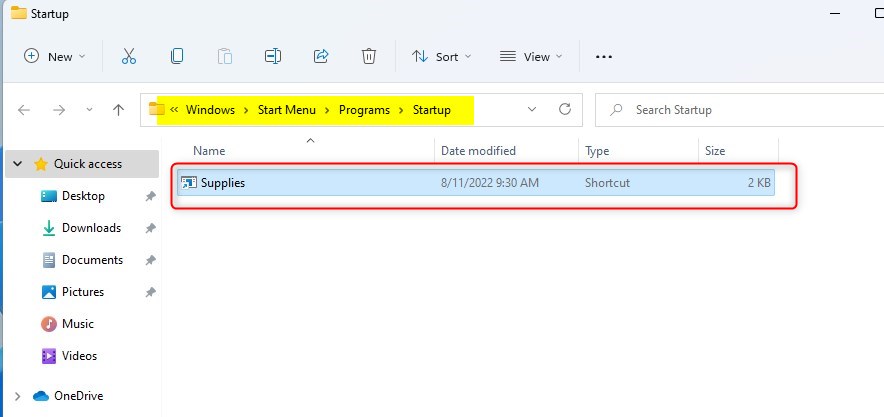
Now, every time you log in, Windows will automatically create your drive for you.
Troubleshooting Connection Errors
If your mapped drive isn’t showing up in Windows 11 or you’re getting errors, check the folder path and ensure the drive letter isn’t already in use.
Summary
Mapping a local folder as a drive in Windows 11 simplifies file access by assigning a familiar drive letter, and setting it to start automatically ensures it’s always ready.
Why does my mapped drive disappear after restarting 🪟 Windows 11?
Your mapped drive disappears after restarting Windows 11 because the subst command is temporary and cleared on reboot.
Can I map a folder to a drive letter without using third-party software?
Yes, you can map a folder to a drive letter in Windows 11 without any third-party software by using the built-in subst command.
How do I remove a mapped drive letter in 🪟 Windows 11?
You can remove a mapped drive letter in Windows 11 by opening the Command Prompt and using the subst command with the /d switch.
Was this guide helpful?

About the Author
Richard
Tech Writer, IT Professional
Richard, a writer for Geek Rewind, is a tech enthusiast who loves breaking down complex IT topics into simple, easy-to-understand ideas. With years of hands-on experience in system administration and enterprise IT operations, he’s developed a knack for offering practical tips and solutions. Richard aims to make technology more accessible and actionable. He's deeply committed to the Geek Rewind community, always ready to answer questions and engage in discussions.

[…] showed you how to mount a folder as a drive in Widows. You can use this method to rename the drive […]