How to Reset an App to Default in Windows 11

You can reset a Windows 11 app to its default settings when it’s misbehaving or not functioning correctly.
Resetting an app puts it back to its original state. It clears out all the data and custom settings it’s gathered, much like installing it for the very first time.
This process is particularly useful for applications downloaded from the Microsoft Store. It helps fix corruption without needing to uninstall and then reinstall the whole program.
For instance, if your Microsoft Edge browser is acting up with persistent issues, resetting it can often solve the problem. It does this by removing corrupted cached data or incorrect settings from your Windows 11 PC.
Open Settings, go to Apps > Installed apps, click the three dots next to the app, select Advanced options, and then click Reset. This will delete the app’s data and settings, returning it to its default state.
What Happens When You Reset or Repair an App?
Resetting an app in Windows 11 returns it to its original installed state, deleting all its data and settings, which can fix persistent problems.
Reset: This deletes all the app’s data and settings. The app goes back to how it was when you first installed it. Use this if repairing doesn’t help.
Note: Resetting an app will also remove it from your taskbar if you had it pinned there. You’ll need to pin it again after resetting if you want.
How to Reset an App in 🪟 Windows 11
Option 1Reset App Using Settings
- Open the Settings app by pressing
Win + Ion your keyboard. - Click Apps on the left menu, then click Installed apps on the right.
- Find the app you want to reset (for example, “Microsoft Store”) in the list.
- Click the three dots (︙) next to the app, then select Advanced options.
- Click Terminate to stop the app from running.
- Scroll down and click Reset.
- Confirm by clicking Reset again when prompted.
- The app will be reset to its default settings. You can now close Settings.
You can easily reset an app to its default settings using the Windows 11 Settings app by navigating through the Apps section.
Open Installed Apps in Settings
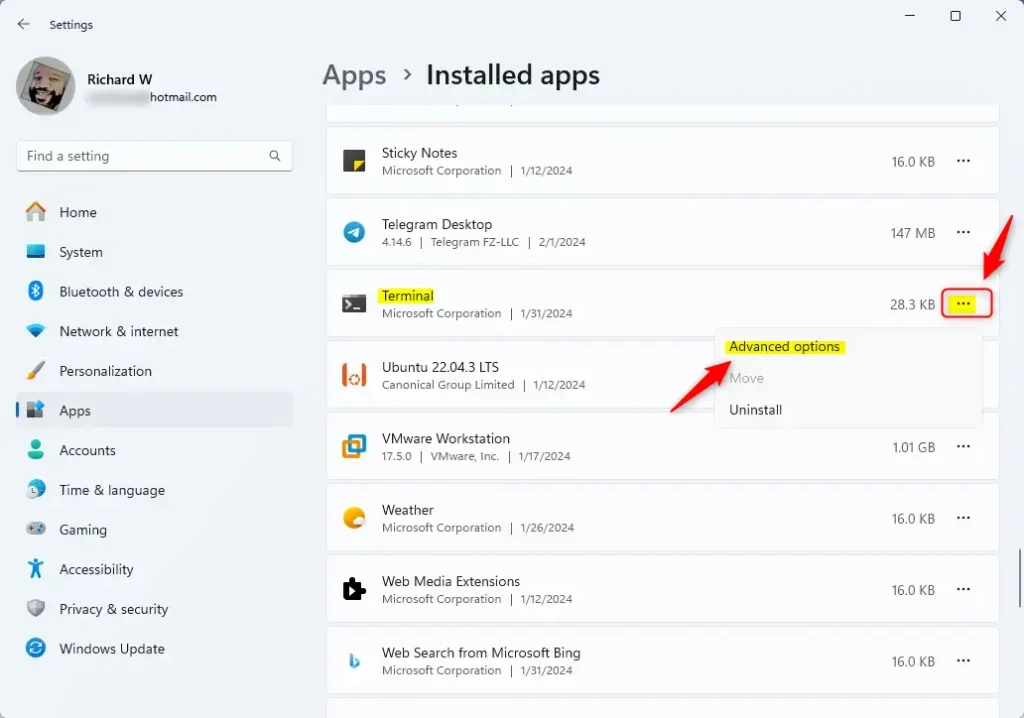
Click the three dots and select Advanced options
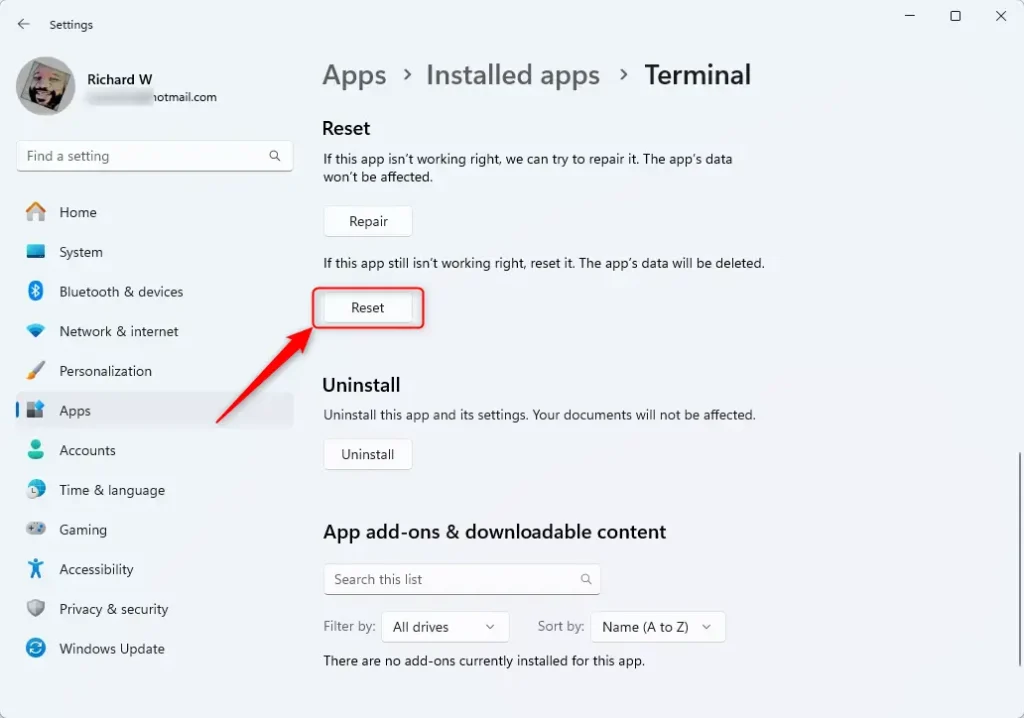
Click Reset to start the reset process
Option 2Reset App from the Start Menu
If an app isn’t easily found in the main Settings list, you can also reset it directly from the Start Menu by accessing its specific app settings.
- Open the Start menu.
- Click All apps to see a list of your apps.
- Right-click the app you want to reset (for example, “Microsoft Store”).
- Hover over More, then click App settings.
- Follow the same reset steps as in Option 1.

Click All apps in the Start menu
Option 3Reset App Using PowerShell (For Advanced Users)
Advanced users can reset an app in Windows 11 using PowerShell, a command-line tool that allows for more direct control over app packages.
- Open Windows Terminal or PowerShell (search “PowerShell” in Start, then open it).
- Type this command and press Enter to see all installed apps:
Get-AppxPackage | Select Name - Look through the list to find the exact name of the app you want to reset (e.g., Microsoft.WindowsStore for Microsoft Store).
- Type the command below, replacing AppName with the actual app name, and press Enter:
Get-AppxPackage *AppName* | Reset-AppxPackage - Example for Microsoft Store:
Get-AppxPackage *Microsoft.WindowsStore* | Reset-AppxPackage - Close PowerShell when you’re done.
Option 4Use Pre-made PowerShell Commands for Popular Apps
Here are commands you can copy and paste into PowerShell to reset common apps quickly:
| App | PowerShell Command |
|---|---|
| Calculator | Get-AppxPackage *Microsoft.WindowsCalculator* | Reset-AppxPackage |
| Microsoft Store | Get-AppxPackage *Microsoft.WindowsStore* | Reset-AppxPackage |
| Photos | Get-AppxPackage *Microsoft.Windows.Photos* | Reset-AppxPackage |
| Settings | Get-AppxPackage *windows.immersivecontrolpanel* | Reset-AppxPackage |
| Snipping Tool | Get-AppxPackage *Microsoft.ScreenSketch* | Reset-AppxPackage |
| Sticky Notes | Get-AppxPackage *Microsoft.MicrosoftStickyNotes* | Reset-AppxPackage |
Summary
- You can reset apps in Windows 11 using Settings, the Start menu, or PowerShell.
- Try Repair first if your app has problems. It won’t erase your data.
- Reset will erase app data and settings. Only use it if repair doesn’t work.
- After resetting, you might need to pin the app back to your taskbar if you had it there.
- PowerShell is a powerful tool if you want to reset apps quickly using commands.
- By following these easy steps, you can fix most app problems and get everything working again in Windows 11.
Resetting an app in Windows 11 can be done through the Settings app, the Start menu, or for advanced users, via PowerShell, offering multiple ways to fix app issues.
How to fully restart an app on PC?
Right-click the app → End task. Relaunch the application via Start or shortcut. This method is essential if you’re wondering how do I restart an app in cases where it’s completely unresponsive.
Was this guide helpful?
0% of readers found this helpful (1 votes)

About the Author
Richard
Tech Writer, IT Professional
Richard, a writer for Geek Rewind, is a tech enthusiast who loves breaking down complex IT topics into simple, easy-to-understand ideas. With years of hands-on experience in system administration and enterprise IT operations, he’s developed a knack for offering practical tips and solutions. Richard aims to make technology more accessible and actionable. He's deeply committed to the Geek Rewind community, always ready to answer questions and engage in discussions.


No comments yet — be the first to share your thoughts!