How to Enable or Disable Set Time Automatically in Windows 11

You enable or disable the ‘Set time automatically’ feature in Windows 11 to control whether your PC syncs its clock with an internet time server.
This setting ensures your computer’s clock is accurate, which is vital for everything from secure logins to keeping your schedule correct.
By default, Windows 11 uses internet time synchronization. You can toggle this feature on or off through the Date & Time settings in the Windows 11 Settings app.
For example, if your clock is off by even a few minutes, you might encounter issues accessing secure websites or sending emails correctly.
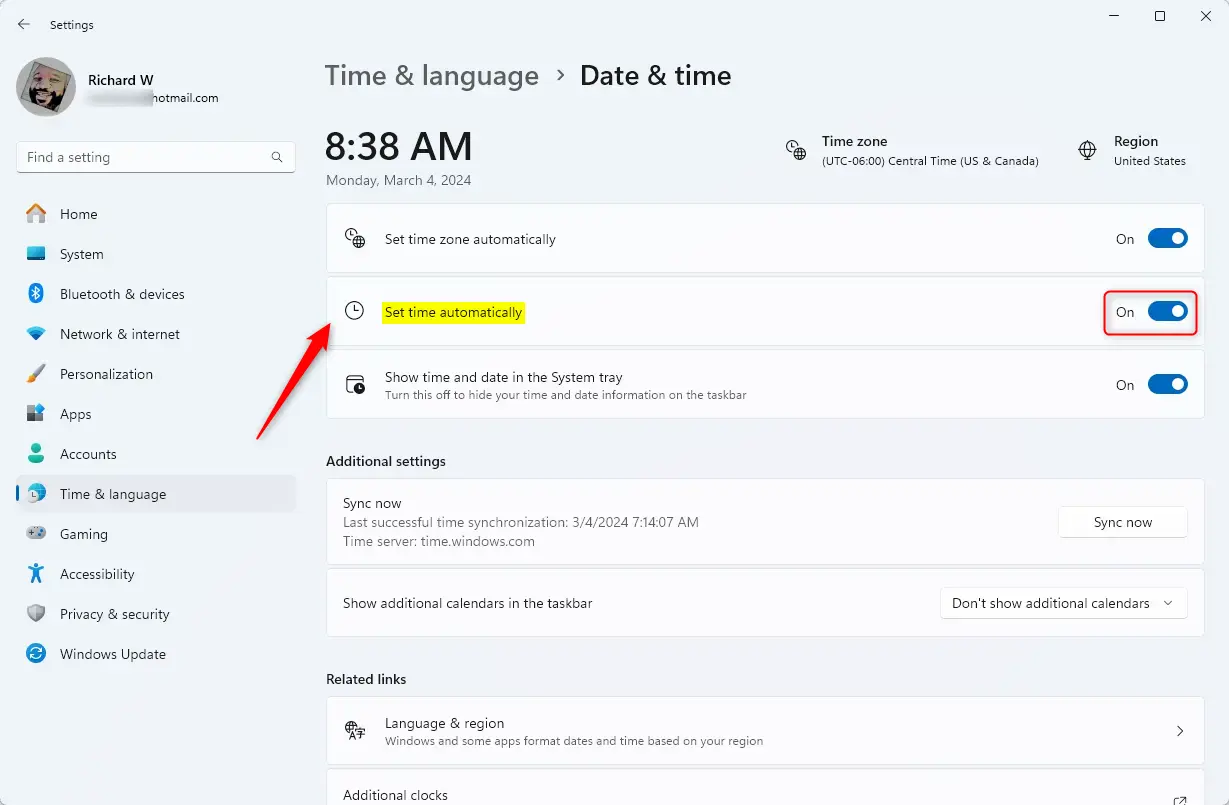
Open Windows Settings by pressing Windows key + I. Navigate to Time & language > Date & time. Toggle ‘Set time automatically’ to On or Off to manage automatic time synchronization.
Why use this feature?
The ‘Set time automatically’ feature lets your computer sync its clock with an official Microsoft Time Server. This uses the Windows Time Service, a system that keeps your computer’s clock synchronized with official time servers worldwide.
What happens when done?
Once enabled, your computer will automatically adjust its own time. It will also correct for your time zone and daylight saving time (DST). This prevents issues with expired web certificates and incorrect file creation dates.
How to turn ‘Set time automatically’ on or off
You can change this setting in the Windows Settings app. Press Windows key + I on your keyboard to open Settings.
Click Time & language on the left, then select Date & time on the right.
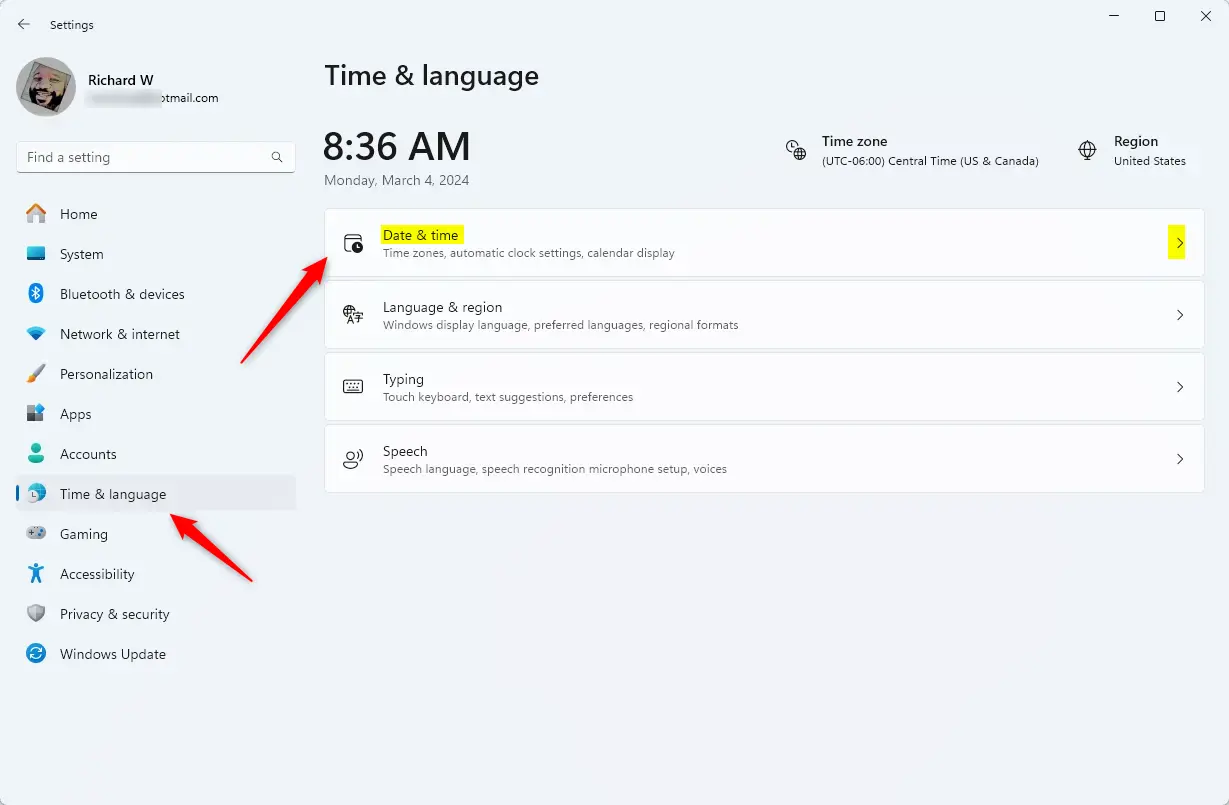
Find the ‘Set time automatically’ toggle. Click it to turn it On or Off.
Troubleshooting Time Synchronization
If your clock is wrong, you can force a sync. In the Date & time menu, scroll down to ‘Additional settings’. Click the Sync now button to manually pull the latest time from the internet.
Advanced Registry Configuration
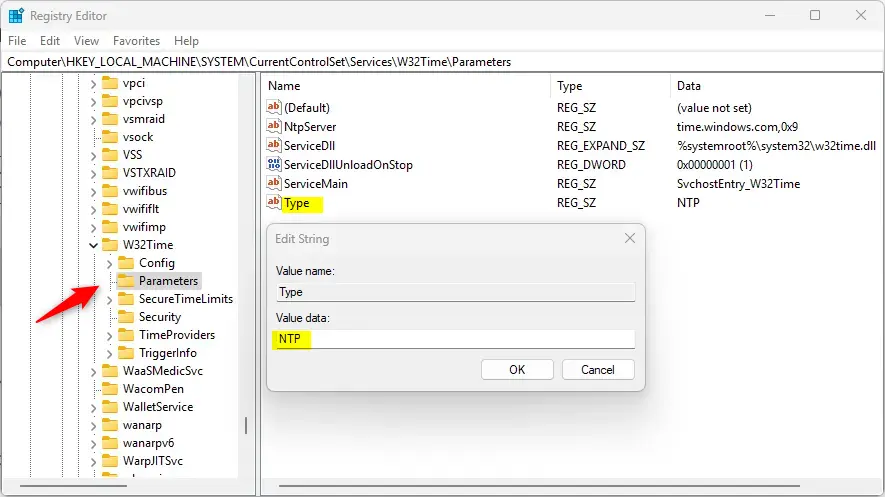
You can change how Windows 11 sets the time automatically using the Registry Editor, but you’ll need admin rights to do it.
Open the Registry Editor. Navigate to the following path:
Computer\HKEY_LOCAL_MACHINE\SYSTEM\CurrentControlSet\Services\W32Time\ParametersFind the ‘Type’ entry and set it to ‘NTP’ to enable automatic syncing, or ‘NoSync’ to disable it. You’ll need to restart your computer for these changes to take effect.
Summary
Keeping your computer clock accurate is important for everything to work right, and if your Windows 11 clock shows the wrong time, it’s often because the Windows Time Service isn’t set up correctly.
Why is my Windows 11 clock showing the wrong time?
Your clock may be wrong if the Windows Time Service is stopped or if your internet connection is blocking the NTP server. Check your time zone settings first, then try clicking the Sync now button in the Date & time settings menu to force an update from the server.
What should I do if the ‘Set time automatically’ toggle is greyed out?
If the toggle is greyed out, your computer might be managed by an organization or a group policy. You may need to contact your system administrator. Alternatively, ensure you are logged in with an account that has administrative rights to modify system-wide time settings.
Why is Windows automatic time wrong?
If the time on your computer is wrong, the cause is usually one of a few common issues: an incorrect time zone, failed synchronisation, a problem with the Windows Time service, malware, outdated firmware, or a failing CMOS battery.
How to automatically synchronize the date and time in 🪟 Windows 11?
Go to Settings > Time & language > Date & time. Make sure Set time automatically and Set time zone automatically are enabled. In the same settings page, click Sync now under Additional settings to verify the time server is accessible.
Was this guide helpful?

About the Author
Richard
Tech Writer, IT Professional
Richard, a writer for Geek Rewind, is a tech enthusiast who loves breaking down complex IT topics into simple, easy-to-understand ideas. With years of hands-on experience in system administration and enterprise IT operations, he’s developed a knack for offering practical tips and solutions. Richard aims to make technology more accessible and actionable. He's deeply committed to the Geek Rewind community, always ready to answer questions and engage in discussions.



[…] local shops, give you directions, and provide accurate weather updates. It also helps features like auto-setting the time zone and finding my device work the way they […]