How to Enable or Disable Time Zone Automatic Setting in Windows 11

You enable or disable the “Set time zone automatically” feature in Windows 11 within the Date & time settings.
This Windows 11 setting automatically adjusts your system’s clock to the correct time zone based on your current location, also handling Daylight Saving Time transitions without your intervention. It ensures your PC’s clock is always accurate, which is crucial for scheduling and synchronizing events.
When you turn this feature on, Windows 11 uses location services to update your time zone automatically. If you disable it, you will need to manually set your time zone and manage any Daylight Saving Time adjustments yourself.
Go to Settings > Time & language > Date & time. Toggle “Set time zone automatically” to On to enable it, or Off to disable it.
Using the Settings App
You can change this setting easily through the main Windows settings menu.
- Open the Settings app by pressing Windows key + I on your keyboard or clicking Start > Settings.

- Click on Time & language on the left side of the screen.
- Select the Date & time tile on the right.
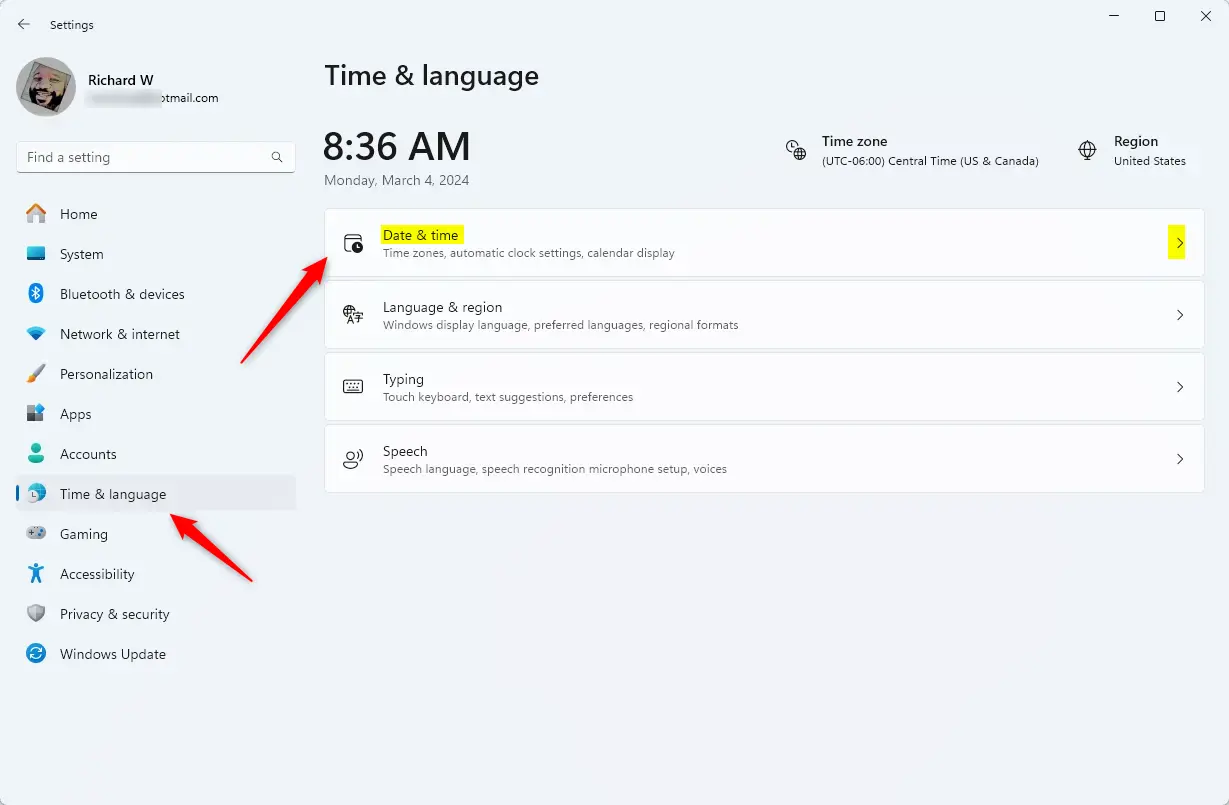
- Find the “Set time zone automatically” option.
- Toggle the switch to On to enable it , or Off to disable it .
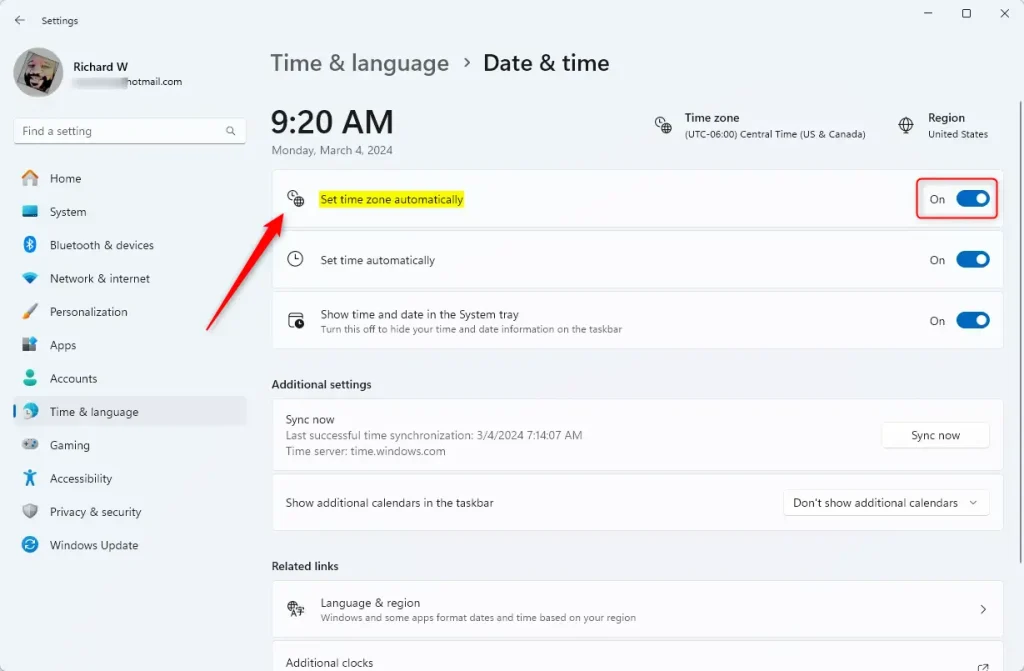
You can now close the Windows settings app.
Checking Location Services
If the automatic option is greyed out, your computer might not have permission to see your location. Why? Windows needs location data to know which time zone you are in. What happens when done? Enabling this allows the system to detect your region accurately.
- Go to Settings > Privacy & security.
- Click Location.
- Ensure Location services is turned On.
- Scroll down to Let apps access your location and ensure it is enabled.
Using the Windows Registry (Admin Privileges Required)
Note: This method requires administrative access. Editing the registry can be risky if you change the wrong settings, so follow these steps carefully.
- Open the Windows Registry by searching for it in the taskbar search box.
- Navigate to this folder path:
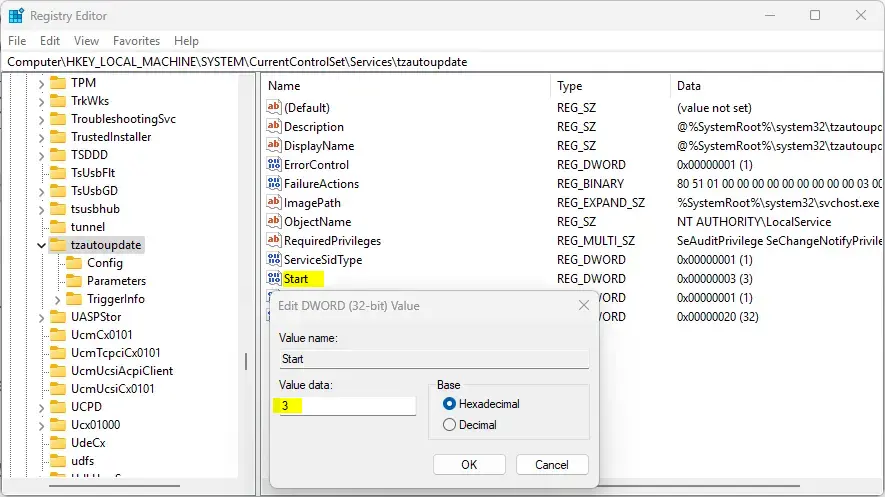
HKEY_LOCAL_MACHINE\SYSTEM\CurrentControlSet\Services\tzautoupdate - Look for the Start item in the right pane. If you do not see it, right-click on a blank space, choose New > DWORD (32-bit) Value, and name it
Start. - Double-click Start and change the value:
- Enter
3to turn automatic time zones On. - Enter
4to turn automatic time zones Off.
- Enter
- Save your changes and restart your computer for the updates to take effect.
Troubleshooting Windows Time Synchronization
Sometimes your clock drifts or shows the wrong time. You can use the Windows Time Service to fix this. Why? System clock drift happens when the internal battery or sync service fails. What happens when done? Your computer will force a sync with an NTP server.
Pro Tip: To sync manually, open Command Prompt as Administrator and type: w32tm /resync
Legacy Control Panel Method
You can still use the old-school method to sync your time.
- Search for Control Panel and open it.
- Select Clock and Region > Date and Time.
- Click the Internet Time tab.
- Click Change settings and ensure Synchronize with an internet time server is checked.
Summary
Enabling automatic time zone settings ensures your computer always displays the correct time, which is vital for scheduling and system tasks. While the Settings app is the easiest way to control this, the Registry method provides an alternative for advanced users. If you face issues, check your Location Services or use the w32tm command to sync your clock manually.
Why does my 🪟 Windows 11 time zone keep changing automatically?
This usually happens because the “Set time zone automatically” feature is enabled and your computer is detecting your location via Wi-Fi or IP address. If you are using a VPN, Windows might misidentify your location, causing the time zone to shift unexpectedly. Disable the feature to stop this.
How do I force 🪟 Windows 11 to sync time with an internet server?
You can force a sync by opening the Command Prompt as an administrator. Type the command w32tm /resync and press Enter. This forces the Windows Time service to contact the configured NTP server immediately, correcting any clock drift that has occurred on your system.
Was this guide helpful?

About the Author
Richard
Tech Writer, IT Professional
Richard, a writer for Geek Rewind, is a tech enthusiast who loves breaking down complex IT topics into simple, easy-to-understand ideas. With years of hands-on experience in system administration and enterprise IT operations, he’s developed a knack for offering practical tips and solutions. Richard aims to make technology more accessible and actionable. He's deeply committed to the Geek Rewind community, always ready to answer questions and engage in discussions.




[…] Settings app that lets you configure many settings for your device. For example, you can change the time zone, add and remove devices, and rename your […]