How to Enable Non-Native Accent Recognition in Windows 11

You enable non-native accent recognition in Windows 11 to significantly boost speech-to-text accuracy when your pronunciation doesn’t perfectly match the default English model.
This setting tunes Windows’ understanding of your voice, allowing the speech recognition engine to better interpret a broader spectrum of speaking patterns and accents.
Standard Windows 11 speech recognition is primarily trained on native English speakers. Activating non-native accent recognition helps the system adapt to diverse pronunciations, directly reducing transcription errors for you.
By switching this on, you empower Windows 11 to more reliably convert your spoken words into text or commands, especially helpful if English is your second language.
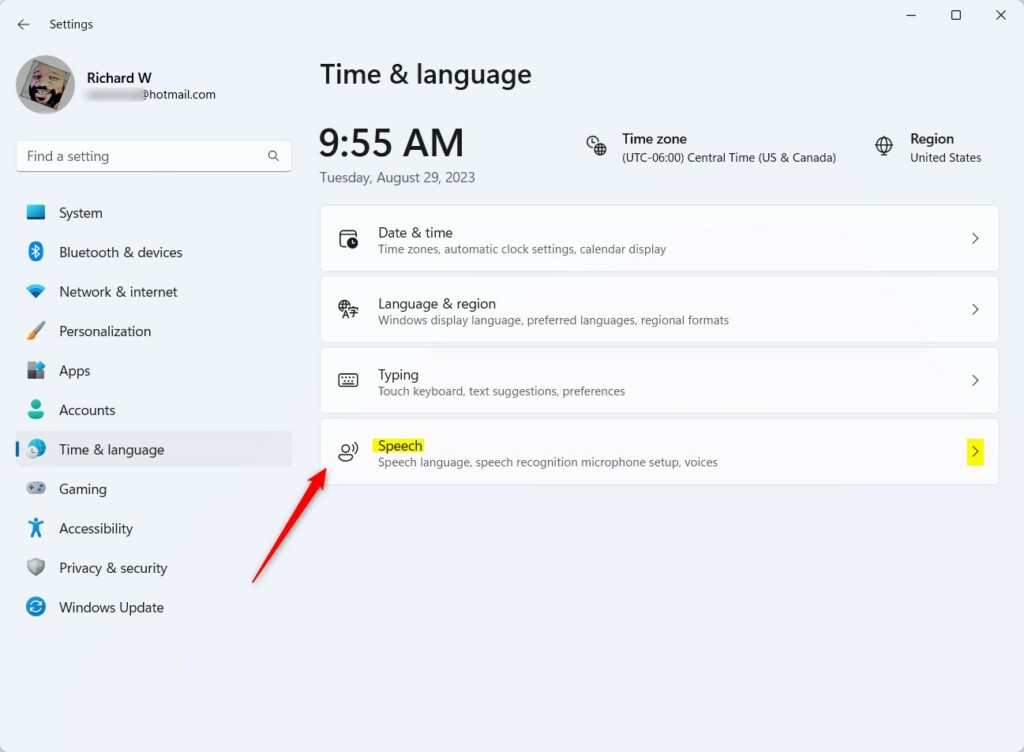
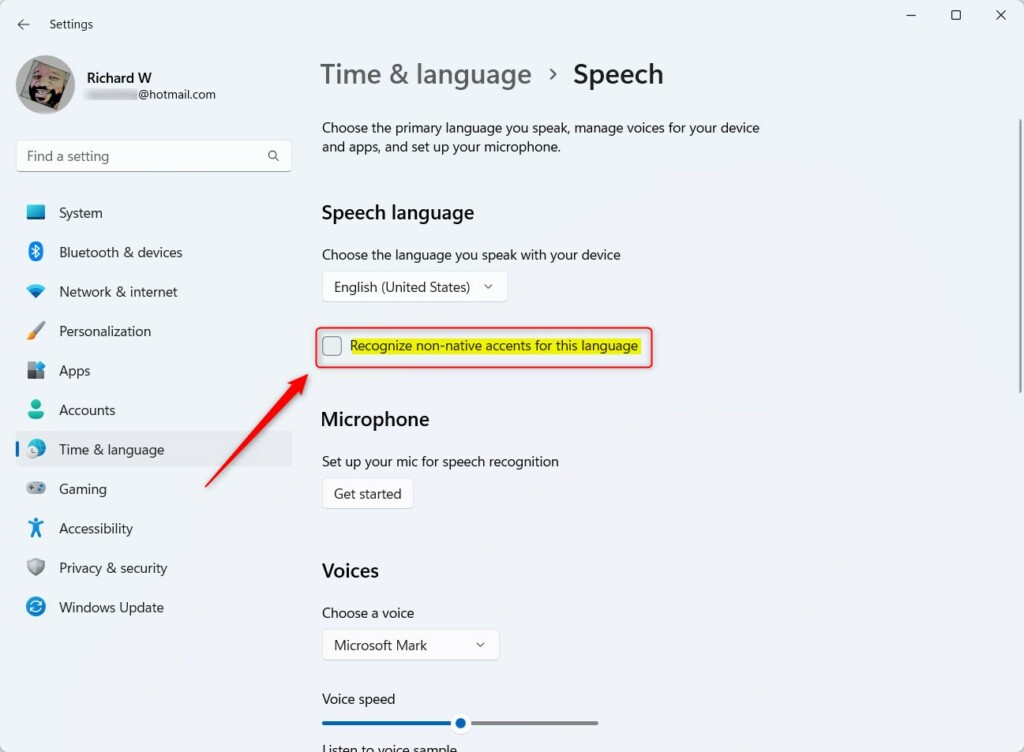
Go to Settings > Time & language > Speech and check the box for “Recognize non-native accents for this language.” This helps Windows 11’s speech recognition better understand your pronunciation.
How to Enable Non-Native Accent Recognition
You can turn on non-native accent recognition in Windows 11 by changing a simple setting in your computer’s speech options.
- Open the Settings app. Press the Windows key + I on your keyboard.
- Click on Time & language in the left menu.
- Click on the Speech tile.
- Find the Speech language section.
- Check the box for Recognize non-native accents for this language.
AI Accent Identification Technology and Limitations
Windows 11’s feature for non-native accent recognition uses basic AI, but it’s not perfect because many systems struggle with different accents.
Improving Your Setup
If you still face issues, your hardware might be the problem. Learn how to improve your microphone quality for better speech recognition to ensure the AI gets a clear signal. For advanced users, check your system files at 📁C:\Windows\System32 to ensure language packs are updated.
Related Tools for Accent Testing
If you need more than what Windows offers, consider these diagnostic tools:
- ELSA Speak: Uses AI to analyze your pronunciation.
- Speechace: Provides detailed feedback on your speech patterns.
- Google Cloud Speech-to-Text: Offers advanced API options for developers to handle diverse accents.
Summary
Turning on non-native accent recognition in Windows 11 helps your computer understand you better, making it more inclusive, though it has limits.
Why do voice assistants struggle with non-native accents?
Voice assistants often struggle with non-native accents because they’re trained on limited voice data, meaning they don’t recognize different speech patterns well.
Is there a difference between accent recognition and speech-to-text accuracy?
Yes. Accent recognition is the system’s ability to identify and adapt to your specific pronunciation style. Speech-to-text accuracy is the final result of how well the computer transcribes your words. Better accent recognition directly improves your overall transcription accuracy by reducing errors caused by phonetic variability.
Was this guide helpful?

About the Author
Richard
Tech Writer, IT Professional
Richard, a writer for Geek Rewind, is a tech enthusiast who loves breaking down complex IT topics into simple, easy-to-understand ideas. With years of hands-on experience in system administration and enterprise IT operations, he’s developed a knack for offering practical tips and solutions. Richard aims to make technology more accessible and actionable. He's deeply committed to the Geek Rewind community, always ready to answer questions and engage in discussions.



No comments yet — be the first to share your thoughts!