Enable Handwriting: Use Your Fingertip in Windows 11

You can enable fingertip handwriting input on your Windows 11 touchscreen device to use your finger as a pen.
Windows 11’s handwriting panel lets you write text with a stylus or your fingertip. This is super handy if you don’t have a physical keyboard connected.
This tutorial shows you exactly how to activate or deactivate the fingertip writing option within Windows 11, so you can write comfortably with just your finger when needed.
Go to Settings > Bluetooth & devices > Pen & Windows Ink. Expand the Handwriting section and check or uncheck “Write with your fingertip” to enable or disable it. This allows you to use your finger for text input on the handwriting panel.
How to Turn On or Off Writing with Your Fingertip in the Handwriting Panel
You can quickly turn on or off writing with your fingertip in the Windows 11 handwriting panel right from the Settings app.
- Open the Settings app. Click the Start menu button and choose Settings. Or press
Windows key + Ion your keyboard. - In Settings, click Bluetooth & devices from the menu on the left side.
- On the right side, find and click Pen & Windows Ink to open its settings.
- Scroll down to the Handwriting section and click on Use your handwriting to enter text to expand it.
- Check the box next to Write with your fingertip to turn it ON. Uncheck it to turn it OFF.
- When done, just close the Settings app.
Turn on or off writing with your fingertip in Windows 11 settings
How to Enable or Disable Writing with Your Fingertip Using the Windows Registry Editor
You can change the setting for writing with your fingertip in Windows 11 using the Windows Registry Editor, but this method is for advanced users and requires extra care.
- ⚠️ Admin privileges required. Open the Windows Registry Editor by typing
regeditin the Start menu search and clicking on it. - In the Registry Editor, go to this folder:
HKEY_CURRENT_USER\Software\Microsoft\TabletTip\EmbeddedInkControl - If you don’t see the EmbeddedInkControl folder, right-click on TabletTip, choose New > Key, and name it EmbeddedInkControl.
- Click on the EmbeddedInkControl folder. On the right side, right-click and select New > DWORD (32-bit) Value.
- Name the new value
EnableInkingWithTouch. - Double-click
EnableInkingWithTouch, set the Base to Decimal, and enter the value:1to turn writing with fingertip ON.0to turn it OFF.
- Click OK, close Registry Editor, and restart your computer for the changes to take effect.
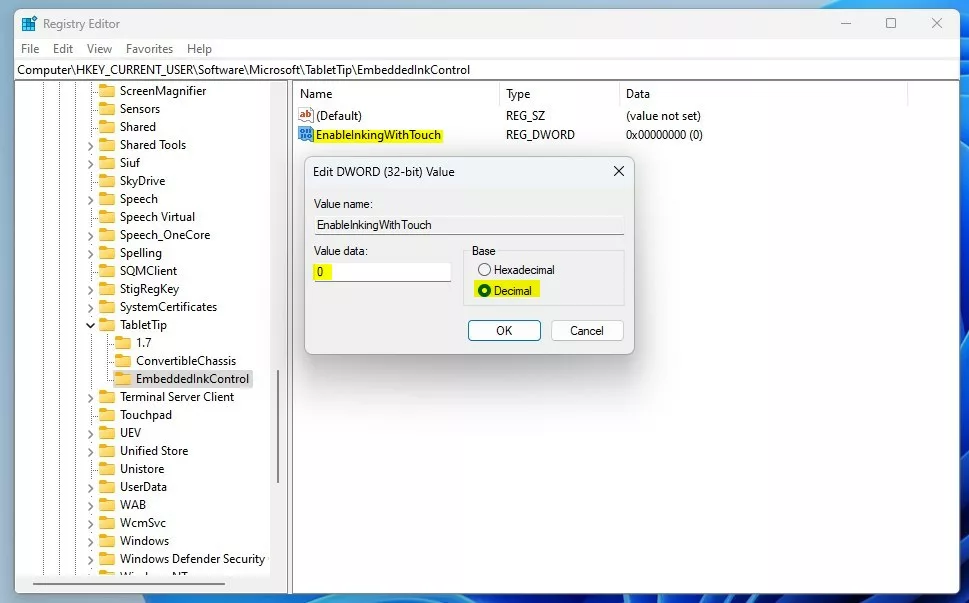
Set the fingertip writing value in the Windows Registry Editor
Summary
You can toggle fingertip writing in Windows 11’s handwriting panel using either the Settings app or the Registry Editor. Using your fingertip is great for quick notes or when you don’t have a pen handy. If you have questions or suggestions, feel free to leave a comment below!
How to enable handwriting panel in 🪟 Windows 11?
Handwriting panel. Select Start, then select Settings > Devices > Pen & Windows Ink. In the Pen & Windows Ink window, under the Handwriting section, select ‘Write in the handwriting panel with your fingertip’.
What are the finger gestures in 🪟 Windows 11?
Three-finger gestures. Swipe up: Opens Task View and displays all open windows and desktops. Swipe down: Minimizes all open windows and shows the desktop. Swipe left/right: Switches between open applications.
How do I turn off handwriting in 🪟 Windows 11?
How do I enable or disable handwriting input in Windows 11? You can enable or disable handwriting input through Settings > Pen & Windows Ink, or by using the Registry Editor, .reg files, or PowerShell scripts.
Was this guide helpful?

About the Author
Richard
Tech Writer, IT Professional
Richard, a writer for Geek Rewind, is a tech enthusiast who loves breaking down complex IT topics into simple, easy-to-understand ideas. With years of hands-on experience in system administration and enterprise IT operations, he’s developed a knack for offering practical tips and solutions. Richard aims to make technology more accessible and actionable. He's deeply committed to the Geek Rewind community, always ready to answer questions and engage in discussions.


No comments yet — be the first to share your thoughts!