How to View Startup App Impact in Windows 11

You can view startup app impact in Windows 11 to identify applications slowing down your PC’s boot time.
Startup app impact quantifies how much specific programs delay your computer’s startup process. Windows 11 assigns these impacts one of three categories: High, Medium, or Low, helping you quickly pinpoint the biggest offenders.
If your PC feels sluggish after booting, this information is crucial. For example, a high-impact app, like some cloud sync services or demanding background applications, can add significant time to your startup sequence.
Understanding this allows you to disable unnecessary programs that launch with Windows. This simple step directly reduces boot delays, making your system faster and more responsive from the moment you turn it on.
Open Task Manager by pressing Ctrl+Shift+Esc, then click the Startup apps tab. Review the “Startup impact” column to see if apps are rated High, Medium, or Low. You can also find this information in Settings under Apps > Startup.
View startup app impact using Task Manager
Windows 11 startup apps impact can be easily seen using the built-in Task Manager tool, which helps you understand how much each program slows down your computer when it starts.
- Open the Start menu and type Task Manager, or press Ctrl+Shift+Esc.
- Click the Startup apps tab (the speedometer icon).
- Review the Startup impact column for each app.
The impact levels are defined as follows:
- High impact: Uses significant CPU or disk power; these are the main causes of slow boot times.
- Medium impact: Uses a moderate amount of resources.
- Low impact: Uses very little power and has a negligible effect on speed.
- Not measured: Windows has not yet calculated the impact, often because the app was recently installed or has not run during a startup cycle.
View startup app impact using Settings
You can also manage these via the Settings app.
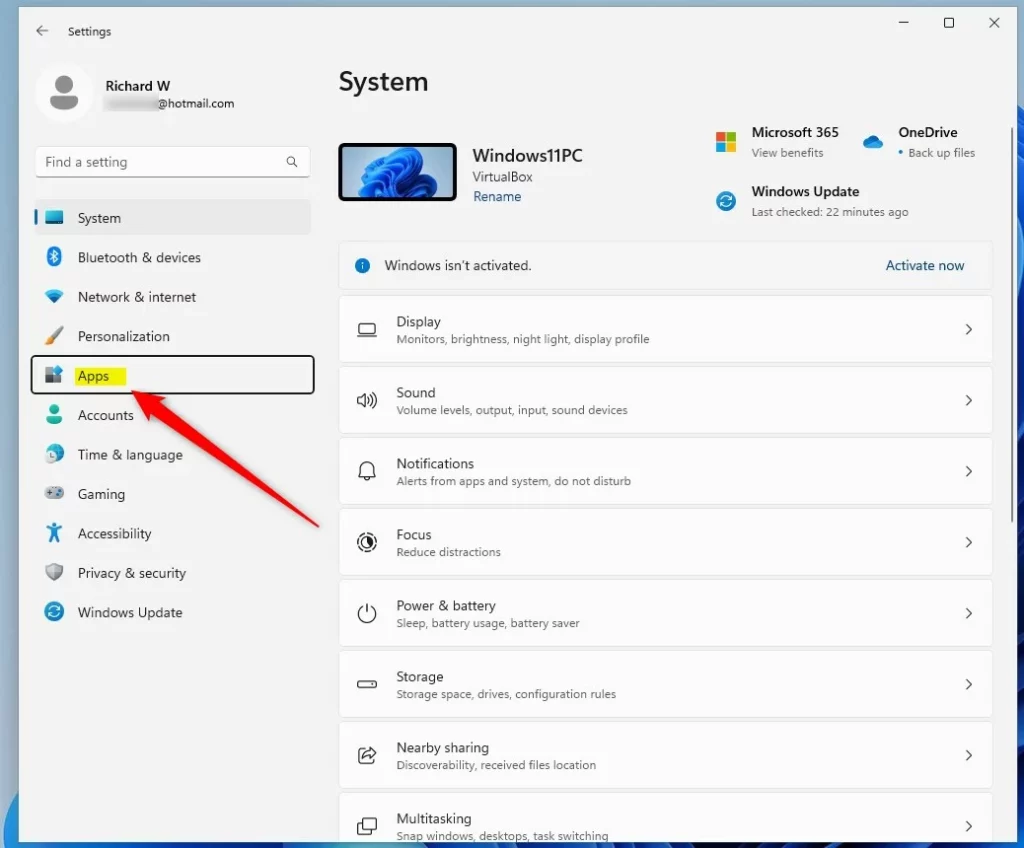
- Press Windows key + I to open Settings.
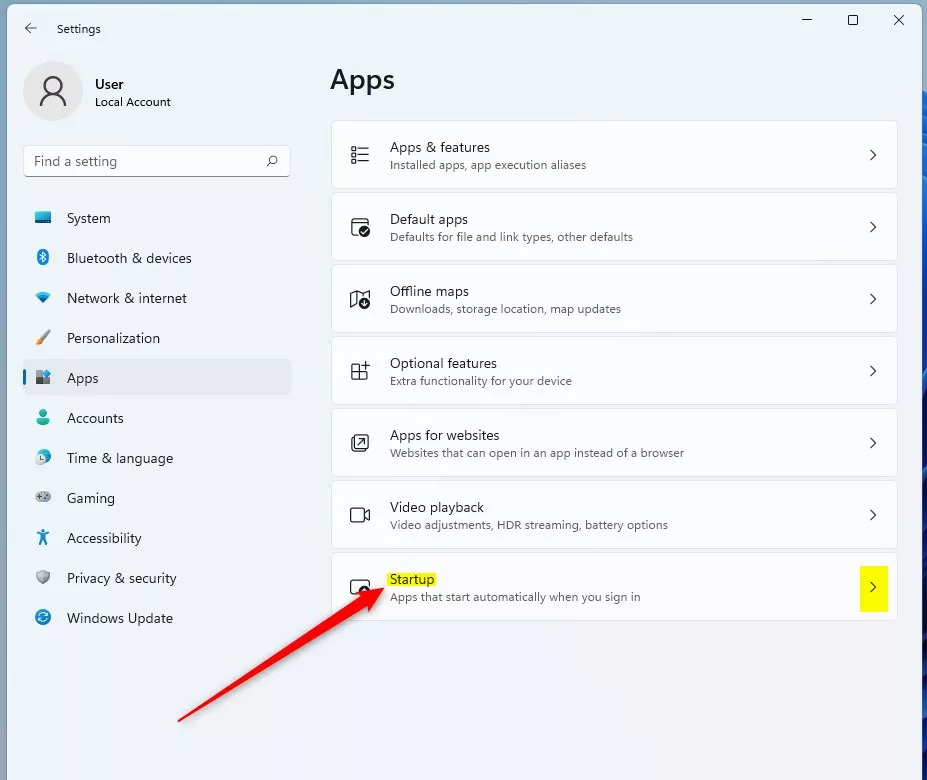
- Click Apps on the left sidebar.
- Select Startup.


Advanced Startup Management
If some apps don’t show up in the usual place, advanced startup management lets you find them by checking the startup folder or system registry settings.
Decision-Making Checklist
Before disabling an app, ask: Is this app needed immediately upon login? If it is a cloud storage tool or antivirus, keep it enabled. If it is a printer utility or a game launcher you rarely use, it is safe to disable.
Is it safe to disable all startup apps?
Yes, it is generally safe. Windows will still function correctly even if you disable all non-essential startup apps. However, some apps like antivirus software or cloud sync tools may need to run at startup to provide real-time protection or keep your files updated automatically.
Why do some apps not appear in the startup list?
Some apps use services or scheduled tasks rather than standard startup entries. Others may be hidden by the system to prevent accidental disabling of critical drivers. You can use third-party managers like Autoruns from Microsoft Sysinternals to see every hidden process that launches during boot.
Summary
Optimizing your Windows 11 startup apps is a quick way to improve performance. By using Task Manager or Settings, you can identify high-impact apps and disable unnecessary ones. Always prioritize keeping security software enabled while disabling non-essential background processes to achieve the best boot time.
Reference: Microsoft Official Documentation
Was this guide helpful?

About the Author
Richard
Tech Writer, IT Professional
Richard, a writer for Geek Rewind, is a tech enthusiast who loves breaking down complex IT topics into simple, easy-to-understand ideas. With years of hands-on experience in system administration and enterprise IT operations, he’s developed a knack for offering practical tips and solutions. Richard aims to make technology more accessible and actionable. He's deeply committed to the Geek Rewind community, always ready to answer questions and engage in discussions.



No comments yet — be the first to share your thoughts!