How to Change Magnifier Reading Keys in Windows 11

You can change Magnifier reading keys in Windows 11 to customize how you navigate and read on your screen.
Windows Magnifier acts as a digital magnifying glass, enlarging screen portions to help you see small text and details better. This accessibility feature is invaluable for users who find standard text sizes difficult to read.
The modifier key is the special key or combination you press with other keys to trigger Magnifier’s reading shortcuts. By default, Magnifier uses Ctrl + Alt as its reading modifier keys.
You can easily reconfigure these shortcuts within the Magnifier settings to better suit your workflow. For instance, you can change the key that starts, pauses, or resumes reading.
Open Settings, go to Accessibility, then select Magnifier. Under “Reading shortcut,” choose a new modifier key from the dropdown menu.
Change the Magnifier Reading Keys Using the Settings App
You can use the Settings app to change the magnifier reading keys. Here’s how to do it.
Step 1 Open Settings
Open the Windows Settings app. You can open it by clicking the Start menu and selecting Settings, or use the keyboard shortcut Windows key + I.
Step 2Go to Accessibility
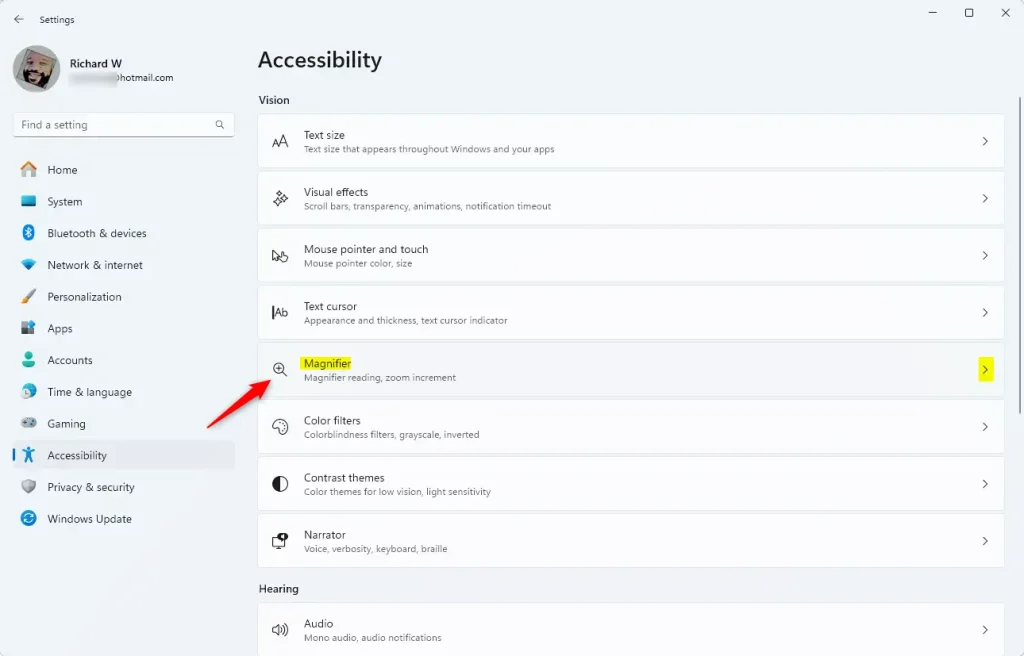
When the Settings app opens, click the Accessibility button on the left.
Step 3Select Magnifier
On the right, select the Magnifier tile to expand it.
Step 4Choose Your New Modifier Key
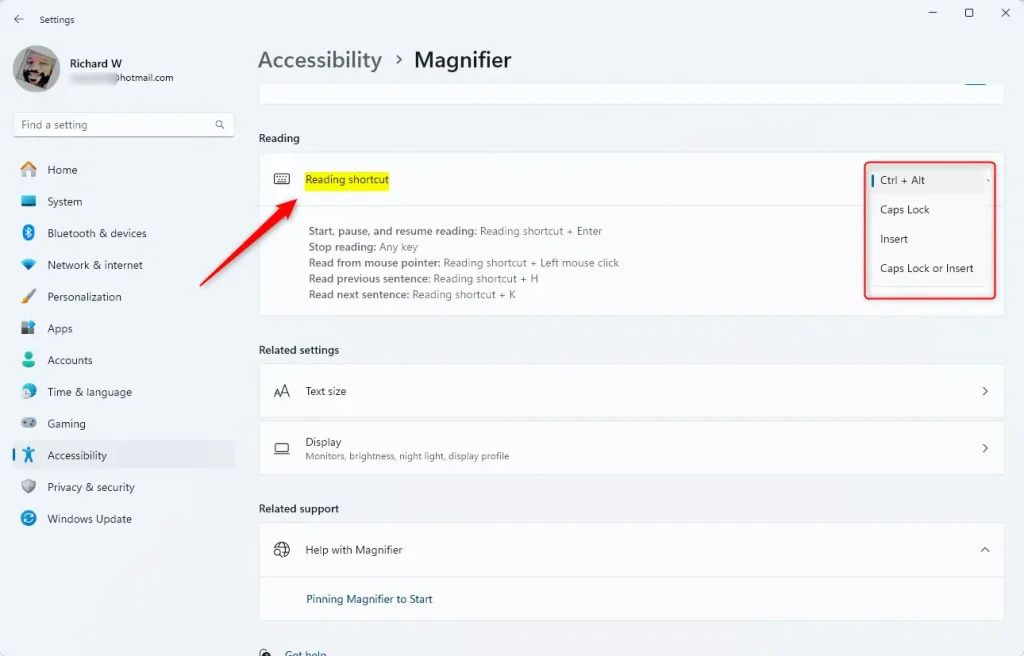
In the Magnifier settings, look for the “Reading shortcut” section. Click the drop-down menu to choose your new modifier key.
Step 5Close Settings
Close the Settings app when you’re finished.
Change Magnifier Shortcut Keys Using the Registry
For more advanced users, you can also change Magnifier shortcut keys using the Windows Registry Editor. It’s important to back up your registry or create a System Restore point first, just in case.
Step 1Open Registry Editor
⚠️ Admin privileges required
Open the Windows Registry and navigate to this folder key path:
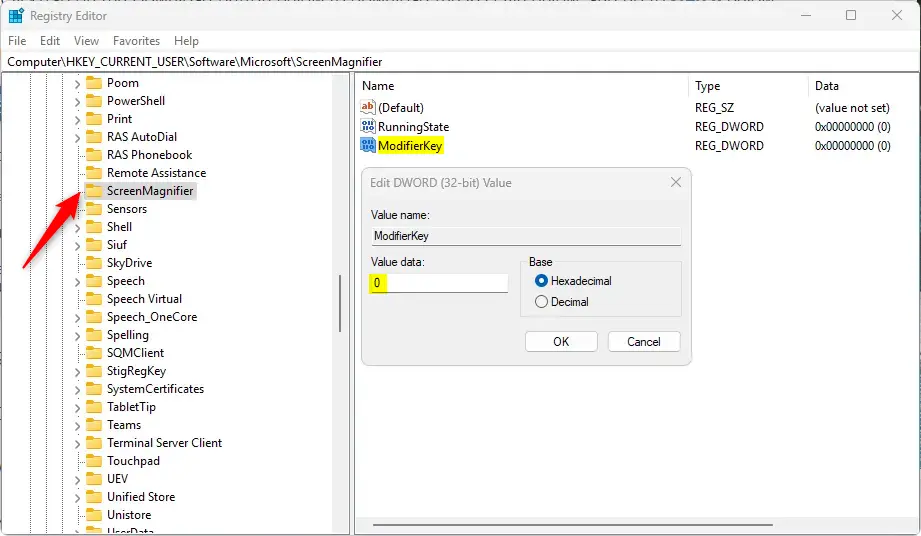
HKEY_CURRENT_USER\Software\Microsoft\ScreenMagnifier
Step 2Create a New DWORD Value
Right-click on ‘ScreenMagnifier,’ then choose ‘New,’ and finally select ‘DWORD (32-bit) Value.’ Give this new value the name ‘ModifierKey.’
Step 3Set the Value
Double-click the ‘ModifierKey‘ value you just created to change it. Here’s what the numbers mean:
- Enter 1 to use the default Ctrl + Alt.
- Enter 2 to use Caps⇩.
- Enter 4 to use Ins.
- Enter 6 to use Caps⇩ or Insert.
Step 4 Reboot Your Computer
You may have to reboot your computer for the changes to take effect.
That should do it!
Reference
Summary
You can change Magnifier keys in Windows 11 to make reading the screen easier, especially if you have trouble seeing.
- The Magnifier app is a helpful tool for improving screen readability.
- You can easily change the reading shortcuts through the Settings app or the Windows Registry.
- The default modifier key for Magnifier shortcuts is Ctrl + Alt. You can change it to options like Caps Lock or Insert.
- Always back up your registry or create a System Restore point before changing the Registry Editor.
- Adapting the Magnifier settings can lead to a more personalized experience for users with vision difficulties.
How to change windows magnifier hotkey?
Next, let’s look at how to change the shortcut via the registry editor. Press ⊞ Win+R.
How to reassign keyboard keys in 🪟 Windows 11?
Navigate to Settings -> Devices -> Typing -> Advanced Keyboard Settings -> Input Language Hotkeys. Click on ‘Input language hotkeys.’ By changing the ‘Key sequence,’ you can assign a new key combination.
Was this guide helpful?

About the Author
Richard
Tech Writer, IT Professional
Richard, a writer for Geek Rewind, is a tech enthusiast who loves breaking down complex IT topics into simple, easy-to-understand ideas. With years of hands-on experience in system administration and enterprise IT operations, he’s developed a knack for offering practical tips and solutions. Richard aims to make technology more accessible and actionable. He's deeply committed to the Geek Rewind community, always ready to answer questions and engage in discussions.




No comments yet — be the first to share your thoughts!