How to Change Brightness on Windows 11 Devices

This guide shows you how to adjust your screen brightness in Windows 11.
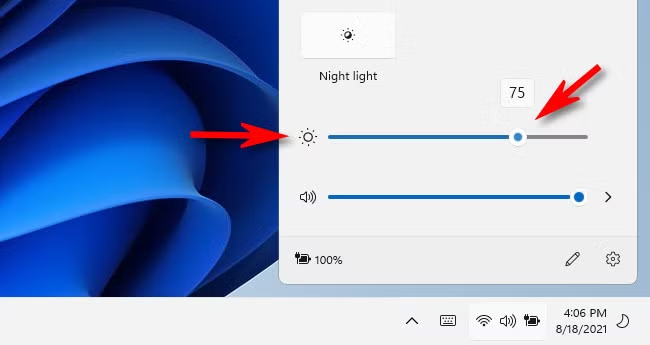
You can change brightness in Windows 11 by clicking the network, volume, or battery icon on the taskbar to access the slider, or by going to Settings > System > Display and using the brightness slider there. For desktop monitors, use the physical buttons on the monitor itself.
Why Adjust Your Screen Brightness?
Why bother? It’s key for eye comfort and battery life. Lighting conditions change, and adjusting brightness means less eye strain and more efficient power use. Windows 11 has a few ways to do this, depending on if you’re using a laptop or a desktop monitor.
Where to Find the Brightness Slider
For most laptops, you’ll find the brightness slider in the Quick Settings menu or the Display settings. If you’re using a desktop, you might notice the slider is missing or greyed out. This happens because Windows 11 can’t always communicate directly with external monitors.
How to Adjust Screen Brightness in 🪟 Windows 11
Method 1Using Quick Settings
- Click the network, volume, or battery icon on the far-right of your taskbar.
- Locate the brightness slider at the bottom of the pop-out window.
- Drag the slider to your preferred level.
Method 2Using Windows Settings
- Open the Start menu and select Settings.
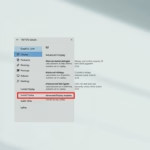
- Navigate to System and click Display.
- Use the slider under Brightness to adjust your screen.
Desktop Monitors and the Missing Slider
If your brightness slider is missing on Windows 11, it’s likely because you’re using an external monitor, which Windows can’t directly control.
Advanced Troubleshooting
Updating Display Drivers
If your brightness controls aren’t working on your Windows 11 laptop, the problem might be your display driver, and updating it can often fix the issue.
- Right-click the Start button and select Device Manager.
- Expand the Display adapters section.
- Right-click your graphics card and select Update driver.
- Choose Search automatically for drivers.
Learn more about managing your hardware in our Windows Settings guide.
Content Adaptive Brightness Control (CABC)
Some laptops use Content Adaptive Brightness Control (CABC) – this feature automatically adjusts brightness based on what’s on your screen. If your screen brightness shifts unexpectedly, go to Settings > System > Display > Brightness and look for the Content adaptive brightness control option to turn it off.
Summary
You can adjust brightness on Windows 11 laptops using Quick Settings or the main Settings app, while desktop users often need to use their monitor’s physical buttons.
Related Topics
Why is my brightness slider greyed out in 🪟 Windows 11?
Your brightness slider is greyed out in Windows 11 mainly when using an external monitor that doesn’t support communication with Windows, meaning you’ll need to use the monitor’s own buttons.
Can I control desktop monitor brightness via software?
Yes, if your monitor supports DDC/CI, you can use third-party software like Monitorian to control brightness via the Windows taskbar. This software bridges the gap between Windows 11 and your monitor, allowing you to adjust brightness for multiple screens simultaneously without touching physical buttons.
Was this guide helpful?

About the Author
Richard
Tech Writer, IT Professional
Richard, a writer for Geek Rewind, is a tech enthusiast who loves breaking down complex IT topics into simple, easy-to-understand ideas. With years of hands-on experience in system administration and enterprise IT operations, he’s developed a knack for offering practical tips and solutions. Richard aims to make technology more accessible and actionable. He's deeply committed to the Geek Rewind community, always ready to answer questions and engage in discussions.

No comments yet — be the first to share your thoughts!