How to Disable Windows 11 Startup Sound

You disable the Windows 11 startup sound to stop the familiar chime from playing when your computer boots up.
This optional audio cue, a staple since Windows 95, can be easily turned off if you find it distracting or prefer a silent PC startup.
You can effectively disable the Windows 11 startup sound directly within the Settings app, typically found under Personalization > Interaction.
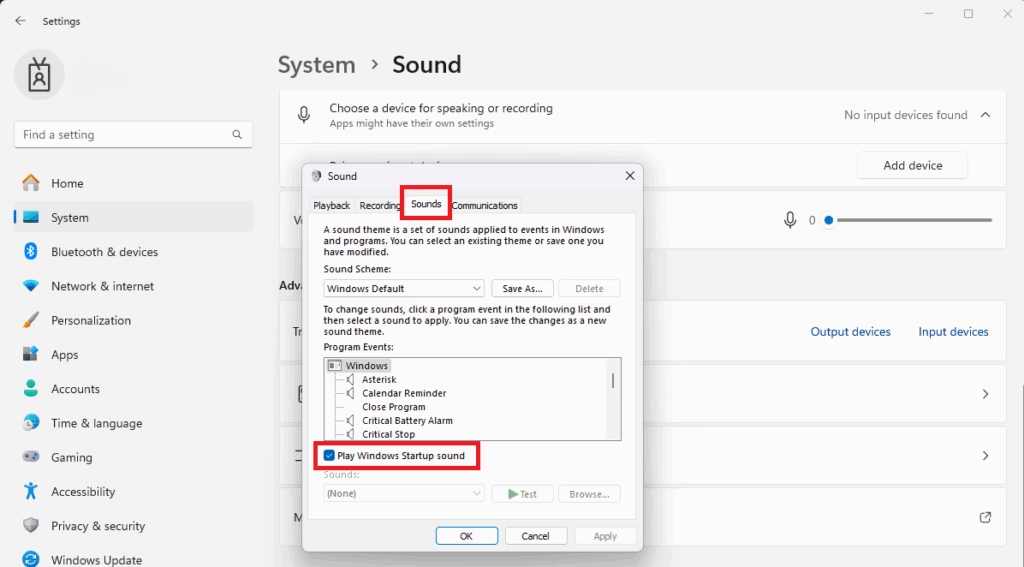
Open Settings, go to System > Sound, then More sound settings. In the Sounds tab, uncheck “Play Windows Startup sound” and click Apply.
What Happens When You Disable It?
When you disable this setting, your computer will remain silent during the boot process. This change only affects the startup chime. It won’t mute your system volume or stop other sounds from playing once you’re on the desktop.
Comparison: Settings App vs. Registry Editor
| Method | Difficulty | Best For |
|---|---|---|
| Settings App | Easy | Most users |
| Registry Editor | Advanced | Troubleshooting or IT admins |
Method 1Use the Sound Control Panel
You can turn off the Windows 11 startup sound using the Sound Control Panel, which is a simple and safe way to change your audio settings without needing complicated steps.
- Open the Settings app by pressing Windows key + I.
- Select System from the left menu.
- Click on Sound.
- Scroll down to the bottom and click More sound settings.
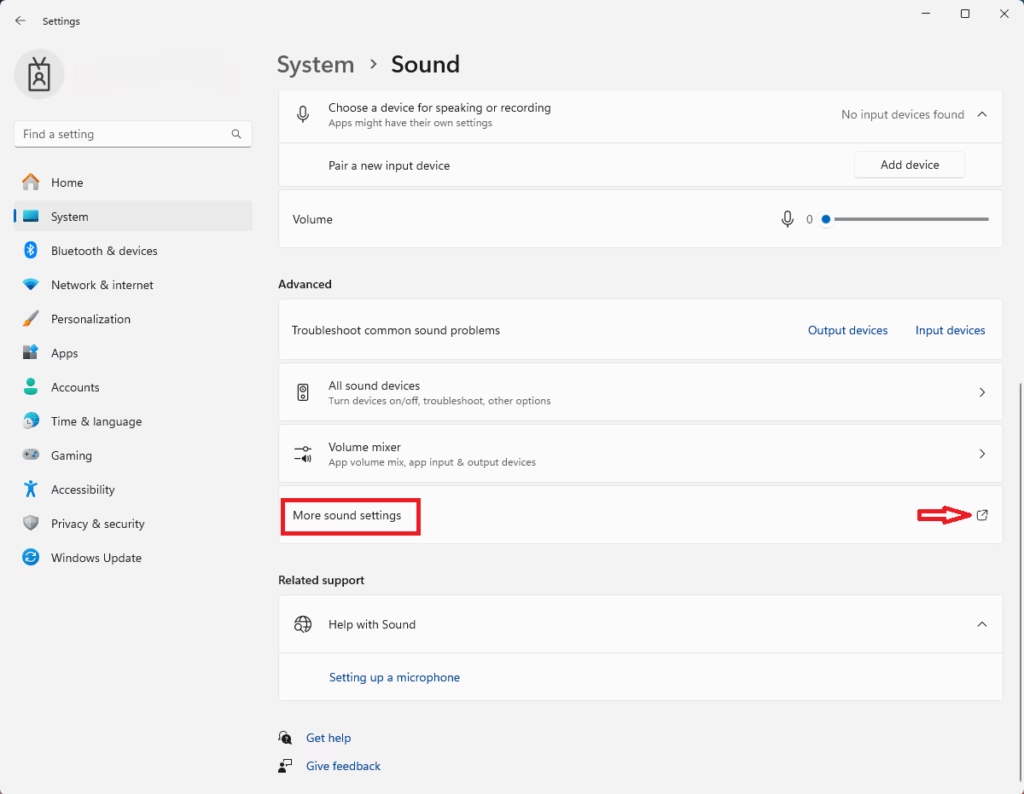
- In the window that appears, click the Sounds tab.
- Uncheck the box labeled Play Windows Startup sound.
- Click Apply and then OK.
Method 2Use the Registry Editor (Advanced)
If the first method doesn’t work, you can disable the Windows 11 startup sound by using the Registry Editor, but be careful because making mistakes here can cause problems with your computer.
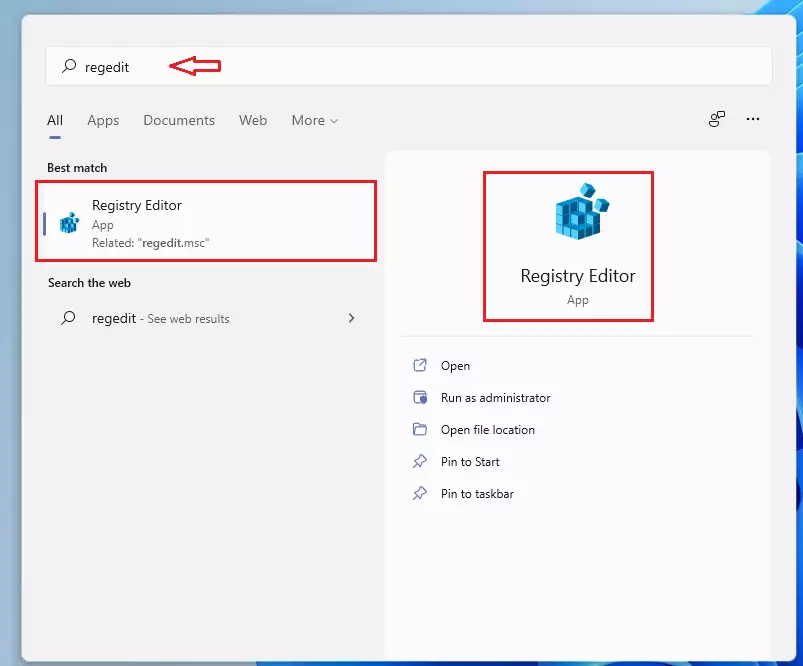
- Press Windows key + R, type
regedit, and press Enter. - Click Yes if prompted by User Account Control.
- Navigate to the following path:
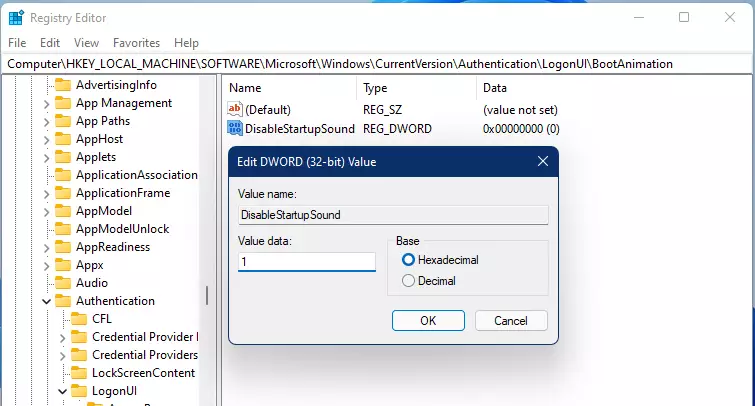
HKEY_LOCAL_MACHINE\SOFTWARE\Microsoft\Windows\CurrentVersion\Authentication\LogonUI\BootAnimation
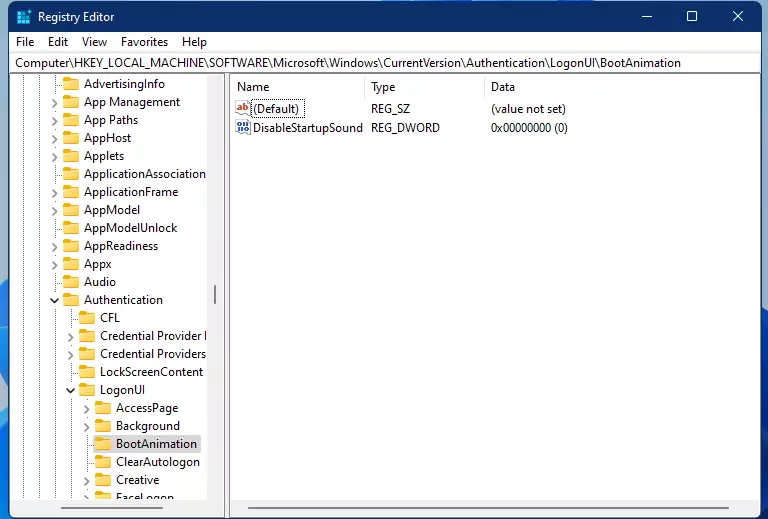
- Find DisableStartupSound in the right pane.
- Double-click it and change the Value data from 0 to 1.
- Click OK and restart your computer.
Troubleshooting: Sound Persists
If the sound still plays, ensure you have administrative rights. Sometimes, a Windows update may reset these settings. If the issue continues, check your Accessibility settings to ensure no screen reader or audio cues are enabled during boot.
Summary
You can silence your computer using either the Sound Control Panel or the Registry Editor. The Settings method is recommended for most users. If you need more help, take a look at our other guides on Windows 11 optimization to keep your system running smoothly.
Does disabling the startup sound affect other system sounds?
No, disabling the startup sound only stops the specific chime that plays during the boot process. All other system sounds, such as notifications, error alerts, and media playback, will continue to function exactly as they did before. Your general audio settings remain unchanged.
Can I change the startup sound instead of disabling it?
Windows 11 does not provide a built-in way to replace the default startup sound file. While advanced users can sometimes replace the system sound file located in 📁C:\Windows\Media, this is not recommended as it may be overwritten by future Windows updates or cause system file integrity errors.
Why is the startup sound enabled by default?
The startup sound is enabled by default to provide an audible confirmation that the operating system has successfully loaded. It serves as a branding element and a functional indicator for users, especially those who may rely on audio cues to know when their computer is ready for use.
Was this guide helpful?

About the Author
Richard
Tech Writer, IT Professional
Richard, a writer for Geek Rewind, is a tech enthusiast who loves breaking down complex IT topics into simple, easy-to-understand ideas. With years of hands-on experience in system administration and enterprise IT operations, he’s developed a knack for offering practical tips and solutions. Richard aims to make technology more accessible and actionable. He's deeply committed to the Geek Rewind community, always ready to answer questions and engage in discussions.


No comments yet — be the first to share your thoughts!