How to Read Windows Update Logs in Windows 11

Do you ever wonder why your computer is acting up after an update? Sometimes you need to check the Windows Update logs to see exactly what happened behind the scenes. This guide will show you how to read those logs in Windows 11.
To read Windows Update logs, open PowerShell as an administrator and run Get-WindowsUpdateLog. This command converts the raw diagnostic files into a readable WindowsUpdate.log text file saved to your desktop. Alternatively, use Event Viewer by typing eventvwr.msc and navigating to WindowsUpdateClient > Operational.
Why read Windows Update logs?
Windows updates can sometimes fail due to network issues, corrupted files, or conflicts with other software. By reading these logs, you can identify specific error codes that explain why an update stopped. This saves you from guessing and helps you fix the root cause quickly.
What happens when done?
You will have a clear, readable text file on your desktop or a detailed list in the Event Viewer. You will be able to see exactly when an update started, if it encountered a specific error, and if it finished successfully.
Understanding Log Structure and Syntax
Windows uses Event Tracing for Windows (ETW) to create diagnostic files. These files are saved in the 📁C:\Windows\Logs\WindowsUpdate folder. These files are in a special format called ETL files. Because they are binary, you cannot open them with Notepad directly. You must convert them to a readable format first.
A typical log entry looks like this:
2023-10-27 10:00:00.1234567 1234 5678 Agent * START * Finding updates
Breakdown:
- Timestamp: The exact date and time the event occurred.
- PID (Process ID): The unique number assigned to the Windows Update service.
- TID (Thread ID): The specific task thread running the update.
- Component: The part of the system (like the Agent) performing the action.
- Message: The actual status or error description.
References:
Option 1Read logs using PowerShell
This method converts raw ETL data into a simple text file on your desktop.
- Open the Start menu, type PowerShell, right-click it, and select Run as administrator. (Requires Admin privileges)
- Copy and paste the following command and press Enter:
Get-WindowsUpdateLog -Destination C:\Users\Public\Desktop\WindowsUpdate.log
Pro-tip: If you are troubleshooting a current issue, use the -ForceFlush parameter to ensure all pending data is written to the log file before conversion.
Option 2Read logs using Event Viewer
If you prefer a visual interface, use the built-in Event Viewer.
- Press the Windows key, type eventvwr.msc, and press Enter.
- In the left pane, expand Applications and Service Logs > Microsoft > Windows > WindowsUpdateClient.
- Click on Operational to see a list of recent events.
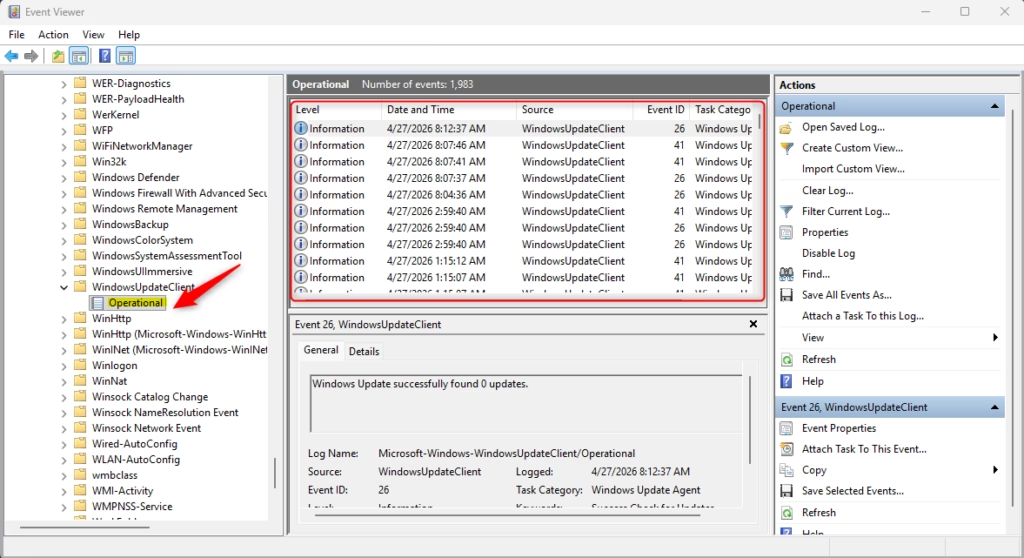
Difference between Event Viewer and WindowsUpdate.log: Event Viewer shows real-time, high-level events, while the WindowsUpdate.log file provides a deep, granular history of the update process, which is better for complex troubleshooting.
Troubleshooting Common Errors
If your log file is empty or unreadable, it is often because the Windows Update service is not running or the log path is restricted. Ensure you are running your tools with administrative rights. If you see error codes like 0x80070005, it usually means ‘Access Denied,’ suggesting a permissions issue.
Advanced Tools: SetupDiag
For persistent failures, Microsoft provides a tool called SetupDiag. It automatically scans your logs and identifies why an update failed. It is much faster than reading thousands of lines of text manually.
How to see update logs?
To see Windows Update logs in Windows 11, open PowerShell as an administrator and run the command 'Get-WindowsUpdateLog'. This process converts the raw ETW diagnostic files into a readable text file named WindowsUpdate.log, which is automatically saved to your desktop for easy viewing in any standard text editor.
Can I see Windows Update history?
Yes, you can view your Windows Update history directly through the Windows Settings menu. Navigate to Settings, select Windows Update, and click on 'Update history.' This section provides a clear list of recently installed updates, failed attempts, and driver updates, offering a user-friendly summary of your system's update activity.
Where is the Windows Update log stored?
The raw diagnostic files used for Windows Update logs are stored in the '📂%windir%\Logs\WindowsUpdate' folder on your system drive. Because these files are encoded in an ETW format, you must use the 'Get-WindowsUpdateLog' PowerShell command to convert them into a readable text file on your desktop.
Was this guide helpful?

About the Author
Richard
Tech Writer, IT Professional
Richard, a writer for Geek Rewind, is a tech enthusiast who loves breaking down complex IT topics into simple, easy-to-understand ideas. With years of hands-on experience in system administration and enterprise IT operations, he’s developed a knack for offering practical tips and solutions. Richard aims to make technology more accessible and actionable. He's deeply committed to the Geek Rewind community, always ready to answer questions and engage in discussions.


No comments yet — be the first to share your thoughts!