How to Invert Screen Colors in Windows 11 Magnifier

Having trouble seeing things on your computer screen? Windows 11 has a helpful tool called Magnifier. It zooms in on parts of your screen to make everything bigger and easier to read.
One great feature is Invert Colors. This flips your screen colors to their opposites – black becomes white, and white becomes black. Doing this can make text easier to read and reduce eye strain, which is especially helpful if you work in a dark room or are sensitive to bright light.
Press Ctrl+Alt+I while Magnifier is active to toggle inverted colors. Alternatively, go to Settings > Accessibility > Magnifier and switch the “Invert colors” option on or off. This flips screen colors to improve visibility and reduce eye strain.
Why Use Invert Colors?
Inverted colors can make text pop off the screen. Your eyes get less tired when looking at the display. Many people find it more comfortable to use their computer this way.
Using Keyboard Shortcuts (Quickest Method)
You can quickly turn invert colors on or off in Windows 11 using a simple keyboard shortcut. Press Windows key + Plus (+) to open Magnifier, then press Ctrl+Alt+I to flip your screen colors instantly.
- Turn on Magnifier by pressing
Windows key + Plus (+). - While Magnifier is on, press
Ctrl + Alt + Ito invert colors. - Press
Ctrl + Alt + Iagain to switch back to normal colors.
Your screen colors flip instantly. You won’t need to open any menus or dig through settings.
Using the Settings App (Easiest Method)
If you prefer using menus, you can easily invert colors in Windows 11 through the Settings app. Open Settings, go to Accessibility, then Magnifier, and simply toggle the ‘Invert colors’ option on or off.
- Open the Settings app. Click the Start menu and then click Settings. Or press
Windows key + I. - Click Accessibility on the left side.
- Find and click Magnifier on the right side.
- Look for the Invert colors switch under the Appearance section.
- Turn it On or Off as you prefer.
- Close the Settings app when finished.

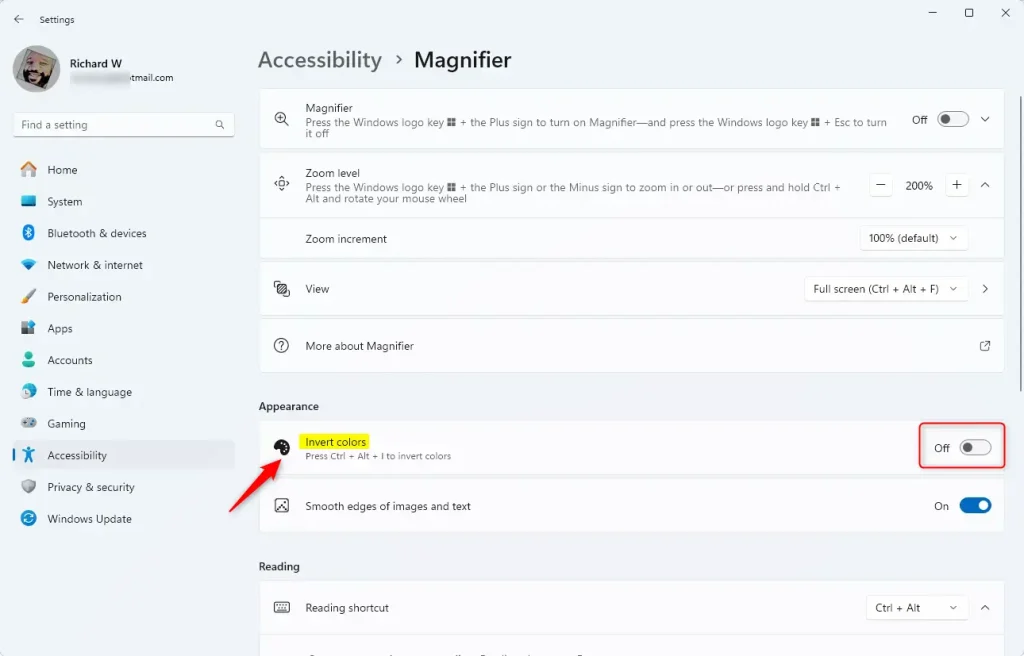
Your screen colors flip or return to normal. The change takes effect right away.
Using the Registry Editor (Advanced Users Only)
Advanced users can invert colors in Windows 11 using the Registry Editor, but this method requires administrator permissions and caution. Before making changes, it’s crucial to back up your registry or create a restore point.
If you feel comfortable working inside Windows system files, you can also control invert colors through the Registry. Be careful—making incorrect changes here can cause problems with your computer.
Important: Before you start, back up your registry or create a System Restore point first. That way, you can undo any changes if you need to.
- Open the Registry Editor. Search for
regeditin the Start menu and pressEnter. - Go to this folder path:
Computer\HKEY_CURRENT_USER\Software\Microsoft\ScreenMagnifier - Right-click on ScreenMagnifier. Choose New > DWORD (32-bit) Value. Name it
Invert. - Double-click the new
Invertentry. Set its value to:1to turn invert colors ON0to turn invert colors OFF
- Close the Registry Editor and restart your computer for changes to take effect.
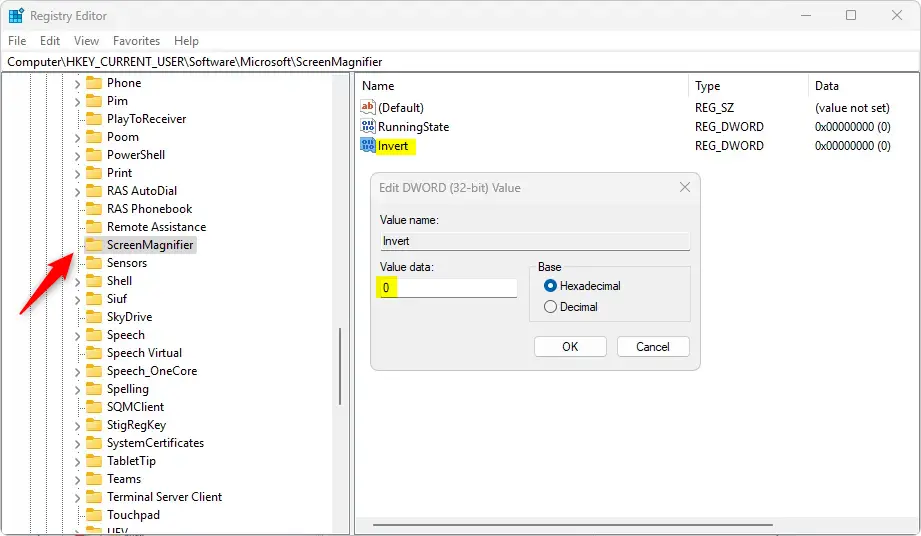
Your computer stores your color preference permanently. Even after restarting, your choice stays the same.
Summary
- What is Magnifier? A Windows 11 tool that zooms in on your screen to help you see better.
- What is Invert Colors? A feature that flips colors (black to white, white to black) to make reading easier and reduce eye strain.
- How to turn it on or off? You have three options:
- Keyboard shortcut: Press
Ctrl + Alt + Iwhen Magnifier is on (quickest) - Settings app: Go to Accessibility > Magnifier > Invert colors (easiest)
- Registry Editor: Edit the
Invertvalue inHKEY_CURRENT_USER\Software\Microsoft\ScreenMagnifier(advanced)
- Keyboard shortcut: Press
- Why use these options? They make your computer more comfortable and easier to use.
You can invert colors in Windows 11 using Magnifier, a tool that zooms in on your screen to help you see better. This feature flips colors, making black white and white black, which can make reading easier and reduce eye strain.
Was this guide helpful?

About the Author
Richard
Tech Writer, IT Professional
Richard, a writer for Geek Rewind, is a tech enthusiast who loves breaking down complex IT topics into simple, easy-to-understand ideas. With years of hands-on experience in system administration and enterprise IT operations, he’s developed a knack for offering practical tips and solutions. Richard aims to make technology more accessible and actionable. He's deeply committed to the Geek Rewind community, always ready to answer questions and engage in discussions.




No comments yet — be the first to share your thoughts!