How to Enhance Video Quality on Windows 11 While Streaming

You can enhance video quality on Windows 11 while streaming by optimizing display settings for refresh rates and resolution scaling.
This involves fine-tuning how your PC handles visual output to prevent glitches and ensure smoother playback, particularly when using multiple displays or wireless casting methods like Miracast.
Optimizing these settings specifically addresses potential issues arising from differing refresh rates between monitors, leading to a cleaner visual experience.
By adjusting how Windows 11 processes video, you also reduce bandwidth usage, which is vital for preventing buffering during streams, especially on slower internet connections or with data caps.
Once you configure these settings, apps like Microsoft Edge and Universal Windows Platform (UWP) will automatically adapt their video quality for better performance.
Enhance video quality on Windows 11 by going to Settings, then Apps, and selecting Video playback. Toggle the “save network bandwidth” option to adjust resolution for streaming. For further improvements, install HEVC Video Extensions and calibrate HDR settings.
How to change video playback settings
You can change video playback settings on Windows 11 right in the Settings app to fix streaming glitches and improve video quality automatically.
All your controls are in the Windows Settings menu. Press Windows key + I to open it.
- Once the Settings window is open, click on Apps in the left sidebar.
- Select the Video playback tile on the right.
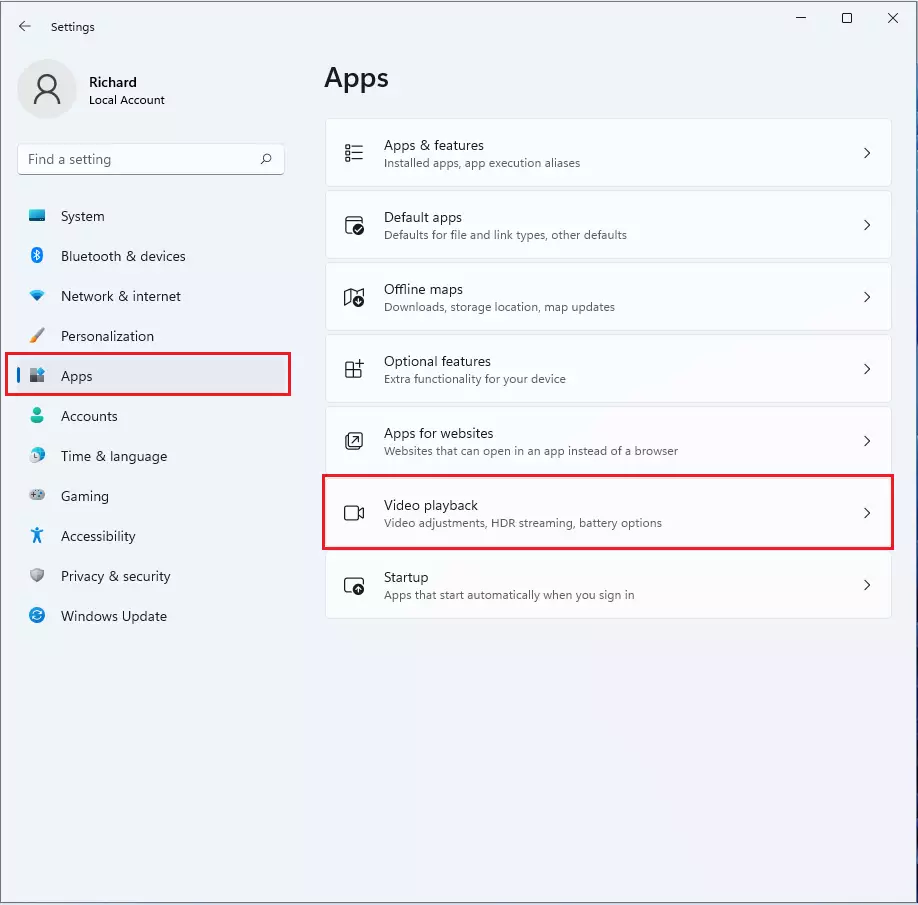
On the next screen, look for the option to save network bandwidth by playing video at a lower resolution. Toggle the switch On or Off, depending on what you need.

Essential Video Enhancements
Essential video enhancements on Windows 11 include installing HEVC Video Extensions for better playback and using the Windows HDR Calibration App to tune your display for brighter, more colorful video.
Next, use the Windows HDR Calibration App. This tool helps you tune your display for better color depth and brightness. If you have a compatible GPU, ensure Hardware-accelerated GPU scheduling is turned on in Settings > System > Display > Graphics. This reduces latency and improves performance.
AI Upscaling and Hardware Acceleration
AI upscaling on Windows 11 uses your graphics card to make blurry videos look sharp in real-time, and hardware acceleration helps with this process.
Summary
To enhance video quality on Windows 11, you can adjust playback settings in the Settings app, install HEVC extensions, calibrate HDR, and update your GPU drivers for better streaming and sharper visuals.
Does 🪟 Windows 11 have a built-in video enhancer?
Windows 11 includes built-in video playback settings that allow you to optimize battery life and bandwidth. While it does not have a universal AI enhancer for all apps, it supports hardware-accelerated features and HDR calibration to improve color and clarity for supported media content and streaming services.
Why does my video look blurry on 🪟 Windows 11?
Blurry video is often caused by low-resolution streaming, outdated GPU drivers, or incorrect display scaling settings. Check if your hardware acceleration is enabled and ensure you have the necessary codecs, like HEVC, installed. Also, verify that your display resolution matches your monitor’s native settings in the Windows display menu.
Was this guide helpful?

About the Author
Richard
Tech Writer, IT Professional
Richard, a writer for Geek Rewind, is a tech enthusiast who loves breaking down complex IT topics into simple, easy-to-understand ideas. With years of hands-on experience in system administration and enterprise IT operations, he’s developed a knack for offering practical tips and solutions. Richard aims to make technology more accessible and actionable. He's deeply committed to the Geek Rewind community, always ready to answer questions and engage in discussions.



No comments yet — be the first to share your thoughts!