How to Enhance Video Quality on Windows 11 While Streaming

Do you want to improve your streaming experience? You can change how Windows 11 handles video quality. This is helpful if you are streaming videos wirelessly or using Miracast. It stops display issues caused by different refresh rates on multiple screens.
Why adjust video settings?
Streaming video at high quality uses a lot of data. If you have a slow connection or a data cap, this can cause buffering. By lowering the resolution, your computer uses less bandwidth. This keeps your video smooth and prevents your internet from slowing down.
What happens when done?
Once you change these settings, apps like Universal Windows Platform (UWP), Microsoft Edge, and other apps from the Microsoft Store will automatically adjust their quality. Your computer may also process video to enhance it more efficiently depending on your hardware.
How to change video playback settings
When you are streaming videos wirelessly, you might notice video glitches. You can fix this by adjusting settings to enhance the video quality automatically.
You can find all your controls in the Windows Settings menu. Open this by pressing Windows key + I on your keyboard.
- Once the Settings window is open, click on Apps in the left sidebar.
- Select the Video playback tile on the right.
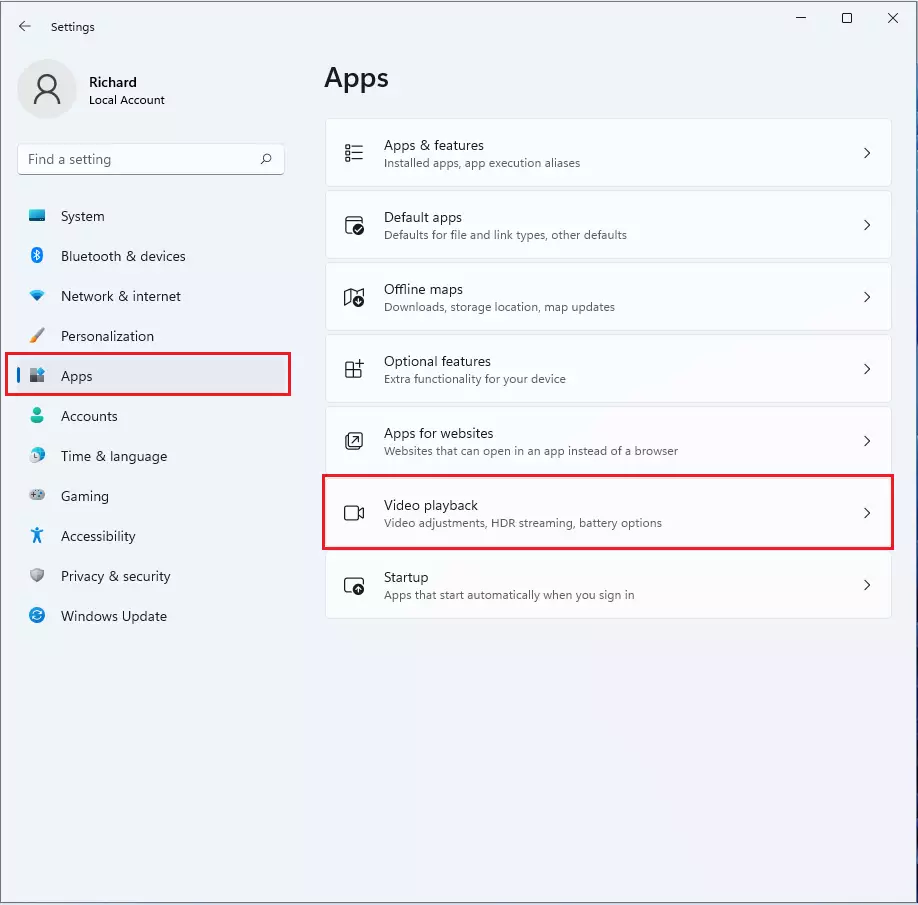
On the next screen, look for the option to save network bandwidth by playing video at a lower resolution. Toggle the switch to On or Off based on your needs.

Essential Video Enhancements
To get the best quality, you should ensure your system is ready for high-definition content. First, install the HEVC Video Extensions from the Microsoft Store. This allows your PC to play high-efficiency video files without errors.
Next, use the Windows HDR Calibration App. This tool helps you tune your display for better color depth and brightness. If you have a compatible GPU, ensure Hardware-accelerated GPU scheduling is turned on in Settings > System > Display > Graphics. This reduces latency and improves performance.
AI Upscaling and Hardware Acceleration
Modern graphics cards, like those with NVIDIA RTX Video Super Resolution, can use AI to upscale low-resolution videos. This makes blurry videos look sharp in real-time. Ensure your GPU drivers are updated to the latest version to support DirectX 12 Ultimate features. You can check your driver status in Device Manager, which requires admin privileges.
Summary
You can easily control how your PC handles video to save data or stop screen glitches. By navigating to Settings > Apps > Video playback, you can toggle the resolution settings to match your internet speed. For the best experience, install the HEVC extensions, calibrate your HDR settings, and keep your GPU drivers updated. Refer to the official Microsoft Video Playback support page for more technical details.
Does Windows 11 have a built-in video enhancer?
Windows 11 includes built-in video playback settings that allow you to optimize battery life and bandwidth. While it does not have a universal AI enhancer for all apps, it supports hardware-accelerated features and HDR calibration to improve color and clarity for supported media content and streaming services.
Why does my video look blurry on Windows 11?
Blurry video is often caused by low-resolution streaming, outdated GPU drivers, or incorrect display scaling settings. Check if your hardware acceleration is enabled and ensure you have the necessary codecs, like HEVC, installed. Also, verify that your display resolution matches your monitor’s native settings in the Windows display menu.
Was this guide helpful?




Leave a Reply Cancel reply