How to Disable ‘Let’s Finish Setting Up Your Device’ in Windows 11

You can disable the ‘Let’s Finish Setting Up Your Device’ screen in Windows 11 to stop intrusive prompts for Microsoft services.
This setup screen typically appears after significant Windows updates, such as the recent Windows 11 23H2 release, nudging you to sign up for or configure services like Microsoft 365 and OneDrive.
By disabling these notifications, you prevent Windows from interrupting your workflow with suggestions you might not want.
You maintain control over your device’s configuration without these persistent setup prompts, ensuring a smoother experience.
Go to Settings > System > Notifications > Additional settings and uncheck “Suggest ways to get the most out of Windows and finish setting up this device.” Alternatively, use the Registry Editor or Group Policy Editor for advanced users.
Method 1Using the Settings App
You can easily disable the ‘Let’s finish setting up your device’ window in Windows 11 using the built-in Settings app, which is the simplest and safest method for most users.
- Open the Windows Settings app by pressing Windows key + I.
windows 11 new settings button - Click on System on the left sidebar.
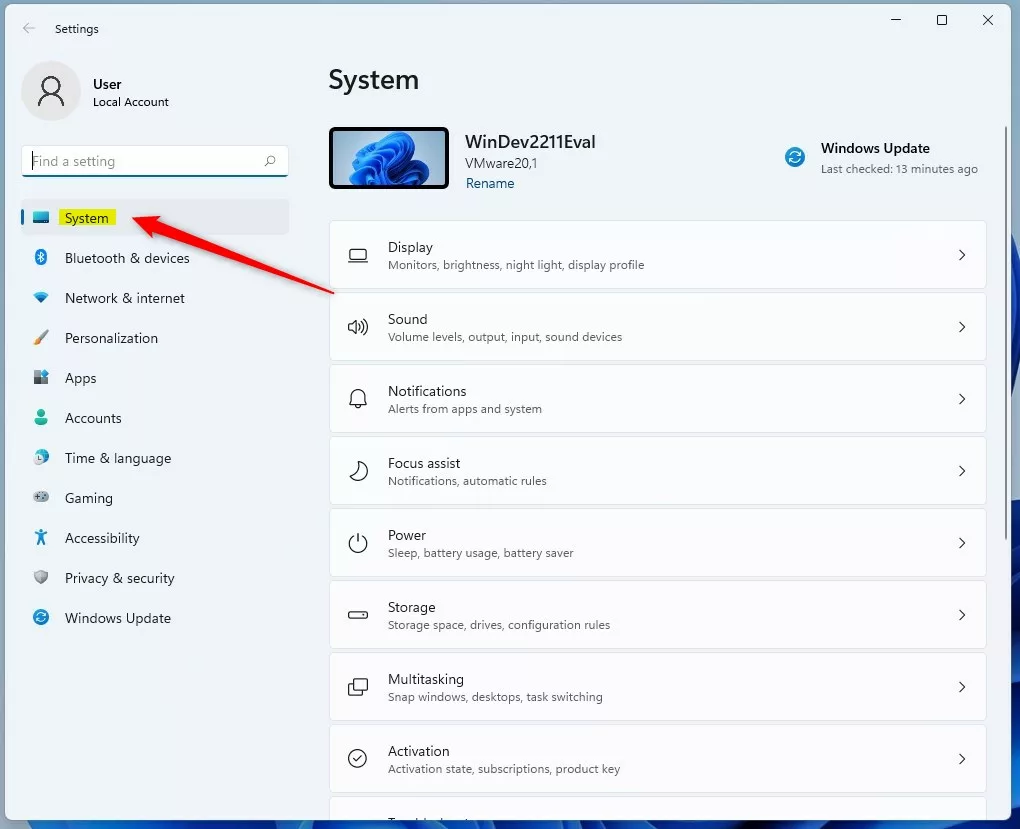
system button in windows settings app - Select Notifications.
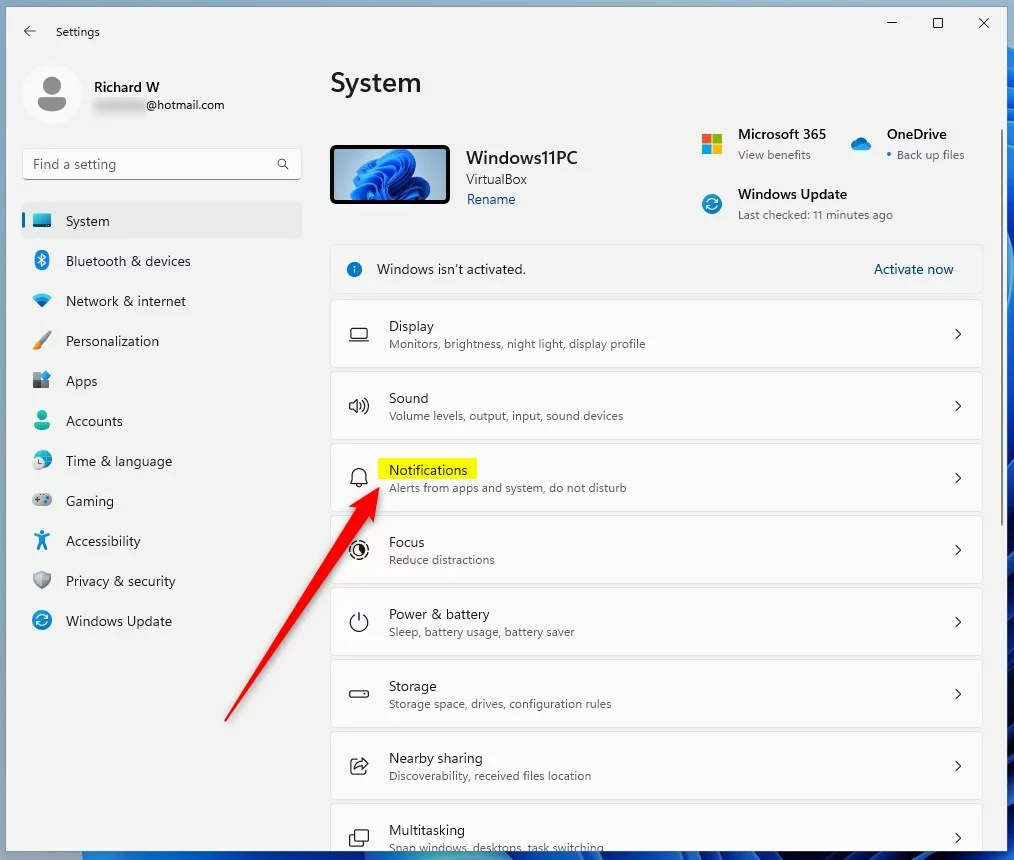
windows 11 system notifications tile - Scroll down and click Additional settings to expand the menu.
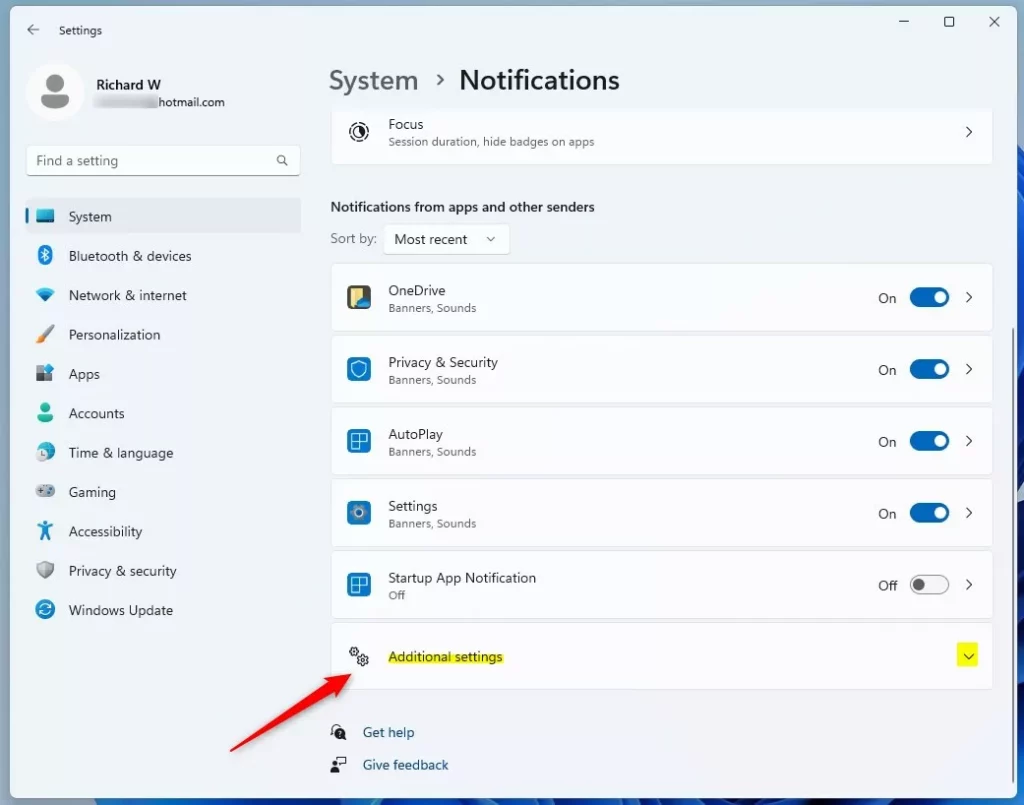
windows notifications advanced settings - Uncheck the box labeled: “Suggest ways to get the most out of Windows and finish setting up this device.”
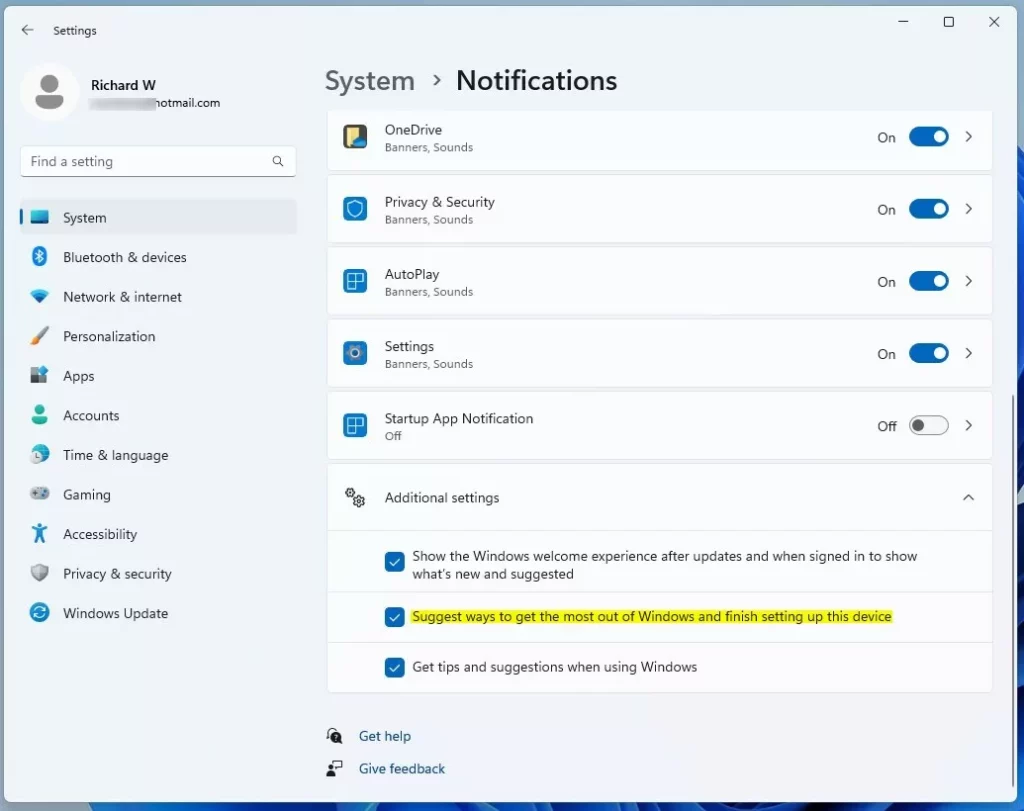
windows suggest ways to get the most out of windows
Method 2Using the Registry (Advanced)
For advanced users, you can disable the ‘Let’s finish setting up your device’ prompts in Windows 11 by editing the Registry Editor, but be sure to back up your registry first as mistakes can cause system problems.
- Press Windows key + R, type
regedit, and hit Enter. - Navigate to:
HKEY_CURRENT_USER\Software\Microsoft\Windows\CurrentVersion\UserProfileEngagement 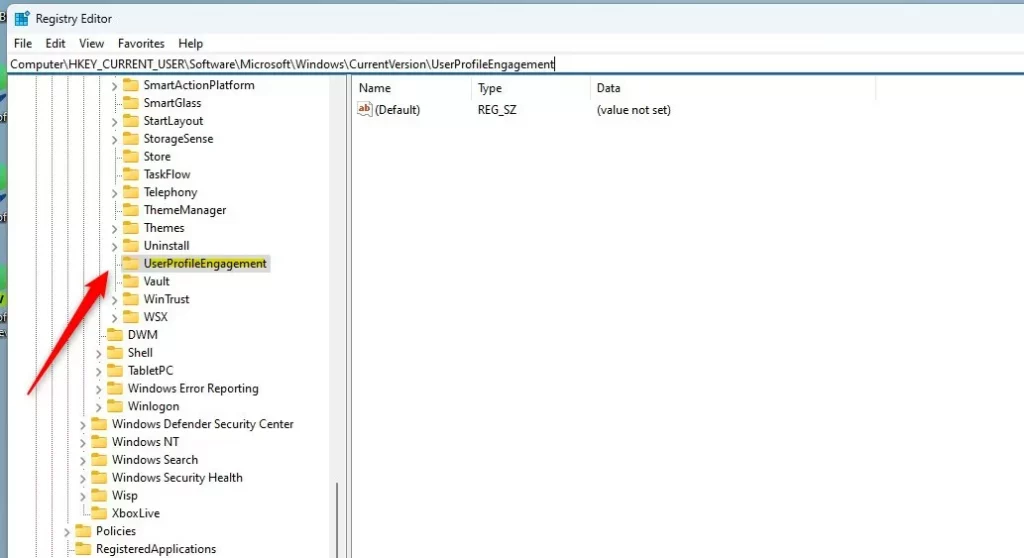
windows let finish setting up your device registry - If the folder does not exist, right-click CurrentVersion, select New > Key, and name it
UserProfileEngagement. - Right-click in the right pane, select New > DWORD (32-bit) Value, and name it
ScoobeSystemSettingEnabled. - Double-click it and set the Value data to
0. 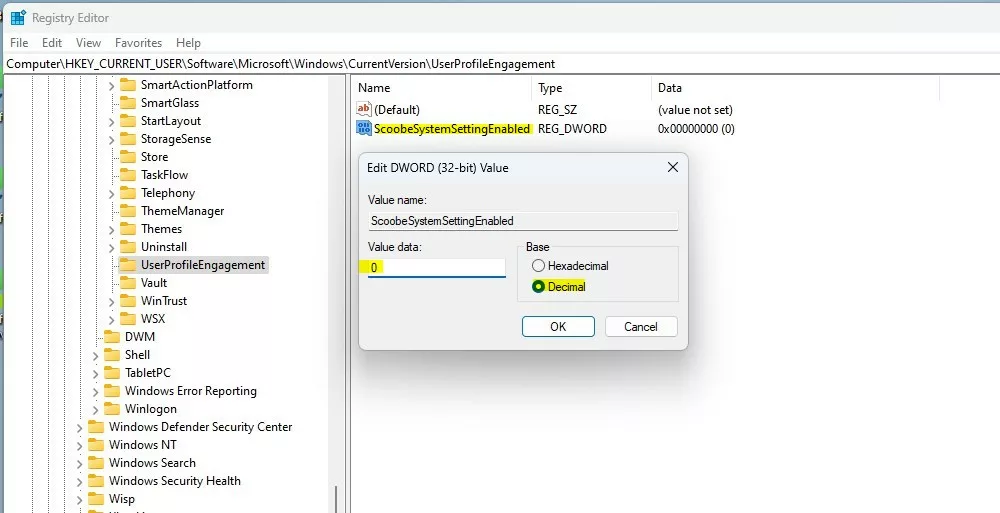
windows let finish setting up your device registry value data
Method 3Using the Group Policy Editor (🪟 Windows 11 Pro Only)
Windows 11 Pro users have a straightforward way to disable the ‘Let’s finish setting up your device’ messages for everyone on the computer using the Group Policy Editor.
- Press Windows key + R, type
gpedit.msc, and hit Enter. - Go to:
Computer Configuration\Administrative Templates\Windows Components\Windows Welcome Experience - Double-click Don’t show the Windows Welcome Experience after updates.
- Select Enabled and click OK.
Troubleshooting: What if the Prompt Persists?
If you still see the window, ensure you have restarted your computer after applying the changes. If you are using a work or school account, your organization may have policies that override these settings. In such cases, you cannot disable the prompts manually.
Summary
You can stop the ‘Let’s finish setting up your device’ screen in Windows 11 through the Settings app, Registry Editor, or Group Policy Editor, depending on your Windows version and comfort level with technical changes.
Is it safe to disable the setup window?
Yes, it is completely safe. Disabling this window only stops promotional notifications for Microsoft services like OneDrive or Microsoft 365. It does not disable essential system functions, security features, or your ability to receive future Windows updates. Your computer will continue to operate exactly as it did before.
Why does 🪟 Windows 11 keep asking me to finish setup after updates?
Windows 11 triggers this prompt after major updates to ensure you are aware of new features or services Microsoft has added. It is a recurring notification designed to encourage users to sign into a Microsoft account or enable cloud-based features that may have been reset or updated during the process.
Was this guide helpful?

About the Author
Richard
Tech Writer, IT Professional
Richard, a writer for Geek Rewind, is a tech enthusiast who loves breaking down complex IT topics into simple, easy-to-understand ideas. With years of hands-on experience in system administration and enterprise IT operations, he’s developed a knack for offering practical tips and solutions. Richard aims to make technology more accessible and actionable. He's deeply committed to the Geek Rewind community, always ready to answer questions and engage in discussions.




No comments yet — be the first to share your thoughts!