How to Keep Your Windows 11 Screen On Indefinitely with PowerToys

You can keep your Windows 11 screen on indefinitely using the free PowerToys utility called Awake.
Awake is a specific tool within PowerToys designed to prevent your PC from automatically sleeping or turning off its display, overriding your standard power settings.
This feature is incredibly useful when you need your screen to remain active without intervention, such as during lengthy file downloads or important presentations.
Awake lets you select whether your display stays on for a set period or permanently.
Use PowerToys Awake to keep your Windows 11 screen on indefinitely. Open PowerToys, select Awake, turn “Enable Awake” on, choose “Keep awake indefinitely” under Behavior, and toggle “Keep screen on” to On. Your display will now stay active.
What happens when done?
Once you follow these steps, your computer will ignore its normal sleep timer. The screen will stay bright and active for as long as you want, ensuring your work or media is never interrupted.
Method 1Using 🪟 Windows 11 Settings
The best approach is to use Windows 11’s built-in settings. You can open Power & battery settings directly by clicking here.
- Open Settings.
- Go to System > Power & battery.
- Click Screen and sleep.
- Change the time for On battery power and When plugged in to Never.
Method 2Using PowerToys Awake
You can easily keep your Windows 11 screen on all the time using a handy tool called Awake, which is part of the free PowerToys app.
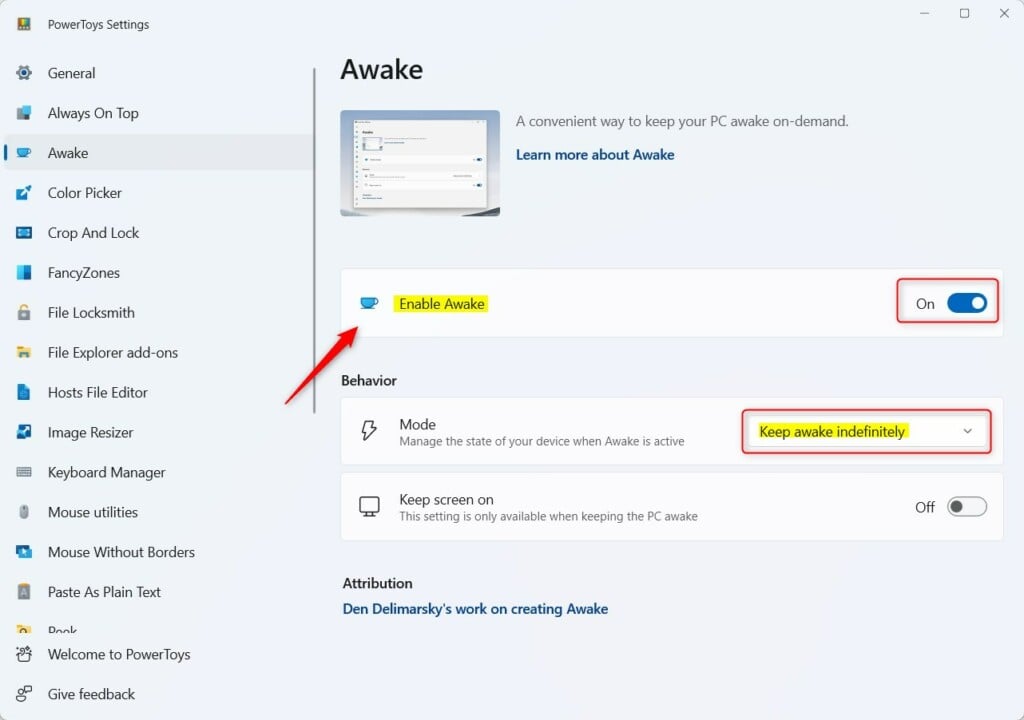
- Open the PowerToys app.
- Click on Awake in the left menu.
- Flip Enable Awake to On.
- Under Behavior, select Keep awake indefinitely.
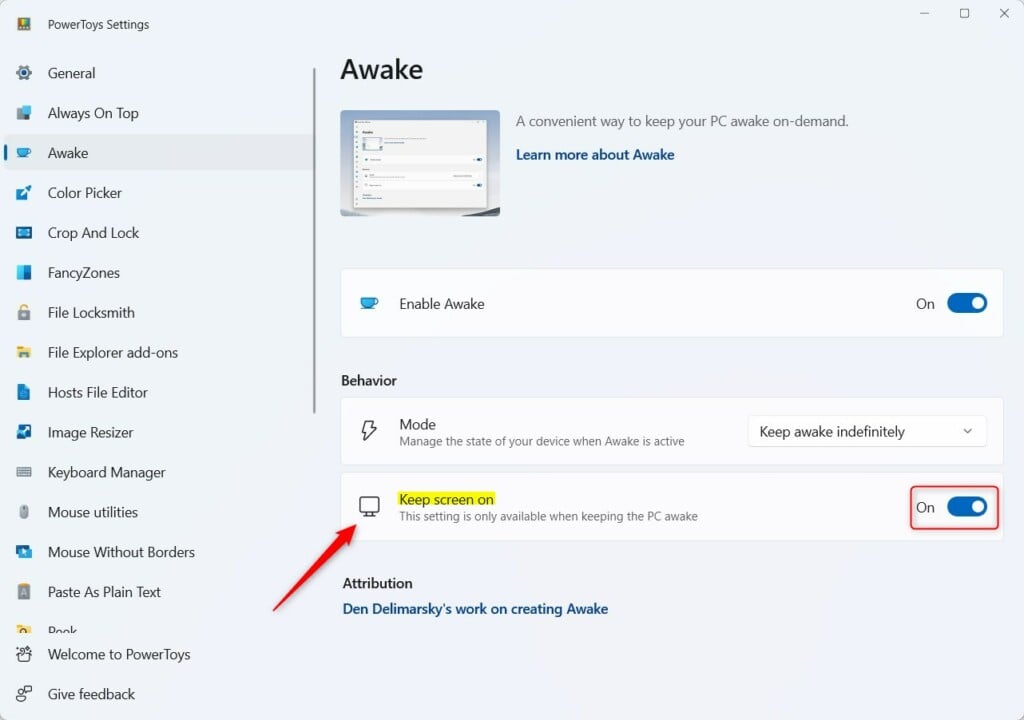
To ensure the display never turns off, find the Keep screen on option and toggle the switch to On.
Method 3 Control Panel Power Options
For more control, use the classic Control Panel.
- Press ⊞ Win+R, type control, and hit Enter.
- Go to Hardware and Sound > Power Options.
- Click Change plan settings next to your active plan.
- Set Turn off the display to Never.
Troubleshooting Persistent Sleep Issues
If your Windows 11 screen still turns off unexpectedly, the issue might be caused by background apps or specific system policies.
Summary
You’ve got a few good options for keeping your Windows 11 screen on. The built-in Settings app is great for permanent changes, while PowerToys Awake works well for temporary needs. If your screen keeps sleeping unexpectedly, always double-check your power plan settings.
Why does my screen turn off after 1 minute?
Your screen likely turns off quickly because your power plan is set to a short timeout duration to save battery life. Check your Power & battery settings to ensure the screen timeout is not set to one minute while on battery power or plugged in.
Does keeping the screen on damage the display?
Modern LED and LCD monitors are designed to stay on for long periods. While keeping the screen on indefinitely consumes more electricity, it will not physically damage your display. However, it is good practice to turn off your monitor manually if you are leaving your desk for several hours.
Was this guide helpful?

About the Author
Richard
Tech Writer, IT Professional
Richard, a writer for Geek Rewind, is a tech enthusiast who loves breaking down complex IT topics into simple, easy-to-understand ideas. With years of hands-on experience in system administration and enterprise IT operations, he’s developed a knack for offering practical tips and solutions. Richard aims to make technology more accessible and actionable. He's deeply committed to the Geek Rewind community, always ready to answer questions and engage in discussions.



No comments yet — be the first to share your thoughts!