How to Enable Remember My Apps in Windows 11

The “Remember my apps” feature in Windows 11 automatically reinstalls Microsoft Store apps when you sign in to a new PC with your Microsoft account.
This tool streamlines the setup process by remembering your previously installed applications from the Microsoft Store, making it easier to get back to work or play on a fresh installation or a new device.
For example, if you reinstall Windows 11 or purchase a new computer and log in with the same Microsoft account, Windows 11 will present a list of your previously downloaded Store apps, ready for you to quickly reinstall them with a few clicks.
Why use this feature?
Setting up a new computer can be time-consuming. Instead of searching for all your favorite apps again, this feature does the heavy lifting for you. It keeps your digital workspace consistent across all your Windows devices. By using Microsoft account synchronization, you ensure that your PC-to-PC transfer process is seamless and fast.
What happens when you are done?
Once enabled, your app list is saved to your Microsoft account. When you sign into a new Windows 11 PC, the system will recognize your preferences and offer to restore your apps, saving you significant setup time. This creates a Windows Backup catalog in the cloud, ensuring your device settings backup is always current.
Prerequisites for Syncing
Before you begin, ensure you meet these requirements:
- You must be signed in with a personal Microsoft account.
- This feature does not work with work or school accounts.
- You must have an active internet connection.
- Diagnostic data settings must be enabled to allow cloud sync.
How to Enable Remember My Apps
You can manage this through the main Settings menu. Follow these steps:
1. Open your Settings. You can press the Windows key + I on your keyboard or click on Start System Settings and select Settings.
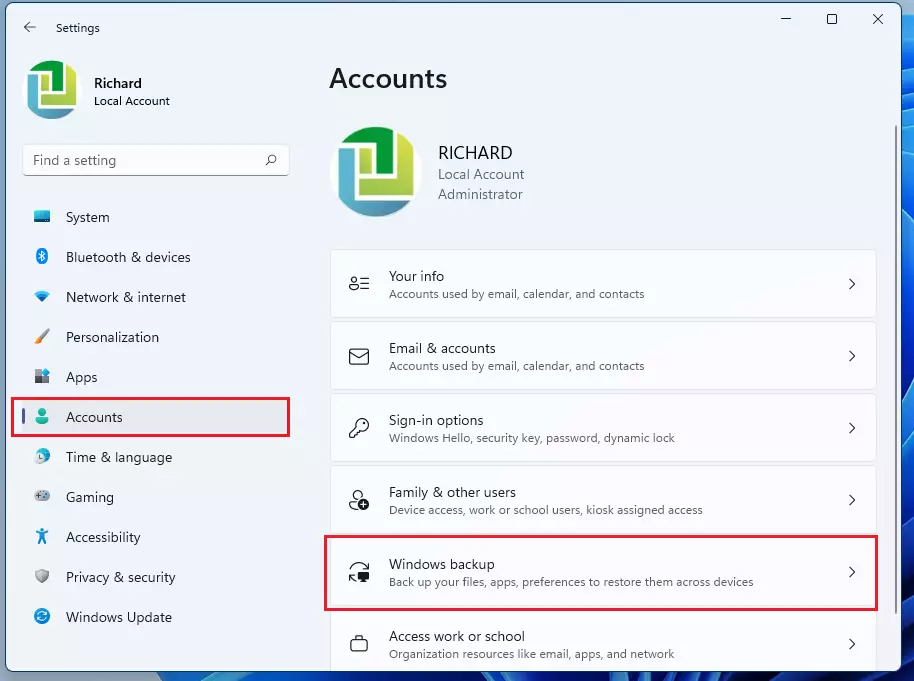
2. In the Settings menu, click on the Accounts tab on the left side.
3. Select the Windows backup tile to see more options.
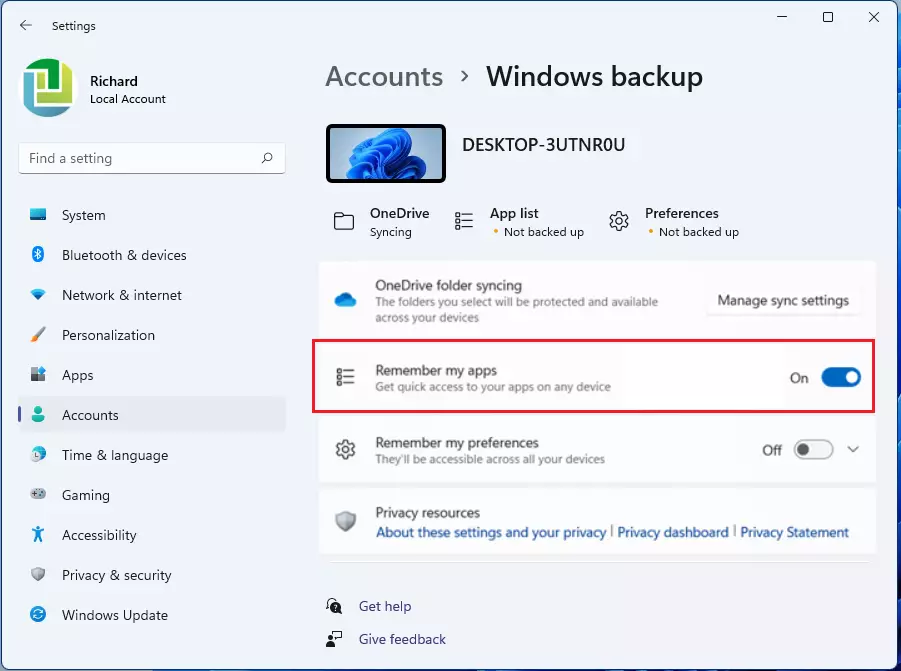
4. Locate the Remember my apps option. Toggle the switch to the On position.
5. You can now close the Settings app.
Troubleshooting: Why is the toggle greyed out?
If the Remember my apps option is greyed out, it is usually because your diagnostic data settings are restricted. To fix this, go to Settings > Privacy & security > Diagnostics & feedback and ensure you have selected Send optional diagnostic data. Additionally, check if your organization has disabled this via Group Policy settings. [Admin Privilege Required]: You can check local policies by running gpedit.msc and navigating to Computer Configuration\Administrative Templates\Windows Components\Cloud Content.
How to Force a Sync
If your settings are not updating, you can force a sync by signing out of your Microsoft account and signing back in. Alternatively, open the Windows Backup app from the Start menu and click the Back up button to manually trigger an update to your cloud storage.
How to Disable the Feature
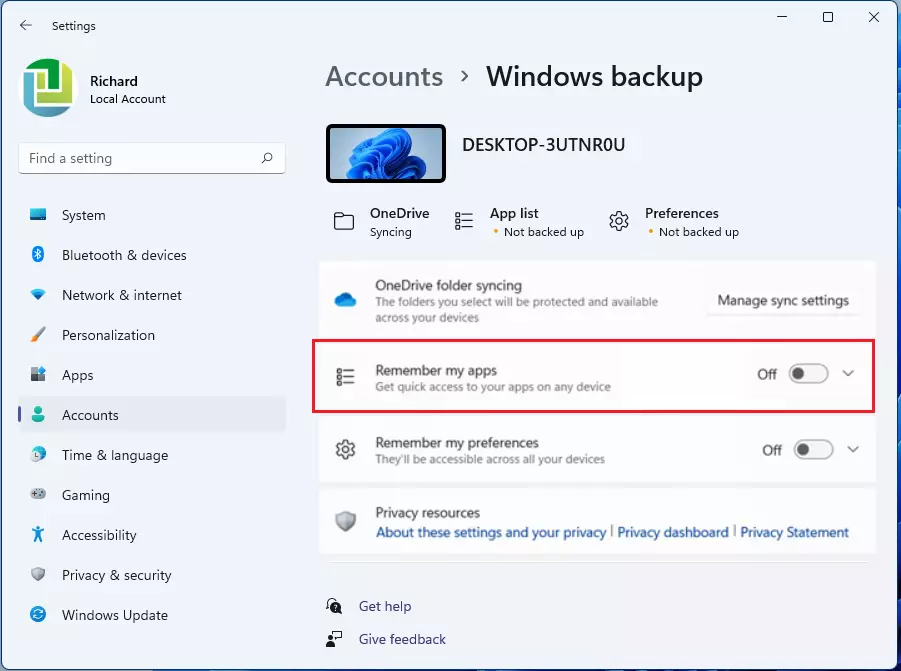
If you prefer that Windows does not keep track of your installed software, follow the steps above but toggle the switch to the Off position.
If you want to remove your backed-up settings from the cloud entirely, you must turn off Windows backup on all your connected devices. After doing that, follow these steps:
- Go to account.microsoft.com/devices.
- Scroll to the bottom of the page.
- Select the button that says Clear stored settings.
Summary
The Remember my apps feature is a convenient tool that syncs your Microsoft Store apps across your Windows devices. By meeting the prerequisites like using a personal account and enabling diagnostic data, you can ensure your setup remains consistent. If you encounter issues, check your privacy settings or use the Windows Backup app to force a sync. You can easily turn it off or clear your cloud data at any time.
Does ‘Remember my apps’ restore desktop apps or only Microsoft Store apps?
This feature primarily restores apps installed via the Microsoft Store. While it creates a shortcut for some desktop applications, it does not automatically install traditional .exe or .msi files. You may still need to manually download and install specific desktop software after the initial sync process completes.
Does this feature work on 🪟 Windows 11 Pro and Home editions?
Yes, the Remember my apps feature is available on both Windows 11 Home and Windows 11 Pro editions. As long as you are using a personal Microsoft account and have enabled the necessary diagnostic data settings, the feature will function correctly on both versions of the operating system.
Was this guide helpful?

About the Author
Richard
Tech Writer, IT Professional
Richard, a writer for Geek Rewind, is a tech enthusiast who loves breaking down complex IT topics into simple, easy-to-understand ideas. With years of hands-on experience in system administration and enterprise IT operations, he’s developed a knack for offering practical tips and solutions. Richard aims to make technology more accessible and actionable. He's deeply committed to the Geek Rewind community, always ready to answer questions and engage in discussions.


No comments yet — be the first to share your thoughts!