How to Restore Touchpad Gestures to Default in Windows 11

You can restore your touchpad gestures to their default settings in Windows 11 by navigating to the touchpad settings and selecting the “Reset to default” option.
Touchpad gestures are multi-finger swipes and taps that streamline navigation in Windows 11, allowing you to quickly perform actions like opening Task View or search.
Resetting is perfect if you’ve adjusted settings, such as pinch-to-zoom sensitivity, and want to revert to the original configuration.
Windows 11 typically includes about 15 default touchpad gestures, ensuring you have access to these standard shortcuts after a reset.
Open Settings, navigate to Bluetooth & devices, select Touchpad, turn off the touchpad toggle, and click the Reset button that appears. This will restore your touchpad gestures to their default settings.
Why reset your touchpad gestures?
Why reset your touchpad gestures? Your touchpad might stop responding to multi-finger swipes, or perhaps you changed a setting by accident. Resetting can help if gestures feel slow or broken, as it clears out old data that might be causing errors.
What happens when you reset?
Windows 11 will remove all your custom settings. Your touchpad will revert to its factory state, just like when you first got your laptop. Don’t worry, this won’t delete your files.
How to reset touchpad gestures in 🪟 Windows 11
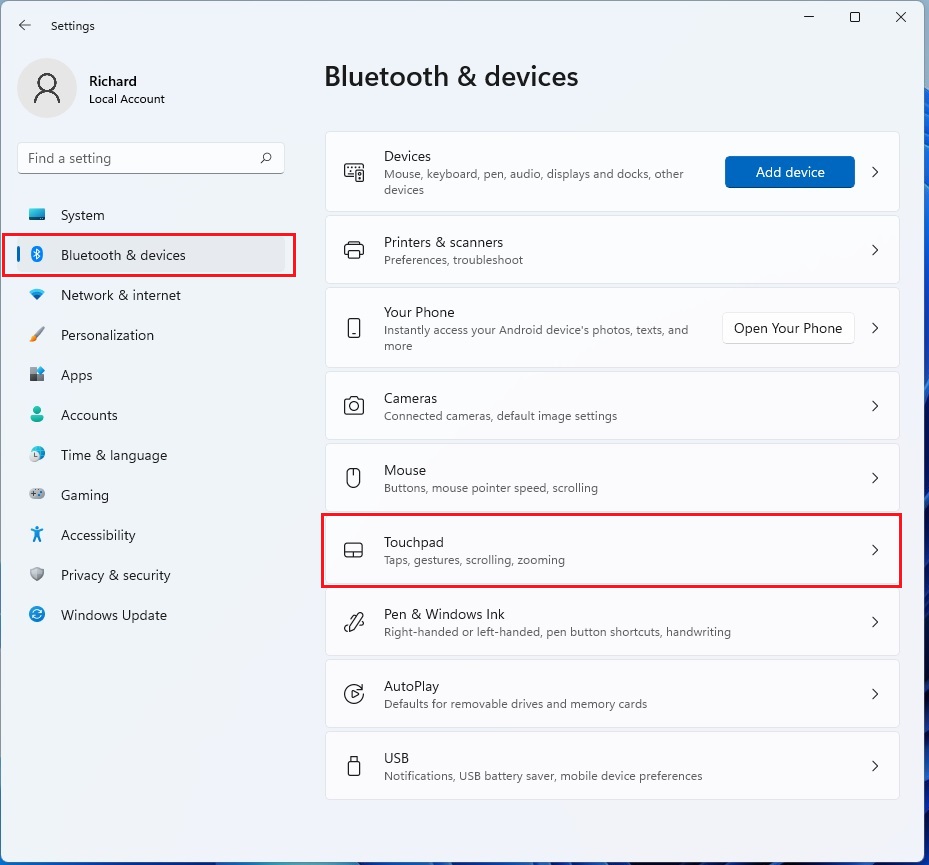
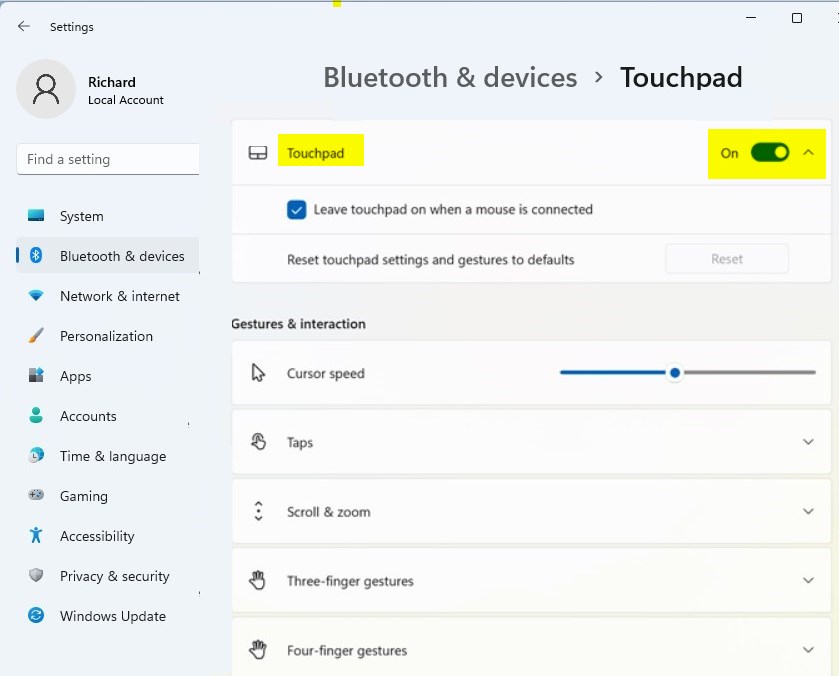
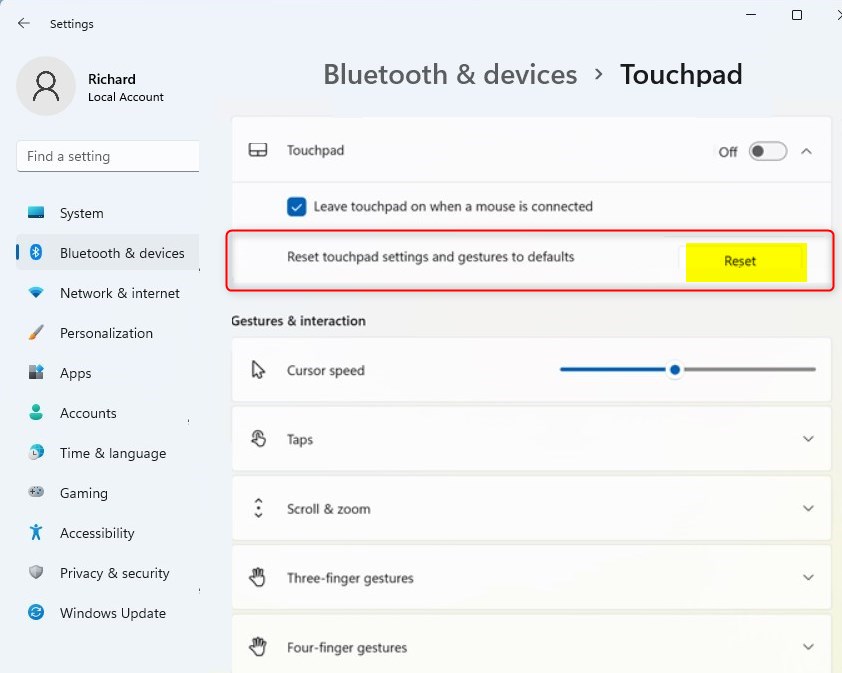
You can easily reset touchpad gestures in Windows 11 using the Settings app. This involves turning off the touchpad temporarily and then using the reset option that appears.
- Click Bluetooth & devices on the left.
- Select the Touchpad tile.
Note: You’ll need administrator privileges to change these settings.
Find the main toggle at the top and turn it Off. A Reset button will then appear; click it to finish.
Advanced Troubleshooting: Device Manager
If the standard settings reset doesn’t fix your touchpad gestures, try resetting the driver using Device Manager. This process involves uninstalling the current driver, which Windows will then automatically reinstall upon restarting your PC.
- Right-click the Start button and select Device Manager.
- Expand Mice and other pointing devices.
- Right-click your HID-compliant mouse or touchpad driver and select Uninstall device.
- Restart your computer. Windows will automatically reinstall the driver.
Registry Fix for Touchpad Issues
For really stubborn touchpad problems, you can manually reset things by editing the Windows Registry. This involves finding a specific folder and deleting its contents to force a reset of your touchpad settings.
You can reset settings manually in the Registry Editor. Press Windows key + R, type regedit, and press Enter.
HKEY_CURRENT_USER\Software\Microsoft\Windows\CurrentVersion\PrecisionTouchPad
Delete the keys inside this folder to force the reset. Restart your PC afterward.
Difference Between Precision and Standard Drivers
A Precision Touchpad is a special design from Microsoft that offers smooth, multi-finger gestures. Standard drivers often rely on separate software, like Synaptics. Precision drivers are built directly into Windows 11, making them more stable and easier to manage.
Summary
Resetting your touchpad in Windows 11 is a straightforward process that can resolve many navigation problems.
Why are my touchpad settings missing in 🪟 Windows 11?
Touchpad settings can go missing in Windows 11 if the driver is corrupted or disabled, often after an update.
Was this guide helpful?

About the Author
Richard
Tech Writer, IT Professional
Richard, a writer for Geek Rewind, is a tech enthusiast who loves breaking down complex IT topics into simple, easy-to-understand ideas. With years of hands-on experience in system administration and enterprise IT operations, he’s developed a knack for offering practical tips and solutions. Richard aims to make technology more accessible and actionable. He's deeply committed to the Geek Rewind community, always ready to answer questions and engage in discussions.



I tryed a new mouse a tech 1 gaming mouse , whenI scrolled up or down it would go straight to the top or bottom with nothing in between. I put my old one back and its doing it too.