How to Uninstall Ubuntu from Windows 11 WSL

This guide explains how to remove a Ubuntu Linux distribution from your Windows 11 computer when using the Windows Subsystem for Linux (WSL).
WSL allows you to run Linux tools directly on Windows without needing a separate virtual machine. Sometimes, you may decide you no longer need this environment. Because Linux distributions are installed like standard software, you can remove them using the Windows Settings menu or through command-line tools.
Why remove Ubuntu from WSL?
You might want to remove Ubuntu to free up hard drive space, fix a broken installation, or simply because you no longer need to run Linux commands on your system.
What happens when you are done?
Once you finish these steps, the Ubuntu environment, along with all the files and programs saved inside that Linux system, will be permanently deleted from your computer.
Uninstall via the Settings App
Since Ubuntu is installed through the Microsoft Store, Windows treats it like any other app.
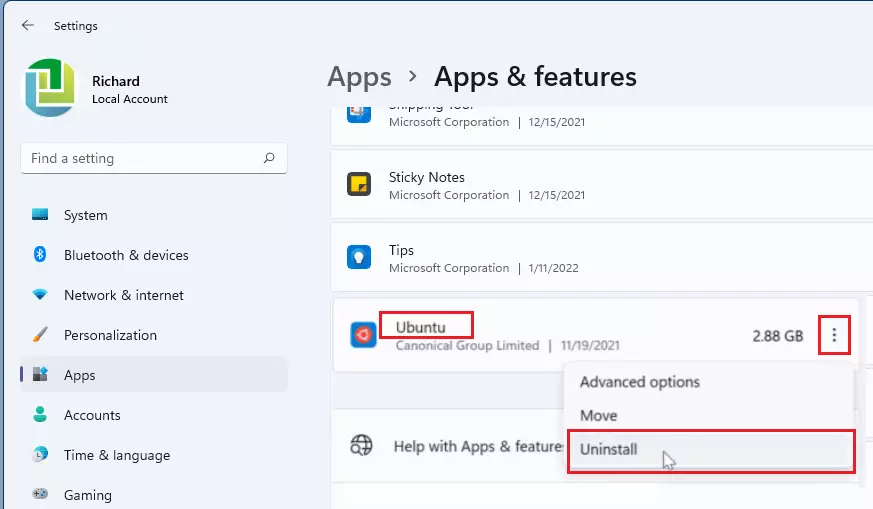
- Open your Windows Settings app. You can find this by clicking the Start button and selecting Settings.

- Go to Apps, then select Installed apps.
- Find Ubuntu in the list.
- Click the three dots on the right side and select Uninstall.
Uninstall via Command Prompt
You can also use the Command Prompts to remove the distribution.
Note: This step requires admin privileges. Open your Command Prompt or Windows PowerShell as an administrator.
First, see a list of all your installed apps by running this command:
winget listLook for the Ubuntu entry in the list. Once you find the correct name, use the following command to remove it:
winget uninstall --id Canonical.UbuntuUninstall via the WSL Command
If you installed your Linux distro manually, it might not show up in your app list. In this case, you can use the Ubuntu Linux distribution was imported command.
Note: This step requires admin privileges. Open your Command Prompt or PowerShell as an administrator.
First, list the Linux versions currently installed on your computer:
wsl --listTo remove the Ubuntu environment, run this command:
wsl --unregister UbuntuSummary
- Multiple Methods: You can remove Ubuntu using the Windows Settings app, the winget command, or the wsl command.
- Ease of Use: Windows provides both simple visual menus and powerful command-line options to manage your Linux installations.
- Flexibility: Choose the method that feels most comfortable for your skill level.
How do I uninstall Ubuntu from Windows 11 WSL?
Can I remove Ubuntu from WSL using Command Prompt?
What is Windows Subsystem for Linux (WSL)?
Is uninstalling Ubuntu from WSL the same as deleting it from my computer?
What happens to my files when I uninstall Ubuntu from WSL?
Was this guide helpful?



Leave a Reply Cancel reply