Want Spotify Auto-Play During Focus Sessions in Windows 11?

Here’s how you can control Spotify music playback when you start a focus session in Windows 11.
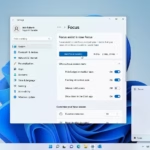
Open the Clock app, navigate to Settings, expand the Spotify section, and toggle the “Automatically start music when starting a focus session” option on or off. This setting controls whether Spotify plays during your Windows 11 focus sessions.
What Is Focus?
Think of a focus session in Windows 11 as your personal productivity boost, designed to help you concentrate by cutting down on distractions.
Why Use Spotify with Focus?
Connecting your Spotify account to the Clock app (Windows’ built-in timer and focus tool) means music will start playing automatically when you begin a focus session. This is the default behavior, but you can change it.
What You Need
You must have Spotify running to change this setting.
Steps to Enable or Disable Automatic Spotify Playback
You can easily control if Spotify starts automatically during your Windows 11 focus sessions by adjusting a simple setting in the Clock app.- Open the Clock app.
- Click or tap Settings in the left pane of the Clock app.
- Click or tap Spotify in settings to expand it.
- Turn on (this is the default) or off the option that says Automatically start music when starting a focus session. Choose what works for you.
Learn More
Focus: Stay on Task Without Distractions in Windows – Microsoft Support
Summary
Managing Spotify auto-play for your Windows 11 focus sessions is straightforward, letting you decide if music enhances your concentration.
What does a focus session do in 🪟 Windows 11?
A focus session in Windows 11 is a productivity tool designed to help you concentrate by minimizing distractions. It integrates with the Clock app to set a timer, silence notifications, and optionally play music from Spotify, allowing you to work on important projects or study with uninterrupted, dedicated time.
How do I turn off focus session in 🪟 Windows 11?
To end a focus session in Windows 11, open the Clock app and find the active focus timer. Click the ‘Stop’ button to end the session right away. If you wish to disable the feature completely, you can adjust your notification settings in the Windows System settings menu under Focus.
Is there focus assist in 🪟 Windows 11?
Yes, Focus Assist is still around in Windows 11, now simply called ‘Focus’ in the Clock app and System settings. It works much like before by helping you silence notifications and alerts so you can stay on track and productive during your scheduled work time.
Is Spotify compatible with 🪟 Windows 11?
Yes, Spotify works great with Windows 11. You can get the official app from the Microsoft Store or Spotify’s website. Plus, it connects directly with the Windows 11 Clock app, letting you control music playback automatically whenever you start or end a focus session on your computer.
Was this guide helpful?

About the Author
Richard
Tech Writer, IT Professional
Richard, a writer for Geek Rewind, is a tech enthusiast who loves breaking down complex IT topics into simple, easy-to-understand ideas. With years of hands-on experience in system administration and enterprise IT operations, he’s developed a knack for offering practical tips and solutions. Richard aims to make technology more accessible and actionable. He's deeply committed to the Geek Rewind community, always ready to answer questions and engage in discussions.
📚 Related Tutorials
No comments yet — be the first to share your thoughts!