How to Link Spotify to Focus Sessions in Windows 11

Why do this? Focus sessions help you work without distractions. Adding Spotify music makes it easier to concentrate. You can now play your favorite playlists during focus time.
What is Focus? Focus is a Windows 11 feature that blocks notifications and distractions. It keeps you on track when you need to work, study, or do important tasks.
What happens when you link Spotify? Your Spotify account connects to the Clock app. Music plays during your focus sessions. You stay focused with the soundtrack you choose.
Learn more about how to use and configure Focus in Windows. Focus: Stay on Task Without Distractions in Windows – Microsoft Support
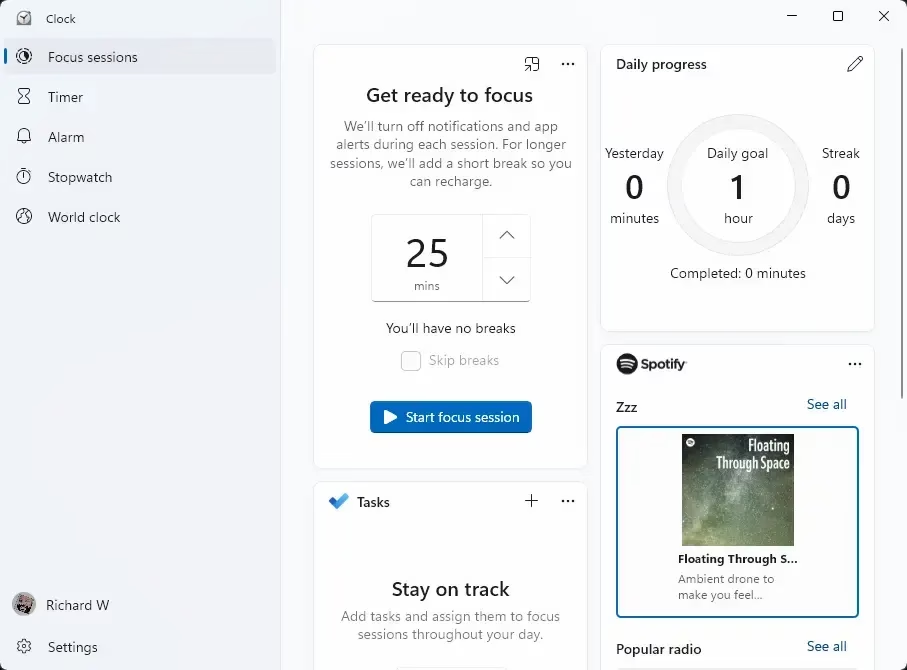
Open the Clock app, go to Settings, click Spotify, and sign in to your Spotify account. This links your music service to Windows Focus Sessions for a distraction-free listening experience.
Here’s How:
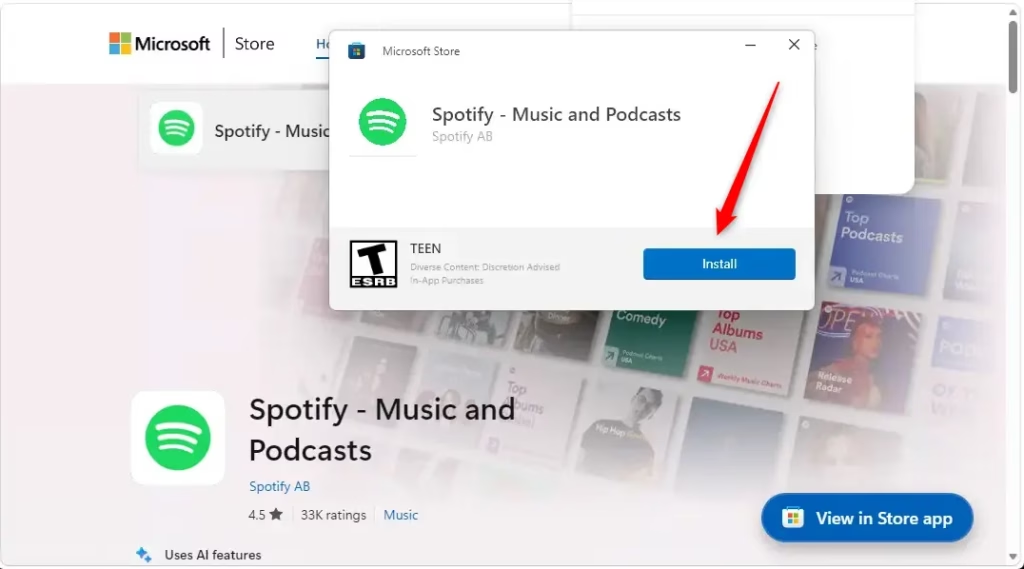
Linking Spotify to your Windows 11 Clock app for Focus Sessions is simple. First, make sure you have the Spotify app installed and are logged in. Then, open the Clock app and go to its Settings. Find the Spotify option and turn it on, signing in if prompted.- Open the Clock app. Clock
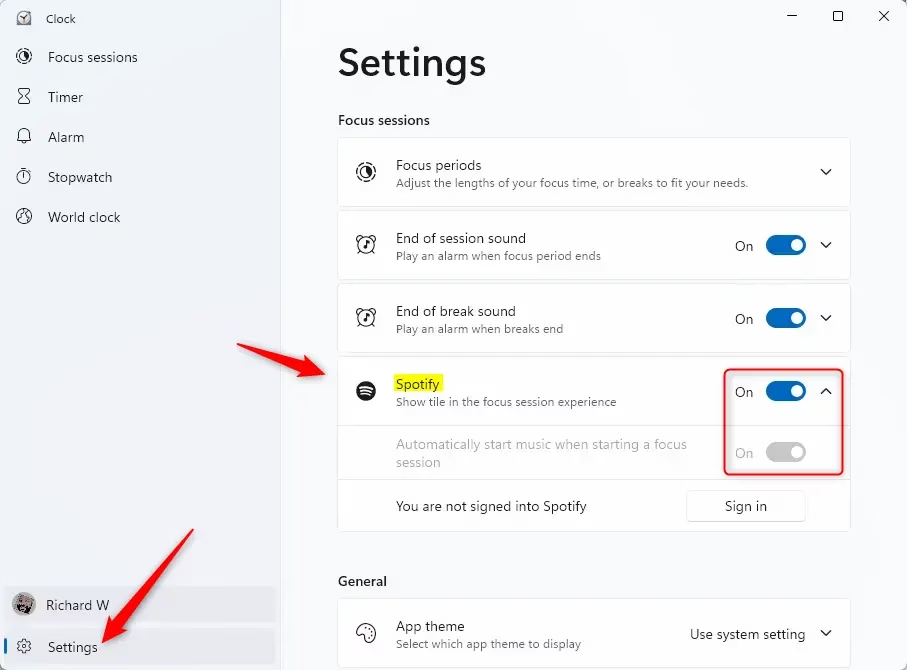
- Click Settings in the left side of the Clock app.
- Click Spotify to open its settings.
- Turn on Spotify if it’s not already on.
- Click Sign in if you’re not signed into Spotify.
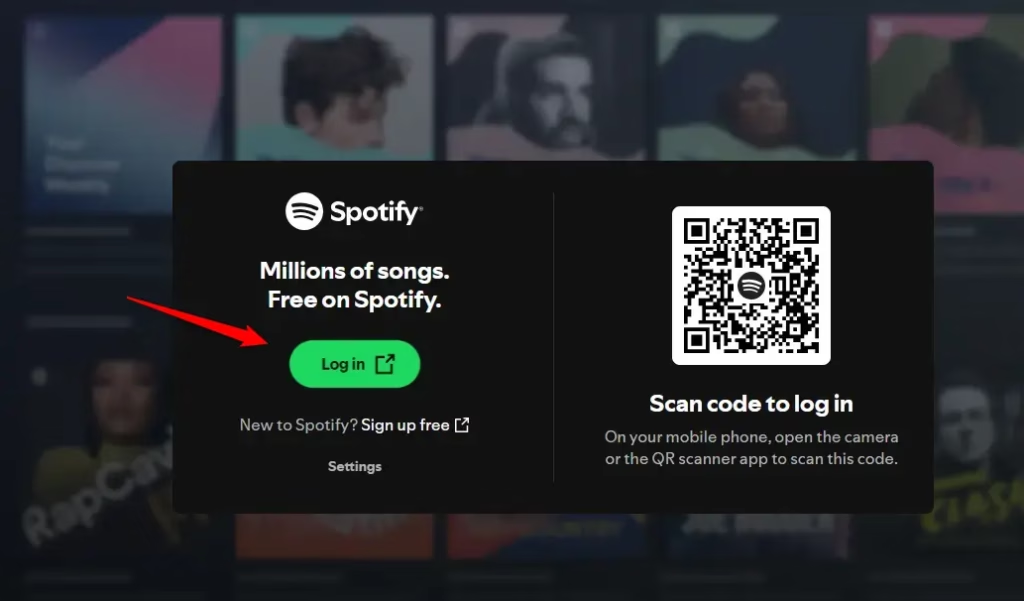
- Sign in to Spotify. Click Agree and Open Clock if a window appears.
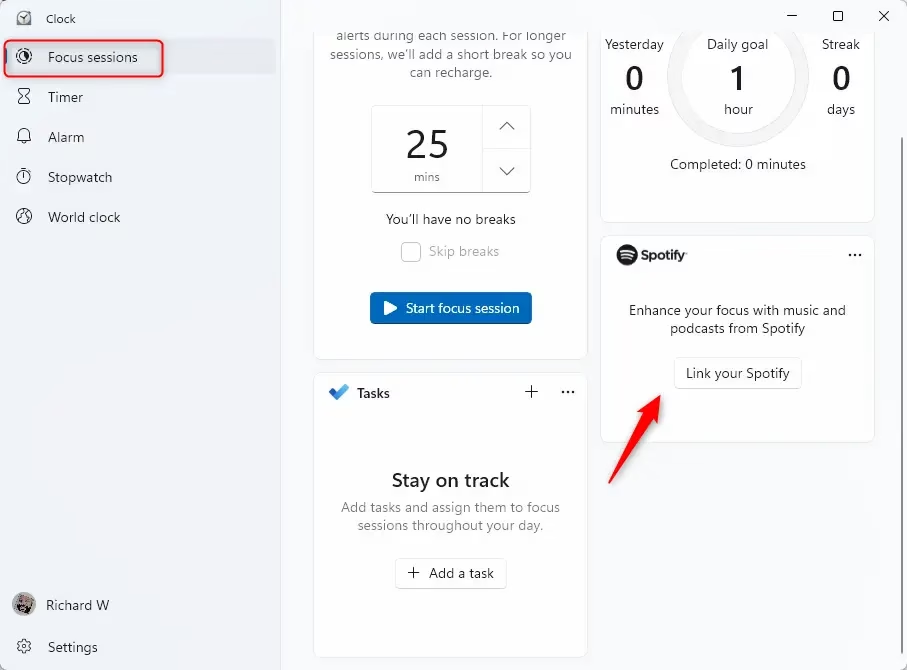
- Spotify is now linked to your Clock app. You can use it during focus sessions.
Summary
You’ve successfully linked Spotify to Focus Sessions in Windows 11. Install Spotify, open the Clock app, go to Settings, click Spotify, and sign in. Your music now plays during focus time. Stay focused and productive with your favorite songs.
What does a focus session do on Windows?
A focus session in Windows 11 helps you minimize distractions by silencing notifications and displaying a dedicated timer. It integrates with the Clock app to track your productivity, allowing you to set specific work intervals and break periods to help you stay on task while completing important projects or studying.
How to make a Spotify session on PC?
You can create a Spotify session on your PC using the Windows Clock app. Just open the Clock app, go to Settings, and select the Spotify integration. After signing in and connecting your accounts, you can pick your favorite playlists in the Focus Sessions tab to play automatically.
What does Ctrl+K do in Spotify?
Pressing Ctrl+K in the Spotify desktop app opens the search bar. This shortcut lets you quickly find songs, artists, albums, or playlists without using your mouse. It’s a fast way to find your favorite focus music tracks on Spotify.
What is the 30 second rule on Spotify?
The 30-second rule on Spotify means a song needs to be played for at least 30 seconds to count as a stream. If someone listens for this minimum time, it’s recorded in the artist’s stats. This counts towards royalties and chart positions.
Was this guide helpful?

About the Author
Richard
Tech Writer, IT Professional
Richard, a writer for Geek Rewind, is a tech enthusiast who loves breaking down complex IT topics into simple, easy-to-understand ideas. With years of hands-on experience in system administration and enterprise IT operations, he’s developed a knack for offering practical tips and solutions. Richard aims to make technology more accessible and actionable. He's deeply committed to the Geek Rewind community, always ready to answer questions and engage in discussions.
📚 Related Tutorials


No comments yet — be the first to share your thoughts!