How to Uninstall WSL from Windows 11

The Windows Subsystem for Linux (WSL) allows you to run Linux tools right inside Windows. You might use it for coding or testing software without needing a separate computer.
Why do this? You may want to clear up space or you simply no longer need to run Linux tools on your PC.
What happens when done? Your Linux apps and files will be removed, and the Windows features that support Linux will be turned off.
In Windows, you can install or uninstall WSL easily. Once WSL is installed, you can install your favorite Linux OS inside Windows.
Here are some helpful related posts:
How to Backup Linux OS inside WSL
How to check WSL versions in Windows 11
How to install WordPress on WSL
How to login as root on WSL with Linux OS
How to Uninstall Linux OS on WSL
You can uninstall Linux OS and WSL components from Windows 11 by following these steps:
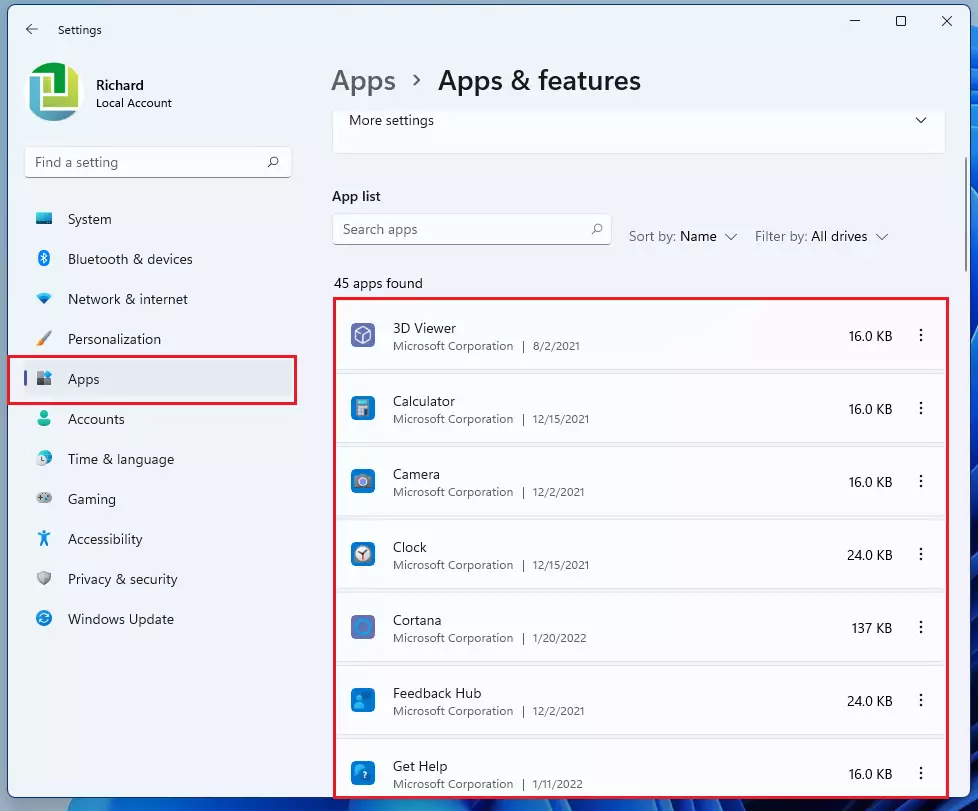
- Open the Start menu and select Settings.
- Go to Apps, then Apps & features.
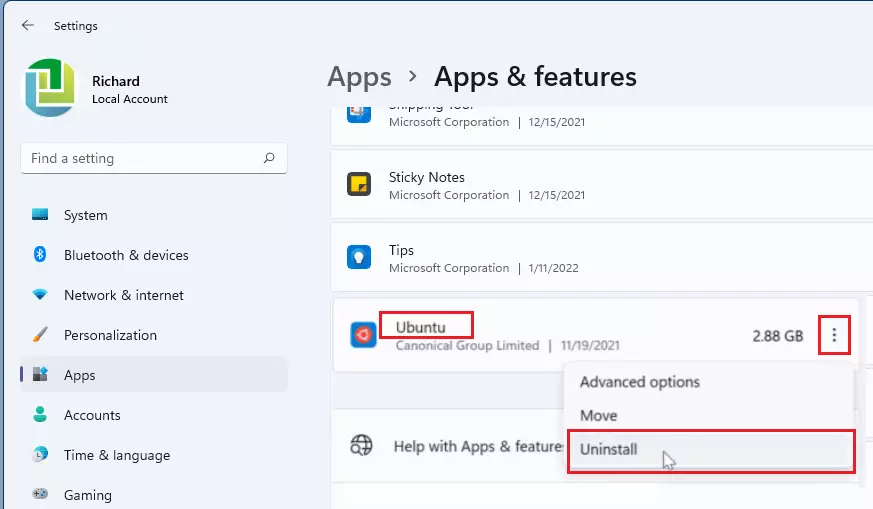
- Find your Linux distribution in the list.
- Click the 3 dots on the right and select Uninstall.
Wait for the process to finish.
Uninstall WSL Components
Next, you should remove the extra components that support WSL. Note: This step requires admin privileges.
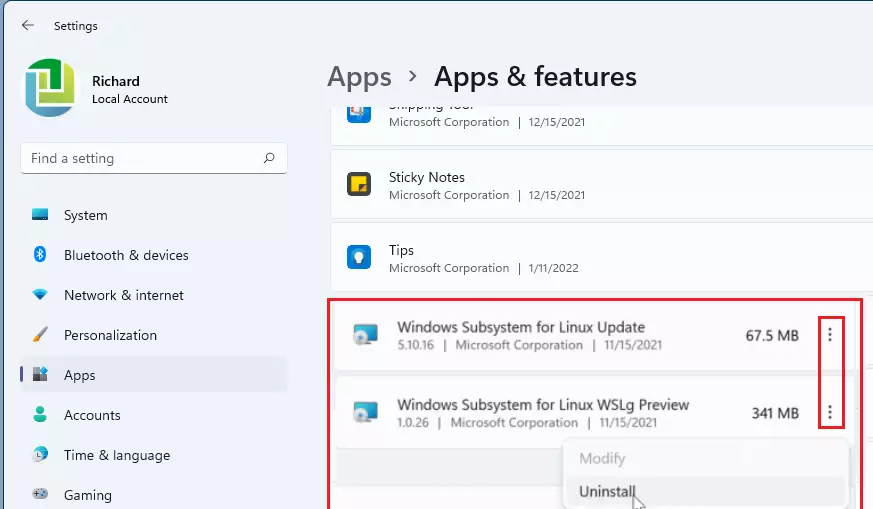
- In Apps & features, look for Windows Subsystem for Linux WSLg Preview and Windows Subsystem for Linux Update.
- Click the 3 dots next to each item and select Uninstall.
Disable WSL Features
Finally, you need to turn off the actual WSL feature in Windows. Note: This step requires admin privileges.
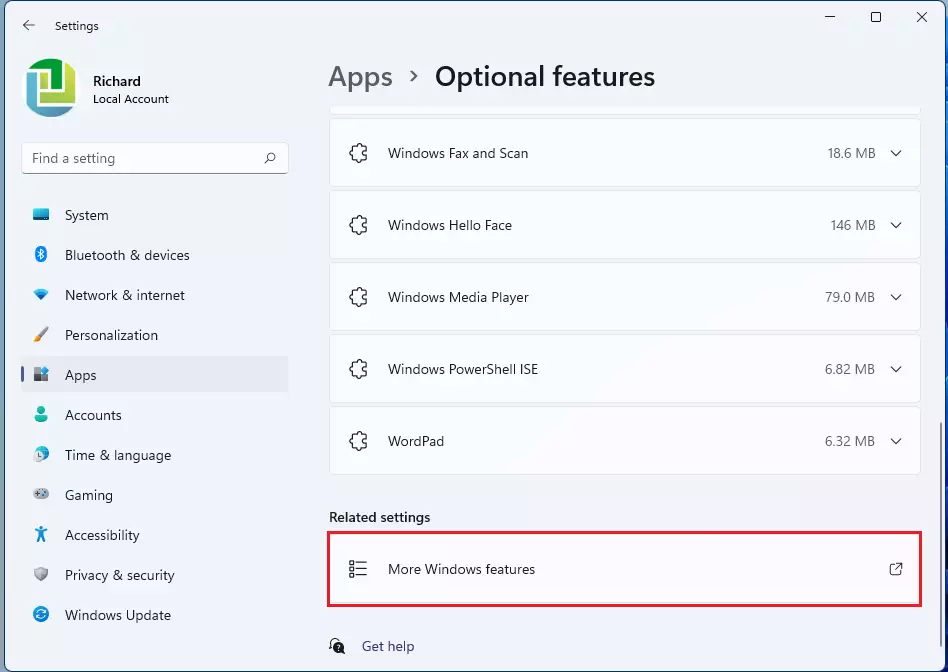
- Go to Settings > Apps > Apps & features > Optional features.
- Scroll down and click More Windows features.
- Find Virtual Machine Platform and Windows Subsystem for Linux in the list.
- Uncheck both boxes and click OK.
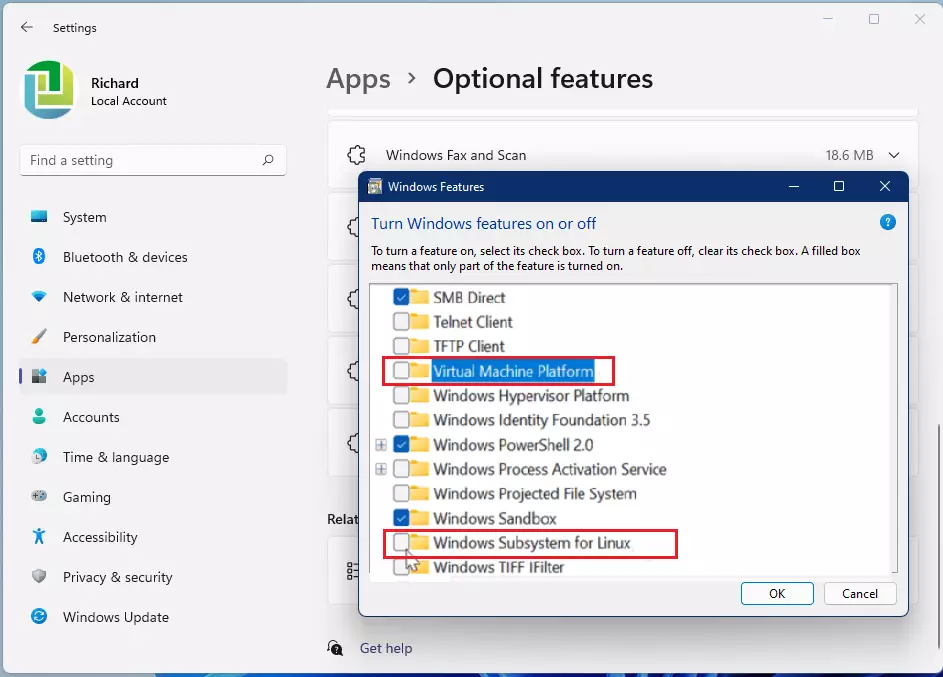
Windows will remove the files. You will be asked to restart your computer to finish the process.
Summary
Uninstalling WSL is a simple three-part process. First, remove your installed Linux distribution. Second, uninstall the WSL support components from your apps list. Finally, disable the core WSL and Virtual Machine features in the Windows settings menu. Always restart your computer when finished to ensure all files are properly cleaned up.
How do I uninstall WSL from Windows 11?
Can I uninstall a specific Linux distribution from WSL?
What happens when I uninstall WSL?
Is it possible to reinstall WSL after uninstalling it?
Do I need to restart my computer after uninstalling WSL?
Was this guide helpful?



Leave a Reply Cancel reply