How to Check Windows Subsystem for Linux Version

You check your Windows Subsystem for Linux (WSL) version using the command line.
WSL enables you to run Linux distributions directly within Windows, acting as a compatibility layer.
To find your current WSL version, simply open PowerShell or Command Prompt and execute the command `wsl -l -v`. This command will quickly display a list of your installed Linux distributions, clearly indicating their assigned WSL version, which will be either 1 or 2.
Knowing your WSL version is essential for accessing the latest features and performance enhancements, especially when considering an upgrade to WSL 2, which offers notable speed improvements for file operations.
Open PowerShell or Command Prompt as administrator and run the command `wsl -l -v`. This will display a list of your installed Linux distributions and their corresponding WSL version numbers. You will see either version 1 or version 2.
Why check your WSL version?
Knowing your Windows Subsystem for Linux (WSL) version helps you understand if you’re using the older WSL 1 or the faster WSL 2, which uses a real Linux kernel.
What happens when done?
Once you run the command, you’ll see a list of your installed Linux distributions, along with their status and version number. This confirms which version you’re currently using.
Steps to check your WSL version
Checking your WSL version is easy and only takes a moment using a simple command in PowerShell or Command Prompt.
- Click the Start menu.
- Search for PowerShell or Command Prompt.
- Right-click the result and select Run as administrator.
Once the window is open, type the following command and press Enter:
wsl --list --verbose
You can also use this shorter version:
wsl -l -v
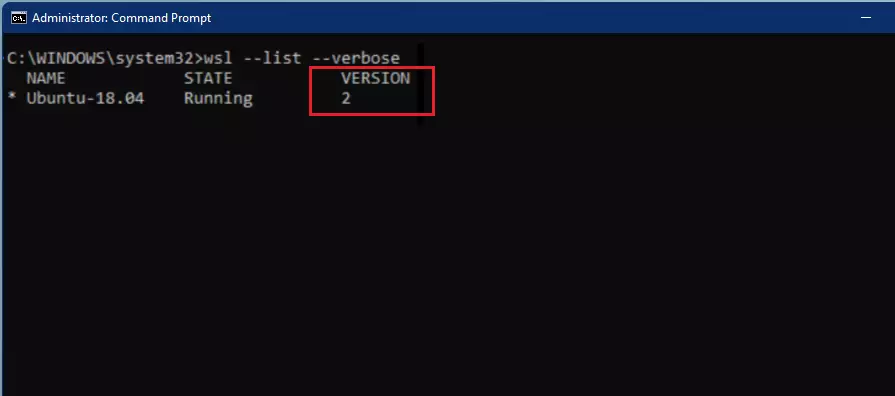
You should see output that looks like this:
  NAME      STATE           VERSION
* Ubuntu    Running         2
  Debian    Stopped         1
Understanding WSL 2 vs WSL 1
With WSL 1, Linux commands are translated into Windows commands. WSL 2 runs a full Linux kernel. This makes WSL 2 much faster for file operations and supports all Linux apps. If you use Docker Desktop, WSL 2 is required for the best performance.
How to upgrade to WSL 2
Upgrading to WSL 2 can make your Linux tools run much faster on Windows, which is great for things like Docker.
wsl --update
Then, set your distribution to version 2:
wsl --set-version <distro-name> 2
Replace <distro-name> with the name that appears in your list. You can find the official Microsoft WSL installation guide here.
Summary
You can check your WSL version with the ‘wsl -l -v’ command in an administrator terminal, and upgrading to WSL 2 offers better performance.- WSL allows you to run Linux tools directly inside Windows.
- Use
wsl -l -vin an administrator terminal to check your version. - WSL 2 is faster and recommended for most users, especially for Docker Desktop.
- Always run
wsl --updateto keep your kernel current. - Upgrading is simple using the
wsl --set-versioncommand.
Why does my WSL version show as 1?
Your WSL version shows as 1 because it was likely installed before WSL 2 became the default. WSL 1 uses a compatibility layer, whereas WSL 2 runs a virtualized Linux kernel. You can manually upgrade any existing distribution to version 2 using the wsl --set-version command in your terminal.
How to check if WSL 2 is supported on my Windows build?
WSL 2 requires Windows 10 version 1903 or higher, or Windows 11. You can check your version by pressing the Windows key + R, typing winver, and pressing Enter. If your build number is 18362 or higher, your system supports the requirements for running WSL 2 effectively.
Was this guide helpful?

About the Author
Richard
Tech Writer, IT Professional
Richard, a writer for Geek Rewind, is a tech enthusiast who loves breaking down complex IT topics into simple, easy-to-understand ideas. With years of hands-on experience in system administration and enterprise IT operations, he’s developed a knack for offering practical tips and solutions. Richard aims to make technology more accessible and actionable. He's deeply committed to the Geek Rewind community, always ready to answer questions and engage in discussions.



No comments yet — be the first to share your thoughts!