


This guide explains how to install a Linux operating system on your Windows 11 computer using the Windows Subsystem for Linux (WSL).
Windows Subsystem for Linux WSL allows you to run Linux tools and apps directly on Windows. You do not need to set up a complicated virtual machine or restart your computer to switch between systems.
Why use WSL?
WSL lets you use powerful Linux command-line tools without leaving your familiar Windows desktop. It is perfect for developers or anyone who wants to learn how Linux works.
What happens when you are done?
When you finish these steps, you will have a fully functional Linux environment running inside Windows. You can launch it from your Start menu just like any other app.
Before you start, make sure you have already installed the WSL feature on your computer. If you haven’t, please follow this guide first: How to install Windows Subsystem or Linux (WSL) on Windows 11
Install Linux from the Microsoft Store
The easiest way to get Linux is through the Microsoft Store. Visit the Microsoft Store to browse the available options.
- Ubuntu: https://apps.microsoft.com/store/detail/ubuntu-on-windows/9NBLGGH4MSV6
- Debian: https://www.microsoft.com/en-us/store/p/debian-gnu-linux/9msvkqc78pk6
- Kali Linux: https://www.microsoft.com/en-us/store/p/kali-linux/9pkr34tncv07
- Alpine Linux: https://apps.microsoft.com/store/detail/alpine-wsl/9P804CRF0395
- OpenSUSE: https://www.microsoft.com/en-us/store/p/opensuse-leap-42/9njvjts82tjx
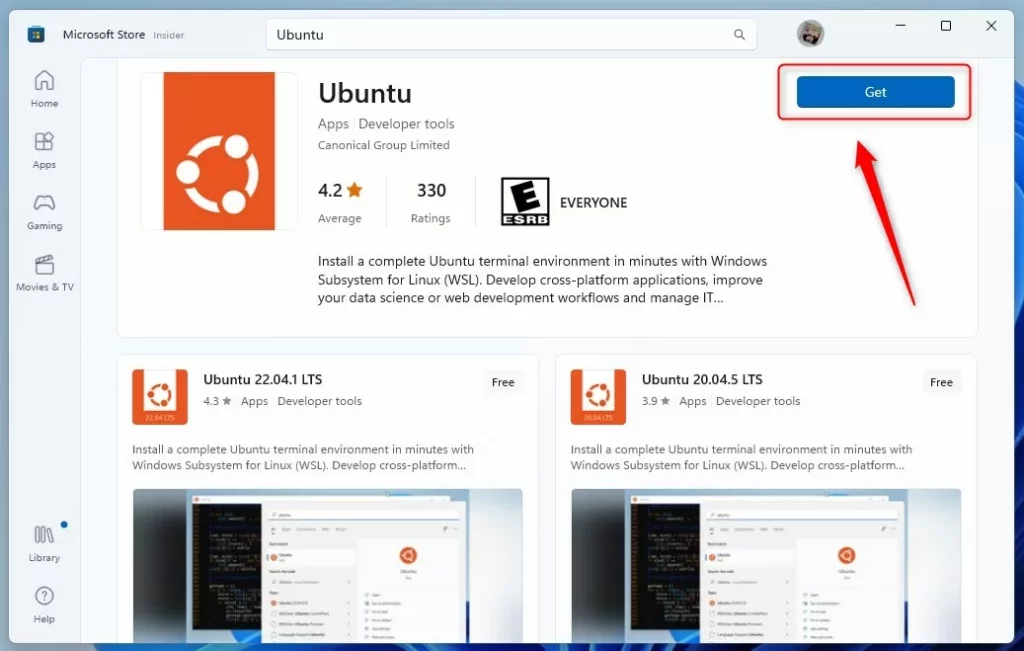
Once you download your chosen Linux app, open it from your Start menu. It will finish the installation and ask you to create a new username and password for that Linux system. You now have a working Linux environment!
Install Linux using the Command Line
You can also install Linux using the command prompt. This requires administrative privileges. Open the Command Prompt or Windows PowerShell as an administrator to begin.
First, see which versions of Linux you can install by running this command:
You will see a list of available names. To install a specific version, use this command:
wsl --install -d <name of Linux distro>
For example, to install Ubuntu, type this:
wsl --install -d Ubuntu
After the installation finishes, you will be prompted to set your username and password.
Summary
Installing Linux on Windows is a simple way to expand your computer’s capabilities. By using the Microsoft Store or the command line, you can quickly set up environments like Ubuntu or Debian. Once finished, you can access your Linux tools directly through the Windows Terminal or your Start menu.



Leave a Reply Cancel reply