
This tutorial shows you how to enable or disable “energy saver” in Microsoft Edge. You can adjust this setting for your personal account or for all users on your Windows 11 computer.
To turn Energy Saver on or off, click the Performance (heart pulse) icon on the toolbar, or go to Settings > System and performance > Performance. Toggle “Save battery with energy saver” and choose your preferred savings mode.
What is Microsoft Edge?
Microsoft Edge is a web browser that launched on January 15, 2020, and it’s available for both Windows and macOS. Edge is known for being fast, secure, and packed with privacy features.
Why Use Energy Saver?
Energy saver mode helps your battery last longer. It reduces the power your computer uses by limiting how hard the browser works. This is especially helpful if you’re using a laptop.
How Energy Saver Works
Microsoft Edge’s energy saver mode helps your laptop battery last longer by reducing how much power the browser uses, putting background tabs to sleep and lowering CPU use.
- Puts background tabs to sleep after 5 minutes of inactivity
- Reduces CPU usage so your system can focus on other apps
- May cause videos to play less smoothly or animations to slow down
When does energy saver turn on? Energy saver automatically turns on when your laptop is unplugged. It will stay active until you plug it back in, or until your battery runs out.
Will I notice a difference? You might see minor slowdowns when browsing, but battery life improves significantly.
Two Power-Saving Options
Microsoft Edge offers two main power-saving options: Balanced Savings for everyday use, and Maximum Savings for when you really need to stretch your battery life.
This option balances battery life and browser speed. When unplugged, moderate power-saving steps kick in. You should notice little to no slowdown. If your battery gets low, stronger power-saving steps activate. You may see some slowdown, like less smooth videos. A heart pulse icon appears in your toolbar.
Maximum Savings
Use this when you won’t have power for a long time. Strong power-saving steps are always active when unplugged. You may notice visible slowdowns. A heart pulse icon appears in your toolbar the whole time you’re unplugged.
Learn More
You can learn more about how Microsoft Edge’s energy saver works to extend battery life by checking out Microsoft’s official guides on features like sleeping tabs and efficiency mode.
Energy saver | Extend battery life with Microsoft Edge Get on average 25 more minutes of battery life with Microsoft Edge Energy saver. Reduce resource usage, customize settings, and keep tabs efficient.
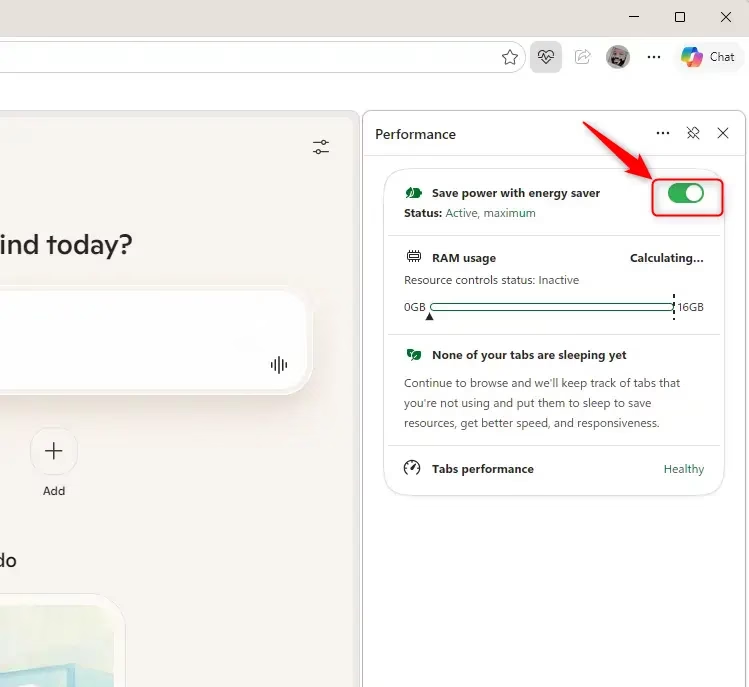
Option 1Use the Performance Icon
- Open Microsoft Edge.
- Do one of the following:
- Click the Performance (heart pulse) icon on the toolbar, OR
- Click the Settings and more (3 dots) button, click More tools, then click Performance
- Turn On or Off “Save battery with energy saver” in the Performance menu.
Option 2Use Settings
- Open Microsoft Edge.
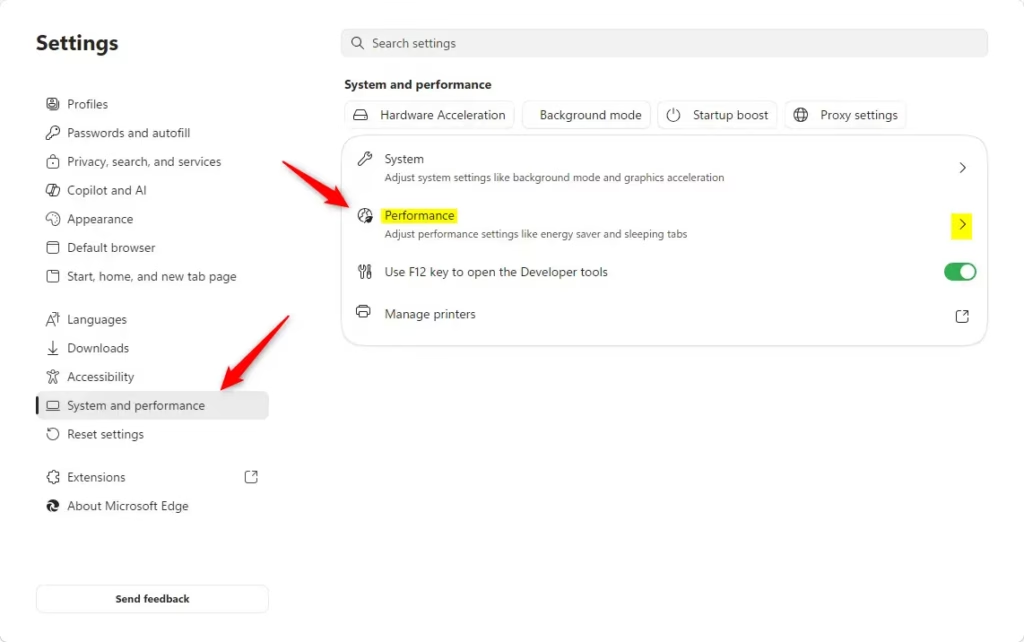
- Click the Settings and more (3 dots) button, then click Settings.
- Click System and performance in the left pane, then click Performance.
You can easily turn Microsoft Edge’s energy saver on or off right from the browser’s settings menu.
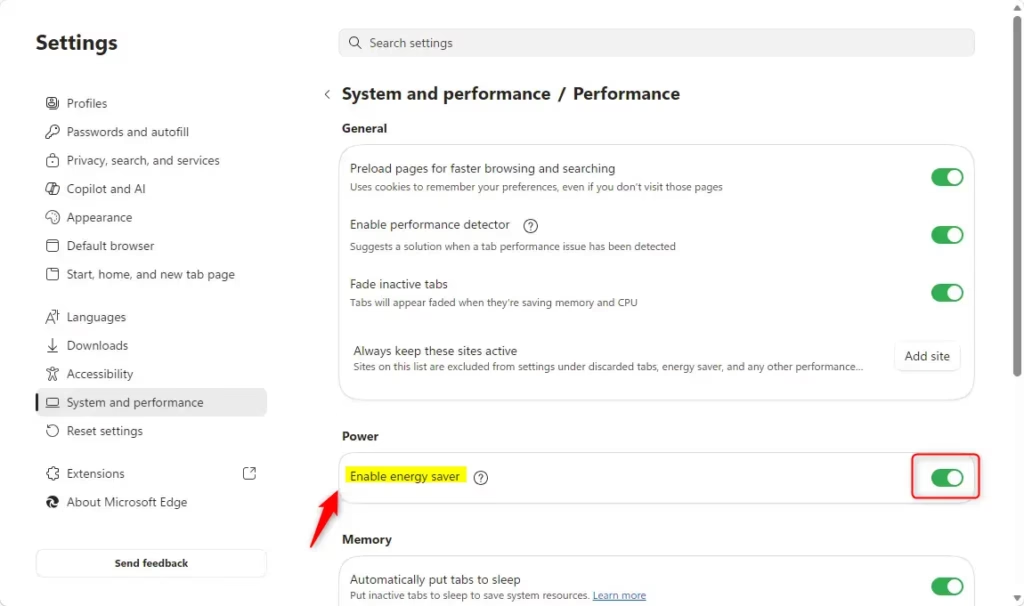
Turn On Energy Saver
This is the default setting.
- Under Power, turn on Enable energy saver.
- If your device has a battery, select Balanced (default) or Maximum savings.
- If your device has a battery, turn On or Off “Use energy saver even when connected to power.”
Turn Off Energy Saver
- Under Power, turn off Enable energy saver.

Option 3Enable for All Users
To turn on Microsoft Edge’s energy saver for everyone on your computer, you’ll need administrator access to change a system-wide setting using the EfficiencyModeEnabled policy.
This setting uses a specific configuration for Microsoft Edge called the EfficiencyModeEnabled policy.
You’ll need administrator privileges to do this. You can open Windows Terminal as an administrator and enter the command provided, or you can navigate to the correct key in the Registry Editor.
Enable Energy Saver for All Users
This will override and gray out Options One and Two.
reg add "HKEY_LOCAL_MACHINE\SOFTWARE\Policies\Microsoft\Edge" /v EfficiencyModeEnabled /t REG_DWORD /d 1 /f
Disable Energy Saver for All Users
This will override and gray out Options One and Two.
reg add "HKEY_LOCAL_MACHINE\SOFTWARE\Policies\Microsoft\Edge" /v EfficiencyModeEnabled /t REG_DWORD /d 0 /f
Allow User Choice (Default)
This is the default setting. It allows using Options One and Two.
reg delete "HKEY_LOCAL_MACHINE\SOFTWARE\Policies\Microsoft\Edge" /v EfficiencyModeEnabled /f
Summary
Microsoft Edge’s energy saver mode is a great tool to help your laptop’s battery last longer and reduce resource use on any computer.
What does Microsoft energy Saver do?
Microsoft Edge’s energy saver helps your laptop battery last longer by using less power, mainly by putting unused tabs to sleep and slowing down animations.
Does the energy saver on Windows actually work?
Yes, Windows’ built-in energy saver is effective at making your laptop battery last longer by reducing power usage from apps and hardware.
Should efficiency mode be on or off Edge?
You should keep Edge’s efficiency mode on if you often use your laptop without plugging it in, as it helps save battery life.
Does Microsoft Edge save battery?
Yes, Microsoft Edge has features like energy saver and efficiency mode built-in to help your laptop’s battery last longer.
Was this guide helpful?

About the Author
Richard
Tech Writer, IT Professional
Richard, a writer for Geek Rewind, is a tech enthusiast who loves breaking down complex IT topics into simple, easy-to-understand ideas. With years of hands-on experience in system administration and enterprise IT operations, he’s developed a knack for offering practical tips and solutions. Richard aims to make technology more accessible and actionable. He's deeply committed to the Geek Rewind community, always ready to answer questions and engage in discussions.




No comments yet — be the first to share your thoughts!