Windows 11 Sign-In: Windows Hello, PIN, Lock and Fixes

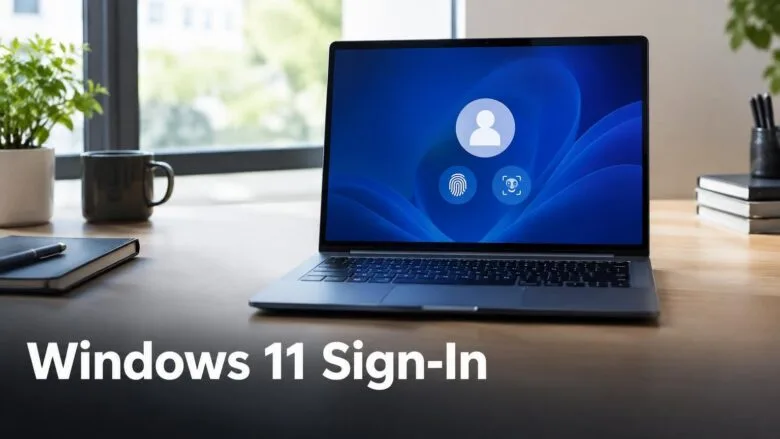
Windows 11 sign-in covers how you prove who you are when the PC starts, wakes, or locks. The options include a PIN, a fingerprint, a face scan, or a password, and the settings sit in several places: Settings Accounts Sign-in options, the lock screen settings, and Power and sleep. This page groups the 37 guides by what you are trying to do, from everyday sign-in to fixes for PIN, lock and BitLocker prompts. If you are new to Windows Hello, start with the setup guide and use the rest when you need a specific change or a fix.
Sign in and out day to day
These guides cover the routine parts of signing in: finding Sign out, understanding the locked screen you see after a remote lock, and choosing what apps reopen after you sign back in. Read them if the sign-in process itself is unfamiliar.
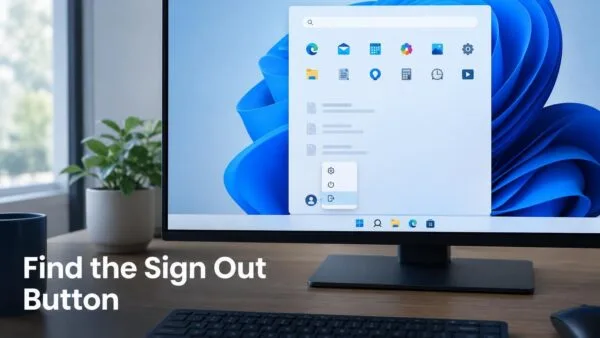 Find the Sign Out Button in Windows 11 Windows 11 has no Logout button. Find Sign out by clicking your account name at the bottom-left of the Start menu, plus four backup methods if Start…
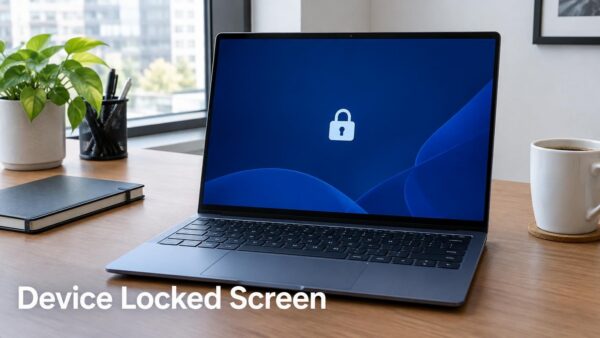 What the Device Locked Screen Means After Remote Lock In Windows 11 Windows 11 shows Device Locked after IT applies Remote Lock through Intune. Only an admin can lift it, so here's what the screen means and who to contact.
 How to Configure Automatic App Resume After Sign-In in Windows 11 Resume Settings Windows 11 can reopen the apps you had running before you signed out, restarted, or shut down, the moment you sign back in. You turn this on in Settings &g
Set up Windows Hello sign-in
Windows Hello lets you sign in with a PIN, fingerprint or face instead of a password. The guides here set up each method, add more fingers or a second face, and use an external reader when the PC has no built-in sensor.
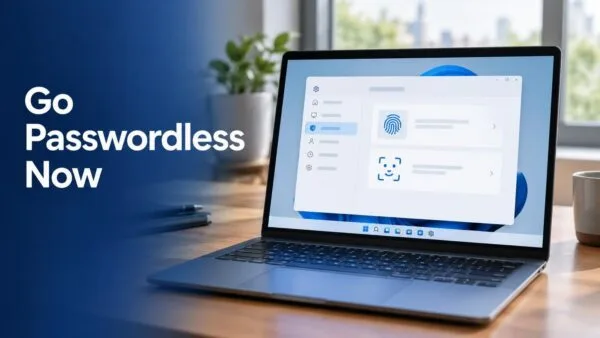 Turn On Passwordless Sign-In with Windows Hello in Windows 11 Go passwordless with Windows Hello in Windows 11: set up a PIN, fingerprint or face, then turn on the Windows Hello-only setting in Settings > Accounts.
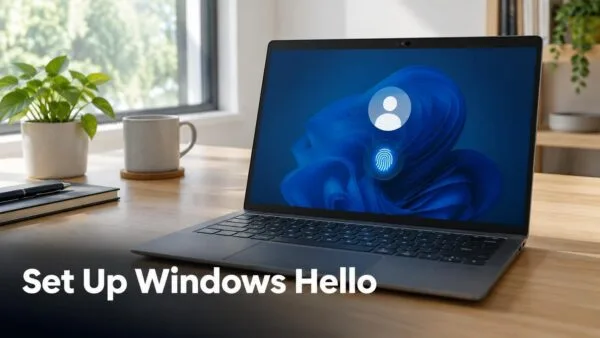 How to Set Up Fingerprint and Face Sign-In in Windows 11 How to Set Up Fingerprint and Face Sign-In in Windows 11 from Settings > Accounts > Sign-in options. Covers PIN setup, greyed-out options, low-light fixes.
 Windows 11 Fingerprint Setup: Add More Fingers Enhance your security with Windows 11 fingerprint setup. Add multiple fingers for a personalized sign-in experience and improved access.
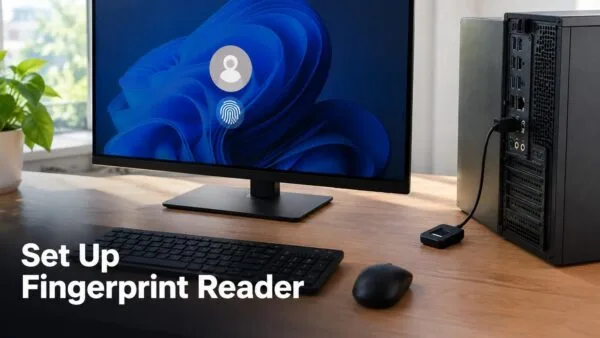 How to Set Up an External Fingerprint Reader for Windows Hello in Windows 11 Windows Hello external fingerprint reader setup on Windows 11: update to KB5101684, plug in the reader, then enroll your finger in Sign-in options.
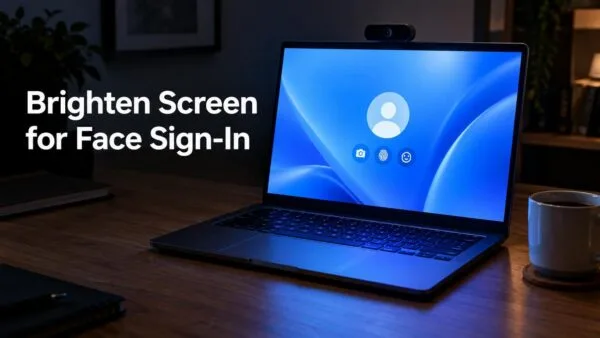 How to Turn On Screen Brightening for Windows Hello Face Sign-In in Windows 11 Turn on screen brightening for Windows Hello face sign-in in dark rooms via Settings > Accounts > Sign-in options. It is in Insider builds only so far.
 Changing Facial Recognition to a Different Face on Windows 11 Change facial recognition to a different face on Windows 11: remove the saved scan under Settings > Accounts > Sign-in options, then scan the new face.
 How to Enable or Disable Windows Hello Biometrics Enable or disable Windows Hello biometrics on Windows 11. Step-by-step guide using Group Policy Editor or Registry Editor to control face, fingerprint...
Lock the PC automatically
Windows can lock your PC after a period of inactivity, when the screen turns off, or when you leave with your phone or Bluetooth device. These guides show where each timer and proximity option is set, and whether it suits your situation. Dynamic Lock and Bluetooth locking are covered in their own group below the timeout settings.
 How to Enable Automatic Device Locking Feature in Windows 11 Lock your Windows 11 PC automatically when you walk away. Pair your phone via Bluetooth, then enable Dynamic lock under Accounts sign-in options.
 How to Configure Auto Lock Screen Settings in Windows 11 Change how long Windows 11 waits before locking your screen using Settings, Control Panel, or Registry Editor.
 How to Clear Automatic Lock Screen Settings in Windows 11 Windows 11 locking your screen during short breaks? Clear automatic lock screen settings in Accounts > Sign-in options and turn off Dynamic Lock.
 How to Adjust Screen Timeout Settings in Windows 11 Power and Sleep Stop your screen from going black too soon. Adjust Windows 11 screen timeout values in Power & battery settings or through the Control Panel.
 How to Enable or Disable Sign-In on Wake In Windows 11 Manage your Windows 11 sign-in on wake settings. Secure your account or disable prompts for a seamless wake-up experience.
 Should You Enable Automatic Device Locking with Dynamic Lock Secure your PC with Dynamic Lock. Enable automatic device locking in Windows via Bluetooth for safety when away. Learn setup pitfalls.
 How to Enable Automatic Device Locking Using Dynamic Lock In Windows 11 Pair your phone via Bluetooth and enable Dynamic Lock in Settings to secure your PC automatically the moment you walk away.
 How to Enable Automatic Device Locking Feature in Windows 11 Dynamic Lock Lock your Windows 11 PC automatically when you walk away. Pair your phone via Bluetooth, then enable Dynamic Lock in Sign-in options.
 Should You Enable Automatic Device Locking Using Bluetooth Dynamic Lock In Windows 11 Windows 11 Dynamic Lock secures your PC when you walk away. Learn how it tracks Bluetooth range, its limitations, and whether to turn it on.
 Should You Enable Automatic Device Locking with Bluetooth Proximity Windows already has this built in — it's called Dynamic Lock, and you can turn it on in a couple of minutes through Settings. The short answer: yes, it's w
Change the lock and sign-in screens
The lock screen shows a background, a clock and sign-in options, and the sign-in screen can show a legal notice and use its own language. Use these guides to change how those screens look and behave, or to put the default back.
 How to Turn On or off the Lock Screen in Windows 11 Customize your Windows 11 lock screen with two methods using Group Policy or Registry Editor. Turn it on or off to match your security needs.
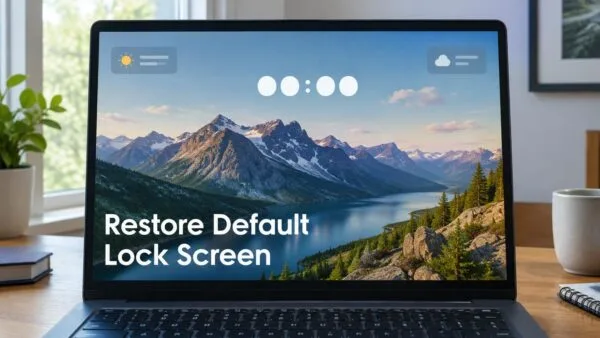 Restore the Default Windows Lock Screen in Windows 11 Lock screen missing or stuck on a plain picture? Set Personalize your lock screen to Windows Spotlight in Settings > Personalization > Lock screen. No…
 How to Set a 24-Hour Clock on Windows 11 Lock Screen Set a 24-hour clock on your Windows 11 lock screen. Follow our simple steps to switch from 12-hour to military time and enhance your time display!
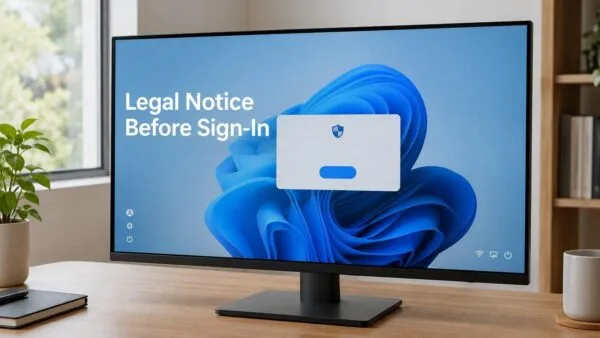 Show a Legal Notice Before Sign-In on Windows 11 Show a legal notice before sign-in on Windows 11 Pro, Enterprise or Education with Local Security Policy. Home lacks it, so check your edition first.
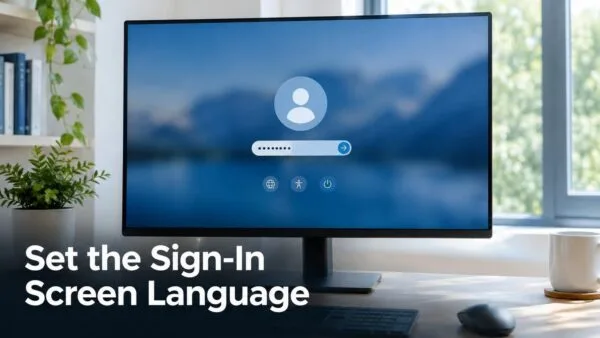 Set the Sign-In Screen Language in Windows 11 Set the sign-in screen language in Windows 11 by copying the display language to the Welcome screen under Administrative language settings. Needs admin…
Manage credentials, BitLocker and admin settings
This group covers stored passwords, BitLocker’s startup PIN, Store purchase prompts, Remote Desktop users and the PC’s product key and workgroup. Some of these need an administrator account, and the guides say so. Read the BitLocker guide before changing any startup setting, because a mistake can lock you out of the drive.
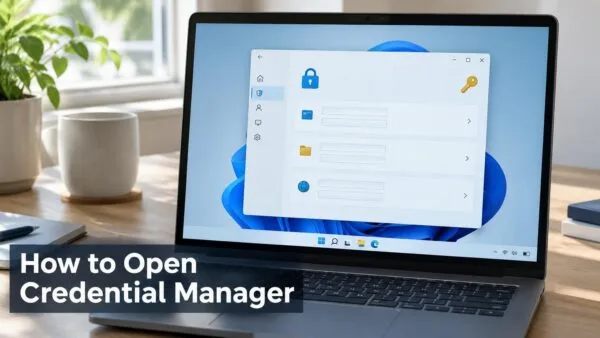 How to Open and Use Credential Manager in Windows 11 Credential Manager in Windows 11 is where saved passwords for network shares and some websites live. Open it from Search, then view, edit, or remove…
 How to Add a BitLocker Preboot PIN as a Standard User in Windows 11 Windows 11 Insider builds 26340.10013 and 26320.10003 let standard users add a BitLocker startup PIN on managed devices with no admin account. Here is how…
 Require Sign-In for Microsoft Store Purchases in Windows 11 Change purchase sign-in settings for the Windows Store. Not every version has a toggle, so check Store settings, saved payment methods and Family Safety.
 How to Enable or Disable Windows Hello Biometrics for Domain Users Enable or disable Windows Hello biometrics for domain users in Windows 11. Follow simple steps using Group Policy Editor or Registry to control biometric…
 How to Add or Remove Remote Desktop Users in Windows 11 Manage Remote Desktop Users in Windows 11. Follow our step-by-step guide to add or remove users for seamless remote access.
 How to Change Workgroup on Windows 11 Change workgroup Windows 11 using Settings, Command Prompt, or PowerShell. Enable file and printer sharing across your network devices in minutes.
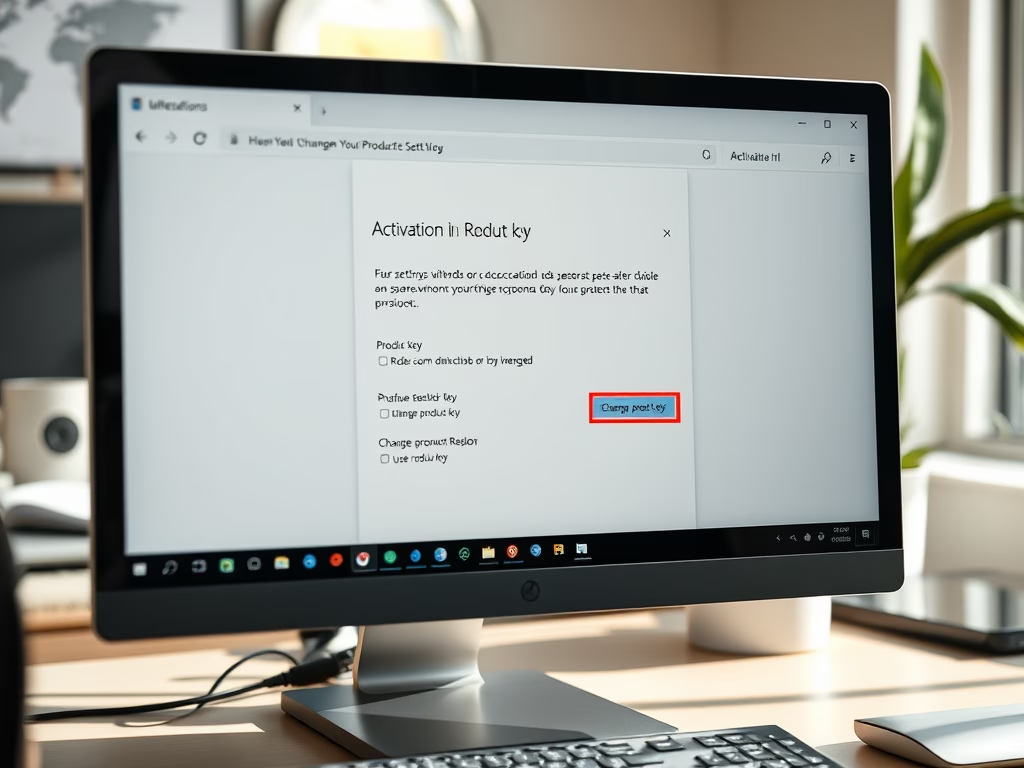 How to Change Your Product Key in Windows 11 Change your Windows 11 product key using Settings or Command Prompt. Follow our step-by-step guide to activate or upgrade Windows 11 today.
 How to Find Your Product Key in Windows 11 Find your Windows 11 product key with our step-by-step guide. Whether it's on your device or a digital copy, we have you covered!
Fix sign-in problems
These guides start from a symptom: a slow sign-in, a PIN that stops working after an update, a BitLocker recovery prompt on every restart, or a Remove PIN button that is greyed out. Each one explains the likely cause before the fix. Work through the matching guide and try the steps in order.
 Why Is Windows 11 Slow Right After I Enter My Password Windows slow after password on Windows 11? Disable startup apps in Task Manager, then check OneDrive and pending updates. Covers version 22H2 and later.
 What to Do When Windows 11 Pin Login Stops Working After an Update Locked out by the PIN is not available error after a Windows 11 update? Sign in with your password, then reset the NGC folder in Settings.
 What to Do When Windows 11 Prompts for BitLocker Recovery After Every Reboot Windows 11 asking for a BitLocker recovery key after every reboot? Find your 48-digit code online, then clear the recovery loop by updating BIOS.
 How to Fix Grayed out Remove PIN Button in Windows 11 Fix your grayed out remove PIN button in Windows 11 with this simple guide. Disable one security setting to unlock the removal option and switch back to…
Have a question about this guide?
Answered by AI from this guide. Good questions may be added to this page — please don't include personal details.

About the Author
Richard
Tech Writer, IT Professional
Richard is a writer at Geek Rewind who turns complex IT tasks into clear, step-by-step guides. He draws on years of hands-on experience in system administration and enterprise IT operations, focusing on Windows, Linux and WordPress: the problems people actually run into, and the fixes that work. His server and WordPress guides come from systems he runs himself. Richard builds and maintains the platform behind Geek Rewind, from its Ubuntu servers and Nginx configuration to its custom WordPress plugins. Many new tutorials start with readers' questions, and he's always glad to answer them in the comments.
No comments yet — be the first to share your thoughts!