Find the Sign Out Button in Windows 11

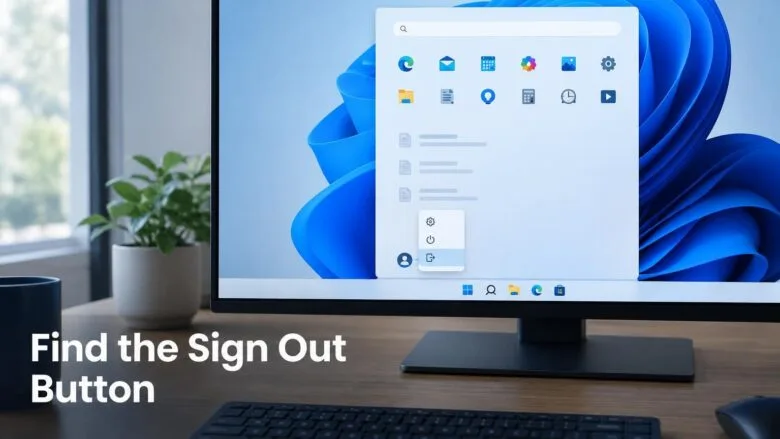
Windows 11 has no button labeled “Logout”. The logout button is called Sign out, and it sits in the menu that opens when you click your account name or picture in the Start menu . The fastest route is Start > your account name > Sign out.
The other methods below help when the Start menu is missing, frozen or locked down. None of them needs administrator rights.
In Windows 11, the logout button is called Sign out. To find it, click Start on the taskbar , click your account name or picture at the bottom-left of the Start menu, then click Sign out. Windows closes your open apps, so save your work first. The power button at the bottom-right does not offer Sign out.
Where 🪟 Windows 11 puts the logout button
Older versions of Windows kept the sign-out option beside Shut down. Windows 11 moved it. The power button at the bottom-right of the Start menu offers only Sleep, Shut down and Restart.
People open that menu, see no logout button, and assume it was removed. It was not. Sign out is under your account at the bottom-left of the Start menu .
Some articles and apps say “log out”, “log off” or “sign off”. In Windows 11, the on-screen label is Sign out. The command-line tools (text-based tools where you type commands) still use the older words, as the last method shows.
Sign out, lock, switch user and shut down: what each one does
Those apps lose any unsaved work when you sign out. Save your files first, because you cannot undo a sign-out once it finishes.
These neighbouring options look similar but behave differently:
- Lock hides your screen and keeps everything running. You return to the same open apps after you enter your password or PIN. Press Windows key + L to lock.
- Switch user shows the sign-in screen for another account. Your apps keep running in the background, and they use memory until you sign in again and sign out properly.
- Sign out closes your apps and ends your session. The PC stays on and shows the sign-in screen.
- Shut down closes everything for every signed-in user and powers off the PC.
Signing out of Windows is also not the same as signing out of your Microsoft account inside one app, such as Microsoft Edge or the Microsoft Store. Those sign-outs affect only that app. They do not end your Windows session.
Find the Sign out button
Pick the method that suits your situation. Method 1 works for most people. Methods 3 and 5 help when the Start menu does not respond.
Method 1Sign out from the Start menu
This is the standard route. It works on every edition of Windows 11, including Home and Pro.
- Click Start on the taskbar, or press the Windows key. The Start menu opens.

- Find your account name or picture at the bottom-left of the Start menu. Click it. A small menu opens with Change account settings, Lock and Sign out. If other accounts exist on the PC, they appear below these options.
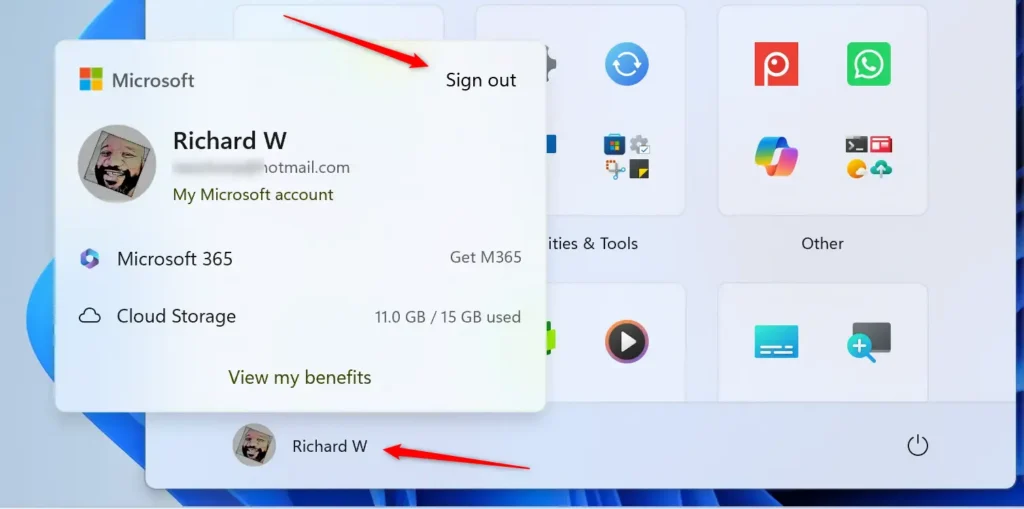
- Click Sign out. Windows closes your apps and shows the lock screen or sign-in screen.
If you click the power icon at the bottom-right instead, you will not see Sign out. Close the power menu and click your account name on the left.
If a screen lists apps that are still open when you sign out, Windows is waiting for them to close. Choose Cancel to go back and save your work. Choose Sign out anyway only if you are happy to lose unsaved changes in those apps.
Method 2Sign out from the right-click Start menu
Right-clicking the Start button opens a hidden menu of system shortcuts, often called the Power User menu. It has its own sign-out option, and it works even when the Start menu itself is slow to open.
- Right-click the Start button, or press Windows key + X. The Power User menu opens.
- Point to Shut down or sign out near the bottom of the menu. A submenu opens.
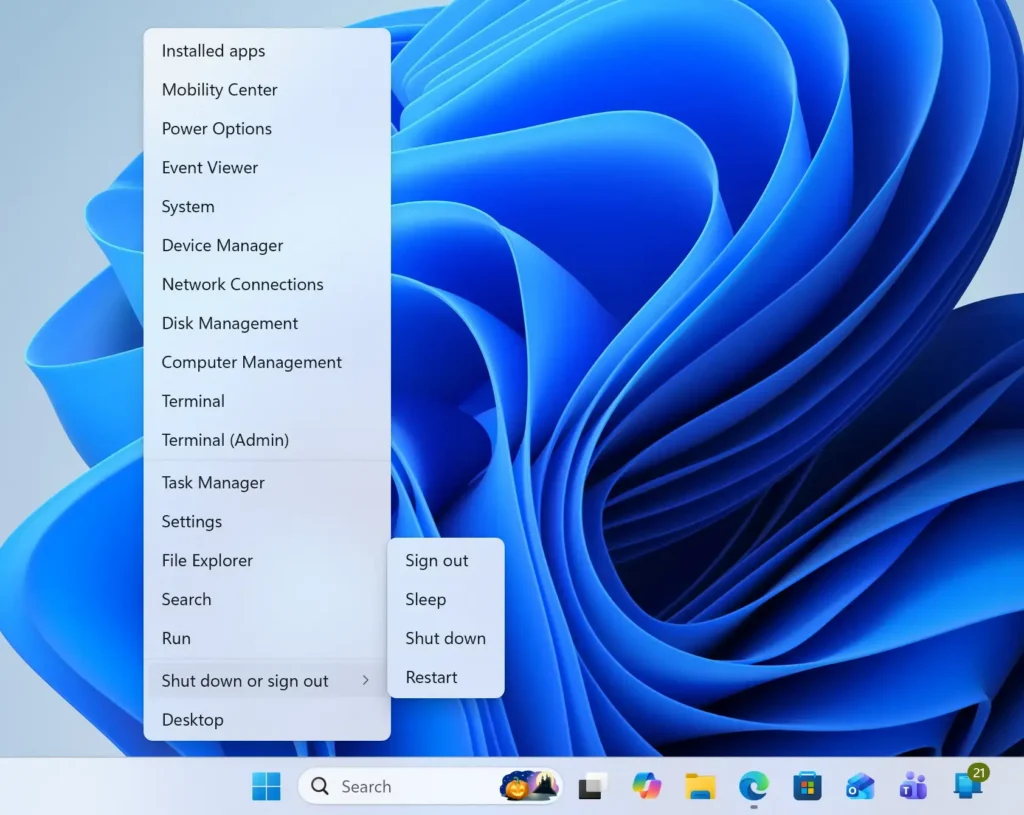
- Click Sign out. You return to the sign-in screen.
For a keyboard-only route, press Windows key + X, then U, then I. The U key selects Shut down or sign out, and the I key selects Sign out.
Method 3Sign out with Ctrl + Alt + Del
This method is the most reliable when the taskbar or Start menu is frozen. The key combination is handled by Windows itself, so it works even if the desktop is not responding.
- Press Ctrl + Alt + Del at the same time. A full-screen menu appears with Lock, Switch user, Sign out, Change a password and Task Manager.
- Click Sign out. Windows ends your session and shows the sign-in screen.
Try the left Ctrl and Alt keys. Hold the power button only as a last resort, because it loses unsaved work. If the screen still does not respond, hold the power button to force a shutdown.
Method 4Sign out with Alt + F4
Alt + F4 normally closes the active window. If you are on the empty desktop with no app selected, Alt + F4 opens a shutdown dialog instead. The key is to click an empty spot on the desktop first.
- Press Windows key + D to show the desktop. This moves focus off your open apps.
- Press Alt + F4. The Shut Down Windows dialog opens.
- Open the drop-down list under What do you want the computer to do? and select Sign out.
- Click OK. Windows signs you out.
If an app closes instead of the dialog opening, focus was still in that app. Reopen the app if you need it, click an empty spot on the desktop, and press Alt + F4 again. If the app asks to save changes when it closes, save them or choose to discard them as you prefer.
Method 5Sign out with a command
Use a command when you want to sign out from a script, from a remote session or from a keyboard-only workflow. The command signs you out at once and does not ask for confirmation, so save your work first.
- Press Windows key + R to open the Run dialog.
- Type
logoffand press Enter. Windows signs you out immediately.
You can also type shutdown /l instead. The /l switch means "log off the current user". Both commands work in Run, Command Prompt and Windows Terminal.
If the Sign out button is missing or does nothing
Work through these causes in order. The first one is the most common.
- You opened the power menu instead of the account menu. The power icon never lists Sign out. Click your account name or picture at the bottom-left of the Start menu.
- The Start menu does not open or is very slow. Use Method 2, 3 or 5. To restart the part of Windows that draws your desktop, without signing out, press Ctrl + Shift + Esc to open Task Manager, select Windows Explorer on the Processes page, and click Restart. The taskbar disappears for a moment and comes back.
- You are on a work or school PC. An administrator can remove sign-out options with a policy (a centrally managed setting). If Sign out is gone from every menu, ask your IT team. Do not try to bypass it. This article does not name the policy, because the name can differ between Windows 11 versions.
- The PC runs in kiosk mode. Kiosk setups, which lock a PC to a single app, replace the normal sign-out menus. Whoever configured the PC chose the exit method, so ask them.
- You are connected through Remote Desktop. Closing the Remote Desktop window disconnects you but does not sign you out. The next section covers this.
Home and Pro behave the same here. Missing sign-out options point to a policy, a kiosk setup or the wrong menu. They do not depend on the edition.
Add a Sign out shortcut you can pin
If you sign out often, make a shortcut that does it in one click. This creates a desktop shortcut that runs the same command as Method 5. A click on it signs you out with no confirmation, so keep it away from accidental clicks.
- Right-click an empty spot on the desktop and select New Shortcut. The Create Shortcut wizard opens.
- In the box under Type the location of the item, type
shutdown.exe /land click Next. - Type a name such as
Sign outand click Finish. The shortcut appears on your desktop. - Right-click the new shortcut and select Pin to Start if you want it in the Start menu. If you do not see that option, select Show more options first.
To give the shortcut a keyboard combination, right-click it, select Properties, click the Shortcut tab, click in the Shortcut key box and press a letter. Windows adds Ctrl + Alt in front of it. Click OK to save.
To undo this, delete the shortcut from the desktop and unpin it from Start. Nothing else on the PC changes.
Sign out of a Remote Desktop session
When you connect to another PC with Remote Desktop, closing the connection window only disconnects you. Your apps keep running on the remote PC, and your session stays open. To end the session properly, sign out on the remote PC first.
- Click Start inside the Remote Desktop window. The remote PC's Start menu opens.
- Click your account name at the bottom-left of the menu.
- Click Sign out. The remote session ends and the connection window closes.
Ctrl + Alt + Del does not reach the remote PC, because your local PC takes it. Press Ctrl + Alt + End inside the Remote Desktop window instead. It opens the same security screen on the remote PC, where you can click Sign out.
What to do next
After you sign out, you should see the lock screen or sign-in screen. Sign back in with your usual password, PIN or Windows Hello (the face or fingerprint sign-in, if your PC has it), and your desktop starts fresh with the apps you set to open at sign-in. If you only want to step away and keep your apps open, press Windows key + L to lock the PC instead. If Sign out stays missing on a PC you manage yourself, restart the PC once and check the account menu in the Start menu again before looking at policies.
Have a question about this guide?
Answered by AI from this guide. Good questions may be added to this page — please don't include personal details.
Did this guide fix your problem?

About the Author
Richard
Tech Writer, IT Professional
Richard is a writer at Geek Rewind who turns complex IT tasks into clear, step-by-step guides. He draws on years of hands-on experience in system administration and enterprise IT operations, focusing on Windows, Linux and WordPress: the problems people actually run into, and the fixes that work. His server and WordPress guides come from systems he runs himself. Richard builds and maintains the platform behind Geek Rewind, from its Ubuntu servers and Nginx configuration to its custom WordPress plugins. Many new tutorials start with readers' questions, and he's always glad to answer them in the comments.
No comments yet — be the first to share your thoughts!