Should You Enable Automatic Device Locking with Bluetooth Proximity

- 10 steps
- Needs administrator rights
Dynamic Lock is a Windows feature that automatically locks your PC when your Bluetooth device (like your phone or smartwatch) moves out of range. It’s built into Windows 10 and Windows 11, and you can turn it on in Settings in about two minutes. It works the same on Home and Pro editions.
One note on versions: Windows 10 reached end of support on October 14, 2025, so it no longer gets security updates. If you’re still on it, plan to move to Windows 11. The steps below are written for Windows 11, and menu names on Windows 10 differ slightly.
The short answer: yes, it’s worth enabling as an extra layer of security. But don’t expect it to replace your habit of pressing Win+L when you step away from your desk. Dynamic Lock has a built-in delay of up to a few minutes before it locks, so there’s a window where your PC stays unlocked even after you’ve left.
Dynamic Lock works best as a backup, not your main protection. If you work in a shared office or leave your PC unattended regularly, it adds helpful automatic security without requiring you to think about it. Just keep manually locking your PC as your first line of defense.
Yes, enable Dynamic Lock in Windows 11 if you leave your PC unattended, but treat it as a backup to pressing Win+L. Pair your phone under Settings Bluetooth & devices, then turn on Dynamic Lock under Settings Accounts Sign-in options
What Dynamic Lock Does (and Why It’s Not Instant)
Dynamic Lock pairs your Windows 11 PC with a Bluetooth device you carry, almost always your phone, and watches the Bluetooth signal strength between the two. When Windows can no longer detect that device, it locks your PC automatically, the same as if you’d pressed Win+L yourself. That happens when you’ve walked out of range, which is roughly 30 feet indoors, though walls and interference shrink that.
The catch is timing. Windows doesn’t lock the instant your phone drops out of range. It waits about 30 seconds to confirm the device is actually gone and not just having a temporary connection loss. In practice, the full lock can take a couple of minutes depending on signal conditions.
If you need your screen locked the second you stand up from your desk, Dynamic Lock is not that tool. Think of it as a safety net for the times you forget to lock manually, not a replacement for the habit.
What You Need Before You Turn It On
Dynamic Lock has a few prerequisites. Missing any of them is the most common reason the setting won’t turn on or won’t work reliably. Check this list before you start.
- A Bluetooth adapter in your PC. Most laptops have one built in. Many desktops don’t, in which case you’ll need a USB Bluetooth adapter.
- Bluetooth turned on on both your PC and your phone, and left on. Dynamic Lock can only track the phone while its Bluetooth radio is active.
- Your phone paired to your PC as a Bluetooth device. Not just connected for file transfer or audio, but paired the normal way through Bluetooth settings so Windows recognizes it as “your” device. The phone has to stay paired. If you remove it from either side, Dynamic Lock stops working.
- An iPhone may need extra care. Confirm the pairing prompt on both the iPhone and the PC when it appears, and leave Bluetooth switched on afterward. If the iPhone’s Bluetooth is turned off or the pairing was never confirmed, locking can be unreliable.
- A sign-in method other than just a password. Your account needs a sign-in method (password, PIN, or Windows Hello) so the locked session can be unlocked again.
- A signed-in Microsoft account or local account with sign-in options enabled. Dynamic Lock lives under the same Settings page as your PIN and Windows Hello setup, so if that page is restricted by a work or school account policy, the toggle may be missing entirely.
How to Enable Dynamic Lock in 🪟 Windows 11
Dynamic Lock can’t see a device that hasn’t been paired, and the setting won’t let you select anything if the pairing list is empty.
- Open Settings , then go to Bluetooth & devices. You’ll see a list of connected devices and a button to add new ones.

Windows Settings menu highlighting the Bluetooth and devices option for printers - Make sure the Bluetooth toggle at the top is set to On.
- Turn on Bluetooth on your phone and keep its Bluetooth settings screen open so it’s discoverable.
- Click Add device, then choose Bluetooth . Windows starts scanning for nearby devices.
- Select your phone from the list once it appears.
- Confirm the pairing code on both your phone and PC if one pops up. Your phone now shows up under Bluetooth & devices as a paired device.
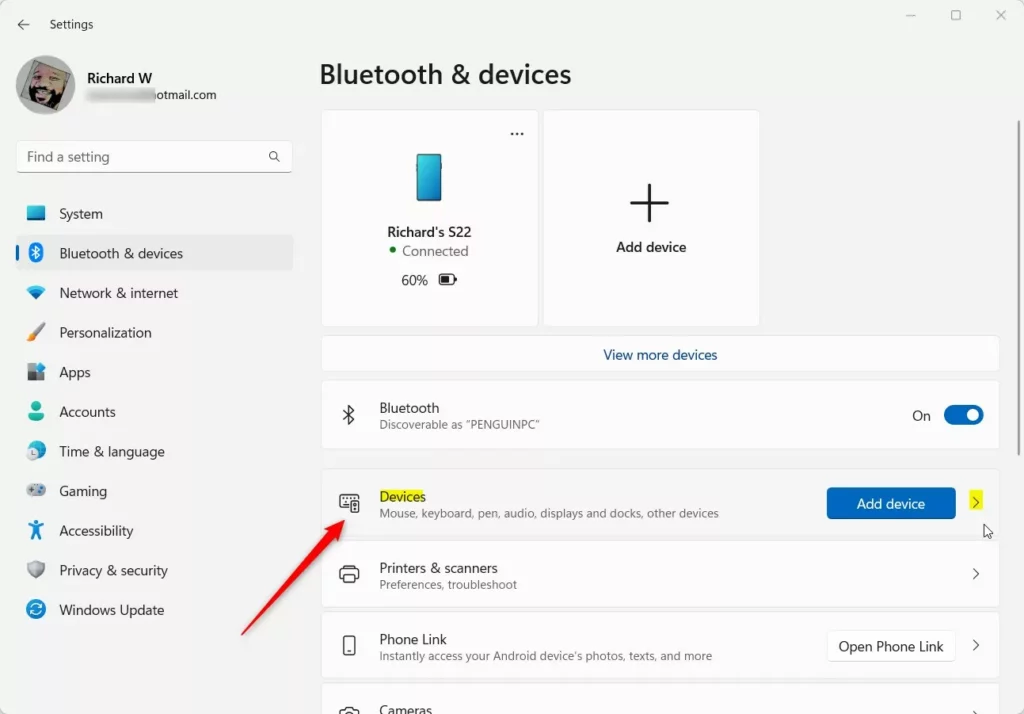
Windows 11 Bluetooth and devices settings with add device option. - Go to Settings Accounts Sign-in options. Scroll down and you’ll find a section called Dynamic lock.
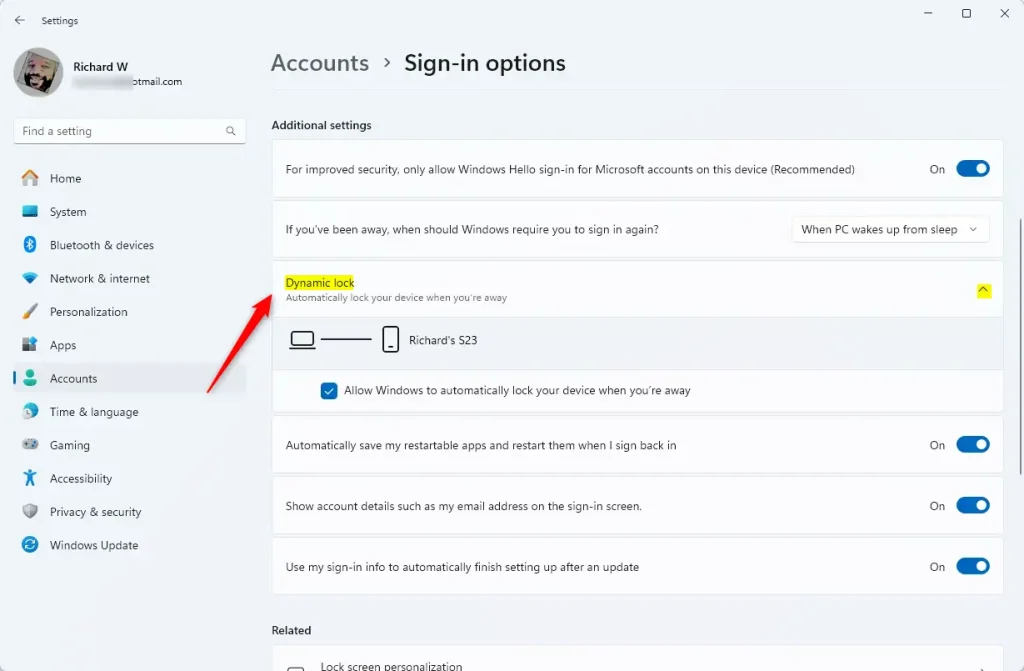
Windows 11 Dynamic Lock settings screen showing pairing options. - Check the box next to Allow Windows to automatically lock your device when you’re away. This is the entire setting. There’s no separate list to pick which paired device to use. Windows uses whichever paired Bluetooth device is closest and most recently connected.
Once it’s checked, Windows starts watching the Bluetooth connection immediately. No restart is needed, and you don’t need administrator rights to turn this on. It’s a per-user setting, not a system-wide one.
To test it, take your phone with you and walk out of range, then wait a couple of minutes. When you come back, you should see the lock screen.
How to Turn Off Dynamic Lock
If the delay makes it unreliable, or your phone sitting nearby causes unexpected locks (usually from Bluetooth interference in crowded offices), turning it off takes just as long.
- Open Settings Accounts Sign-in options and scroll to Dynamic lock.
Windows 11 Dynamic Lock settings screen showing pairing options. - Uncheck Allow Windows to automatically lock your device when you’re away. Windows stops monitoring the Bluetooth connection right away. Your PC goes back to locking only on your screen timeout or when you lock it manually.
But that also breaks any other Bluetooth features (calls, notifications) that depend on the pairing. Use the checkbox instead if you only want to turn off the locking behavior. To turn Dynamic Lock back on later, just tick the box again, as long as the phone is still paired.
Why the Dynamic Lock Setting Might Be Greyed Out or Missing
A few things cause this section to disappear or refuse to let you check the box, and none of them are bugs:
- No PIN or Windows Hello configured. Set one up first under the same Sign-in options page. Dynamic Lock needs a lock mechanism to trigger.
- No Bluetooth device paired. If your phone has never been paired, or if you unpaired it, the checkbox stays there but won’t do anything useful. Pair a device first, then come back.
- Bluetooth turned off at the hardware level. Some laptops have a physical switch or function-key toggle for Bluetooth radios. Check that Bluetooth shows as “On” at the top of Bluetooth & devices before troubleshooting anything else. Also check that Bluetooth is still on in your phone, since a phone that has switched it off looks like it has walked out of range.
- No Bluetooth adapter. If Bluetooth & devices has no Bluetooth toggle at all, the PC has no working adapter or its driver is missing. Dynamic Lock can’t work until that’s fixed.
- Managed work or school account. If your PC is enrolled in a company’s device management system, an administrator may have disabled sign-in customization options, including Dynamic Lock, through policy. If the whole Sign-in options page looks stripped down, this is almost always why, and there’s no user-side fix. It has to be changed by whoever manages the device.
What Dynamic Lock Won’t Catch
Before you rely on this as your main security layer, know its real limits:
- It’s proximity-based, not presence-based. If your phone stays on your desk next to your PC while you walk away, Dynamic Lock won’t lock anything, because the Bluetooth connection never drops.
- The delay is real. Anywhere from 30 seconds to a couple of minutes can pass between you leaving and the PC actually locking. In an office with people walking by, that’s a window where your screen is still unlocked.
- Bluetooth range varies by hardware. Some PC Bluetooth adapters have weaker range than others, so the same phone might trigger a lock much sooner on one machine than another.
- It drains your phone’s battery slightly faster from having Bluetooth active constantly, though this is a minor effect compared to other background apps.
If you’d rather not depend on a phone at all, some newer PCs support presence sensing. These machines have a sensor that detects when you walk away and can lock or dim the screen for you. Look under Settings Privacy & security Presence sensing If that page isn’t there, your PC doesn’t have supported hardware, and Dynamic Lock remains the option.
Should You Actually Enable It?
For most people, yes, as a supplement and not a substitute. It catches the times you genuinely forget to lock your PC: stepping away for a quick coffee, getting pulled into a hallway conversation, or just losing track of time. The delay means it’s not going to stop someone who sits down at your desk 20 seconds after you leave. Don’t treat it as a replacement for setting a short screen lock timeout or for just hitting Win+L out of habit.
If you work somewhere with shared desks, open offices, or handle sensitive data, keep Dynamic Lock on but pair it with a shorter automatic screen lock timeout under Settings Personalization Lock screen Screen timeout That way you’re covered by two mechanisms instead of relying on Bluetooth proximity alone. If you work from a single quiet home office where physical access isn’t a concern, the benefit is smaller, but there’s no real downside to leaving it on either.
What to Do Next
If Dynamic Lock feels unreliable in your setup, try re-pairing your phone. A stale Bluetooth pairing is the most common cause of inconsistent locking. To do that, remove the phone under Bluetooth & devices, pair it again, and then check that the Dynamic lock box is still ticked. If you use an iPhone, also confirm that Bluetooth is still on there.
From here, it's worth tightening your screen lock timeout settings and confirming Windows Hello or your PIN is set up correctly, since both work alongside Dynamic Lock rather than replacing it.
Frequently asked questions
What is the best setting for auto lock on iPhone?
iPhone doesn't have a direct auto-lock setting for your Windows PC. Dynamic Lock on Windows 11 uses your iPhone's Bluetooth signal instead. Enable it in Settings Accounts Sign-in options Dynamic Lock Your iPhone stays in your pocket—Windows detects when it moves away and locks automatically.
What is the most secure way to lock your phone?
Use a strong passcode or biometric lock (Face ID or Touch ID) as your baseline. For Windows PCs, combine a strong password with Dynamic Lock for Bluetooth-based locking when you step away. Manually lock with Windows key + L before leaving your desk as your primary habit.
Is dynamic lock necessary?
No, Dynamic Lock is optional security. It works best as a backup to manual locking. If you regularly leave your desk or work in shared spaces, it adds convenience and protection without extra effort. But pressing Windows key + L remains your most reliable first defense.
What are the downsides of smart locks?
Smart locks rely on Bluetooth range, which varies by environment and can have delays of several minutes before locking. They may drain phone battery faster. Some fail in weak signal areas. They also require pairing setup and only work with compatible devices—they don't replace traditional passwords.
Still have a question?
Answered by AI from this guide. Good questions may be added to this page — please don't include personal details.
Did this guide fix your problem?

About the Author
Richard
Tech Writer, IT Professional
Richard is a writer at Geek Rewind who turns complex IT tasks into clear, step-by-step guides. He draws on years of hands-on experience in system administration and enterprise IT operations, focusing on Windows, Linux and WordPress: the problems people actually run into, and the fixes that work. His server and WordPress guides come from systems he runs himself. Richard builds and maintains the platform behind Geek Rewind, from its Ubuntu servers and Nginx configuration to its custom WordPress plugins. Many new tutorials start with readers' questions, and he's always glad to answer them in the comments.
No comments yet — be the first to share your thoughts!