How to Set Up Fingerprint and Face Sign-In in Windows 11

- 16 steps
- Needs administrator rights
- Includes a restart or sign-out
Windows Hello is the Windows 11 feature that lets you sign in with your face or fingerprint instead of typing a PIN or password. It is Microsoft’s version of the face unlock and fingerprint unlock that many phones have. You set it up in Settings Accounts Sign-in options, and it takes about two minutes per method.
Windows Hello needs the right hardware and a PIN on the account. Face sign-in requires an infrared (IR) camera, which sees in infrared light and works in dim light, but a very dark room can still stop a scan. The low-light section below covers a setting that helps.
Fingerprint sign-in requires a fingerprint reader. A standard webcam does not work for face sign-in.
This guide covers both methods, a fix for greyed-out options, the low-light brightness setting, and how to remove a method later.
Open Settings, go to Accounts Sign-in options, and click Facial recognition (Windows Hello) or Fingerprint recognition (Windows Hello) to start the setup. You need a PIN on the account first, and face sign-in requires an infrared (IR) camera, since a standard webcam will not work. Each method takes about two minutes.
What You Need Before You Start
Check these four things first. They explain most of the cases where setup fails.
- Compatible hardwareYour PC needs an IR camera for face sign-in or a fingerprint reader for fingerprint sign-in. Many business laptops and some tablets have one or both. Many desktops have neither, but you can add a USB fingerprint reader or an IR camera made for Windows Hello.
- A PIN on your accountWindows Hello uses a PIN as its backup. If you have no PIN, the setup steps below start by creating one.
- Current driversA driver is the software that lets Windows talk to a piece of hardware. A missing or old biometric driver is the most common reason the setup buttons do not appear.
- Your own accountWindows Hello is set up per user account. Each person who shares the PC enrols their own face or fingerprint.
Your face and fingerprint data stay on the device. Windows does not use a photo of you or your fingerprint as a password. If you want a broader look at the other options on this screen, the Windows 11 sign-in options guide covers PINs, security keys, and passwords.
How to Set Up Fingerprint and Face Sign-In in Windows 11
These steps set up fingerprint and face sign-in in Windows 11 from one place, the Sign-in options page. Do the face steps, the fingerprint steps, or both. If your PC has only one kind of sensor, skip the steps for the other kind.
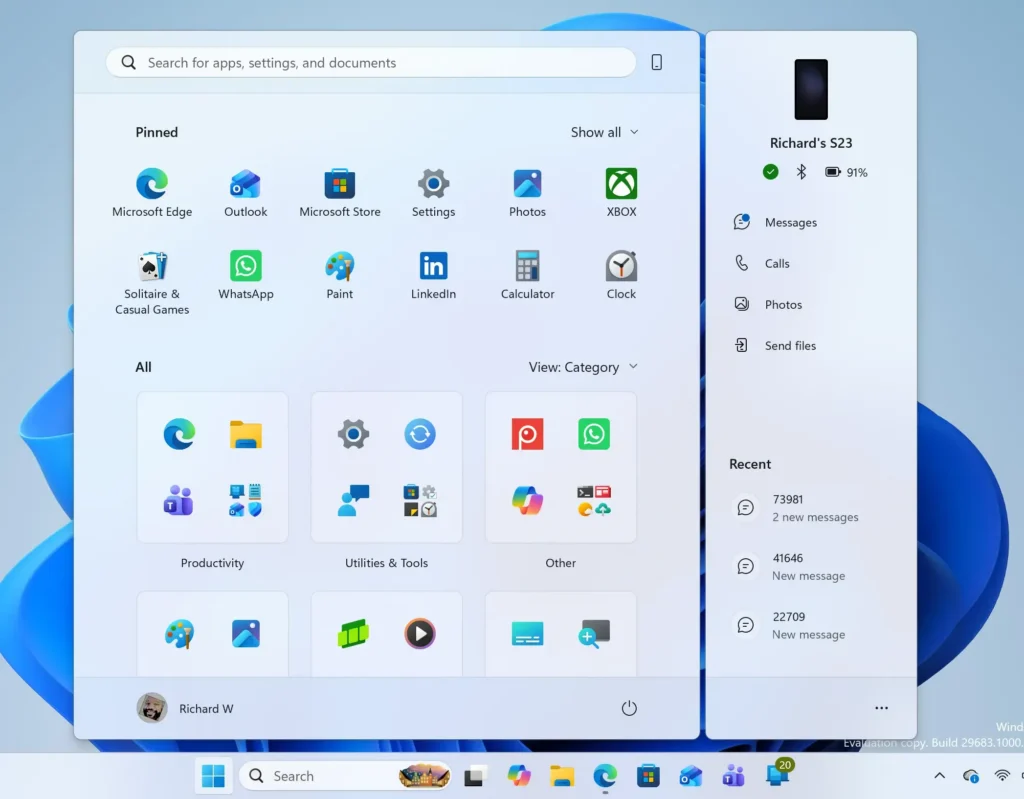
- Open Settings. Press the Win+I, or right-click Start and click Settings.
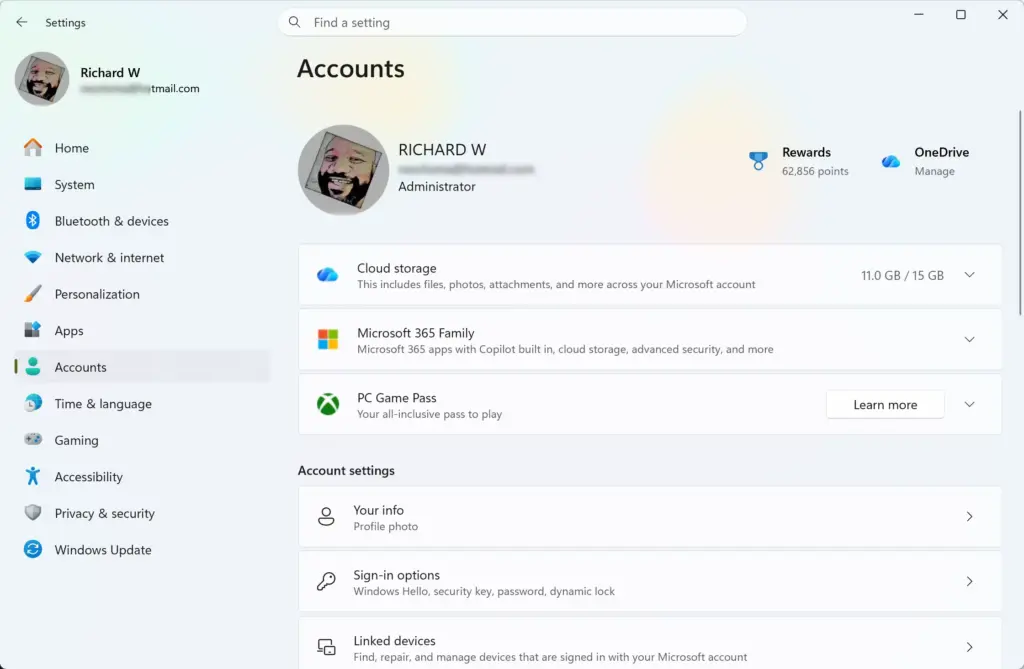
Windows 11 Start menu search panel for opening OpenSSH Client settings - Click Accounts. It sits in the left-hand list.
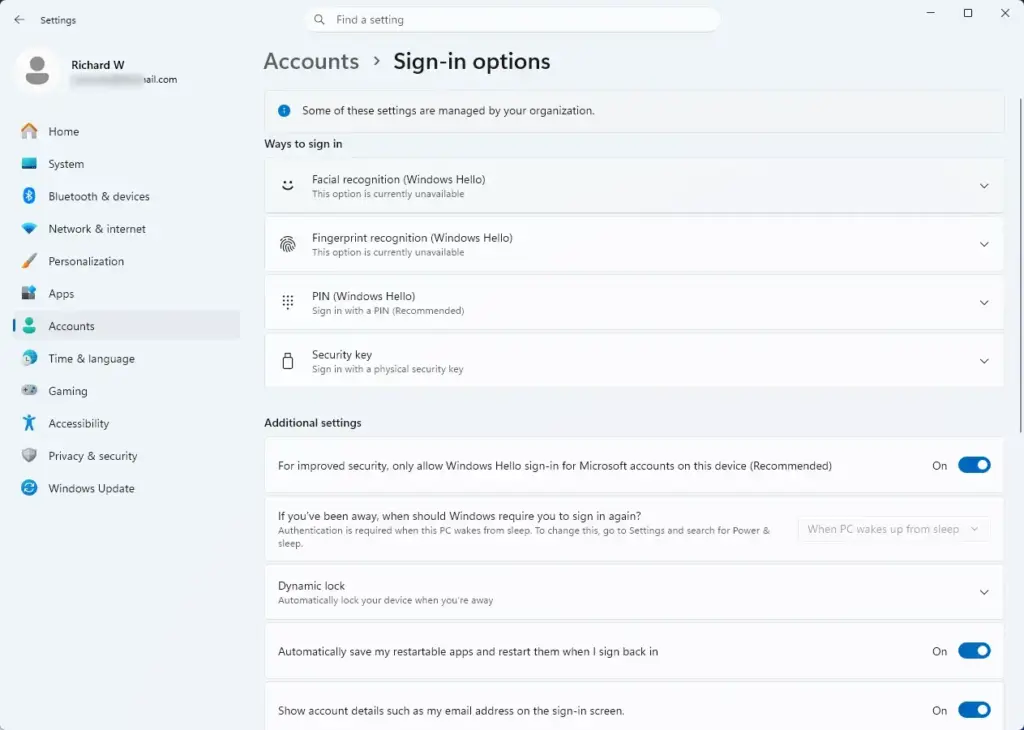
Settings › Accounts - Click Sign-in options. You see the sign-in methods your PC supports, such as Facial recognition (Windows Hello), Fingerprint recognition (Windows Hello), PIN (Windows Hello), Security key, and Password. A method that is missing or greyed out points to a hardware, driver, or policy problem, covered further down.
Settings › Accounts › Sign-in options - Set up a PIN if you do not have one. Click PIN (Windows Hello), click Set up, and enter your account password when asked. Type the PIN twice and click OK. If this section shows a Change PIN button instead, you already have a PIN, so go to the next step.
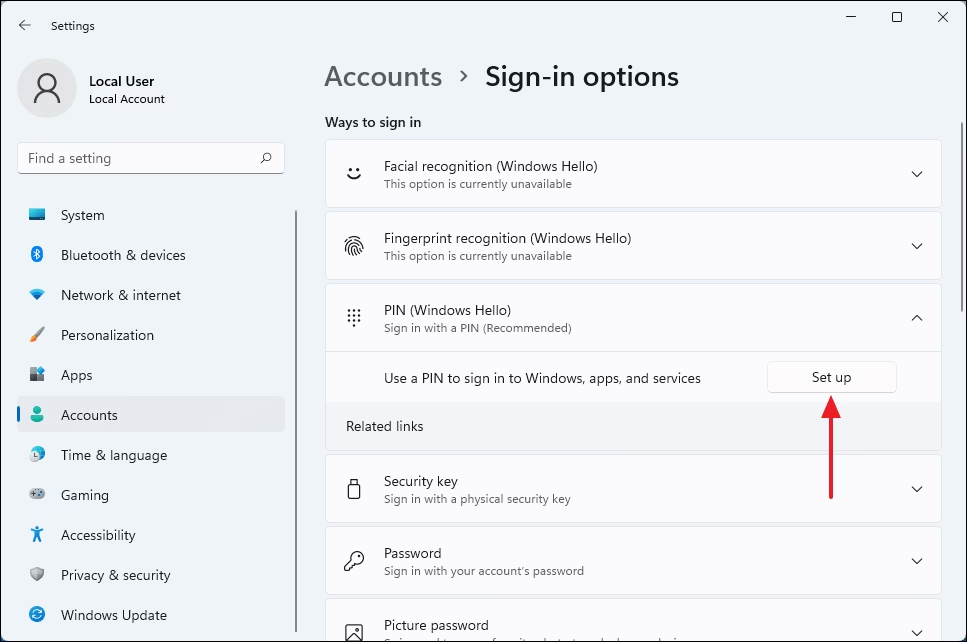
Settings > Accounts - Click Facial recognition (Windows Hello). Skip to the fingerprint steps if you do not want face sign-in. The section expands and shows a Set up button.
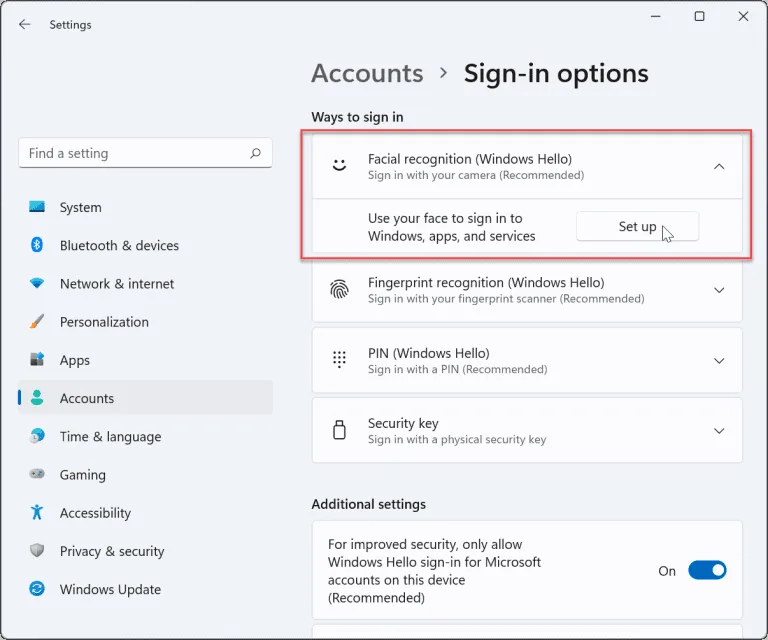
- Click Set up. The Windows Hello setup window opens.
- Click Get started. Windows asks you to confirm your identity.
- Enter your PIN. This confirms that you are the account owner before Windows stores your face.
- Look at the screen. Sit at your normal distance and keep your face centred while the camera scans. Hold still until the window says the setup is complete. If you wear glasses, take them off for this first scan, then run Improve recognition with them on.
- Click Close. If the window offers Improve recognition, click it and scan again. A second scan, ideally in different lighting or with glasses on, gives Windows more data and helps it recognise you more reliably.
- Click Fingerprint recognition (Windows Hello). Skip this and the next steps if you do not want fingerprint sign-in. The section expands and shows a Set up button.
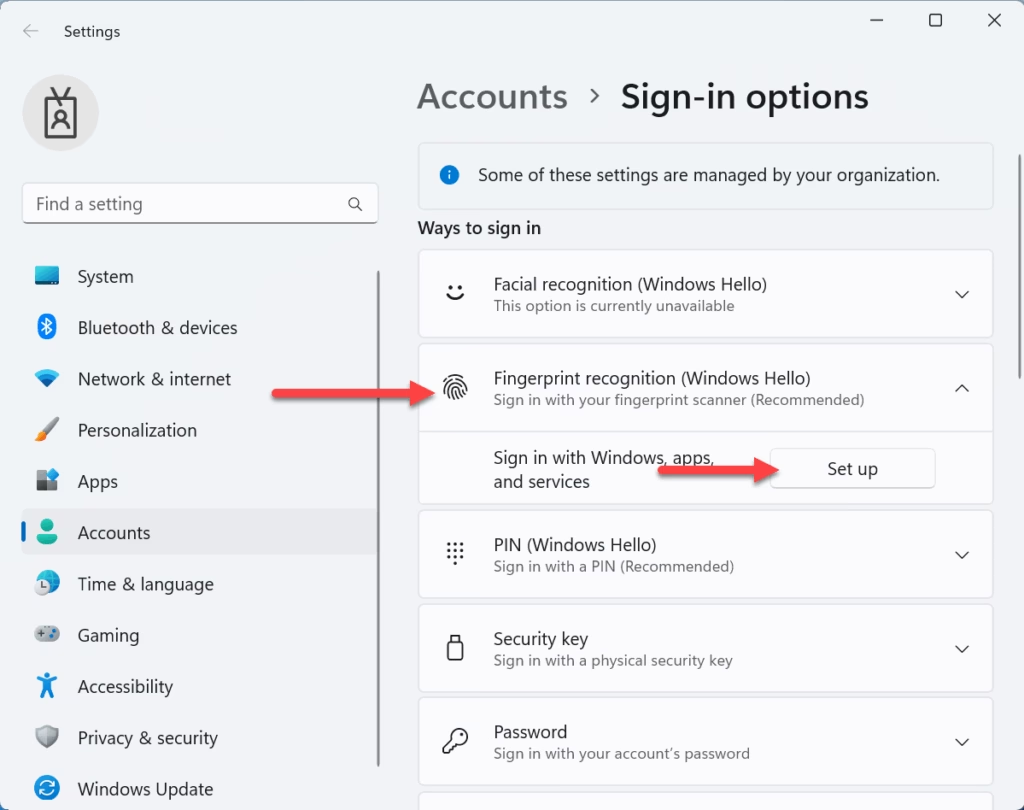
Windows 11 fingerprint recognition setup button for Windows Hello. - Click Set up. The Windows Hello setup window opens.
- Click Get started. Windows asks you to confirm your identity.
- Enter your PIN. Windows needs this before it stores a fingerprint.
- Touch the fingerprint reader with your finger. Lift your finger and touch the reader again, moving it slightly each time so Windows captures the edges and the centre. Repeat until the window says the setup is complete.
- Click Add another finger to enroll a second finger, or click Close to finish. A second finger, ideally from your other hand, gives you a fallback when one hand is wet, dirty, or busy.
If a step fails, the message on screen tells you where. A message saying Windows could not find a compatible camera or fingerprint reader means Windows Hello cannot see the hardware. Go to the section on missing options below.
How to Test Your New Sign-In
Test the new method now rather than discovering a problem when you are in a hurry. Press the Win+L to lock the PC. Wake the lock screen, then look at the camera or touch the reader.
Windows should sign you in without asking for a PIN. If it does not recognise you, the sign-in screen shows the PIN box. You can sign in with the PIN and try again later. Windows Hello does not remove your PIN or password, so you cannot lock yourself out by setting it up.
The Windows Hello sign-in setup guide covers the full set of Hello options if you also want to configure your PIN. For a walkthrough that focuses only on the reader, see how to set up Windows 11 fingerprint sign-in.
Why Fingerprint or Face Options Are Missing or Greyed Out
When Facial recognition (Windows Hello) or Fingerprint recognition (Windows Hello) is greyed out or absent, Windows does not detect a supported sensor, or something is blocking it. Work through these causes in order.
Your PC has no compatible sensor
A regular webcam cannot do Windows Hello face sign-in. It needs an IR camera. If your PC has no fingerprint reader or IR camera, the sign-in options list shows only the methods your hardware supports, such as PIN and password. A USB fingerprint reader or an IR camera designed for Windows Hello can add the feature to a desktop.
The driver is missing or old
Open Settings Windows Update, click Check for updates, then open Advanced options Optional updates. Install any driver listed for your camera or fingerprint reader. Then restart the PC. If Windows Update offers nothing, download the driver from your PC or reader manufacturer’s support site.
To see whether Windows detects the sensor at all, right-click Start, click Device Manager, and look for a Biometric devices category. Your fingerprint reader or IR camera appears there when Windows has a working driver. A device with a warning icon needs a new driver. Installing a driver requires administrator rights.
Your account is managed by an organisation
On a work or school PC, an administrator can block Windows Hello biometrics. The options may be missing, or Windows may show a message that your organisation manages some settings. Only your IT department can change that. Your IT department can tell you which setting applies to your PC.
Windows Hello was set up but stopped working
Fingerprint sign-in has failed after a cold boot (starting the PC from a full shutdown) on some devices. Microsoft fixed this in update KB5127648 for Windows 11 versions 24H2 and 25H2. Check Windows Update for that update name.
Open Settings Windows Update, install all available updates, and restart. If your sensor still fails to respond, remove the fingerprint and enrol it again. The removal steps are in the section on adding or removing a method.
Improve Face Sign-In in Low Light
Face sign-in can fail in a dark or dim room because the camera does not see enough of your face. Some newer builds of Windows 11 can brighten the screen for a moment during face recognition. The setting is called Automatically adjust screen brightness during face recognition.
Find it under Settings Accounts Sign-in options Facial recognition (Windows Hello). Microsoft introduced it in the November 18, 2026 optional preview update KB5132057 for Windows 11 25H2. If you do not see it, check Windows Update for that update. A separate guide on turning on automatic brightness for Windows Hello face sign-in shows the setting step by step.
Microsoft has also made face and fingerprint recognition more reliable over time. Keeping Windows updated helps you get those improvements.
How Windows 11 Chooses a Sign-In Method
When Windows Hello face or fingerprint is set up and available, Windows now uses it as the default sign-in method every time you sign in. This applies even if you used a different method last time. It comes from the October 29, 2026 optional preview update KB5089573 for Windows 11 24H2 and 25H2.
There is one exception. If you sign in with your PIN three times in a row, Windows stays with PIN until you switch methods. To switch back, choose the Windows Hello option from Sign-in options on the sign-in screen. Microsoft’s November 17, 2026 security notes say that Windows Hello face and PIN both appear on the sign-in screen.
These behaviours depend on your update level. If your PC behaves differently, it may not have these updates yet.
How to Add Another Finger, Improve Recognition, or Remove a Method
You can change your Windows Hello setup at any time. The options sit on the same page you used for setup. Removing a method does not delete your PIN or password.
- Open Settings. Press the Win+I.
- Click Accounts. It sits in the left-hand list.
- Click Sign-in options. The list of sign-in methods appears.
- Click the method you want to change. Choose Facial recognition (Windows Hello) or Fingerprint recognition (Windows Hello). The section expands.
- Click Remove. Windows deletes the stored data for that method. The Set up button returns.
In the same expanded section, Improve recognition repeats the face scan. Add another finger sets up a second fingerprint. Use Improve recognition when Windows fails to recognise you with a new haircut, glasses, or a beard change.
The guide to removing fingerprint sign-in from your Windows 11 account covers that task in more detail. Another guide explains how to allow Windows Hello secure sign-in using a fingerprint.
What to do next
If a sign-in method still does not appear after a driver update and restart, check Device Manager for a Biometric devices entry. Then contact the hardware maker about a driver for Windows 11. Updates can change how Windows Hello behaves, so recheck the Sign-in options page after a major update or a driver reinstall. A new user profile also starts without any enrolled face or fingerprint, so repeat the setup steps for each account.
Have a question about this guide?
Answered by AI from this guide. Good questions may be added to this page — please don't include personal details.
Did this guide fix your problem?

About the Author
Richard
Tech Writer, IT Professional
Richard is a writer at Geek Rewind who turns complex IT tasks into clear, step-by-step guides. He draws on years of hands-on experience in system administration and enterprise IT operations, focusing on Windows, Linux and WordPress: the problems people actually run into, and the fixes that work. His server and WordPress guides come from systems he runs himself. Richard builds and maintains the platform behind Geek Rewind, from its Ubuntu servers and Nginx configuration to its custom WordPress plugins. Many new tutorials start with readers' questions, and he's always glad to answer them in the comments.
No comments yet — be the first to share your thoughts!