Should You Enable Automatic Device Locking Using Bluetooth Dynamic Lock In Windows 11

- 24 steps
- Needs administrator rights
- Group Policy needs Windows 11 Pro, Enterprise or Education
- Includes a restart or sign-out
Dynamic Lock in Windows 11 locks your PC when you walk away with your phone. It measures the Bluetooth signal strength of a paired phone. When the signal stays weak for about 30 seconds, Windows shows the lock screen so nobody else can see your work.
Pair the phone to the PC over Bluetooth before you turn the feature on. Bluetooth range changes with walls, furniture and radio interference, so the lock does not happen at the same distance or the same moment every time.
So should you enable it? For most people who carry a phone, yes. It costs nothing and covers the times you forget to press Win+L. Keep these limits in mind:
- The PC stays unlocked for roughly 30 seconds after you leave. It is a safety net, not a replacement for locking the PC yourself.
- It only locks the PC. It does not unlock it when you come back, so you still sign in as usual.
- If you leave your phone on the desk, the PC sees it as nearby and does not lock.
- Keeping Bluetooth on all day uses a little more battery on a laptop and on your phone.
Yes, for most people who carry a paired phone, enable Dynamic lock in Windows 11 under Settings Accounts Sign-in options. Windows locks the PC about 30 seconds after the phone’s Bluetooth signal goes weak, so it covers the times you forget to press Win+L. It does not unlock the PC, and it will not lock while the phone sits on your desk.
Prerequisites for Setting Up Dynamic Lock in 🪟 Windows 11
- Your Windows 11 computer has built-in Bluetooth or a working Bluetooth USB adapter.
- You own a smartphone or another Bluetooth-enabled device that you can carry with you.
- The phone is paired to your Windows 11 computer over Bluetooth before you start the configuration.
If you are not sure the PC has Bluetooth, look for a Bluetooth toggle on the Bluetooth & devices page in Settings. If that toggle is missing altogether, the PC has no working Bluetooth radio, or its driver is not installed.
How to Pair Your Smartphone via Bluetooth
Pairing creates a trusted Bluetooth link between the PC and the phone. Dynamic lock relies on that link, so it must be active before automatic locking can work. The steps are the same on Windows 11 Home and Pro.
- Open Settings by pressing Win+I, then select Bluetooth & devices from the left-hand menu.

- Turn on the main Bluetooth toggle if it is off. It should now read On.

- Click the Add device button near the top of the window. The Add a device window opens.
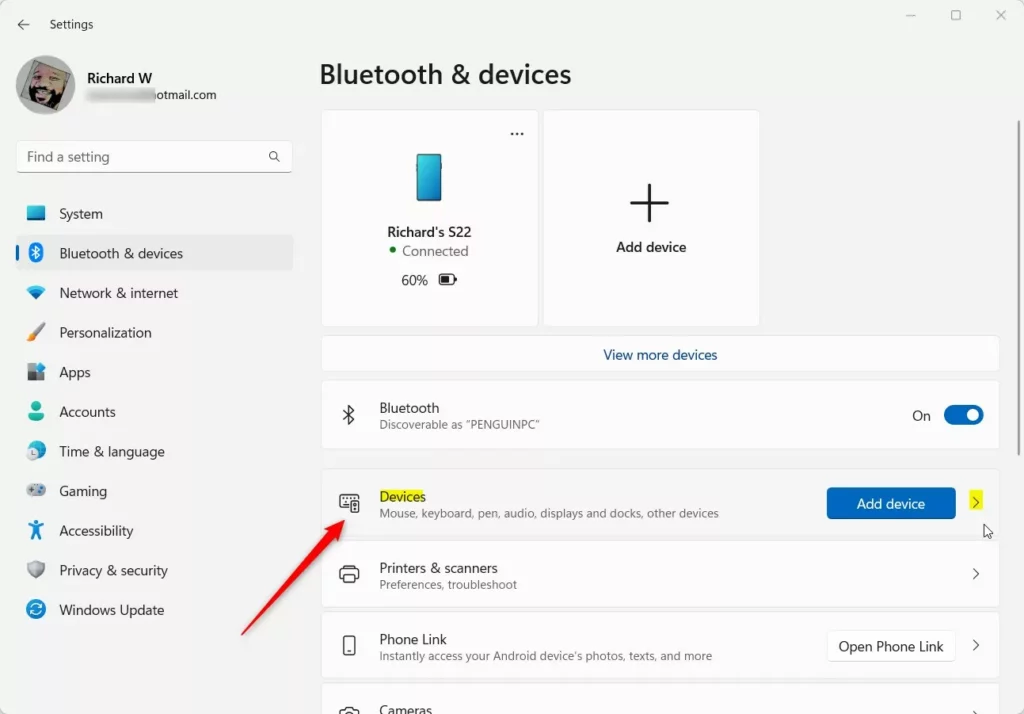
- Choose Bluetooth in the Add a device window. Windows starts searching for nearby devices.
- On your smartphone, turn on Bluetooth and make it discoverable. On most phones, keeping the Bluetooth settings screen open does this. On Android, the phone may also be named in Settings Connected devices.
- Select your phone from the list of available devices on the PC screen. A numeric PIN appears on both devices.
- Confirm that the PIN matches on the computer and the phone. Click Connect on the PC, accept the pairing request on the phone, and select Done.
Your phone should now appear under your devices in Bluetooth & devices. If it does not show up in the search list, move the phone closer to the PC and check that its Bluetooth screen is still open.
How to Enable Dynamic Lock in 🪟 Windows 11 Settings
Once the phone is paired, turning on Dynamic lock takes a few clicks. You go to Accounts, open Sign-in options, and tick the box in the Dynamic lock section. This works on both Home and Pro.
- Click Accounts in the left-hand navigation pane of Settings.
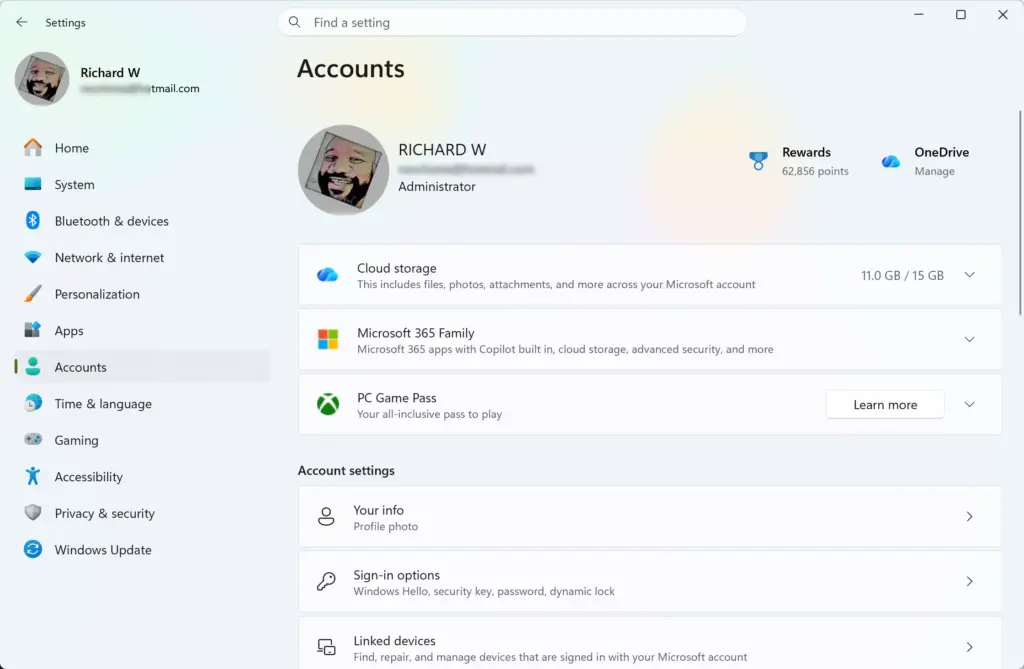
- Select Sign-in options from the account settings choices.
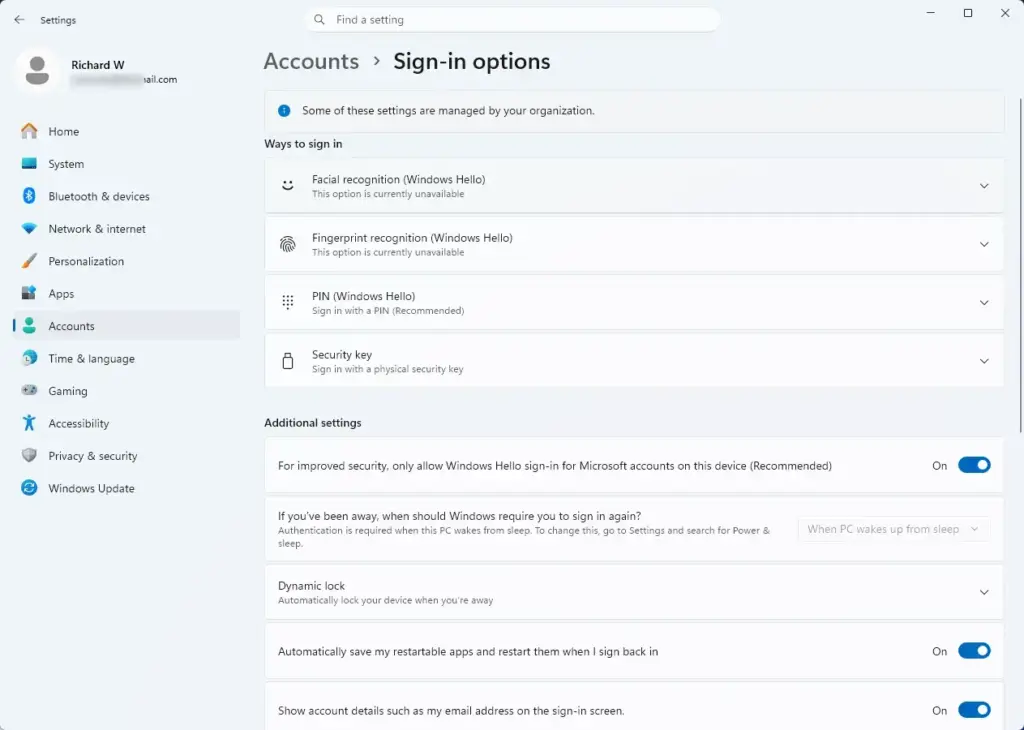
- Scroll down to the Dynamic lock section and click it to expand it. The checkbox appears.
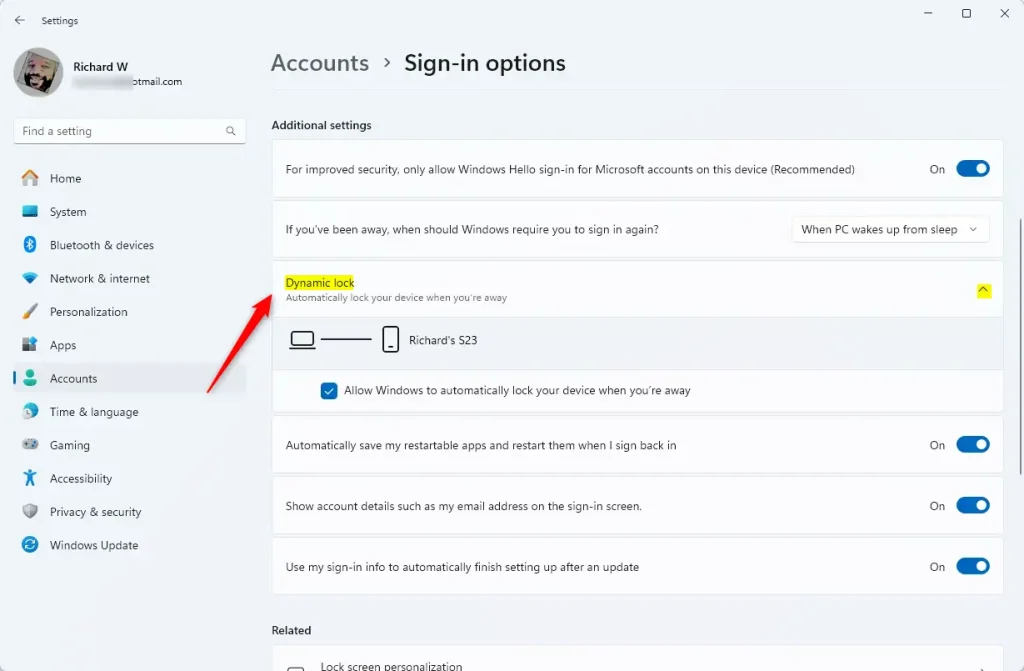
- Tick the box next to Allow Windows to automatically lock your device when you’re away. If the box is greyed out, the phone is not paired or Bluetooth is off. Go back to the pairing steps.
- Check that your paired phone’s name appears below the checkbox. That shows Windows has linked the device to the lock feature.
No restart is needed. To test it, keep the phone in your pocket, walk out of Bluetooth range and wait about 30 seconds, or a little longer. When you come back, the lock screen should be showing. To turn the feature off later, clear the same checkbox.
Configuring Dynamic Lock via Group Policy Editor
This suits organisations that manage several machines and do not want to change each one by hand. It needs administrator rights and Windows 11 Pro, Enterprise or Education. Windows 11 Home does not include the editor, so Home users should use the Settings method above.
Before you start, know what this policy is. Configure Dynamic Lock factors belongs to Windows Hello for Business, Microsoft’s sign-in system for managed work and school devices. It does not work as a plain on/off switch. Setting it to Enabled is not enough, because the policy uses signal rules that tell Windows which Bluetooth signal to watch, such as your phone’s Bluetooth MAC address. You must enter the Bluetooth signal rule for the phone in the policy’s Options pane, or Dynamic Lock will not work. Get the rule format from your organisation or from Microsoft’s documentation for this policy.
- Press Win+R to open the Run dialog box, type
gpedit.msc, and press Enter. The Local Group Policy Editor opens. - In the left directory tree, expand Computer Configuration, then Administrative Templates, then Windows Components. Click Windows Hello for Business.
- In the policy list on the right, double-click Configure Dynamic Lock factors. The configuration window opens.
- Select the Enabled radio button in the top-left corner of the window.
- In the Options pane at the bottom, enter the signal rule for your phone’s Bluetooth signal. Use the rule your organisation has approved. Do not leave the box empty.
- Click Apply and then OK to save your changes and close the policy window.
- Restart your computer so the new policy takes full effect across your user profile.
To undo this, open the same policy and choose Not Configured (or Disabled). Click Apply and OK, then restart.
If this didn’t work
If Dynamic lock does not work, check for Bluetooth driver updates, remove and re-pair your phone, or fall back on locking manually. These steps clear out a bad pairing and fix connection drops that stop your PC from noticing when you walk away. Work through them in order, and test after each one.
- Check that Bluetooth is still On in Bluetooth & devices, and that Bluetooth is on and connected on your phone.
- Update the Bluetooth driver. Open Windows Update in Settings and check Advanced options and Optional updates for driver updates. Otherwise, get the latest Bluetooth driver from your PC or adapter maker.
- Remove the phone. In Bluetooth & devices, open Devices, select the three-dot menu next to your phone and choose Remove device. Also delete the PC from the Bluetooth list on your phone.
- Pair the phone again using the pairing steps earlier in this tutorial. Then recheck the Dynamic lock checkbox under Sign-in options.
- If it still fails, lock the PC yourself with Win+L whenever you leave. It is quick and does not depend on Bluetooth range.
Have a question about this guide?
Answered by AI from this guide. Good questions may be added to this page — please don't include personal details.
Did this guide fix your problem?

About the Author
Richard
Tech Writer, IT Professional
Richard is a writer at Geek Rewind who turns complex IT tasks into clear, step-by-step guides. He draws on years of hands-on experience in system administration and enterprise IT operations, focusing on Windows, Linux and WordPress: the problems people actually run into, and the fixes that work. His server and WordPress guides come from systems he runs himself. Richard builds and maintains the platform behind Geek Rewind, from its Ubuntu servers and Nginx configuration to its custom WordPress plugins. Many new tutorials start with readers' questions, and he's always glad to answer them in the comments.
No comments yet — be the first to share your thoughts!