How to Add or Remove Remote Desktop Users in Windows 11

- 13 steps
- Needs administrator rights
- Includes a restart or sign-out
Remote Desktop lets you control your Windows 11 PC from another device over a network. The PC you connect to (the host) must run Windows 11 Pro, Enterprise or Education. Windows 11 Home can connect out to other PCs, but it cannot accept incoming connections.
You decide who may connect by adding their accounts to the Remote Desktop Users group. Members of that group can sign in from a distance, and everyone else is turned away. Members of the Administrators group can already connect, so you don’t need to add them. This guide shows five ways to manage the list.
Open Settings, go to System Remote Desktop, then select Remote Desktop users. Click Add to give an account access, or select a name and click Remove to take it away. Changes apply the next time that user connects, so no restart is needed. You must be signed in as an administrator, and Windows 11 Home cannot accept incoming connections.
Is it Safe to Allow Remote Access?
Remote access carries real risk. Someone who gets in can read your private files or install malware, and they get everything the account they used can do. Keep these points in mind:
- Add only people you trust, and remove them as soon as they no longer need access.
- Give every account on the PC a strong password. By default, Windows blocks Remote Desktop sign-ins for accounts with no password.
- Use a standard account, not an administrator account, for people who only need to use the PC.
Methods to Manage Remote Desktop Users
Windows 11 gives you several ways to manage Remote Desktop users. They all change the same group, so the result is identical. Pick the one you are most comfortable with. The Settings app is the easiest, Control Panel is the familiar route, Local Users and Groups suits advanced users, and Command Prompt or PowerShell is quickest when you want to script it.
Changes apply the next time the user connects. You do not need to restart the PC.
| Method | Ease of Use | Best For |
|---|---|---|
| Settings App | Easy | General users |
| Control Panel | Moderate | Users familiar with legacy menus |
| Command Prompt | Advanced | Power users and IT admins |
Using the Settings App (Requires Admin Privileges)
Remote Desktop must be turned on first. If you can’t find the user list, check that the Remote Desktop switch on that page is set to On. The steps below show you where to find it.
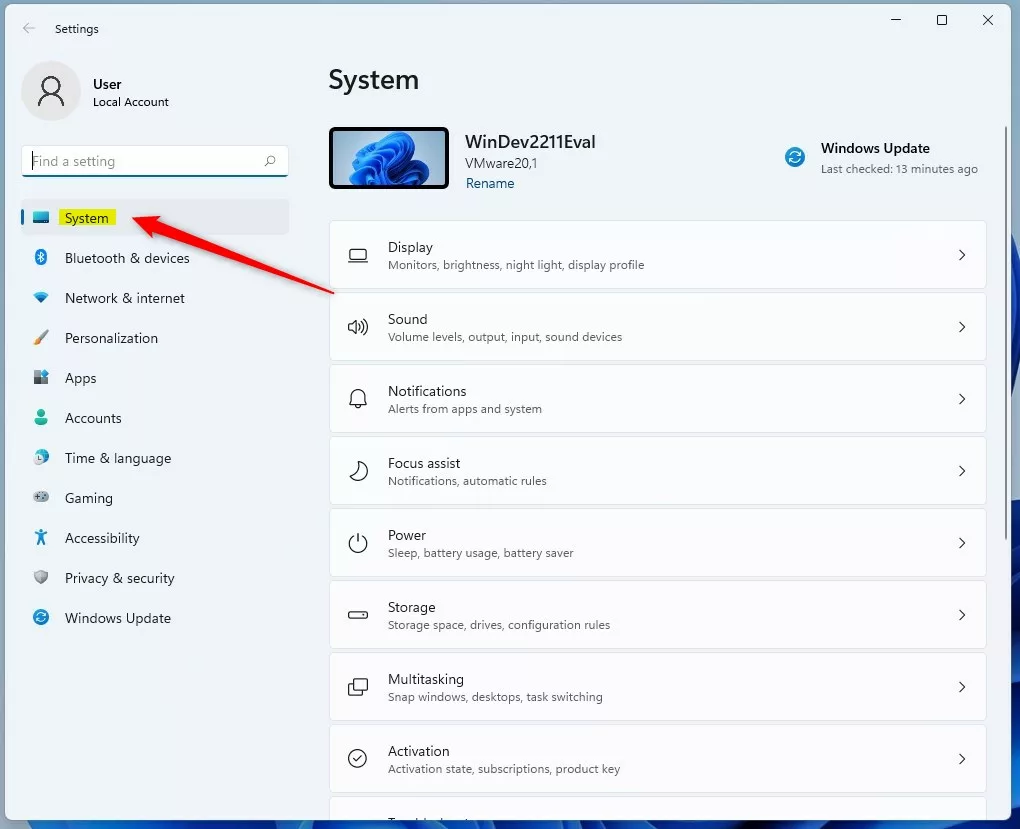
- Open the Settings app and click System on the left side. The System page opens with a list of tiles.
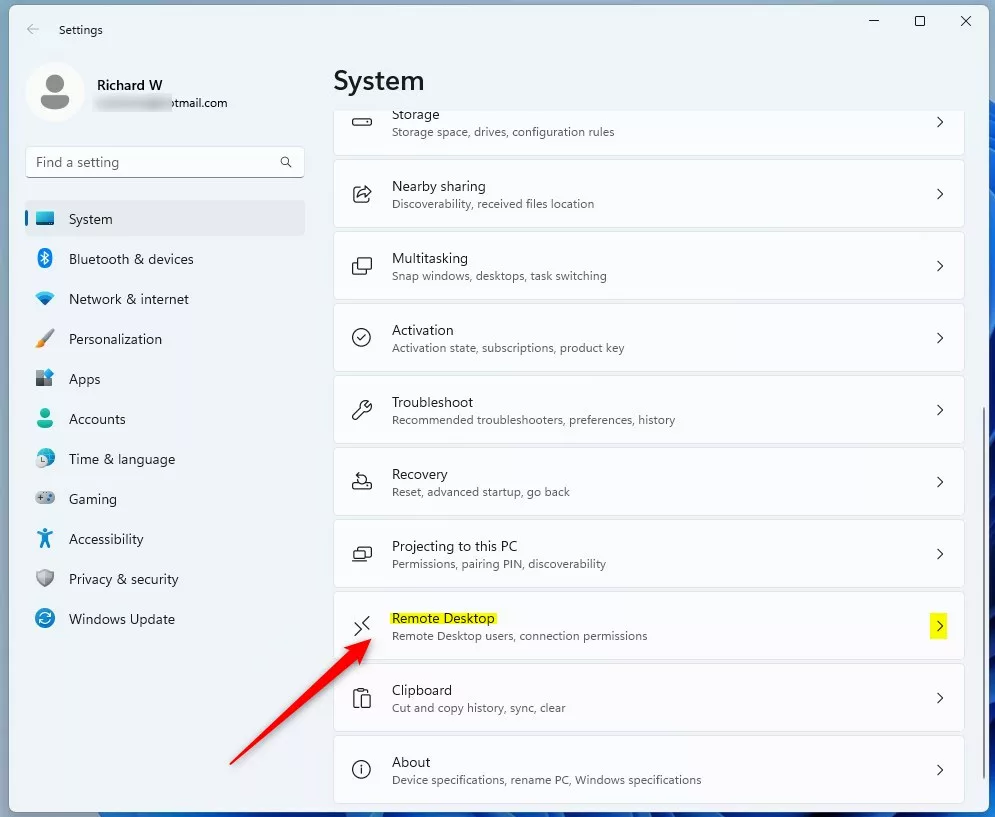
- Select the Remote Desktop tile. You should see the Remote Desktop switch. If the tile is missing, your PC is probably running Windows 11 Home, which does not support incoming connections.
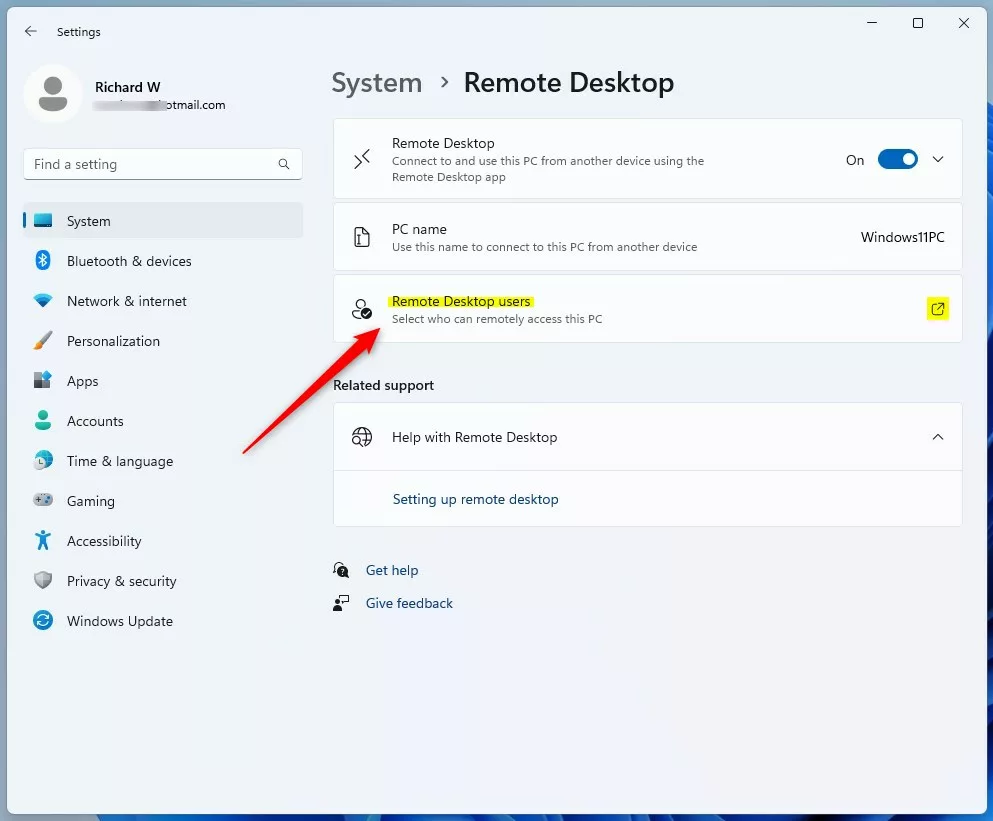
- Click the Remote Desktop users tile. A window opens that lists the accounts that already have access.
- Click Add to give someone access, or select a name and click Remove to take it away. If you click Remove, the name disappears from the list and that person can no longer connect. Skip to the final step in that case. If you click Add, a Select Users pop-up opens.
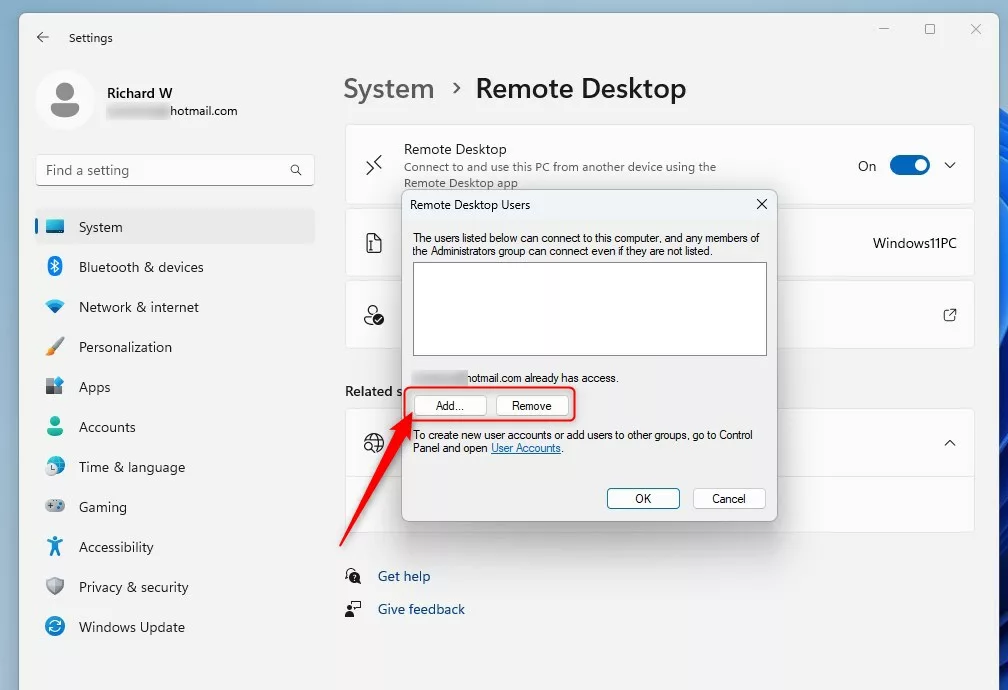
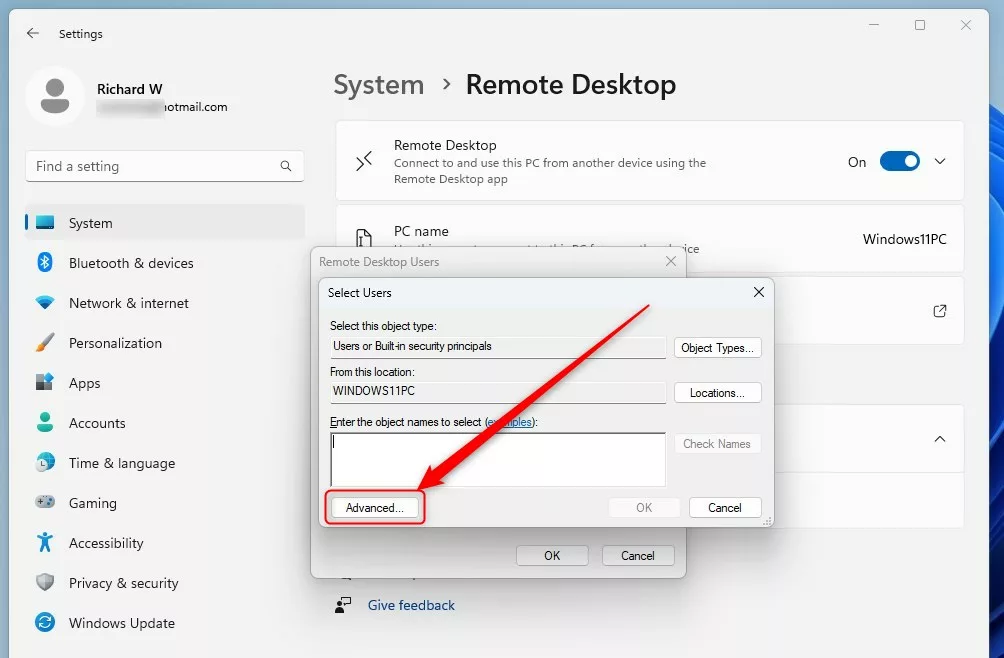
- In the pop-up, click Advanced to search for a specific user. This opens a larger search box , which helps when you are not sure how the account name is spelled.
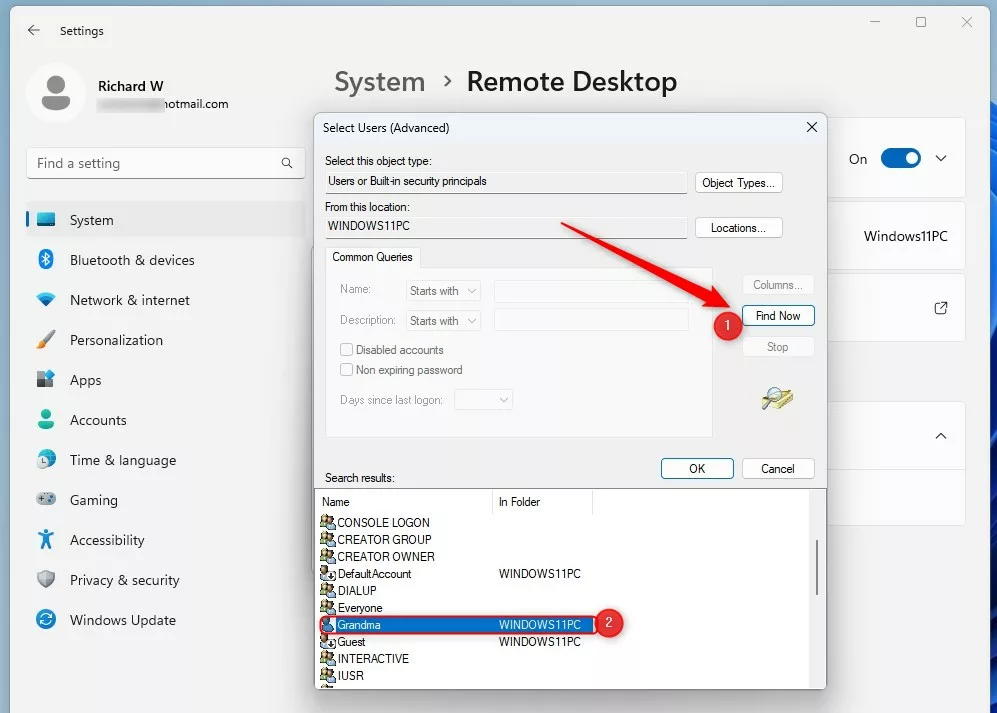
- Click Find Now, choose the user from the list, and click OK. The account name is now filled in on the previous pop-up.
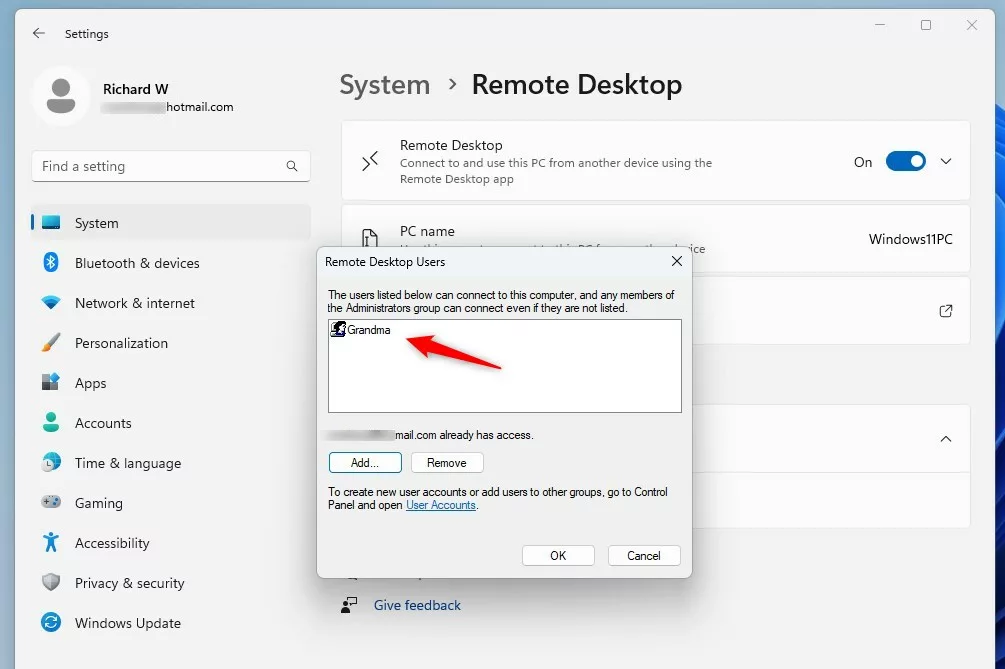
- Click OK again to finish. The new name should now show in the Remote Desktop users list.
Using the Control Panel (Requires Admin Privileges)
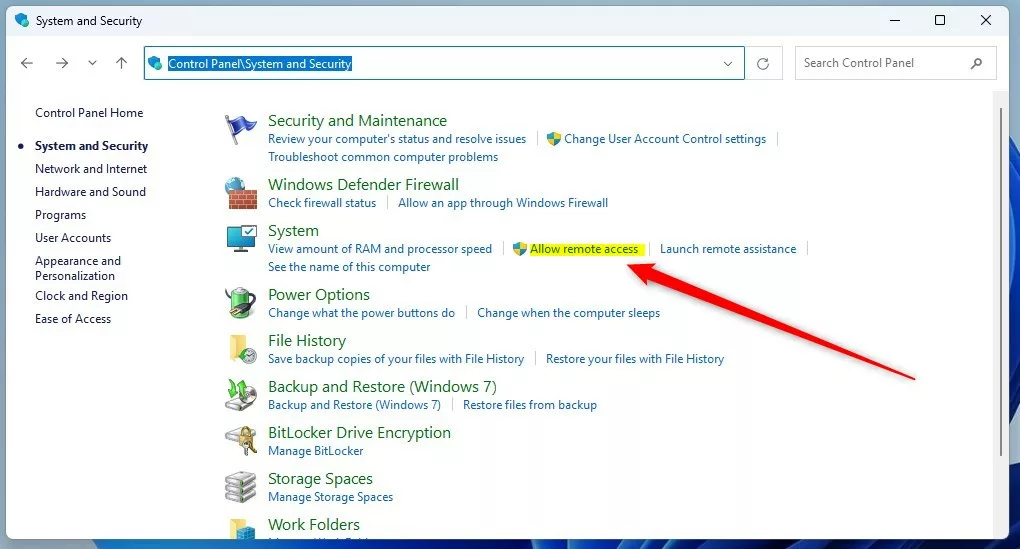
The classic Control Panel opens the System Properties window, where the same list is managed. This is handy if you already work in Control Panel or can’t find the Settings page. Open Control Panel, go to System and Security, and look under the System section for the remote access link.
- Go to System and Security and click Allow remote access. The System Properties window opens on the Remote tab.
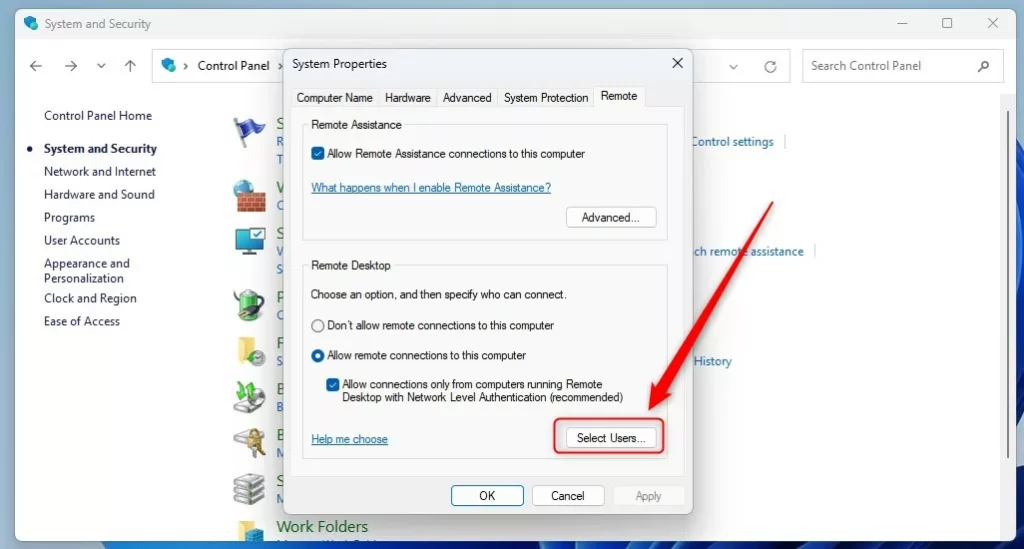
- On the window that appears, click Select Users. If the button is greyed out, Remote Desktop is not allowed yet. Choose Allow remote connections to this computer first. The Remote Desktop Users window then opens with the current list.
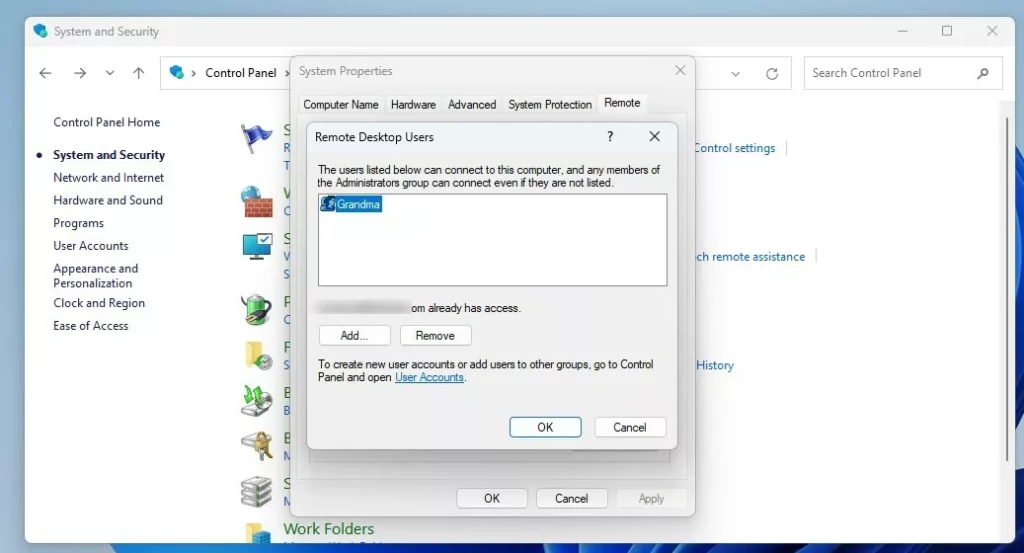
- Follow the same steps as above to add or remove names. Click Add to search for an account, or select a name and click Remove. Click OK in each open window to save the change.
Using Local Users and Groups (Requires Admin Privileges)
Local Users and Groups is a built-in management console for user accounts and security groups. It is a good option for advanced users because it shows the group membership directly. It is not included in Windows 11 Home, so use another method on that edition.
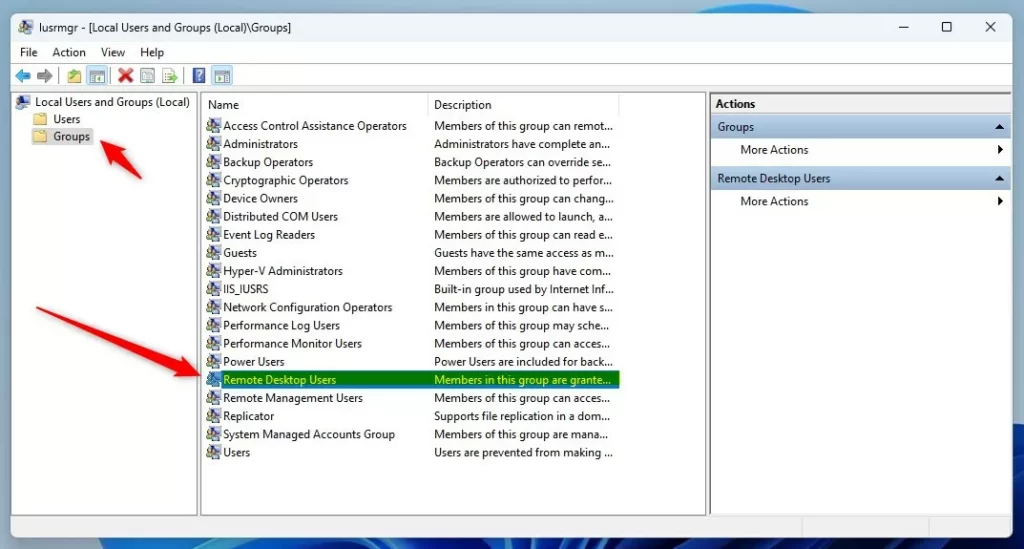
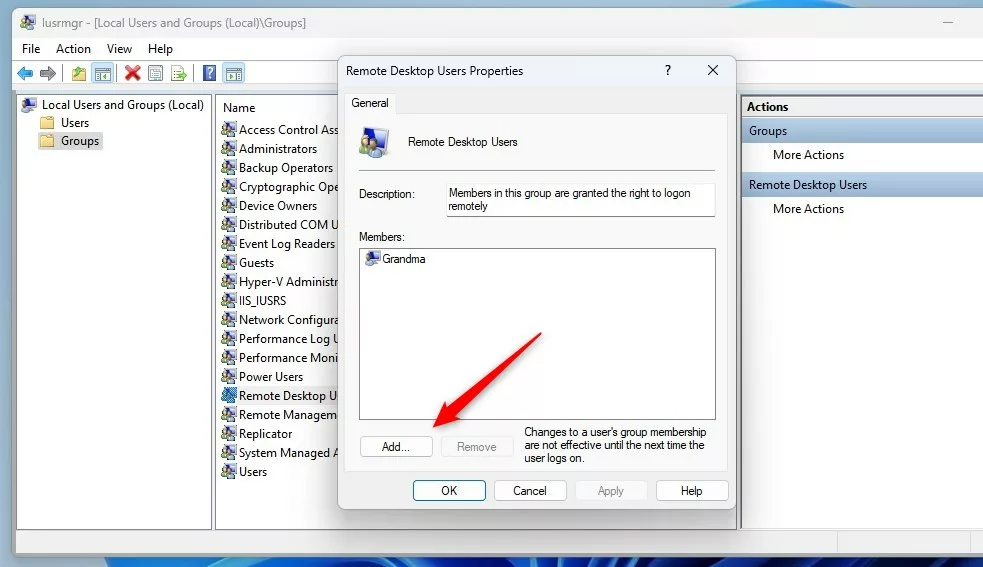
- Search for “lusrmgr.msc” and open it. The Local Users and Groups window opens. If Windows says it can’t find the file, you are on Home.
- Select Groups on the left and double-click Remote Desktop Users. The group’s Properties window opens, and its members are listed.
- Click Add or Remove to change who has access. For Add, type the account name in the box that opens and click OK. For Remove, select the name first. Click OK on the Properties window to save.
Using Command Prompt or PowerShell (Requires Admin Privileges)
Command Prompt and PowerShell let you change the group with one line of text. This is the fastest method, and you can reuse it in scripts. Open either tool as an administrator, then run the matching command below. Replace the user name in the command with the real account name. For a domain account, include the domain in front of the name.
The command line gives little feedback beyond a success message. To confirm the change, check the list using any of the methods above.
To add a user via Command Prompt:
net localgroup "Remote Desktop Users" "GenericUser" /add
To remove a user via Command Prompt:
net localgroup "Remote Desktop Users" "GenericUser" /delete
To add a user via PowerShell:
Add-LocalGroupMember -Group "Remote Desktop Users" -Member "GenericUser"
To remove a user via PowerShell:
Remove-LocalGroupMember -Group "Remote Desktop Users" -Member "GenericUser"
Troubleshooting Access Issues
If you run into issues connecting to your computer with Remote Desktop in Windows 11, checking a few common items can often resolve the problem. Start with these:
- Confirm the host PC runs Windows 11 Pro, Enterprise or Education.
- Check that the Remote Desktop switch is on.
- Make sure the account is in the Remote Desktop Users group (or is an administrator) and has a password.
- Check that the host PC is turned on, awake and reachable on the network.
Summary
Keeping your Remote Desktop users list up to date in Windows 11 is key for security. Review it from time to time, remove accounts that no longer need access, and make sure only the right people can connect.
Have a question about this guide?
Answered by AI from this guide. Good questions may be added to this page — please don't include personal details.
Did this guide fix your problem?

About the Author
Richard
Tech Writer, IT Professional
Richard is a writer at Geek Rewind who turns complex IT tasks into clear, step-by-step guides. He draws on years of hands-on experience in system administration and enterprise IT operations, focusing on Windows, Linux and WordPress: the problems people actually run into, and the fixes that work. His server and WordPress guides come from systems he runs himself. Richard builds and maintains the platform behind Geek Rewind, from its Ubuntu servers and Nginx configuration to its custom WordPress plugins. Many new tutorials start with readers' questions, and he's always glad to answer them in the comments.
No comments yet — be the first to share your thoughts!