Why Is Windows 11 Slow Right After I Enter My Password

- 29 steps
- Needs administrator rights
- Includes a restart or sign-out
Windows slow access after password usually means a pile of startup apps, OneDrive syncing, and pending Windows Update work. All of them compete for the disk and processor the moment you sign in. To find the cause, open Task Manager, check its Startup apps list, and disable the apps that do not need to launch at sign-in.
This guide applies to Windows 11 versions 22H2 and later. If you run version 21H2, the notes below point out where its steps differ from 22H2. It covers the fix in one numbered list, then what to do when the cause is the drive, a work account, or something a normal startup cannot reveal.
The symptom is specific: the desktop appears, but the taskbar lags, apps open slowly, and the mouse stutters for a minute or more. That points to background work, not a broken password or sign-in screen.
Windows 11 is slow right after you enter your password because startup apps, OneDrive syncing, and pending Windows Update work all compete for your disk and processor at sign-in. To fix it, open Task Manager with Ctrl+Shift+Esc, go to Startup apps, and disable the High-impact apps you do not need at sign-in.
Why 🪟 Windows 11 Slows Down After You Sign In
Signing in starts a lot of work at once. Windows loads your profile (the folder of settings, desktop items, and app data tied to your account), then launches every app set to start automatically. Those apps then read from the disk and, in many cases, the network, all at the same moment.
The most common causes, roughly in order of how often they show up:
- Startup apps. These are apps that launch themselves when you sign in. Chat apps, game launchers, updaters, and printer utilities are typical.
- OneDrive syncing. OneDrive (Microsoft’s cloud storage app) checks and uploads changed files in your Desktop, Documents, and Pictures folders as soon as it starts.
- Windows Update. Updates that downloaded earlier can finish installing in the background after you sign in, especially after a feature update.
- A slow hard drive. A mechanical hard drive (HDD) handles many simultaneous reads far worse than a solid-state drive (SSD).
- Security software. Some antivirus programs scan files as soon as you sign in.
- Network waits. Mapped network drives (shared folders given a drive letter) and sign-in scripts (small programs a work account runs at sign-in) can stall while Windows waits for a server that answers slowly or not at all.
The steps below test these causes in the order that gives you the most information for the least effort.
How to Fix 🪟 Windows 11 Running Slow After You Enter Your Password
These steps show what loads at sign-in and turn off what you do not need. Work through them in order, and restart at the end to measure the difference. Task Manager is a built-in tool that lists running apps and how much of the processor, memory, and disk each one uses.
- Restart the PC. Click Start Power > Restart. In Windows 11, Shut down can reuse saved system state through Fast Startup, so a restart gives a clean load and finishes any pending updates.
- Sign in and wait for the desktop. Do not open anything yet. You want to catch the slowdown while it is happening.
- Press Ctrl+Shift+Esc. Task Manager opens. If you see a small window with only a list of apps, click More details at the bottom to expand it.
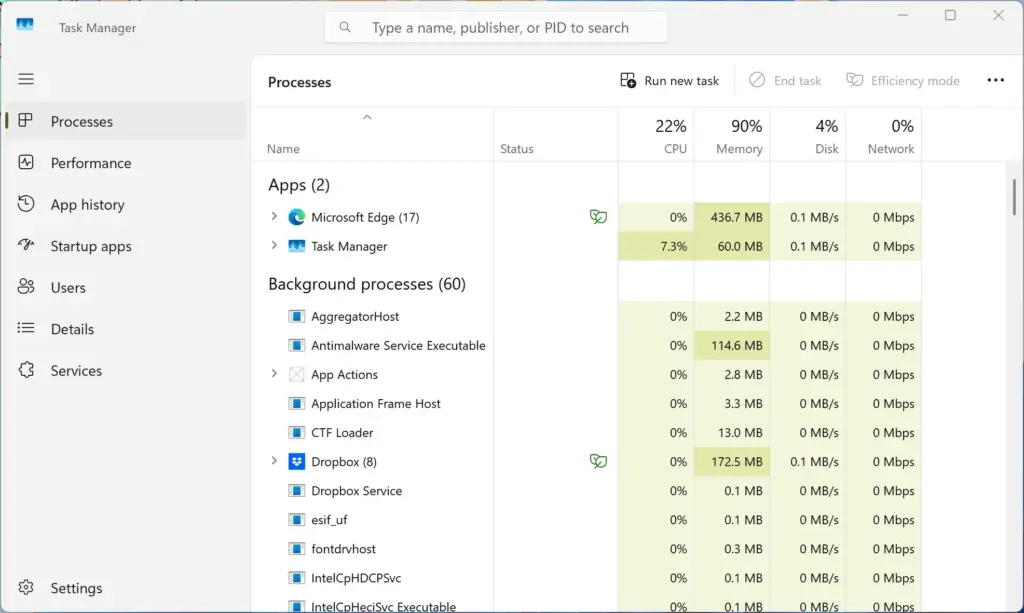
Task Manager - Click Processes. This is the first item in the left pane (version 22H2 and later) or the first tab along the top (version 21H2). You now see every running app and background process.
- Click the Disk column heading. This sorts the list so the busiest process on your drive sits at the top. Check the CPU and Memory headings the same way. Write down the names that stay at the top, because they point to the cause.
- Click Startup apps. In version 22H2 and later this is in the left pane. In version 21H2 it is the Startup tab. The list shows every app that launches when you sign in, with a Status column that reads Enabled or Disabled.
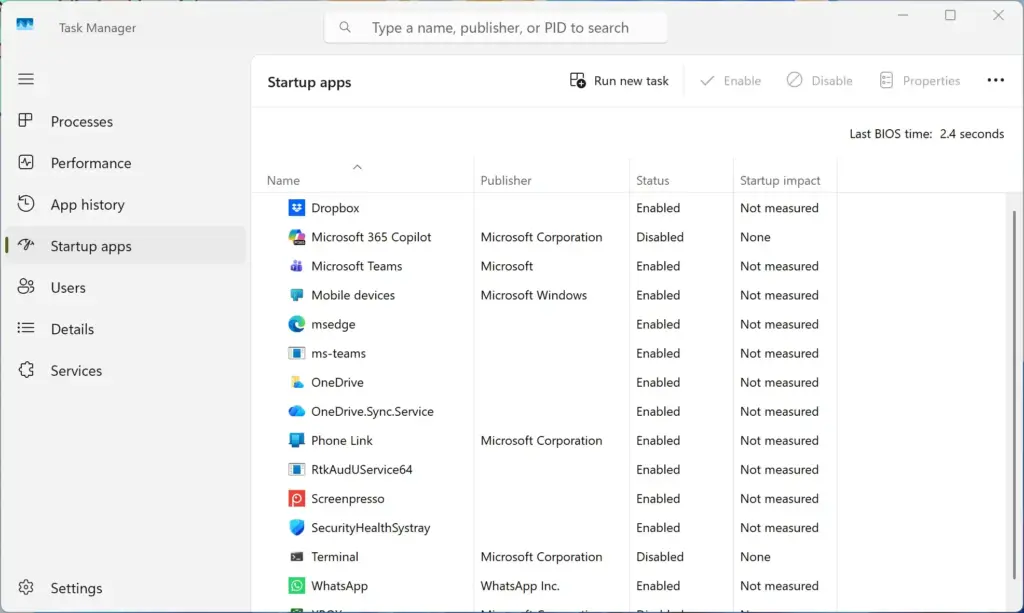
Task Manager › Startup - Click the Startup impact column heading. This sorts apps by how much they slow sign-in. The ratings are Not measured, Low, Medium, and High. Click the heading until High sits at the top.
- Right-click a High-impact app you do not need at sign-in, then click Disable. The Status column changes to Disabled. The app stays installed and still opens normally when you start it yourself. Leave antivirus software alone, and leave touchpad, audio, and graphics utilities alone unless you know what they do.
- Repeat for two or three more apps. Disable a few at a time, not everything at once. That way you can tell which change helped when you test later.
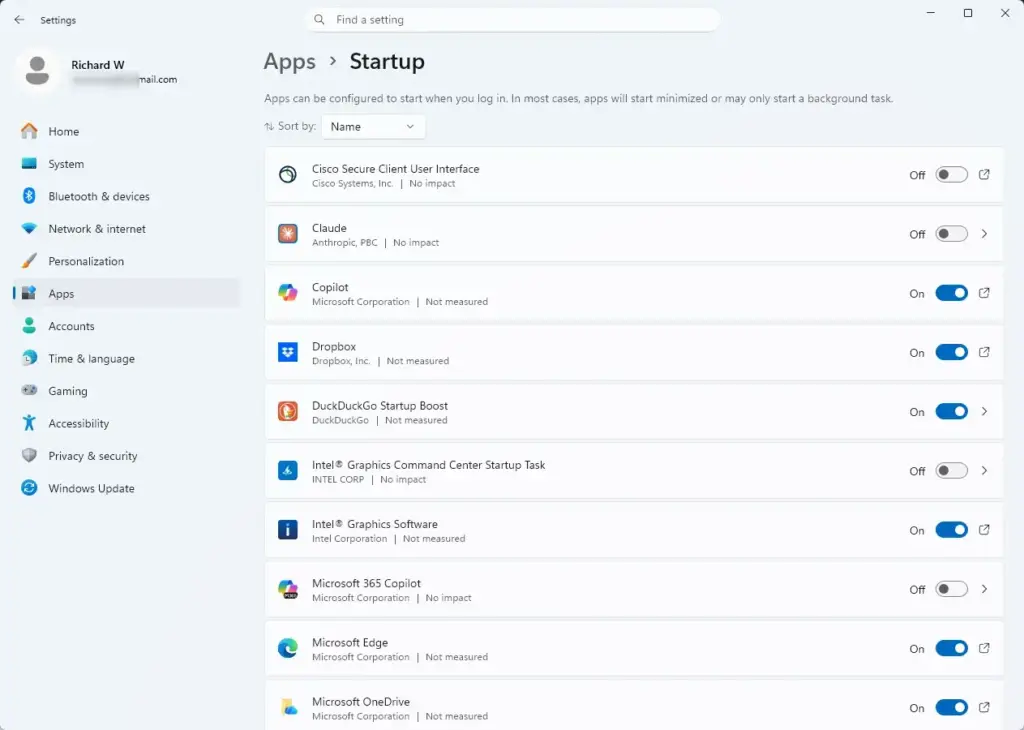
- Open Settings Apps Startup. This page shows the same list as toggle switches, which some people find clearer. Use the Sort by menu to order by Startup impact, and switch off anything else you do not need. For other ways to reach it, see how to access Settings in Windows 11.
Settings › Apps › Startup - Click the OneDrive cloud icon in the notification area. The notification area is the group of small icons at the right end of the taskbar. If you do not see the icon, click the up arrow to show hidden icons.
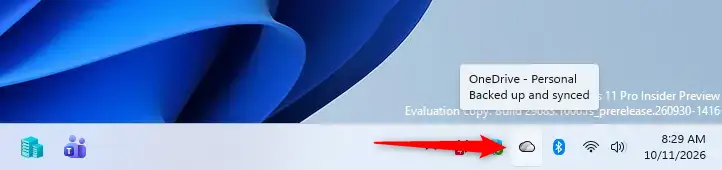
Taskbar - Click the gear icon, then click Pause syncing. Choose 2 hours. This tests whether OneDrive causes the slowdown without changing any of your files. To undo it, open the same menu and click Resume syncing.
- Open Settings Windows Update. If the page says an update is installing, downloading, or waiting for a restart, let it finish. Click Restart now if the button appears. Slow sign-ins after a feature update often clear once the update completes its post-install work.
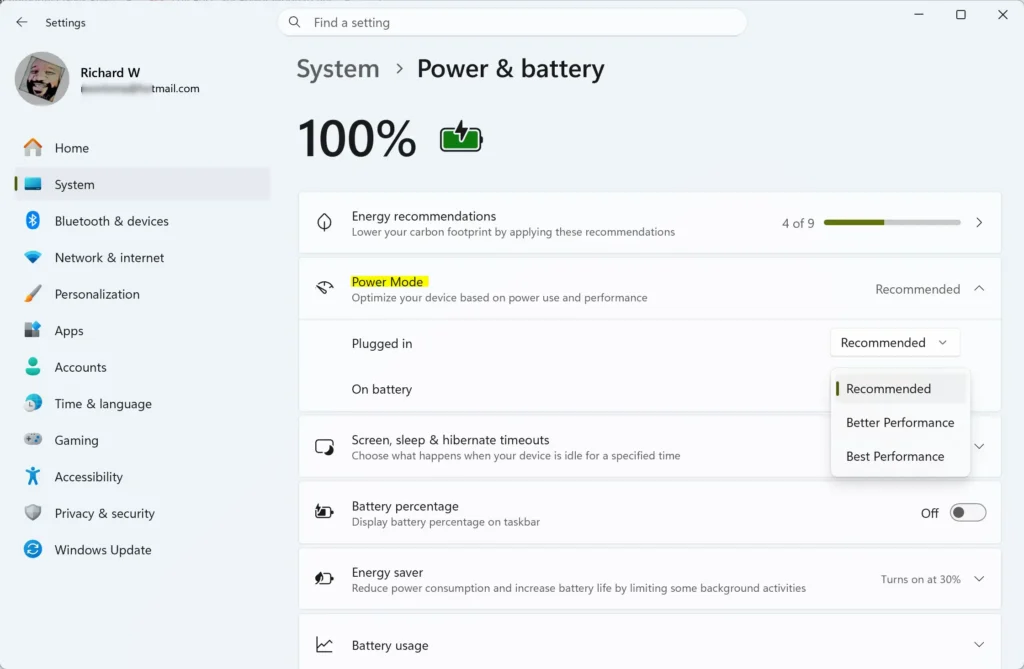
- Open Settings System Power & battery. Under Power mode, choose Best performance. On a laptop, plug in the charger first. The other choices are Best power efficiency and Balanced, and they hold back the processor to save energy, which makes a busy sign-in feel slower.
- Open Control Panel. Press Win+R, type control, and press Enter. This step and the next four need administrator rights, and Windows asks you to approve a prompt. Skip them if you do not use an admin account.
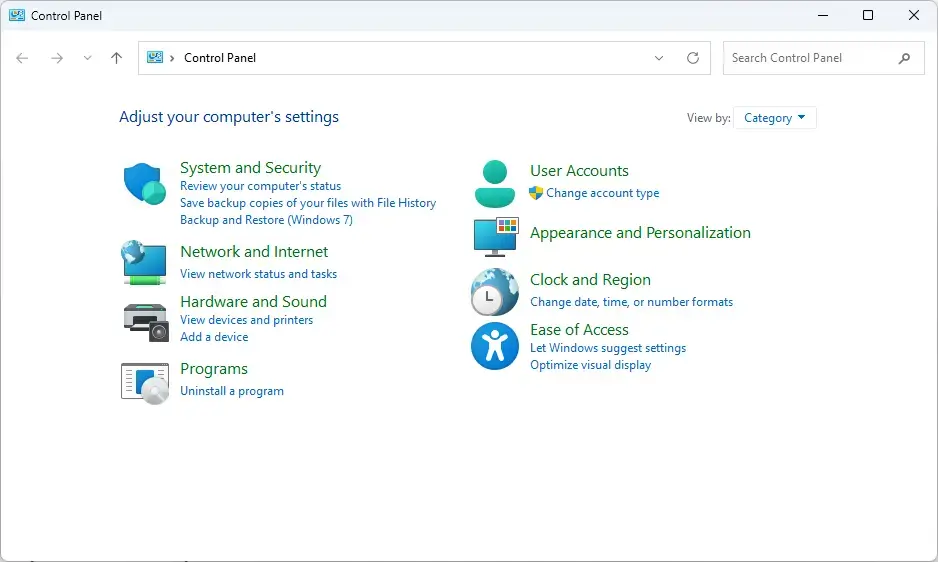
Windows 11 Control Panel dashboard showing power options. - Click Hardware and Sound, then click Power Options. The Power Options window shows your power plans.
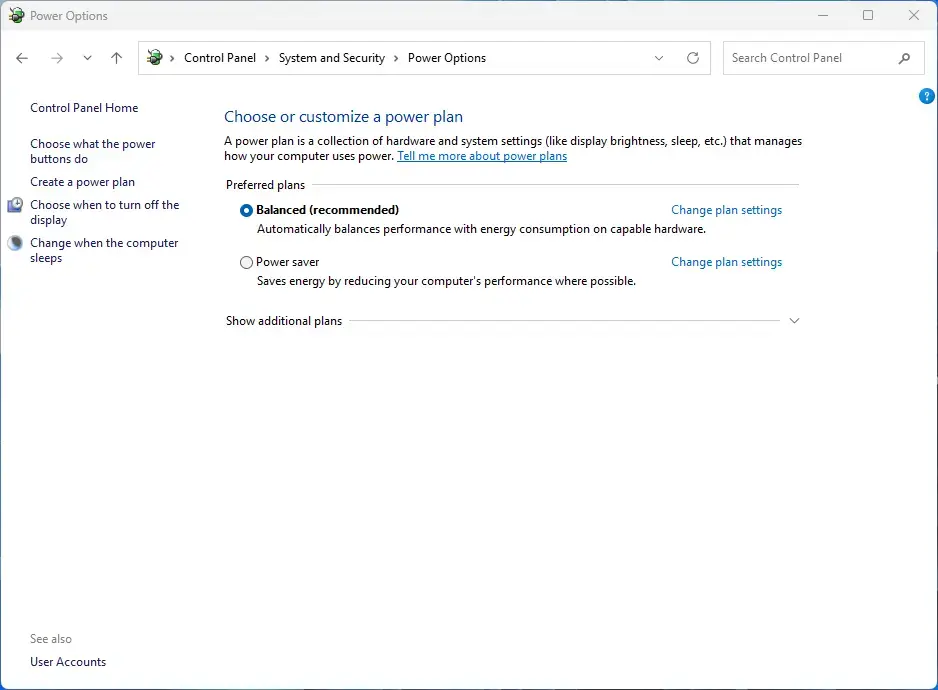
Control Panel › System and Security › Power Options - Click Choose what the power buttons do. This link is in the left pane. It opens the Power Button and Sleep settings.
- Click Change settings that are currently unavailable. This unlocks the greyed-out options under Shutdown settings. Approve the prompt if one appears.
- Clear the Turn on fast startup (recommended) check box. Fast Startup (a hybrid shutdown that saves part of Windows to disk so the next start is quicker) can occasionally leave drivers or services in a bad state. If the box is missing, hibernation is turned off or the PC does not support it, and you can skip this step.
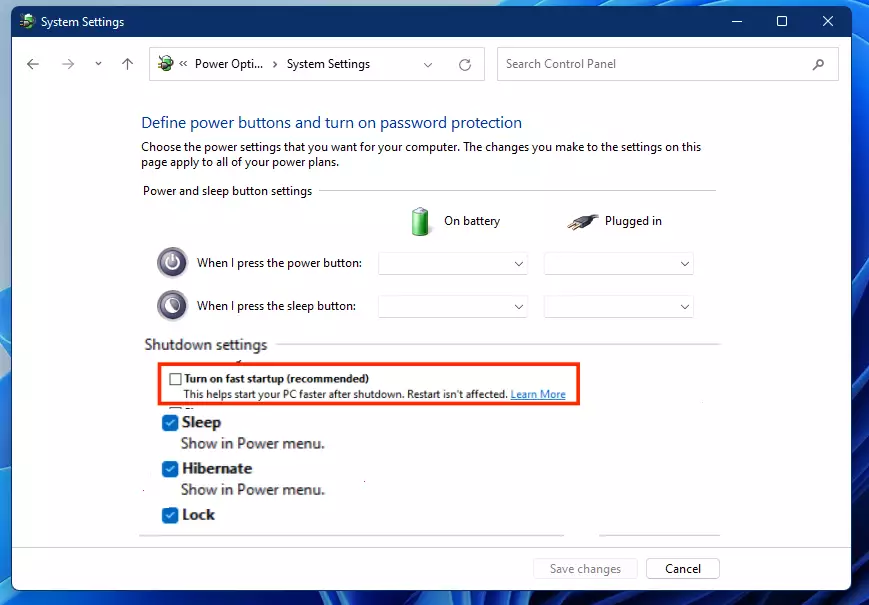
turn off fast startup recommended in windows 11 - Click Save changes. The window keeps your choice. To undo it later, return here, tick the box, and save again.
- Restart the PC and sign in. Open Task Manager again with Ctrl+Shift+Esc and compare the Disk and CPU numbers with what you saw in step 5. If the PC feels faster, one of the changes worked.
If you changed several things and the PC is now faster, you do not need to find out which change did it. If you want to know, turn the changes back on one at a time. Task Manager is also reachable from the Win+X menu, covered in how to access the Power User Tasks menu in Windows 11.
What to Look For in Task Manager After Sign-In
In step 5, the process at the top of the list tells you where to look next. A few patterns come up often.
- Disk at or near 100% with an HDD. The drive cannot keep up. See the next section.
- A security product at the top. Your antivirus is scanning at sign-in. Open its settings and move scheduled scans to a time when you are not using the PC.
- Microsoft OneDrive at the top. A large first sync is running. Let it finish, or keep it paused while you work.
- Windows Modules Installer Worker or similar update processes. Windows is finishing an update. This clears by itself, usually after one or two restarts.
- Nothing stands out. The load is spread across many small startup apps. Disabling several of them in the Startup apps list is the right fix.
Task Manager’s Startup apps page also shows a figure labelled Last BIOS time at the top right. This is how long the PC’s firmware (the basic startup software built into the hardware) took before Windows loaded. It does not measure the slowdown after you enter your password, so ignore it for this problem.
When the Slowdown Is Your Hard Drive
In Task Manager, click Performance, then click Disk. The label at the top right of the graph shows the drive’s model, and the details below it show whether it is an SSD or an HDD.
An HDD has moving parts and handles many simultaneous requests badly. Right after sign-in, dozens of apps and services ask for files at once, and the disk graph sits near 100% while everything waits. Disabling startup apps helps a lot on an HDD because it reduces how many requests arrive together.
If you already have an SSD and Disk still sits at 100% for long periods, treat it as a sign something is repeatedly reading or writing. Note the process name at the top of the Processes list and check that app’s settings.
If You Sign In With a Work or School Account
Work and school accounts add steps that a personal account does not. Windows may run sign-in scripts, connect mapped network drives (shared folders assigned a drive letter), apply policies, and load a profile stored on a server. Any of these can stall if the network is slow or the server is far away.
Two signs point to this cause. In File Explorer, a mapped drive shows a red X when Windows could not reach it, and apps that depend on the network lag until their requests time out. Disabling startup apps may improve things a little, but the main delay sits outside your PC.
Run a Clean Boot to Find a Stubborn Cause
A clean boot starts Windows with only Microsoft services and no startup apps. If sign-in is fast in this state, a third-party app or service is the cause. Before you start, note that a clean boot needs administrator rights. It also turns off third-party antivirus and printer utilities until you reverse it.
- Press Win+R. The Run box opens.
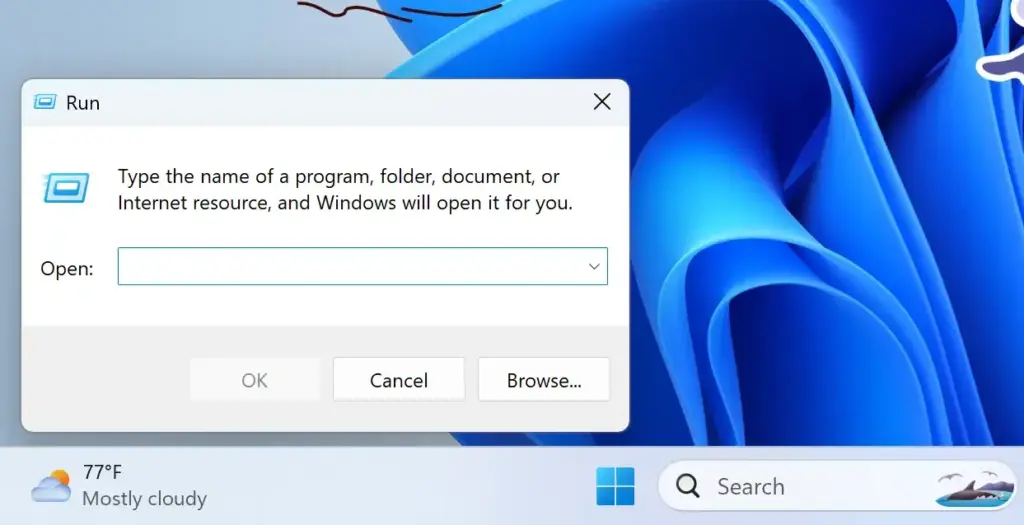
Run dialog - Type
msconfigand press Enter. The System Configuration window opens. Approve the prompt if one appears. - Click the Services tab. A list of services appears.
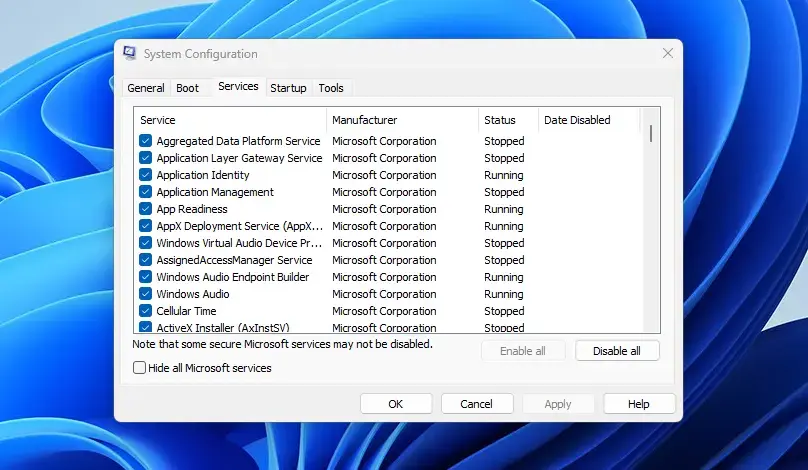
System Configuration - Select Hide all Microsoft services. Windows’ own services disappear from the list, and only third-party ones remain.
- Click Disable all. Every remaining service is unticked.
- Click the Startup tab, then click Open Task Manager. Task Manager opens on the Startup apps page.
- Disable every item in the list. Right-click each one and click Disable, then close Task Manager.
- Click OK in System Configuration, then click Restart. The PC restarts into the clean state.
Sign in and judge the speed. If sign-in is fast, go back to msconfig (System Configuration, the tool that controls startup services) and turn on half of the services. Restart, then test again.
Keep halving the list until only one service is left. That service is the cause. To go back to a normal startup, open msconfig, choose Normal startup on the General tab, click OK, restart, and re-enable your chosen startup apps from Task Manager. System Configuration is also available from the tools folder described in how to access Windows Tools in Windows 11.
Reconnect to your network normally afterward.
Slowness That Is Not About Sign-In
Check whether the lag follows a pattern before you spend time on the steps above. If the PC is only slow after waking from sleep or after the screen locks, the cause may be different from a normal sign-in that follows a full restart. In that case, the setting that controls how long Windows waits before asking for your password again may be relevant. See how to set the password timeout after sleep or lock in Windows 11.
If File Explorer itself freezes or closes when you right-click during the slow period, that is a separate fault with its own fixes. See what to do when Windows 11 Explorer crashes on right click.
If this didn’t work
If sign-in is still slow after a clean boot, the cause is not a startup app or third-party service. Look at the drive type in Task Manager and at any updates still waiting in Settings Windows Update. To undo any change in this guide, turn startup apps back on at Settings Apps Startup and turn Fast Startup back on in Power Options (a setting that lets Windows partly hibernate at shutdown to start faster). Apps that update themselves can add themselves back to the startup list later, so check Startup apps again after a major app update.
Have a question about this guide?
Answered by AI from this guide. Good questions may be added to this page — please don't include personal details.
Did this guide fix your problem?

About the Author
Richard
Tech Writer, IT Professional
Richard is a writer at Geek Rewind who turns complex IT tasks into clear, step-by-step guides. He draws on years of hands-on experience in system administration and enterprise IT operations, focusing on Windows, Linux and WordPress: the problems people actually run into, and the fixes that work. His server and WordPress guides come from systems he runs himself. Richard builds and maintains the platform behind Geek Rewind, from its Ubuntu servers and Nginx configuration to its custom WordPress plugins. Many new tutorials start with readers' questions, and he's always glad to answer them in the comments.
No comments yet — be the first to share your thoughts!