How to Open and Use Credential Manager in Windows 11

- 9 steps
- Needs administrator rights
Credential Manager in Windows 11 is the built-in vault that stores the usernames and passwords Windows saves for network shares, apps, and some websites. The quickest way to open it is to press the Win, type Credential Manager, and press Enter. It works the same on Windows 11 Home and Pro, and you do not need administrator rights to manage your own saved entries.
This guide shows how to open Credential Manager, view and edit saved passwords, and remove entries you no longer want. It also covers adding entries, backing them up, and fixing the common cases where an entry is missing or a password will not show.
To open Credential Manager in Windows 11, press the Win, type Credential Manager, and press Enter. It stores the usernames and passwords Windows saves for network shares, apps and some websites. Under Windows Credentials you can view, edit or remove entries, but passwords there cannot be displayed. No administrator rights are needed.
What Credential Manager stores
Credential Manager keeps saved sign-in details in a protected store tied to your Windows user account. It has two tabs, Web Credentials and Windows Credentials, and each holds different things.
- Web Credentials holds sign-ins saved for websites and apps by Microsoft’s older browsers and some Microsoft apps.
- Windows Credentials holds sign-ins for network resources, such as a shared folder on another PC or a NAS (a storage device on your network). It also holds details for some apps and services.
Passwords saved inside current browsers such as Microsoft Edge or Chrome typically live in the browser’s own password manager, not here. If a site password you saved in your browser is missing from Credential Manager, check the browser’s password settings instead.
Credential Manager is separate from Windows 11 Credential Guard, which is a security feature that isolates sign-in secrets from malware rather than a place where you view or edit them.
How to open and use Credential Manager in Windows 11
These steps open Credential Manager in Windows 11 from Search, then view, edit, and remove a saved entry. Nothing here needs administrator rights, and changes apply immediately without a restart.
- Press the Win. The Start menu opens with the search box ready for typing.
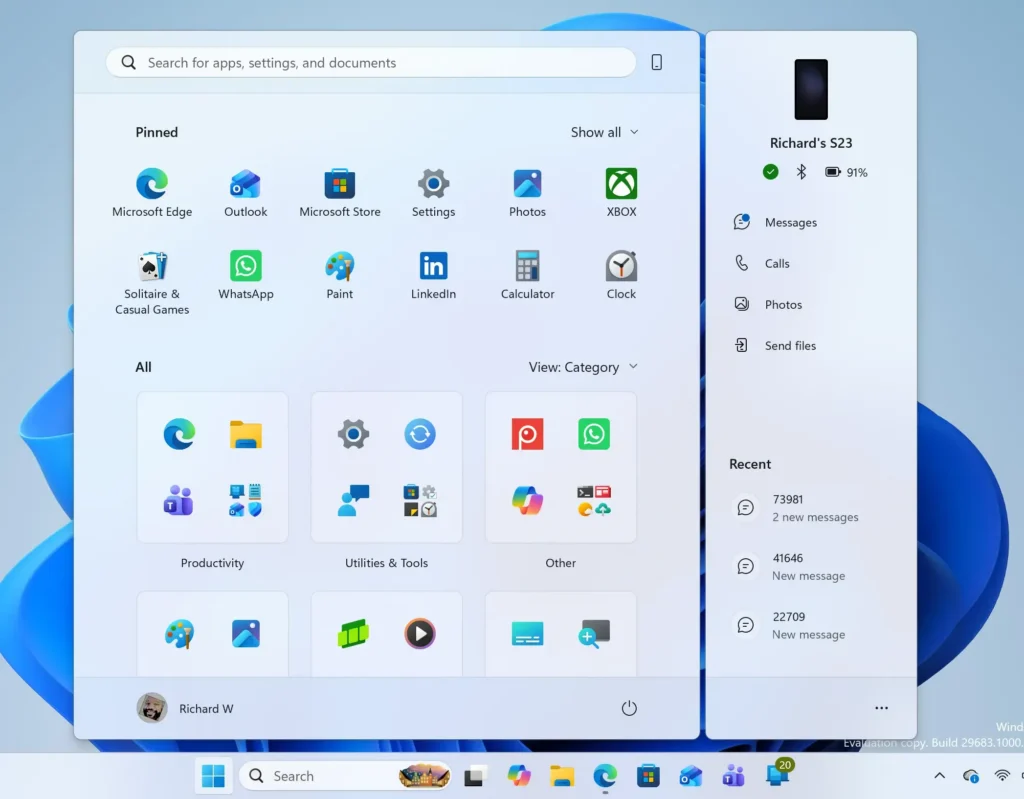
Windows 11 Start menu search panel for opening OpenSSH Client settings - Type Credential Manager. Credential Manager appears at the top of the results, labeled as a Control Panel item.
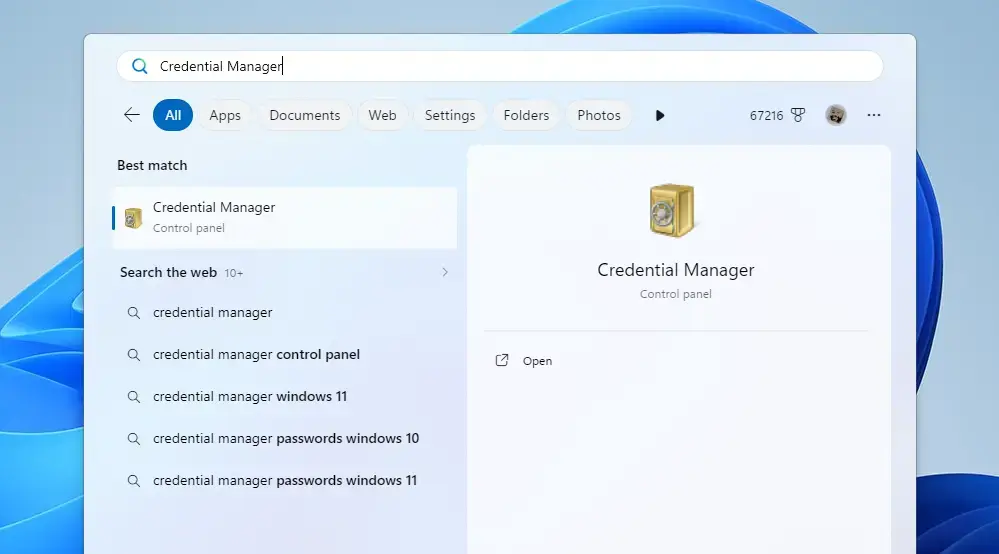
Start Menu - Select Credential Manager. A Control Panel window opens with Web Credentials and Windows Credentials at the top.
- Select Windows Credentials or Web Credentials. The selected tab is underlined, and the saved entries appear in a list below it.
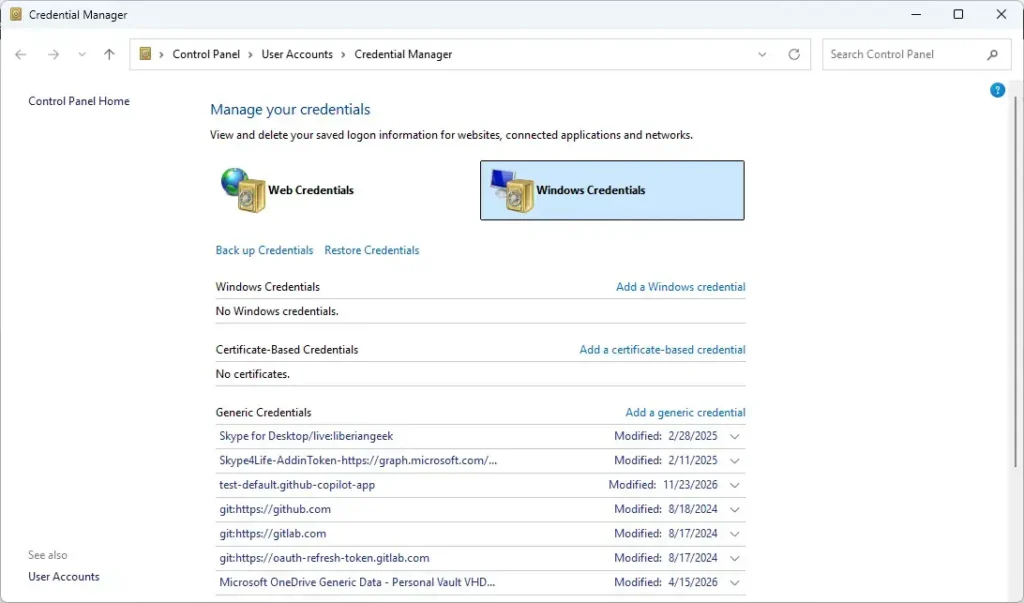
Control Panel - Select the arrow next to an entry. The entry expands to show its address, user name, and a masked password.
- Select Show to reveal a web password. This link appears only under Web Credentials. Windows asks you to confirm with your PIN, password, or Windows Hello before it displays the password.
- Select Edit to change a saved entry. Change the user name or password, then select Save. Windows Credentials never display the stored password, so you can only overwrite it.
- Select Remove to delete an entry. Windows asks you to confirm. Select Yes and the entry disappears from the list.
- Close the Credential Manager window. Windows asks for the sign-in again the next time the app or share needs it.
For a longer walkthrough focused on cleaning out old entries, see View and Delete Saved Windows Credentials in Credential Manager.
Other ways to open Credential Manager
Search is the fastest route, but the other methods help when Search is slow, or when you want a shortcut you can reuse. All of them open the same window.
Open it from the Run dialog
The Run dialog launches a Control Panel item by name, which skips the menus entirely.
- Press Win+R. The Run dialog opens in the bottom-left corner of the screen.
- Type the command below into the Open box. Copy it exactly as written.
control /name Microsoft.CredentialManager- Select OK. Credential Manager opens.
Open it from Control Panel
Control Panel is where Credential Manager lives, so this route works on any Windows 11 PC.
- Open the Start menu and type Control Panel. Select Control Panel from the results.
- Select User Accounts. If the view is set to large or small icons, select Credential Manager directly and skip the next step.
- Select Credential Manager. The window opens with the two credential tabs.
Open it from Terminal or Command Prompt
The same command from the Run dialog works in a command-line window, which helps when you are already working there.
- Right-click the Start button. The Quick Access menu opens.
- Select Terminal. Do not choose the administrator entry, because it is not needed here.
- Run the command below. Press Enter after typing it.
control /name Microsoft.CredentialManagerOpen it from Task Manager
This route helps when the Start menu or Search is not responding. If Task Manager itself will not open, see how to enable or disable Task Manager in Windows 11.
- Press Ctrl+Shift+Esc. Task Manager opens.
- Select Run new task. A small dialog opens.
- Type the command below and select OK. Credential Manager opens.
control /name Microsoft.CredentialManagerIf you are new to the tool, how to use Task Manager on Windows 11 explains the rest of its layout.
Create a desktop shortcut
A shortcut gives you one-click access if you open Credential Manager often.
- Right-click an empty area of the desktop. A context menu appears.
- Select New, then Shortcut. The Create Shortcut wizard opens.
- Type the command below as the location. Then select Next.
control /name Microsoft.CredentialManager- Type a name for the shortcut. For example, Credential Manager.
- Select Finish. The shortcut appears on the desktop. Double-click it to open Credential Manager.
To pin Credential Manager to Start instead, search for it, right-click the result, and select Pin to Start.
Understand the types of Windows credentials
The Windows Credentials tab splits entries into groups. Knowing which group an entry sits in tells you how safe it is to delete.
- Windows Credentials are sign-ins Windows uses for network shares, mapped drives, and remote connections.
- Certificate-Based Credentials are sign-ins that use a digital certificate (a file that proves your identity) instead of a password. These are common on work or school PCs.
- Generic Credentials are sign-ins saved by apps and services for their own use. Microsoft apps often create these.
Expand an entry and look at the Persistence line. It says how long Windows keeps the entry, for example for the current sign-in session or on the local computer. An entry that only lasts for the session disappears after you sign out, so you do not need to clean it up.
Add a credential manually
Adding an entry makes Windows reuse a saved sign-in, for example when you connect to a network share that keeps asking for a password. The links to add entries sit on the right of the Windows Credentials tab.
- Open Credential Manager. Use any method above.
- Select Windows Credentials. The saved entries appear.
- Select Add a Windows credential. For an app or service rather than a network resource, select Add a generic credential instead.
- Enter the Internet or network address. This is the computer name or address of the resource, such as COMPUTER-NAME or 192.0.2.10.
- Enter the user name and password. Type them exactly as the resource expects.
- Select OK. The new entry appears in the list under the matching group.
If the resource still asks for a password, the address you entered probably does not match the name you use to connect. Remove the entry and add it again using the exact name from the connection.
Back up and restore credentials
A backup saves your Windows Credentials to a file that you can restore after reinstalling Windows or moving to a new PC. Back up first if you plan to clear out old entries and are not sure about the passwords.
- Open Credential Manager. Select Windows Credentials.
- Select Back up Credentials. The Stored User Names and Passwords wizard opens.
- Select Browse. Choose a folder and a file name for the backup, then select Save.
- Select Next. The wizard asks you to press Ctrl+Alt+Del to continue.
- Press Ctrl+Alt+Del. A secure screen appears and asks for a password to protect the backup file.
- Enter a password for the backup file and select Next. The wizard confirms the backup is complete. Select Finish.
The backup file ends in .crd and contains your saved sign-ins, so store it somewhere private. To restore it, select Restore Credentials on the same tab, choose the file, and enter the backup password you set.
List credentials from the command line
The cmdkey tool lists and deletes Windows Credentials without opening the window. It is useful when you want to see every entry’s address at once. Open Terminal as described earlier and run the command below.
cmdkey /listThe output shows each entry’s target (the address Windows matches against), its type, and its user name. To remove one entry, run the next command and replace TARGETNAME with the target name from the list.
cmdkey /delete:TARGETNAMEWhen Credential Manager does not show what you expect
Most problems come down to where the password is stored, or which account you are signed in to.
A website password is missing
Current browsers keep their own password lists. Open the password settings in Edge or Chrome to find those entries instead. Credential Manager lists only what Windows itself saved.
There is no Show link next to a password
Only Web Credentials offer Show. Windows Credentials display the password as dots and never reveal it. If you forgot the password, use Edit to replace it with the correct one, or reset it at the source.
The Show prompt does not accept your sign-in
Windows asks for the same PIN or password you use to sign in to this PC. If you use a PIN, enter the PIN and not your Microsoft account password. Windows Hello fingerprint or face works too if it is set up.
An entry reappears or the app keeps asking you to sign in
Apps and network shares create the entry again the next time you connect and choose to save the password. That is normal. If a network share keeps using an old user name, remove its entry, reconnect, and enter the right details when prompted.
You cannot remove or edit an entry
Entries created by a work or school account may be managed by your organization, and Windows can block changes to them. Contact your IT staff in that case. Certificate-based entries follow the same rule.
Another user’s credentials are not visible
Credential Manager shows only the entries for the account you are signed in with. An administrator cannot see another user’s entries from their own account. Sign in as that user to see them.
What to do next
After you clean out old entries, test the affected app or network share. Windows prompts for the sign-in again, and you can choose to save it fresh. If you want a shortcut to the tool, create the desktop shortcut from this guide. To go deeper on removing entries, read View and Delete Saved Windows Credentials in Credential Manager.
Have a question about this guide?
Answered by AI from this guide. Good questions may be added to this page — please don't include personal details.
Did this guide fix your problem?

About the Author
Richard
Tech Writer, IT Professional
Richard is a writer at Geek Rewind who turns complex IT tasks into clear, step-by-step guides. He draws on years of hands-on experience in system administration and enterprise IT operations, focusing on Windows, Linux and WordPress: the problems people actually run into, and the fixes that work. His server and WordPress guides come from systems he runs himself. Richard builds and maintains the platform behind Geek Rewind, from its Ubuntu servers and Nginx configuration to its custom WordPress plugins. Many new tutorials start with readers' questions, and he's always glad to answer them in the comments.
No comments yet — be the first to share your thoughts!