Windows 11 Sound and Device Sharing: Settings Explained

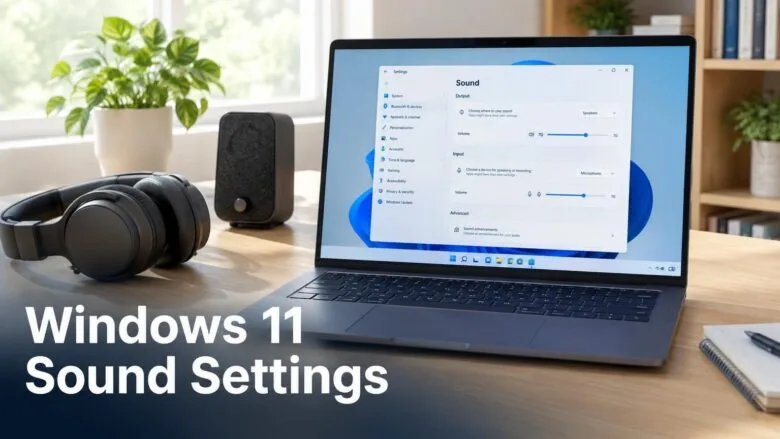
Windows 11 audio and device sharing covers where your sound plays, which Bluetooth devices connect, and what other devices can send to your PC. These settings sit in different places in Settings, and turning one off can break a feature that depends on it. This page groups the 29 guides by the task you are trying to finish, from switching speakers to fixing crackling audio after sleep. Start with output device settings, then move to sharing features only when you need them.
Choose where your sound plays
Sound goes to whichever output device Windows has selected, and it can switch without warning when you connect headphones or a monitor. These guides show how to pick the device yourself and keep it selected. Use them first if the wrong speakers or headset keep getting audio.
 How to Change the Default Sound Output Device in Windows 11 Audio Settings No sound after an update? Fix sound problems in Windows 11 by running the built-in troubleshooter, resetting drivers, or restarting audio services.
 Set the Default Playback Device in Windows 11 Windows 11 keeps playing sound from the wrong speakers or headphones? Set the default playback device in Settings > System > Sound, or from the taskbar…
 How to Change Default Sound Output Device Automatically in Windows 11 Sound playing from the wrong speakers? Stop manual switching and set Windows 11 to route your audio to headphones or Bluetooth automatically.
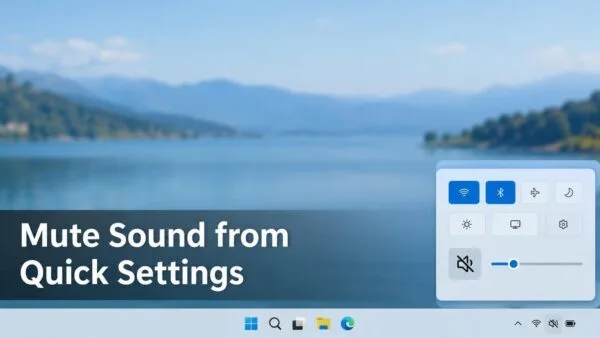 Mute Sound from Quick Settings in Windows 11 Mute sound in Windows 11 with the speaker icon in Quick Settings, or press Windows + A. Your volume level stays put, so unmuting restores it. Works on Home…
Send sound to two devices or tune it for calls, music and hearing
The default settings suit most people, but some setups need a change. Musicians, people with hearing loss and anyone taking calls often need to adjust how Windows processes sound. Read these guides when the default output does not match how you use your PC.
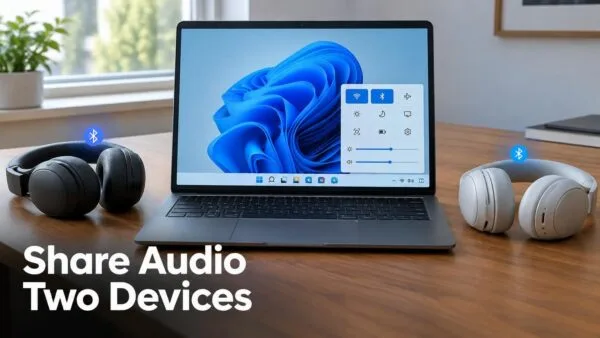 How to Share Audio to Two Devices in Windows 11 Shared Audio in Windows 11 plays the same sound to two Bluetooth LE Audio headphones at once. Check the requirements, pair both devices, then turn it on…
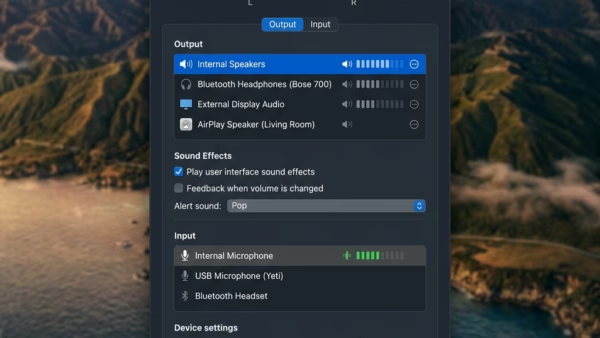 How to Turn Change Adaptive Communication Sound Levels in Windows 11 Learn how to disable adaptive sound levels in Windows 11 to stop calls from muting other audio. Control your sound settings.
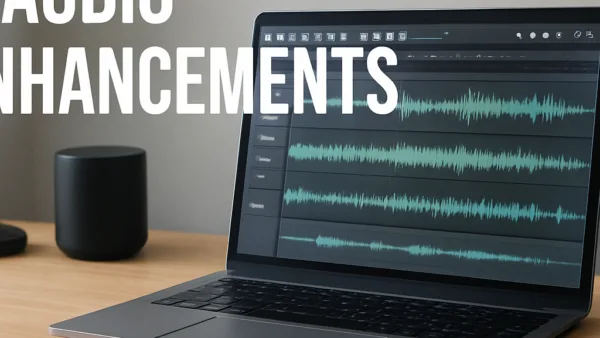 Should You Enable Windows Audio Enhancements for Music Production Windows audio enhancements add delay and change your sound. Find out if you should turn them off when recording music in your home studio.
 Should You Enable Mono Audio in Windows 11 Accessibility Settings Missing half the sound in your headphones? Find out what mono audio does in Windows 11 accessibility settings and whether you should turn it on.
 How to Pair Bluetooth Hearing Aids in Windows 11 Hearing Devices Settings Connect your hearing aids using Windows 11 Hearing Devices settings with LE Audio. Check compatibility, pair step-by-step, and fix connection drops.
Connect Bluetooth devices and receive files
Bluetooth links headphones, speakers and other gadgets to your PC without cables. The power and receive settings below control whether those connections stay active and whether files can reach your PC. Check these settings if a paired device keeps disconnecting.
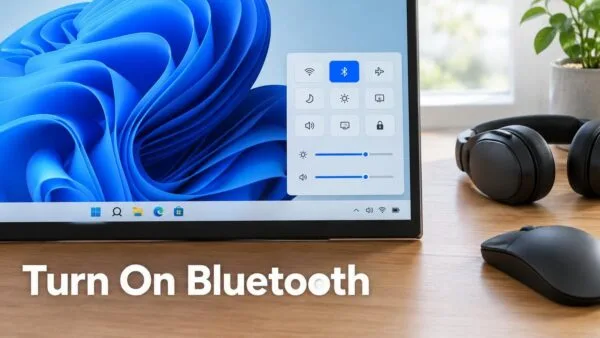 Turn On Bluetooth from Quick Settings in Windows 11 Turn On Bluetooth from Quick Settings in Windows 11: press Windows key + A, then select the Bluetooth tile. Missing tile? Here is how to add it back.
 Receive Files over Bluetooth in Windows 11 Receive files over Bluetooth in Windows 11: open Bluetooth File Transfer from Settings, select Receive files, then send from your phone. Covers pairing and…
Share files with nearby devices
Nearby Sharing lets your PC send and receive files with other devices close by. Shared experiences and Advanced sharing settings control related features, and turning them off changes what works. Read these before you disable anything, so you know what you will lose.
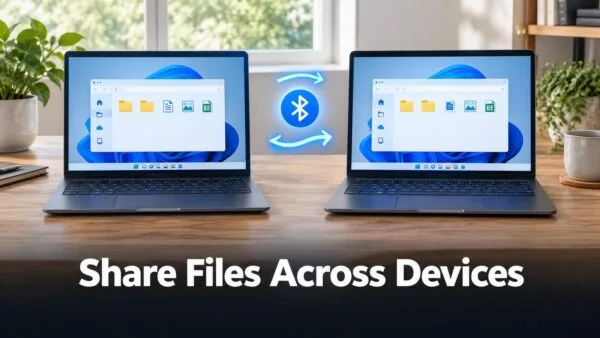 Share Files Across Devices with Nearby Sharing in Windows 11 Share files across devices with Nearby sharing in Windows 11. Turn it on at Settings > System > Nearby sharing, then send from File Explorer. No cable.
 What Breaks When You Turn Off Nearby Sharing in Windows 11 What breaks when you turn off Nearby sharing in Windows 11? Only file and link transfers with nearby PCs. Bluetooth, Wi-Fi and printers keep working.
 What Breaks When You Disable Windows 11 Advanced Sharing Settings Find out what breaks when you disable Windows advanced sharing settings, from lost access to network folders and printers to blocked media streaming.
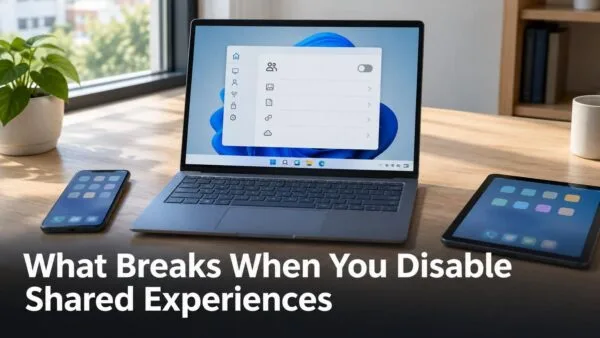 What Breaks When You Disable Shared Experiences in Windows 11 Turning off Shared experiences in Windows 11 stops Nearby sharing and cross-device app handoff. Here's what breaks, what still works, and how to reverse it…
Link your phone to this PC
Phone linking lets your PC reach photos, messages and sometimes the phone screen. It depends on the Mobile devices setting and on the phone being set up correctly. Use these guides to set it up, use it as a webcam, or find out what stops working when it is off.
 How to Enable Mobile Access on Windows 11 Enable mobile access on Windows 11 to manage your mobile devices, send texts, and view photos.
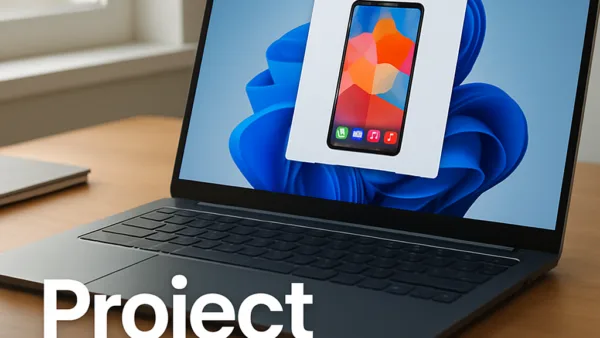 How to Project Your Phone Screen to Your PC in Windows 11 Project your phone screen to your PC in Windows 11 using the built-in Wireless Display feature. No cables or third-party software needed.
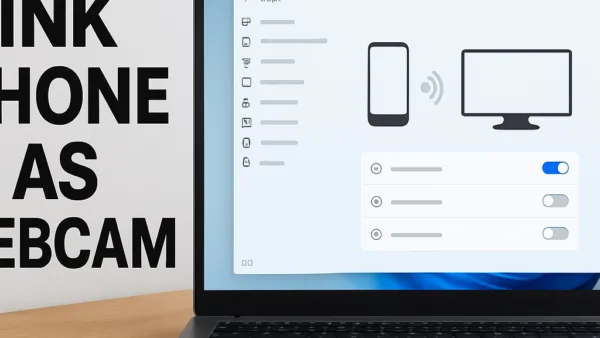 How to Link a Phone as a Webcam in Windows 11 Mobile Devices Settings Use your phone as a high-definition webcam in Windows 11. Pair your device through Mobile devices settings and turn on the connected camera feature.
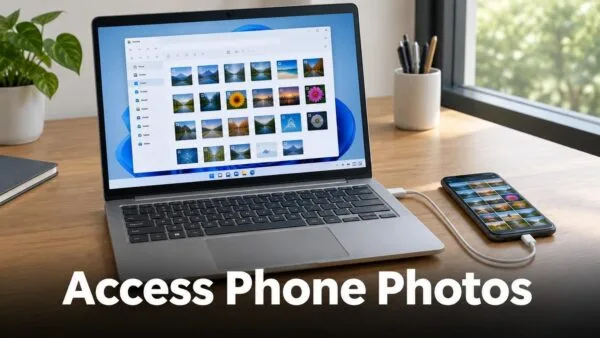 Access Phone Photos on a Lenovo IdeaPad in Windows 11 Access phone photos on a Lenovo IdeaPad by USB cable, or pair an Android phone with Phone Link to see recent photos wirelessly. Includes iPhone options.
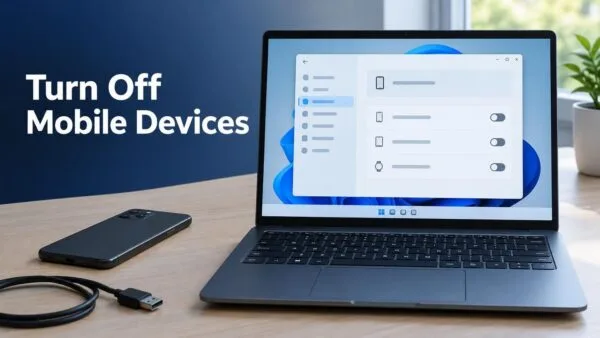 What Breaks When You Turn Off Mobile Devices in Windows 11 What breaks when you turn off Mobile devices in Windows 11? Phone Link, texts, calls and Android webcam stop. Bluetooth, USB and Wi-Fi keep working.
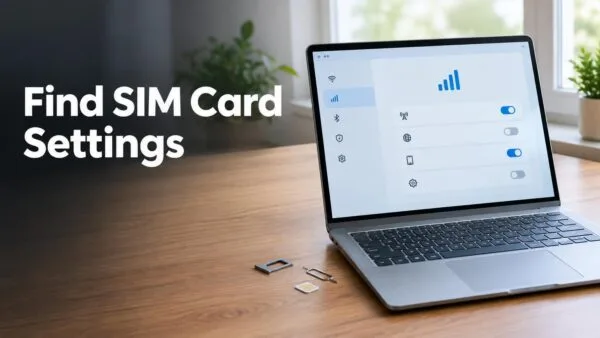 Find SIM Card Settings for This PC in Windows 11 SIM card settings for this PC sit under Settings > Network & internet > Cellular in Windows 11. Pick your SIM, switch cellular data, and manage roaming.
Find printers and set names for your network
Printers and scanners appear in Settings once Windows detects them, and their queue shows print jobs waiting to run. Workgroup names decide which PCs appear together on a home or small office network. These guides cover finding each one and checking what is waiting to print.
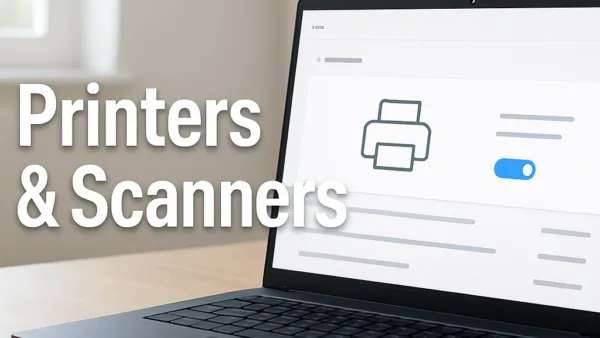 How to Find Printers and Scanners on This Computer Can't find printers and scanners on this computer? Open Settings, go to Bluetooth & devices, and add wired, wireless, or network hardware.
 How to Check Print Queue on This Computer Stuck document or frozen job? Check the print queue through Settings, Control Panel, or the taskbar notification area in three ways.
 Should You Update Printer Drivers Yourself or Let Windows Do It Printer not scanning, stalling or showing offline? Check Optional updates under Windows Update first, then decide whether a manufacturer driver is worth…
 Rename Your Workgroup in Windows 11 Workgroup Settings Change the workgroup name on Windows 11 through System Properties: Settings > System > About > Domain or workgroup. Admin rights needed, restart required…
Fix sound, Bluetooth and printers that stop working
Most failures come from a power-saving setting, a sleep cycle or a default that changed on its own. These guides name the setting behind each symptom and explain the fix. Start with the one that matches what you see on screen.
 Fix Audio Cracking After Waking from Sleep Mode Hear static and pops after your PC wakes up? Fix audio cracking after waking from sleep mode by restarting drivers or tweaking power settings.
 Stop Bluetooth Power Management from Turning Off Your Devices in Windows 11 Bluetooth keeps dropping because Windows 11 powers down the adapter. Clear one box in Device Manager's Power Management tab to stop it. Works on Home and…
 Why Does Nearby Sharing Fail to Find Devices in Windows 11 Why does Nearby sharing fail to find devices in Windows 11? Fix connection issues by checking Bluetooth, Wi-Fi networks, and profile settings.
 Why Is My Default Printer Changing Automatically in Windows 11 Windows 11 keeps changing your default printer? Stop it by unchecking one hidden setting under Bluetooth & devices in your main Settings app.
Have a question about this guide?
Answered by AI from this guide. Good questions may be added to this page — please don't include personal details.

About the Author
Richard
Tech Writer, IT Professional
Richard is a writer at Geek Rewind who turns complex IT tasks into clear, step-by-step guides. He draws on years of hands-on experience in system administration and enterprise IT operations, focusing on Windows, Linux and WordPress: the problems people actually run into, and the fixes that work. His server and WordPress guides come from systems he runs himself. Richard builds and maintains the platform behind Geek Rewind, from its Ubuntu servers and Nginx configuration to its custom WordPress plugins. Many new tutorials start with readers' questions, and he's always glad to answer them in the comments.
No comments yet — be the first to share your thoughts!