How to Share Audio to Two Devices in Windows 11

- 13 steps
- Includes a restart or sign-out
Shared Audio in Windows 11 sends the same sound from one PC to two Bluetooth devices at once. Two people can listen together using a Bluetooth broadcast feature called LE Audio, which Microsoft describes in the Windows update KB5089573. The quickest route is to pair and connect both devices, then open Quick settings from the taskbar and use Shared Audio.
Before you start, make sure both devices support Bluetooth LE Audio and are paired and connected to your PC. Two ordinary Bluetooth headphones that lack LE Audio support will not work with this feature.
Open Quick settings from the taskbar, select Shared Audio, and choose both Bluetooth headphones. Both must support Bluetooth LE Audio, be paired, and be connected to your PC first. Install the latest Windows updates, as Shared Audio arrives through Windows Update (KB5089573). Two ordinary Bluetooth headphones without LE Audio support will not work.
What Shared Audio does
Windows normally sends sound to one output at a time: speakers, a wired headset or one Bluetooth device. Shared Audio changes that for Bluetooth. The PC broadcasts one audio stream, and two supported devices listen to it together.
Bluetooth LE Audio (the newer Bluetooth audio standard, where “LE” stands for Low Energy) makes this possible. Older Bluetooth audio links one source to one receiver. LE Audio adds a broadcast mode, so one source can feed more than one receiver.
This is not the same as playing different apps through different devices. If you want one app on your speakers and another on your headphones, see how to change default audio devices per application in Windows 11. Shared Audio plays the same audio to both listeners.
What you need before you start
Shared Audio has a few requirements. Check each one before you look for the option, because a missing requirement is the most common reason it does not appear.
- A Windows 11 PC with the update that adds Shared Audio. Microsoft lists the feature in KB5089573. Installing the latest updates covers this.
- Two supported devices. Both must support Bluetooth LE Audio. Check the manufacturer’s specifications for each pair of headphones or earbuds.
- Both devices paired. Pairing is the one-time setup that links a device to your PC.
- Both devices connected. A paired device that is switched off or out of range does not count.
Your PC also needs Bluetooth hardware that supports LE Audio. Many Windows 11 PCs do not have it, so check before you buy or pair anything. Our guide on checking whether your Windows 11 device is LE Audio ready shows you how to find out. Do this first if you are unsure about your hardware.
How to share audio with two headphones in 🪟 Windows 11
Follow these steps to share audio with two headphones. Each one builds on the last, from updating the PC to playing sound on both devices. If your devices are already paired and connected, skip ahead to the step that opens Quick settings.
- Install the latest Windows updates. Open Settings Windows Update, select Check for updates, and install anything offered. Restart the PC if Windows asks you to. Shared Audio arrives through updates, so an out-of-date PC may not show it.

Settings › Windows Update - Put the first device in pairing mode. The method varies by device. It usually means holding a button on the headphones or the case until a light flashes. Check the device’s manual if nothing happens.
- Open Settings Bluetooth & devices. Make sure the Bluetooth switch at the top is on. If it is off, Windows cannot find any devices.

Windows Settings menu highlighting the Bluetooth and devices option for printers - Select Add device. A window opens asking what kind of device you want to add.
- Choose Bluetooth. Windows now searches for nearby devices. Your headphones should appear in the list within a few seconds.
- Select the first device from the list. Wait for the message saying the device is connected, then select Done. If the device does not appear, confirm it is still in pairing mode and close to the PC.
- Repeat steps 2 to 6 for the second device. Pair it the same way. Both devices should now be listed under Bluetooth & devices Devices.
- Confirm both devices show as Connected. Look under their names on the Devices page. If one reads Paired or shows no status, switch that device on or select it and choose to connect.
- Open Quick settings. Select the group of network, volume and battery icons at the right end of the taskbar, or press Win+A. A panel with tiles and a volume slider opens.
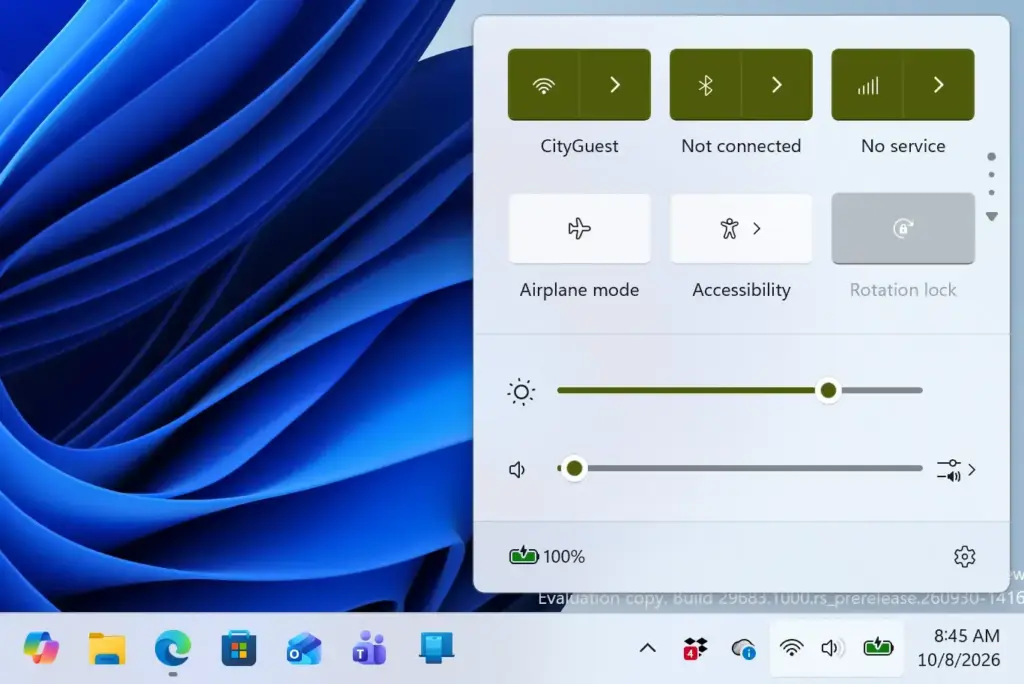
Notification Centre - Find Shared Audio in Quick settings. Microsoft places the feature there. The layout varies between builds, so check the tiles and the volume area. If you cannot see it, go to the troubleshooting section below.
- Select Shared Audio. Windows asks which devices should receive the audio.
- Choose your two connected devices. Follow the on-screen prompts to confirm both.
- Play something. Start a video or a song. Both people should hear it through their own devices at the same time.
If only one device plays sound, check that both still show as connected in Settings Bluetooth & devices Devices. A device that dropped its connection cannot receive the broadcast.
Tell your two devices apart
Two sets of headphones from the same maker often appear under nearly identical names. That raises the odds of picking the wrong one from a list. Give each device a clear name first, such as Alex headphones and Sam earbuds, so you can tell them apart in the list. Our guide on renaming audio devices on Windows 11 walks through it.
Renaming helps most when you share audio often or when several Bluetooth devices are paired to the same PC. It changes only the label on your PC. It does not affect the device itself.
If Shared Audio does not appear in Quick settings
If Shared Audio is missing, check the requirements first. Most of the time, one of them is not met. Work through these checks in order.
Check that both devices are connected
Shared Audio needs two supported devices that are paired and connected at the same moment. Open Settings Bluetooth & devices Devices and look at the status under each name. Reconnect any device that is not listed as connected, then reopen Quick settings.
Check that both devices support LE Audio
This check gets missed often, yet it most often explains the problem. Standard Bluetooth headphones can pair and play music normally yet still lack LE Audio, so Windows has nothing to broadcast to. Look at the product page or manual for “LE Audio” support. If only one of your two devices supports it, you cannot share audio between them with this feature.
Check that your PC supports LE Audio
The PC’s Bluetooth hardware matters as much as the headphones. Older Bluetooth adapters do not handle LE Audio, even on a fully updated Windows 11 PC. Use the LE Audio readiness check to confirm. If your adapter does not support it, a different adapter or PC is the only fix.
Install pending updates
Go back to Settings Windows Update and select Check for updates. Shared Audio is part of the Windows 11 update described in KB5089573, so a PC without that update cannot offer it. Restart after installing, then open Quick settings again.
Look in the Quick settings edit view
Quick settings lets you add and remove tiles using the pencil (edit) icon at the bottom of the panel. If your build treats Shared Audio as a tile, it may be available to add there. Microsoft does not document the exact tile layout. On your build, Shared Audio may appear in a different place.
Fix sound problems while sharing
If Shared Audio starts but no sound plays, treat it as a normal audio problem first. Check that the volume is not muted in Quick settings and that the app itself is playing. Our guide on what to do when your Windows 11 PC has no audio covers the common causes.
How to stop sharing audio
To stop sharing, open Quick settings again and change the Shared Audio setting in the same place you started it. Switching the feature off returns audio to its normal single output. Microsoft does not document the exact button label for stopping, so look for the Shared Audio control you used earlier.
You can also end sharing by disconnecting one of the two devices. Turn the headphones off, or open Settings Bluetooth & devices Devices and disconnect one. Sharing needs both devices. If one disconnects, sharing stops.
To remove a device from your PC entirely, open Settings Bluetooth & devices Devices, select the three-dot menu beside the device, and choose Remove device. You then need to pair it again before using it. If you only want to stop a device from being used as an output, disabling the audio output is a gentler option.
What to do next
If Shared Audio still does not appear after these checks, run through the LE Audio readiness check again, because hardware support is the most likely cause. A PC or device without LE Audio cannot use this feature, however recent the Windows update. Once it works, rename your devices and keep both charged, since a dead battery drops a device from the shared stream.
Have a question about this guide?
Answered by AI from this guide. Good questions may be added to this page — please don't include personal details.
Did this guide fix your problem?

About the Author
Richard
Tech Writer, IT Professional
Richard is a writer at Geek Rewind who turns complex IT tasks into clear, step-by-step guides. He draws on years of hands-on experience in system administration and enterprise IT operations, focusing on Windows, Linux and WordPress: the problems people actually run into, and the fixes that work. His server and WordPress guides come from systems he runs himself. Richard builds and maintains the platform behind Geek Rewind, from its Ubuntu servers and Nginx configuration to its custom WordPress plugins. Many new tutorials start with readers' questions, and he's always glad to answer them in the comments.
No comments yet — be the first to share your thoughts!