What Breaks When You Turn Off Nearby Sharing in Windows 11

- 13 steps
- Needs administrator rights
What breaks when you turn off Nearby sharing in Windows 11 is narrow: your PC stops sending files and links to nearby computers, and stops receiving them. Bluetooth, Wi-Fi, OneDrive, network shares, and printing keep working, because they do not depend on this setting.
Nearby sharing (a built-in feature that sends files and web links to PCs close to you over Bluetooth or Wi-Fi) lives at Settings System Nearby sharing. Changing it takes under a minute and needs no restart or administrator rights.
When you turn off Nearby sharing in Windows 11, your PC stops sending and receiving files and web links with nearby computers. Bluetooth, Wi-Fi, OneDrive, network shares, and printing keep working. Change it at Settings System Nearby sharing. No restart or administrator rights are needed.
What Nearby sharing does in 🪟 Windows 11
Nearby sharing adds nearby PCs as places you can send to in the Windows Share window. You right-click a file in File Explorer, choose the Share option, and pick another PC from the list. The other PC shows a notification, and the person at that PC selects Save or Decline.
The setting has three modes:
- Off disables the feature completely.
- My devices only allows sharing only between PCs signed in with your own Microsoft account.
- Everyone nearby lets any nearby PC with the feature turned on send to you and receive from you.
Most people never choose a mode on purpose. If you landed here because you saw a prompt to turn on Nearby sharing, look at the mode first. The same applies if you saw your PC listed on someone else’s screen.
What stops working when you turn it off
Three things change. All three involve moving files or links between PCs in the same room.
Sending files and links to other PCs
Nearby PCs no longer appear as targets when you share a file, photo, or web link. Share still opens, but the nearby section is empty or shows a prompt to turn Nearby sharing on. Windows does not send anything in the background, so no transfer fails halfway. The Nearby sharing option vanishes from the Share window.
This applies anywhere Windows uses its own Share window. That includes File Explorer, the Photos app, and the share button in Microsoft Edge.
Receiving files from other PCs
Files you already received stay where they are. Turning the feature off does not delete past transfers from your Save files I receive to folder.
The Share window shortcut to turn it on
What keeps working
The setting controls one feature. These items do not depend on it:
- Bluetooth devices. Mice, keyboards, headphones, and speakers pair and work as before. Nearby sharing uses Bluetooth, but turning it off does not turn Bluetooth off.
- Wi-Fi and Ethernet. Your internet connection is unaffected.
- Shared folders and network printers. These follow the network sharing rules in your advanced sharing settings. The post What Breaks When You Disable Windows 11 Advanced Sharing Settings covers that separate switch.
- The Share window itself. You can still share to apps such as Mail, copy a link, or send to a contact in an app that supports sharing.
- Cloud sharing. OneDrive links, email attachments, and messaging apps do not touch Nearby sharing.
Google’s Nearby Share app for Windows is a separate program with its own settings. Turning off the Windows feature does not affect Google’s app. If you use that app with an Android phone, see How to Use Android Nearby Share on Windows 11 to check how it behaves on your PC.
Shared experiences (a separate setting that lets apps continue tasks across your devices) is also independent. Turning off Nearby sharing does not change it. The post What Breaks When You Disable Shared Experiences in Windows 11 explains what that switch affects.
How to turn off Nearby sharing
This change is reversible, and you do not need administrator rights because it applies to your own account’s settings. Switch the feature off with the steps below.
- Press Win+I to open Settings. The Settings window opens.

Start Menu - Click System in the left menu.
- Scroll down the right side and click Nearby sharing. The path is Settings System Nearby sharing. You now see the sharing modes and a Save files I receive to folder.
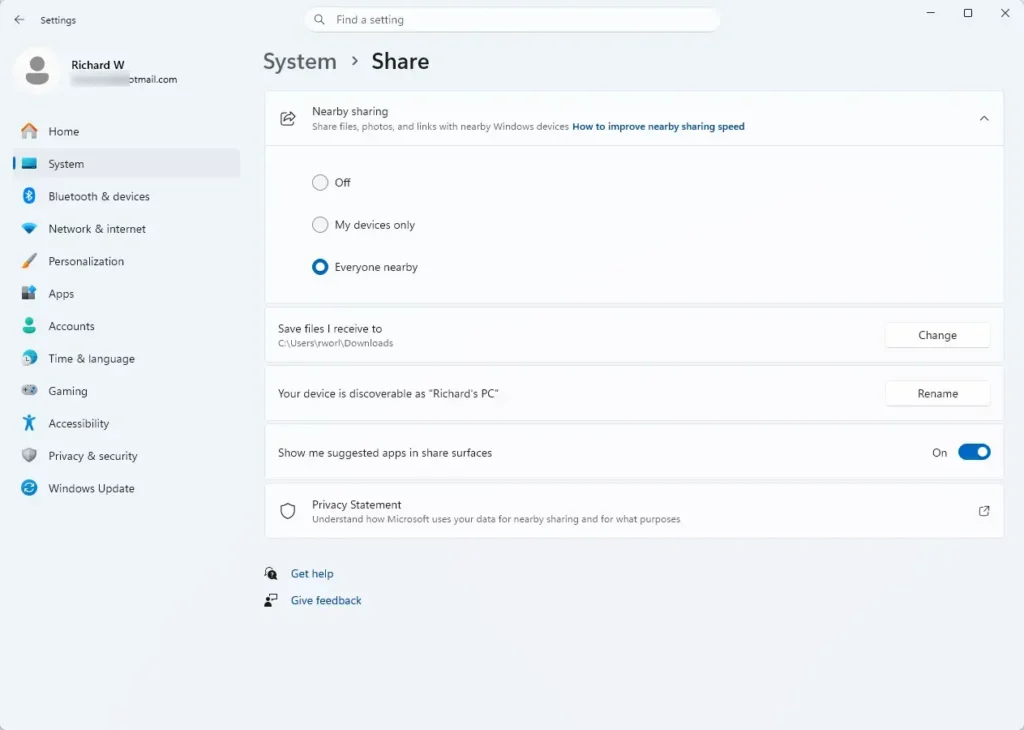
- Select Off. The selection changes immediately. There is no Apply or Save button, and no restart is needed.
- Open File Explorer, right-click any file, and choose the Share option to check the result. The nearby section of the Share window is empty or shows a prompt to turn the feature on.
If the Nearby sharing page looks different from what is described here, your Windows 11 version may use different wording. The three modes above match current Windows 11 releases. If your labels differ from these, note which Windows 11 build you have before you go on.
Consider My devices only instead of Off
If your concern is strangers seeing your PC, My devices only removes that exposure while keeping the feature. It limits sharing to PCs signed in with your Microsoft account, so you can still move files between your own laptop and desktop. Choose Off only if you never share between PCs this way.
If the Nearby sharing option is missing or greyed out
If the option is missing or greyed out, check these causes in order.
- Look for a message at the top of the page that says some settings are managed by your organization. On a work or school PC, an administrator controls the setting, and you cannot change it from Settings. Ask your IT team.
- Check that Bluetooth is on. Go to Settings Bluetooth & devices and confirm the Bluetooth toggle is On. Nearby sharing relies on Bluetooth to find other PCs, so the feature does not work properly with Bluetooth off.
- Check that your PC has a Bluetooth adapter. A desktop without one cannot use Nearby sharing, and the page may show a warning or the feature may not work. Plug in a USB Bluetooth adapter if you want to use it.
- Check that your adapter supports Bluetooth Low Energy (a low-power Bluetooth mode that devices use to discover each other). Very old adapters do not, and Windows may report the feature as unsupported. Look at the adapter’s specifications on the manufacturer’s site.
Windows 11 Home and Pro have the same setting, so your edition does not explain a missing option. After you fix the cause, close and reopen Settings. The page checks your hardware only when it opens, so it will not refresh while it stays open.
How to turn Nearby sharing back on
To undo the change, return to the same page and pick a mode. No restart is required.
- Open Settings System Nearby sharing.
- Select My devices only or Everyone nearby. The change takes effect at once.
- Turn on Bluetooth if the page asks for it. Go to Settings Bluetooth & devices and set the Bluetooth toggle to On.
- Test by sharing a file to a second PC that also has Nearby sharing turned on. Its name should appear in the Share window within a few seconds.
If the other PC does not appear, make sure both PCs are within a few metres of each other. Also check that both have the feature set to a mode that allows your transfer. With My devices only, both PCs need to be signed in with the same Microsoft account.
Other ways to move files between PCs while it is off
You do not need Nearby sharing to move files. Each option below has a different trade-off.
- OneDrive. Save the file to OneDrive and open it on the other PC. This works across different networks.
- Email or a messaging app. Attach the file. This suits small files.
- A USB drive. Copy the file, then plug the drive into the other PC. No network is involved.
- A shared folder on your network. This depends on network discovery (the setting that lets your PC see other devices on the network) and file sharing, which are covered in the advanced sharing settings post.
- Bluetooth file transfer. Windows still includes an older Bluetooth send and receive tool. In Settings Bluetooth & devices Devices, select More Bluetooth settings, then open Send or receive files via Bluetooth from the window that appears. It is slower than Nearby sharing, and you must pair the two devices first.
A related note: other Windows features have their own off switches with their own side effects. If you are working through a list of services to trim, What Breaks When You Disable Windows Speech Recognition Completely follows the same format and shows what each switch affects.
What to do next
If you turned Nearby sharing off for privacy, check Shared experiences next, because it is a separate setting and Nearby sharing does not control it. The post What Breaks When You Disable Shared Experiences in Windows 11 lists what changes if you turn that off too. To undo your change at any point, return to Settings System Nearby sharing and choose My devices only or Everyone nearby.
Have a question about this guide?
Answered by AI from this guide. Good questions may be added to this page — please don't include personal details.
Did this guide fix your problem?

About the Author
Richard
Tech Writer, IT Professional
Richard is a writer at Geek Rewind who turns complex IT tasks into clear, step-by-step guides. He draws on years of hands-on experience in system administration and enterprise IT operations, focusing on Windows, Linux and WordPress: the problems people actually run into, and the fixes that work. His server and WordPress guides come from systems he runs himself. Richard builds and maintains the platform behind Geek Rewind, from its Ubuntu servers and Nginx configuration to its custom WordPress plugins. Many new tutorials start with readers' questions, and he's always glad to answer them in the comments.
No comments yet — be the first to share your thoughts!