Find SIM Card Settings for This PC in Windows 11

SIM card settings for this PC are in Settings Network & internet Cellular on Windows 11. Open that page to switch cellular data on or off, choose which SIM the PC uses, and manage roaming, data limits and eSIM profiles. A SIM (subscriber identity module) is the small chip from your mobile carrier that links a device to its network.
The Cellular page appears only on PCs with a built-in cellular modem (the chip that connects the PC to a mobile network), such as many 4G LTE and 5G laptops and tablets. If the page is missing, the sections below explain why and what to check. The steps apply to current Windows 11 builds. Labels vary a little by device maker and carrier.
SIM card settings for this PC in Windows 11 are in Settings Network & internet Cellular. Open that page to turn cellular data on or off, choose which SIM the PC uses, and manage roaming, data limits and eSIM profiles. The Cellular page appears only on PCs with a built-in cellular modem.
Check that this PC can use a SIM
Windows shows SIM settings only when it detects cellular hardware. Check this first so you do not spend time looking for a page that cannot appear.
- Look for a SIM tray. It is a small pinhole slot on the side of the laptop or tablet, or a slot under a panel or the battery cover. Check the maker’s spec sheet if you cannot find one.
- Look for the model name. Laptop names often include “LTE” or “5G” when a modem is fitted. A model without these letters often has no modem.
- Check for an eSIM. An eSIM is a SIM built into the device. You load a carrier profile onto it digitally, so there is no tray. Some PCs have only an eSIM.
A USB mobile broadband stick is different. Many sticks use their own software and appear as an ordinary network connection, so they may not show up on the Cellular page at all. Use the stick maker’s app for those.
Mobile hotspot is a different feature. It shares this PC’s internet connection with other devices, but it does not control the SIM.
Open the SIM card settings for this PC
Follow these steps to reach the SIM card settings:
- Open Settings.
- Select Network & internet.
- Select Cellular.
Each control on the page is described below. Insert the SIM first if you use a physical one, with the PC powered off and the card seated in the tray the right way round.
- Press Windows + I to open Settings. The Settings window opens on the System page.

- Select Network & internet in the left pane. The page lists Wi-Fi, Ethernet, VPN and other connection types. A Cellular row appears when Windows detects a modem.
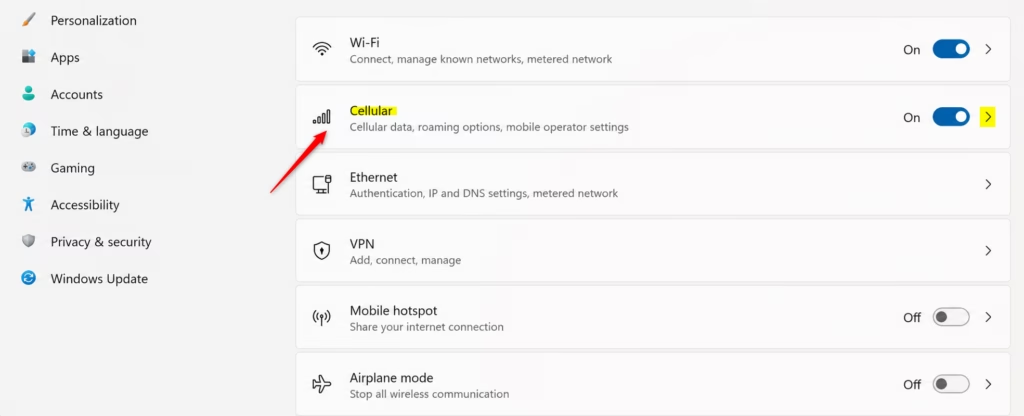
Windows 11 Settings app showing the Cellular network tile. - Select Cellular. If this row is missing, go to the "Cellular is missing or greyed out" section below.
- Check the Cellular toggle at the top. Set it to On if you want the PC to connect through the SIM. The toggle label may read On or Off beside the switch.
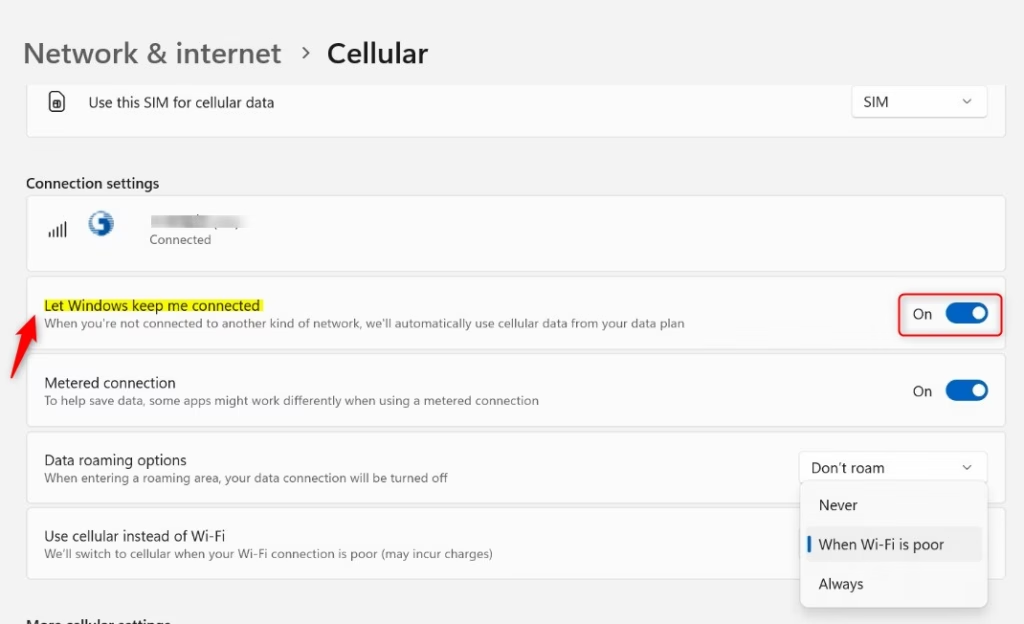
- Find the carrier name under the toggle. It is usually the name of your mobile network, with a signal indicator. Windows lists one entry for each SIM or eSIM profile.
- Select the carrier entry, or the SIM settings link if your device shows one. This opens the settings for that SIM.
- Turn on Use this SIM for cellular data if the PC has more than one SIM or profile. This tells Windows which SIM to use for internet traffic.
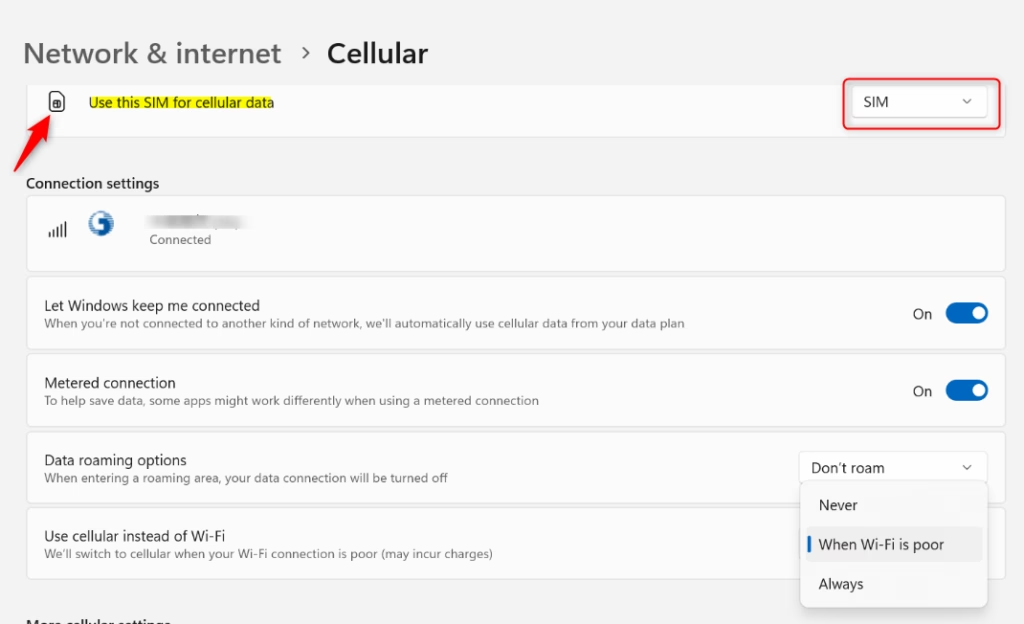
- Select Advanced options if it appears. On many devices this is where roaming, metered connection and data limit controls sit.
- Select Connect if the PC shows your network but is not connected. Windows connects to the carrier and shows the connection status under the name.
- Select the back arrow, or open Settings Network & internet Cellular again, to return to the main page. Confirm the signal bars and the status text. A connected SIM shows the status "Connected" under the network name.
Some devices show a slightly different page, or additional controls supplied by the carrier or manufacturer. If your page differs, look for the carrier name and the word SIM, because those entries always lead to the right controls.
What each SIM setting does
Your page may show some or all of the settings below. Their order and wording depend on your device, your carrier and your Windows build.
Use this SIM for cellular data
This choice matters on PCs that hold two SIMs, or one SIM plus an eSIM. Windows uses the SIM you select for internet traffic. The other SIM stays registered on its network but does not carry your data. Switch it back by selecting the other SIM and turning on the same setting.
Data roaming and metered connection
Roaming means using a network other than your carrier's own, usually abroad. It can cost a lot, so check your plan before you allow it. If your device offers roaming options, choose the one that blocks roaming unless you need it.
A metered connection tells Windows that the connection has a data cap. Windows then limits background downloads such as some updates. Windows normally treats cellular connections as metered by default. If you see a Metered connection toggle, leave it On unless you have an unlimited plan.
Data usage and data limits
Windows tracks how much data each connection uses. Open Settings Network & internet Data usage to see the totals, grouped by connection. Select your cellular connection if the page lists several.
If an Enter limit button is available, you can set a monthly or one-time limit. Windows shows a warning as you approach it. The limit is a guide only and does not cut off your connection, so your carrier's own usage figure is the one that counts.
SIM PIN
If your device offers a SIM PIN option, Windows asks for the code when the SIM starts. If you enter the wrong PIN too many times, the SIM locks. Your carrier can then give you a PUK (PIN unblocking key) to restore access.
Do not guess the PIN if you do not know it. Contact your carrier first.
eSIM profiles
On a PC with an eSIM, the Cellular page offers a way to add a mobile plan, which Windows describes as an eSIM profile. The carrier gives you either a QR code or an activation code. The wording differs by device, so look for an option to use an eSIM or to manage eSIM profiles.
Some carriers require their own app to complete setup. If the PC does not show eSIM options, the hardware or the carrier may not support it. Check with the PC maker.
Turn cellular on or off quickly
Windows has two faster routes than the full Settings page.
- To open Quick Settings, press Windows + A, or select the network, volume and battery icons on the taskbar. Then select the Cellular tile to switch the connection on or off. The tile appears only on PCs with a cellular modem. Select the pencil icon to add it if you removed it earlier.
- To turn off all wireless connections at once, select the Airplane mode tile in Quick Settings. This includes cellular. Select the tile again to turn them back on. Cellular does not reconnect while Airplane mode is on, even if the Cellular toggle shows On.
Cellular is missing or greyed out
If the Cellular row is absent, or the controls cannot be selected, one of the causes below applies. Check them in this order, which runs from the quickest check to the most involved.
The PC has no cellular modem
Windows shows the Cellular page only when it finds a cellular modem. Wi-Fi-only laptops never show it, whatever SIM you insert. Check the spec sheet for your model number. No setting adds a modem to a PC that lacks one.
Airplane mode is on
Open Quick Settings and check the Airplane mode tile. If it is highlighted, select it to turn Airplane mode off. Wait a few seconds for the signal strength icon to show bars again. Also check for a physical wireless switch or a function key with an airplane symbol on the keyboard.
The modem is disabled or has no driver
The modem can be switched off in Device Manager, or it can lack a working driver (the software that lets Windows talk to the hardware). You need administrator rights to turn the modem on in Device Manager. Check that your account has them before you start.
- Right-click the Start button and select Device Manager. The Device Manager window opens.
- Expand Network adapters. Look for an entry that mentions Mobile Broadband, WWAN, LTE or 5G. The exact name depends on the modem maker.
- Right-click the entry. If the menu shows Enable device, select it. This step needs administrator rights, and Windows asks for approval if you are not signed in as an administrator.
- Check for a yellow warning triangle on the entry. If one appears, right-click the device, select Update driver and choose Search automatically for drivers.
- Restart the PC and open Settings Network & internet again. The Cellular row should now appear.
If Device Manager shows no mobile broadband entry at all, the modem may be turned off in the PC's startup settings (the BIOS or UEFI menu) or may not be fitted. Look in the manufacturer's support pages for your model. Windows Update sometimes supplies the modem driver, so check Windows Update in Settings for optional driver updates. The maker's own site is the other source.
The SIM is not detected or is locked
Power off the PC, remove the SIM and reinsert it. Make sure it sits flat in the tray and the gold contacts face the right way. Make sure the card is the right size for the slot, as a nano SIM and a micro SIM are not interchangeable.
If the PC shows a message asking for a PIN, enter your SIM PIN. If the carrier has deactivated the SIM, or the plan is not yet active, Windows may show the SIM but report no service. Contact the carrier to confirm activation.
The PC shows a SIM but will not connect
Check that your carrier supports data on this SIM. Some voice-only or phone-only plans do not allow data on a PC. Some carriers also need an access point name (APN, the address Windows uses to reach the carrier's data network).
Windows normally fills it in on its own for known carriers. If your device offers an Add an APN or similar option, use the values from your carrier's support page. Do not guess them.
Undo or reset the changes
To stop using the SIM entirely, set the Cellular toggle to Off. This does not delete the SIM or eSIM profile. Removing an eSIM profile is a separate action and may need the carrier to issue a new code, so check before you delete one.
As a last resort for connection problems, Windows offers a network reset at Settings Network & internet Advanced network settings Network reset This removes and reinstalls all network adapters and returns network settings to their defaults. It also forgets saved Wi-Fi networks and VPN setups, and it needs a restart. Try the earlier fixes first.
What to do next
If the Cellular page now shows your carrier and a connected status, test it by turning off Wi-Fi and opening a web page. Set a data limit on the Data usage page so a large download does not use up your plan. If the page is still missing after the Device Manager checks, contact the PC maker with your model number and ask whether the unit has a modem or eSIM.
Frequently asked questions
How to adjust power and sleep settings in 🪟 Windows 11?
Open Settings System Power & battery to change when your PC sleeps or turns off the screen. Under Screen and sleep, pick how many minutes to wait while on battery and while plugged in. Choose Never if you do not want the PC to sleep. Power mode settings on the same page control how hard the PC works.
How to adjust display settings in 🪟 Windows 11?
Open Settings System Display to change brightness, resolution, and text size. Drag the Brightness slider to make the screen lighter or darker. Use the Scale dropdown to make text and apps larger or smaller. If text looks blurry, try the recommended resolution listed under Display resolution.
How to import pictures from an sd card to 🪟 Windows 11 and not to cloud?
Insert the SD card into the PC's card slot or a USB card reader, then open File Explorer. Select the photos on the card, copy them, and paste them into a folder such as Pictures. The files stay on your PC and do not go to OneDrive. When you finish, right-click the card's drive and choose Eject before you pull it out.
What is a sim card?
A SIM card is a small chip from your mobile carrier. It stores your phone number, account details, and identity so your device can join the carrier's cellular network. Some devices use an eSIM instead, which is built in and set up by software rather than removed and replaced.
What does a sim card do?
A SIM card lets your phone or tablet connect to your carrier's network for calls, texts, and mobile data. It tells the network who you are and which plan you pay for. Without a SIM, a cellular device can still use Wi-Fi but cannot make calls or use mobile data.
How to remove sim card from samsung?
Power off the phone first, so the SIM is not in use when you remove it. Push a SIM ejector tool or a straightened paper clip into the small hole beside the SIM tray. Press steadily until the tray pops out, then take out the SIM card. Push the tray back in before you turn the phone on.
Still have a question?
Answered by AI from this guide. Good questions may be added to this page — please don't include personal details.
Did this guide fix your problem?

About the Author
Richard
Tech Writer, IT Professional
Richard is a writer at Geek Rewind who turns complex IT tasks into clear, step-by-step guides. He draws on years of hands-on experience in system administration and enterprise IT operations, focusing on Windows, Linux and WordPress: the problems people actually run into, and the fixes that work. His server and WordPress guides come from systems he runs himself. Richard builds and maintains the platform behind Geek Rewind, from its Ubuntu servers and Nginx configuration to its custom WordPress plugins. Many new tutorials start with readers' questions, and he's always glad to answer them in the comments.
No comments yet — be the first to share your thoughts!