How to Reset Network Data Usage Stats in Windows 11


Network data usage stats in Windows 11 show how much internet bandwidth your PC uses over a rolling 30-day period. Clearing these counters lets you start fresh for a new billing cycle or track a strict internet data cap without deleting your saved Wi-Fi passwords.
Open Settings to clear this data whenever you need a clean slate for monitoring your daily web traffic.
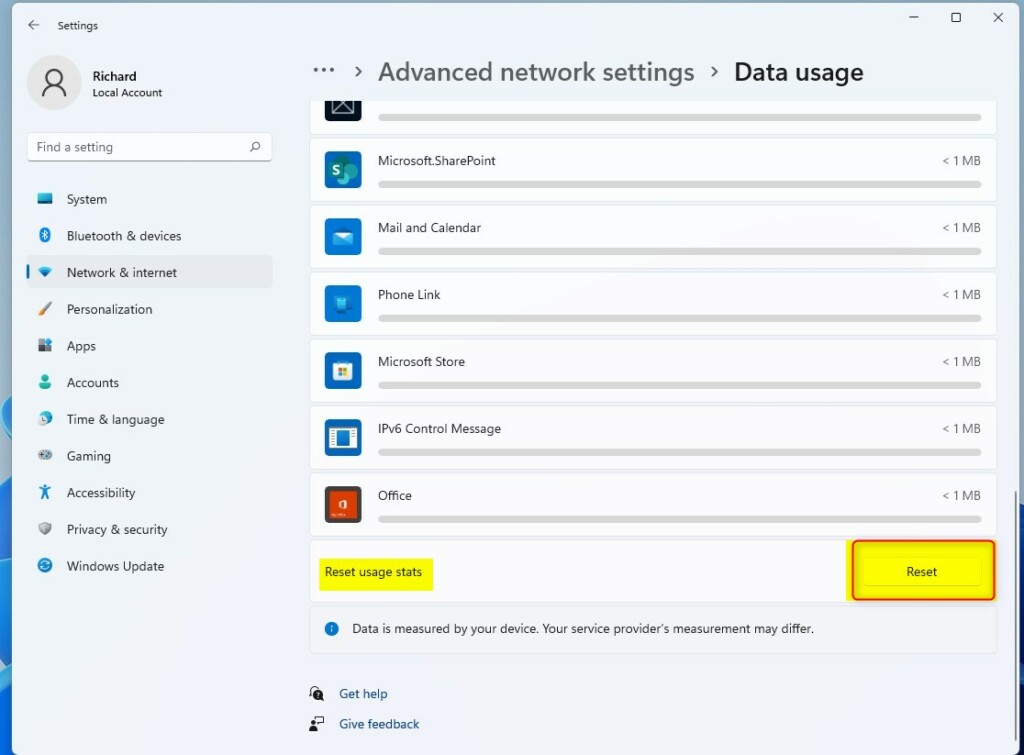
You reset network data usage stats by going to Settings Network & internet Data usage, then clicking Reset next to Reset usage stats. This clears your tracked data history, allowing you to start fresh.
How to Reset Network Data Usage
This counter tracks how much bandwidth apps consume in the background. Monitoring internet usage requires no complicated steps. Open Settings by pressing Win+I.

2. Click Network & internet on the left.
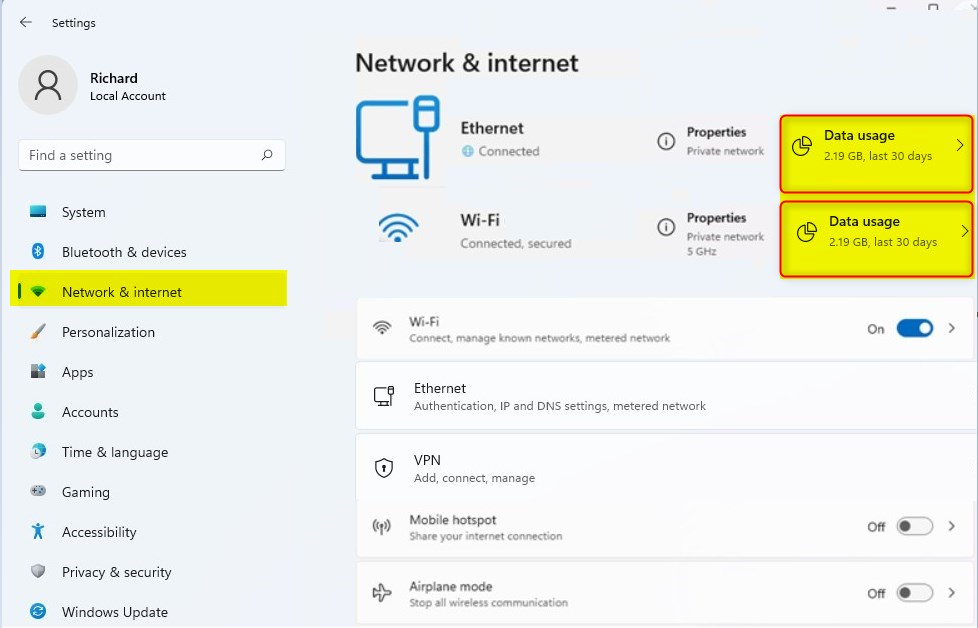
3. Click Data usage.
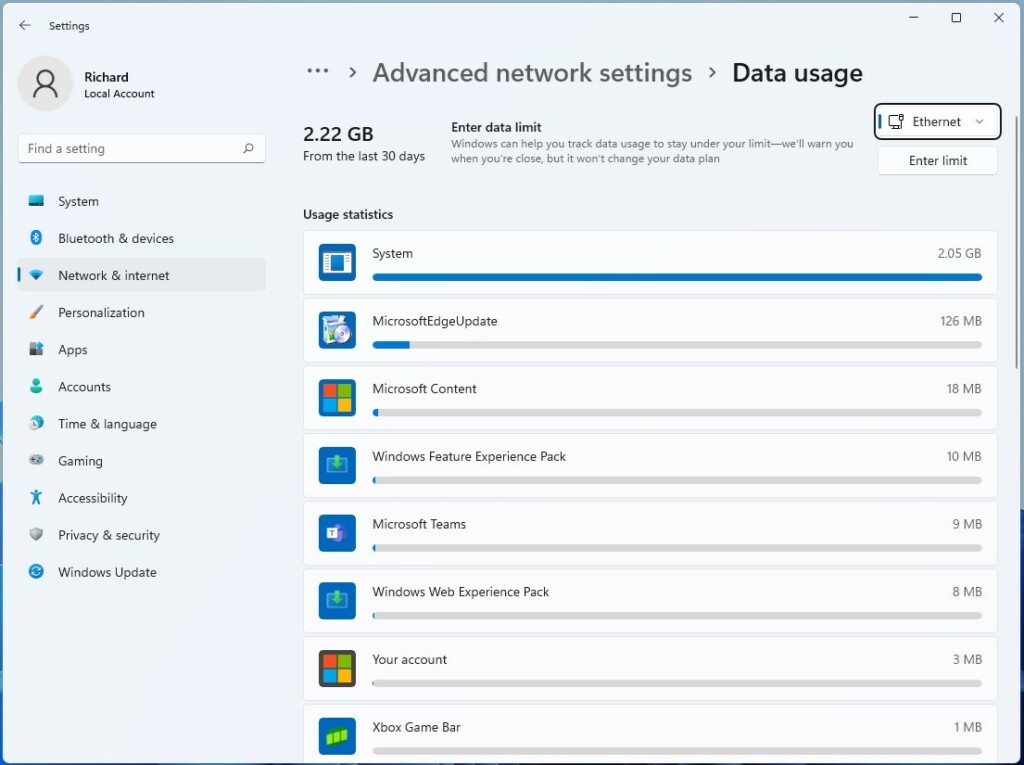
4. Scroll down and click Reset next to Reset usage stats.
Full Network Adapter Reset
You can completely reset network data in Windows 11 by reinstalling your network cards and returning all related settings to their factory defaults. This process helps fix slow internet speeds and frequent connection drops. You need administrator privileges to do this, and you will lose your saved Wi-Fi passwords and virtual private network (VPN) connections.
Administrator privileges are required for this action.
- Open Settings and go to Network & internet.
- Click Advanced network settings.
- Select Network reset.
- Click Reset now and confirm.
What happens when done? The computer restarts automatically. Windows reinstalls network drivers and returns all networking components to their original factory state.
Pro Tip: Command Line Troubleshooting
You can fix stubborn connection problems in Windows 11 by running specific commands in Command Prompt to reset network data. Open Command Prompt as an administrator and type netsh winsock reset followed by ipconfig /flushdns. This clears the TCP/IP stack (the core communication rules for internet traffic) and the DNS cache (which translates website names into numeric IP addresses) to restore your internet connection.
netsh winsock reset
ipconfig /flushdns
Why bother? This clears the TCP/IP stack (the core communication rules for internet traffic) and the DNS cache (which translates website names into numeric IP addresses), which often resolves stubborn connection failures.
Summary
Clearing data usage stats and performing a full network reset are now familiar processes. Track monthly bandwidth using the data reset. Save the network reset for persistent connectivity issues. Backing up Wi-Fi passwords before a full reset prevents connection headaches later.
Was this guide helpful?

About the Author
Richard
Tech Writer, IT Professional
Richard is a writer at Geek Rewind who turns complex IT tasks into clear, step-by-step guides. He draws on years of hands-on experience in system administration and enterprise IT operations, focusing on Windows, Linux and WordPress: the problems people actually run into, and the fixes that work. His server and WordPress guides come from systems he runs himself. Richard builds and maintains the platform behind Geek Rewind, from its Ubuntu servers and Nginx configuration to its custom WordPress plugins. Many new tutorials start with readers' questions, and he's always glad to answer them in the comments.



No comments yet — be the first to share your thoughts!