Windows 11 Devices and Peripherals: Setup and Settings

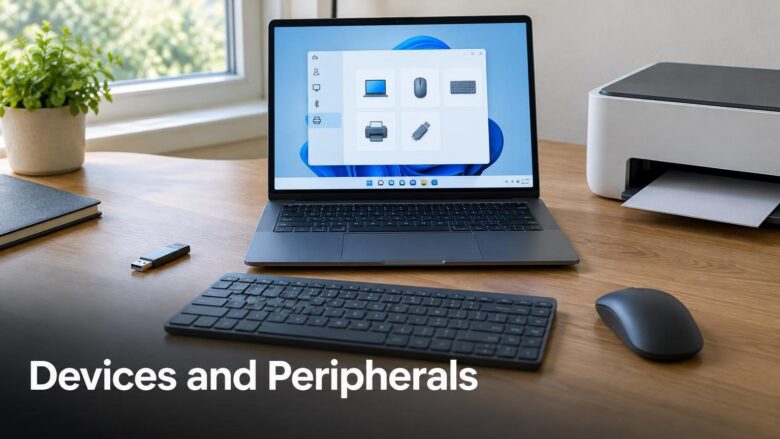
Device management in Windows 11 covers how the operating system recognises, configures and removes the hardware connected to your PC. That includes USB drives, Bluetooth gear, printers, pens, keyboards and the built-in lighting on some laptops. Settings are spread across several places, so the same device can appear in more than one menu. This page groups the guides in the order most people need them: connecting and removing devices, ejecting storage safely, tuning input, adjusting lighting and audio, checking your hardware, and fixing drivers. Start with the first section if you are setting up something new. Jump to a later section if a device already works but needs changing or repairing.
Connect, rename and remove devices
Use these guides when you plug in a new device, change its name, or want Windows 11 to forget it. Most of this happens in the Bluetooth & devices area of Settings. The removal steps do not delete the device itself, so you can add it back later.
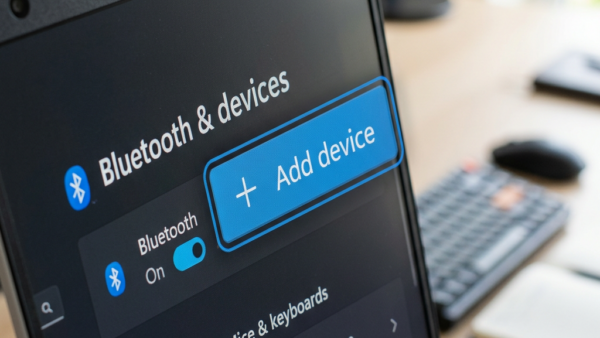 How to Add a Hardware Device to a Windows 11 PC Learn how to add hardware to your Windows 11 PC. Follow simple steps to connect new devices, install drivers, and troubleshoot common connection issu...
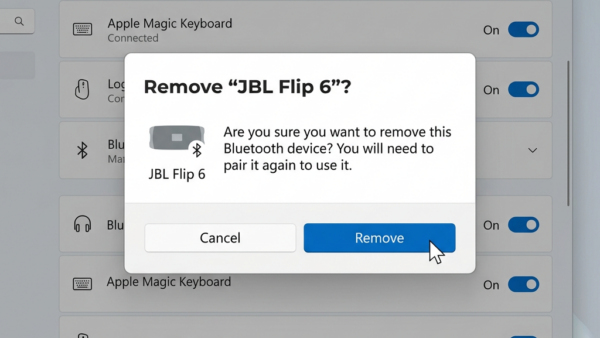 How to Use the Settings App to Remove a Device in Windows 11 Learn how to remove a device in Windows 11 using the Settings app. Safely disconnect hardware like USB drives and Bluetooth devices to prevent issues.
 How to Rename Bluetooth Devices in Windows 11 Rename Bluetooth device Windows 11 in simple steps. Organize multiple devices and connect to the right one.
 How to Rename Bluetooth Devices in Windows 11 Rename Bluetooth devices in Windows 11 to simplify identification and management.
 How to Access Devices and Printers in Windows 11 Access Devices and Printers in Windows 11 with our step-by-step guide.
Eject USB drives and external storage safely
Read these before you unplug a USB drive, external hard disk or memory card. Pulling a drive out while Windows is still writing to it can damage the files on it. These guides cover the eject steps and how to bring back the tray icon if it has gone.
 How to Safely Eject External Devices in Windows 11 Safely eject external devices in Windows 11 to prevent data loss. Follow simple steps to ensure your files remain intact and secure.
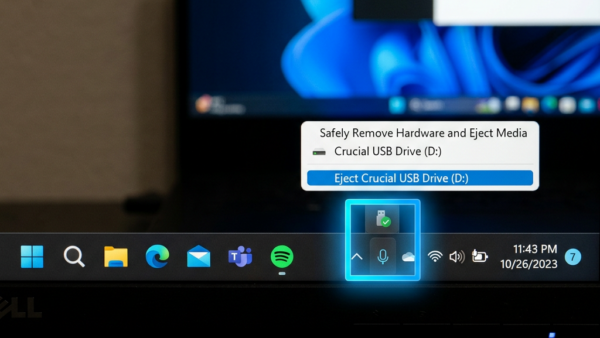 How to Add the Safely Remove Hardware and Eject Media Icon to the System Tray in Windows 11 Lost the Safely Remove Hardware icon in Windows 11? Learn how to restore it to your system tray and protect your data from corruption.
 How to Enable Recycle Bin for USB Drives and Other Removable Drives in Windows 11 Enable Recycle Bin for removable drives in Windows 11 to protect USB and memory card files from accidental deletion. Follow our simple registry steps.
Control what happens when devices connect and how input behaves
These guides change how Windows responds to a device the moment it connects, and how your mouse, touch keyboard and keys behave. Most of the settings are on or off switches that take effect straight away. Remapping keys with PowerToys is the one that installs a separate tool.
 How to Turn On or off AutoPlay in Windows 11 Control your device connections with AutoPlay Windows 11. Discover 3 easy methods to turn AutoPlay on or off and customize what happens when you plug in…
 How to Turn On or off AutoPlay for Cameras and Phones in Windows 11 Master Windows 11 AutoPlay settings to control how your camera and phone respond when connected. Enable or disable AutoPlay in minutes using Group Policy…
 How to Turn Automatically Move Pointer to the Default Button on or off in Windows 11 Learn how to turn the 'move pointer to default button' feature on or off in Windows 11 to speed up your workflow. Get your mouse cursor where you need it…
 How to Disable Mouse Acceleration Windows 11 Disable mouse acceleration in Windows 11 for improved cursor control. Follow our simple guide to enhance your precision and gaming experience.
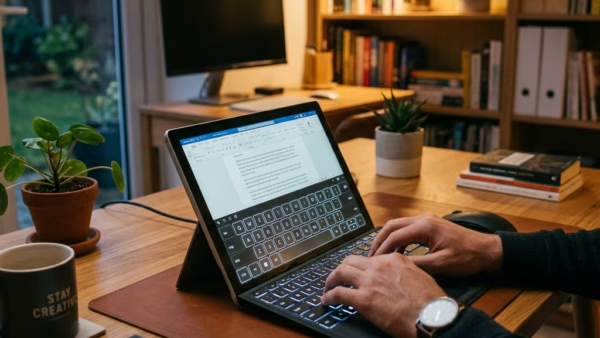 How to Enable or Disable the Touch Keyboard in Windows 11 Master your Windows 11 touch keyboard. Learn to enable or disable it via Settings for seamless typing control on your device.
 How to Remap Keys with PowerToys on Windows 11 Remap keys with PowerToys on Windows 11 to enhance productivity and customize your keyboard for gaming or work.
Customise pen, lighting and audio
Use these guides to change how your pen works, how RGB lighting on compatible devices behaves, and how audio is reset when it stops working. The lighting settings depend on the device and the apps that control it. If a setting does not appear on your PC, the hardware probably does not support it.
 How to Use the Pen to Erase Ink in Windows 11 Enable your Windows 11 pen eraser in just 3 steps. Use the top of your pen to erase ink with Settings or Registry Editor. Simple guide included.
 How to Change Pen Button for Right-Click in Windows 11 Configure your pen button as a right-click in Windows 11 using Settings or Registry Editor. Customize your stylus for faster, easier navigation.
 How to Turn On or off “Compatible Apps Always Control Lighting” in Windows 11 Control which apps adjust your device lighting in Windows 11 dynamic lighting. Toggle foreground app control on or off using Settings or Registry Editor.
 How to Change LED Brightness in Windows 11 Dynamic Lighting Adjust LED brightness in Windows 11 Dynamic Lighting. Use the Settings app slider or Registry Editor to customize your RGB devices and reduce eye strain.
 How to Enable or Disable Dynamic Lighting in Windows 11 Control RGB lights on your Windows 11 devices with dynamic lighting. Enable this feature in Settings or Registry Editor to customize your PC without extra…
 How to Change Dynamic Lighting Effects on Your Windows 11 LED Devices Customize Windows 11 dynamic lighting on your LED devices in minutes. Change colors, effects, and brightness with our step-by-step guide.
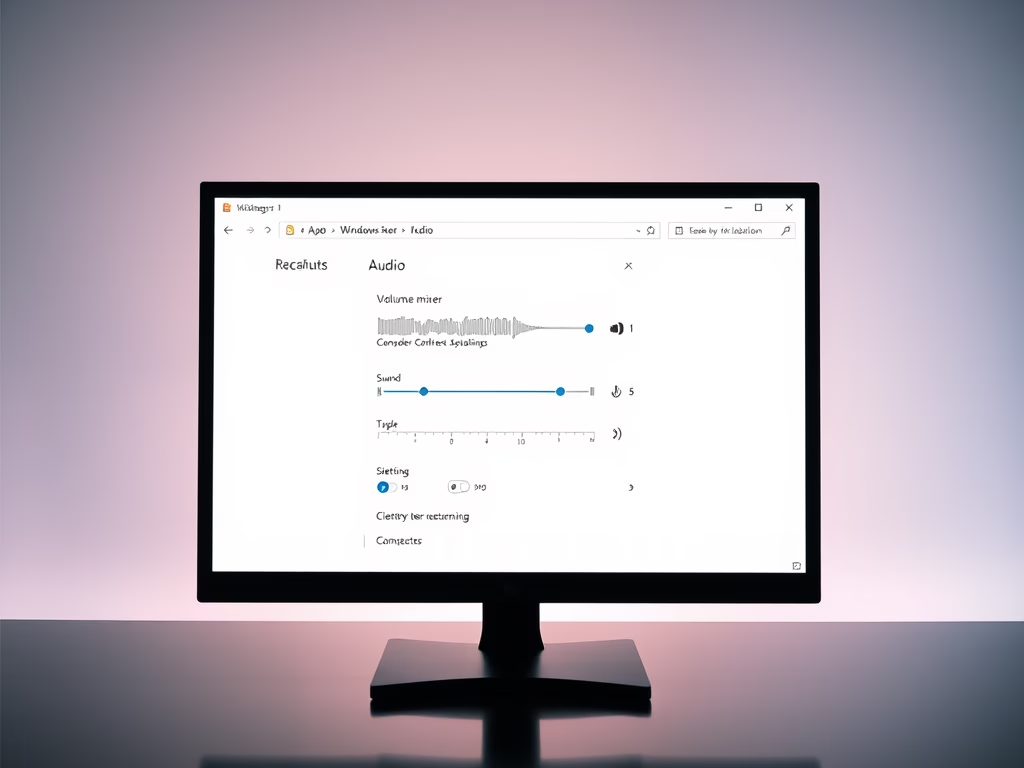 How to Reset Audio Settings in Windows 11 Fix sound issues on your PC with this simple guide. Reset audio settings in Windows 11 using the Settings app to restore default sound configurations.
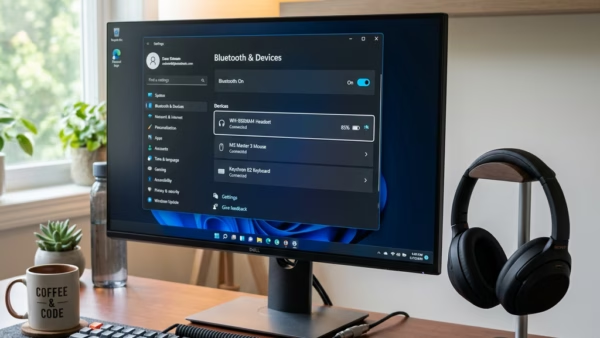 How to Check If Your Windows 11 Device Is LE Audio Ready Discover if your Windows 11 PC is LE Audio ready! Learn the requirements and simple steps to check for Bluetooth Low Energy Audio compatibility on your…
Identify your PC’s hardware
Check these guides when you need the exact model of your computer, motherboard, RAM or processor. You will need the details when you look for a compatible upgrade, check a warranty or install a driver. Each guide shows where Windows 11 keeps that information.
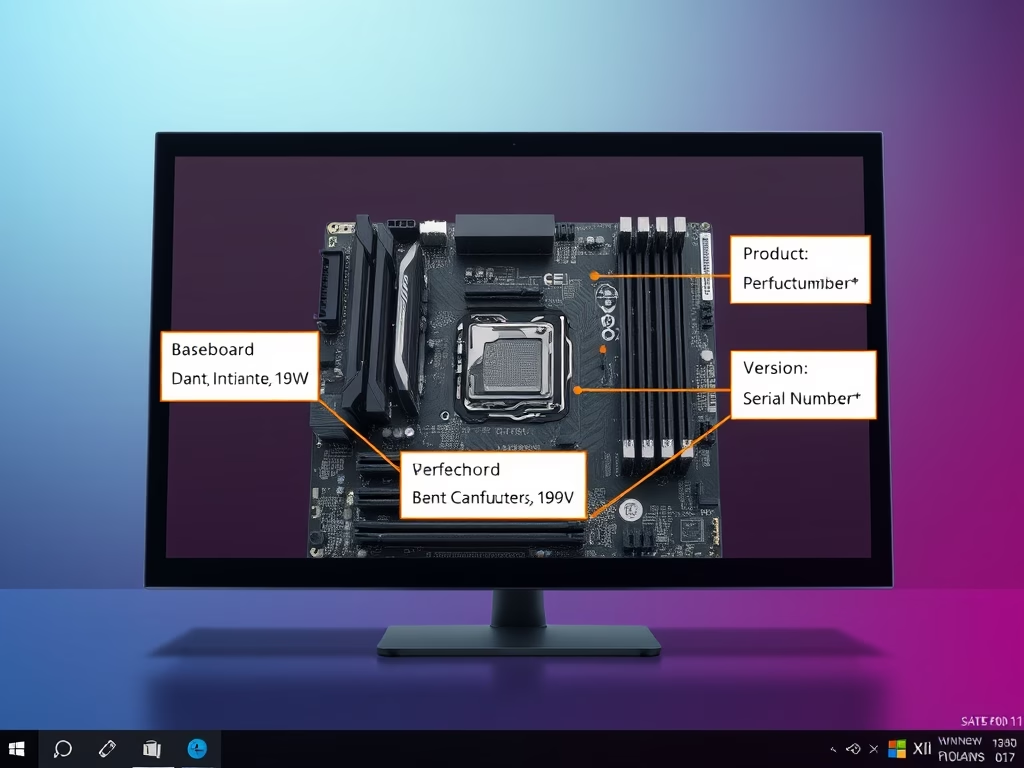 How to Find Your Motherboard Details in Windows 11 Find your motherboard details in Windows 11 using System Information or Command Prompt. No need to open your PC case.
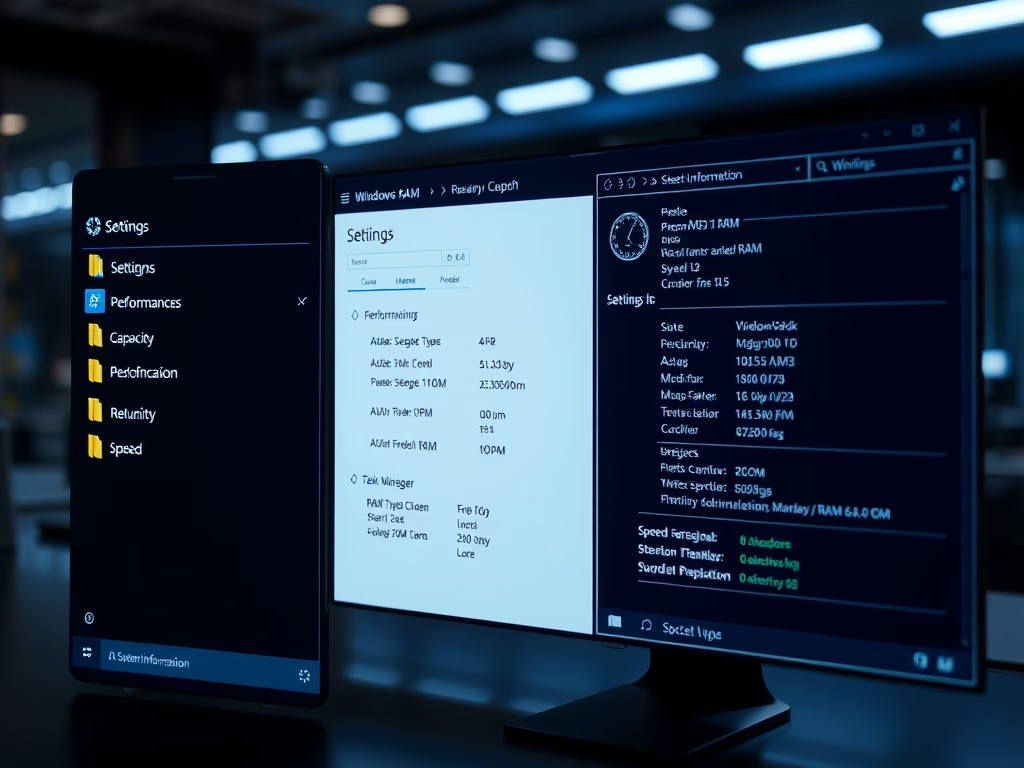 How to Check RAM Size and Type In Windows 11 Discover 4 easy ways to check RAM Windows 11—Settings, Task Manager, System Information, or PowerShell. Find your RAM size, type, and speed in minutes.
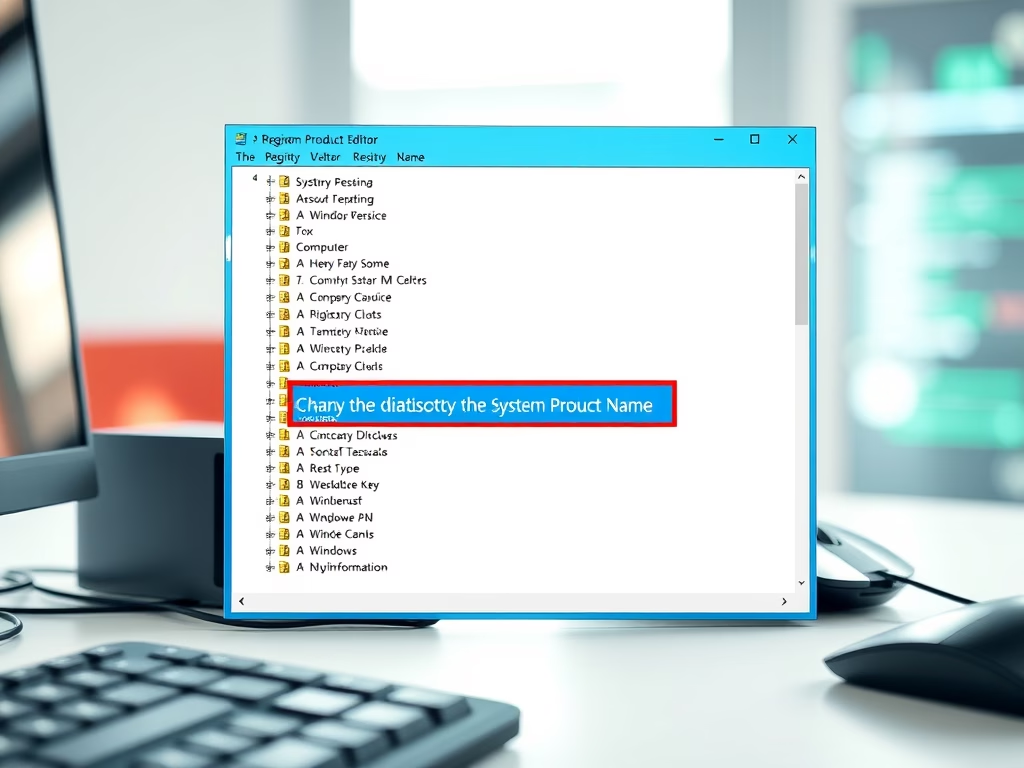 How to Change System Product Name in Windows 11 Change system product name Windows 11 using Registry Editor. Personalize your PC with a custom name in just 5 simple steps. Perfect for custom-built c...
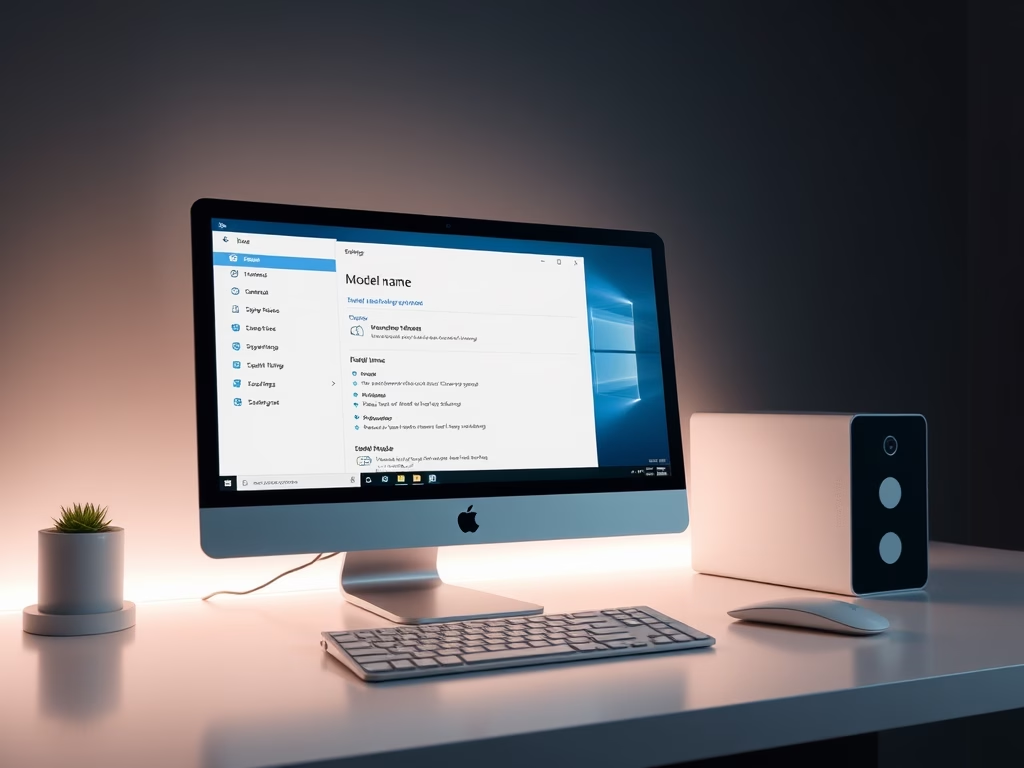 How to Find Your Computer Model in Windows 11 Find your Windows 11 computer model in seconds using Settings, System Information, or Command Line. Get the right drivers and support for your PC.
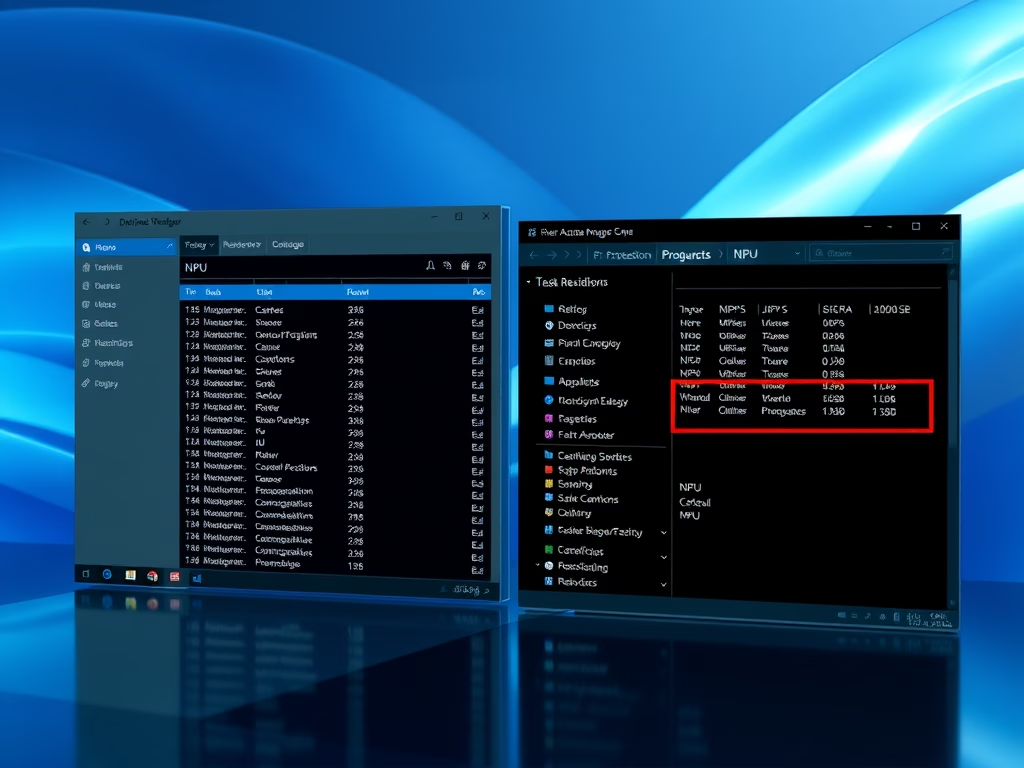 How to Check for Neural Processing Units in Windows 11 Check NPU Windows 11 using Task Manager or Device Manager. Discover if your PC has a Neural Processing Unit for faster AI tasks.
 How to Check for Neural Processing Units in Windows 11 Check your PC for a Neural Processing Unit (NPU) in Windows 11. Maximize AI capabilities with simple steps using Task Manager and Device Manager.
Keep drivers, printers and network connections working
Use these guides when a device stops responding, a printer behaves differently after an update, or a network connection drops. Printer security settings, driver updates and Wi-Fi refreshes can all change how a device connects. Work through them in order if the first fix does not help.
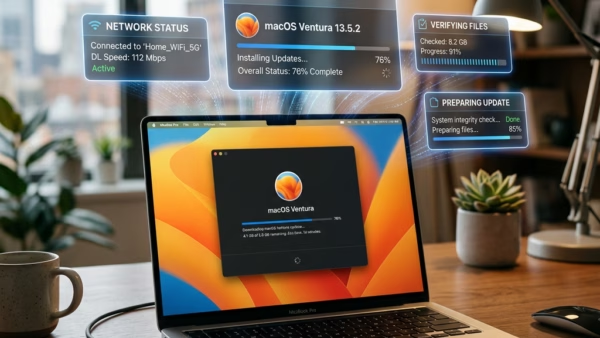 How to Update Windows 11 Drivers and Check for Driver Updates: A Complete Guide Complete guide to How to Update Windows 11 Drivers and Check for Driver Updates — covering everything you need to know.
 How to Check If Printer Supports Windows Protected Print Mode Secure your Windows 11 printing with Windows Protected Print. Follow our guide to verify printer compatibility and eliminate risky third-party drivers…
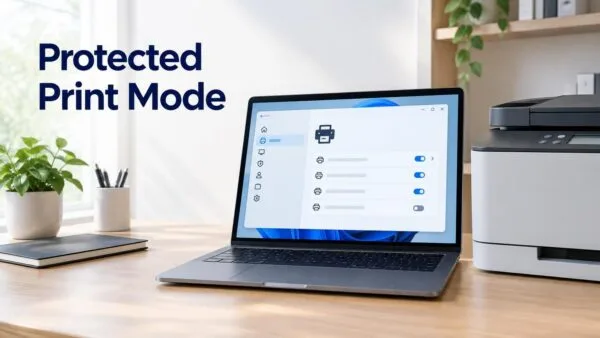 How to Enable or Disable Windows Protected Print Mode in Windows 11 Enable Windows Protected Print Mode in Windows 11 to secure sensitive documents. Follow our step-by-step guide using Settings, Group Policy, or Registry…
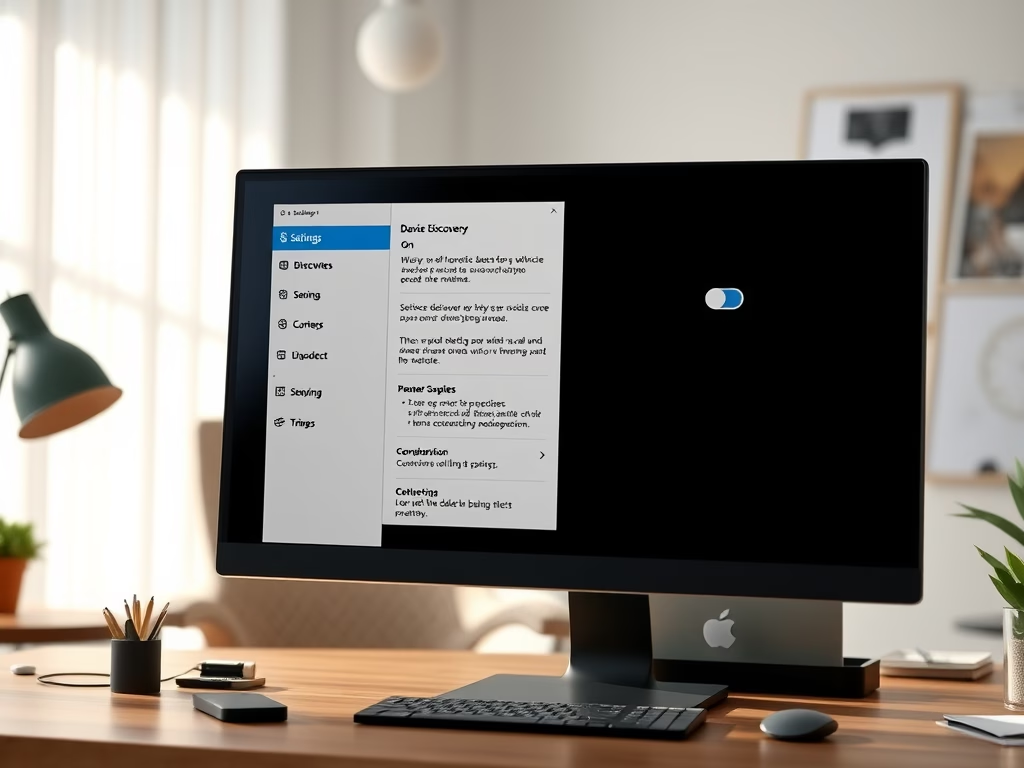 How to Enable Device Discovery in Windows 11 Developer Mode Enable device discovery in Windows 11 with our step-by-step guide. Learn safe methods using Settings or Registry Editor to connect devices on trusted…
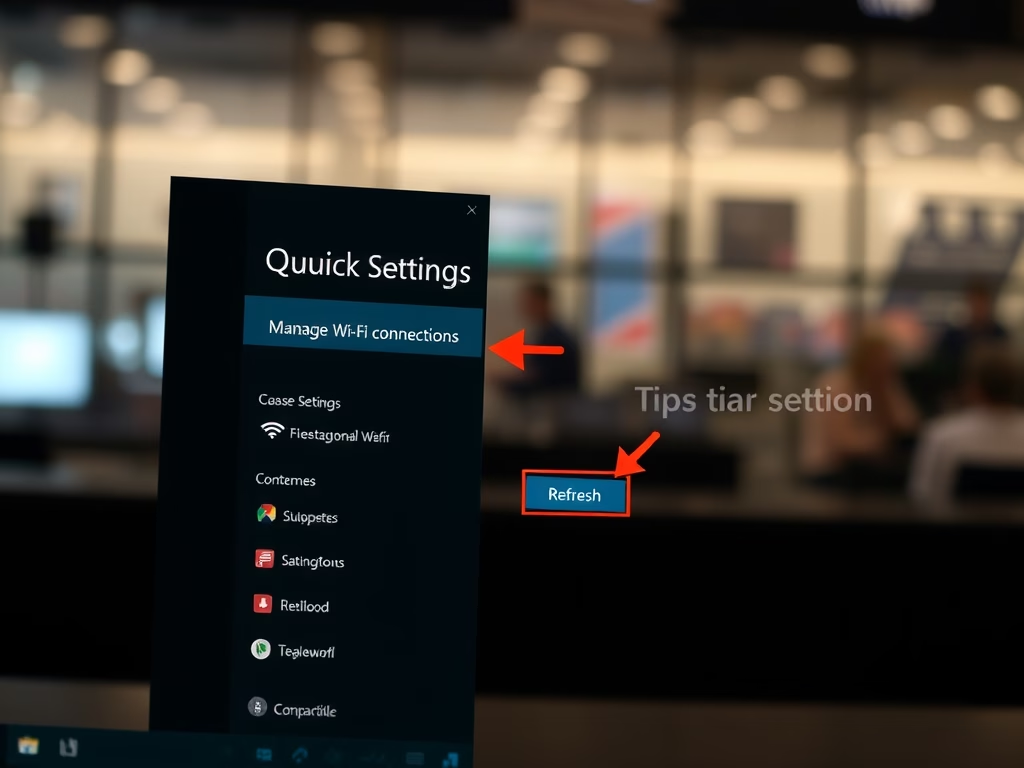 How to Refresh Wi-Fi Networks in Windows 11 Refresh Wi-Fi networks in Windows 11 using Quick Settings or Windows Terminal. Find hidden networks and fix connectivity issues in minutes.
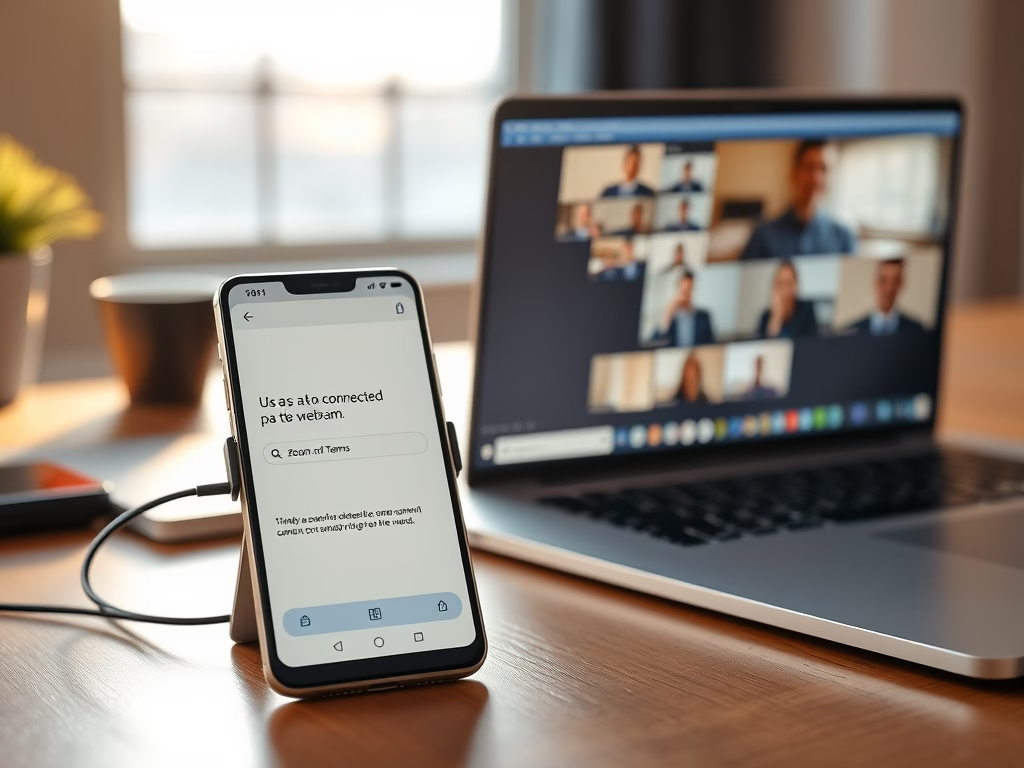 Ho Wto Use Your Android Phone Camera as a Webcam on Windows 11 Use your Android phone as a webcam on Windows 11 for crystal-clear video calls. Connect via Bluetooth and enjoy superior camera quality without buying...
Have a question about this guide?
Answered by AI from this guide. Good questions may be added to this page — please don't include personal details.

About the Author
Richard
Tech Writer, IT Professional
Richard is a writer at Geek Rewind who turns complex IT tasks into clear, step-by-step guides. He draws on years of hands-on experience in system administration and enterprise IT operations, focusing on Windows, Linux and WordPress: the problems people actually run into, and the fixes that work. His server and WordPress guides come from systems he runs himself. Richard builds and maintains the platform behind Geek Rewind, from its Ubuntu servers and Nginx configuration to its custom WordPress plugins. Many new tutorials start with readers' questions, and he's always glad to answer them in the comments.
No comments yet — be the first to share your thoughts!