How to Use the Pen to Erase Ink in Windows 11

Stylus erasing in Windows 11 clears handwritten notes and sketches when you flip your pen over. You don’t need to click an on-screen eraser button.
Most modern styluses, including the Microsoft Surface Pen, have a physical eraser tip on the back end. It works in apps like Microsoft Whiteboard and OneNote, where dragging the flipped pen across ink removes it.
Windows 11 lets you turn this feature on or off. This guide covers two ways to do it: the Settings app, which is the easy route, and the Registry Editor, which is useful if the setting is missing or you manage several PCs.
Flip your stylus to the eraser end and drag it across ink to erase in Windows 11. Open Settings Bluetooth & devices Pen & Windows Ink, then check Use the top of the pen to erase ink. The feature takes effect immediately without restarting.
Before You Start: Pair Your Pen with 🪟 Windows 11
Before you change anything, make sure the pen is paired with your Windows 11 device over Bluetooth . A pen that isn’t paired may not report all of its features to Windows. If yours isn’t paired yet, follow this guide first: How to Pair Pen with Windows 11.
Step 1Open Windows Settings
Windows Settings is the central place to change how your computer works, and it opens in a couple of seconds. There are two quick ways in. You can press the Win and I together, or you can click the Start button and pick Settings. Either one opens the main Settings window, and from there you can get to your pen options.
- Click the Start menu button (the Windows icon at the bottom left), then click Settings. The Settings window opens.
- Or press Win+I on your keyboard at the same time. This does the same thing and works from any screen.
Here’s what the Settings icon looks like. It’s a small gear:
If you opened Start, look for this gear icon in the pinned apps list. If you don't see it, type "Settings" in the Start menu search box.
Step 2Go to Pen & Windows Ink Settings
With Settings open, go to the pen options like this:
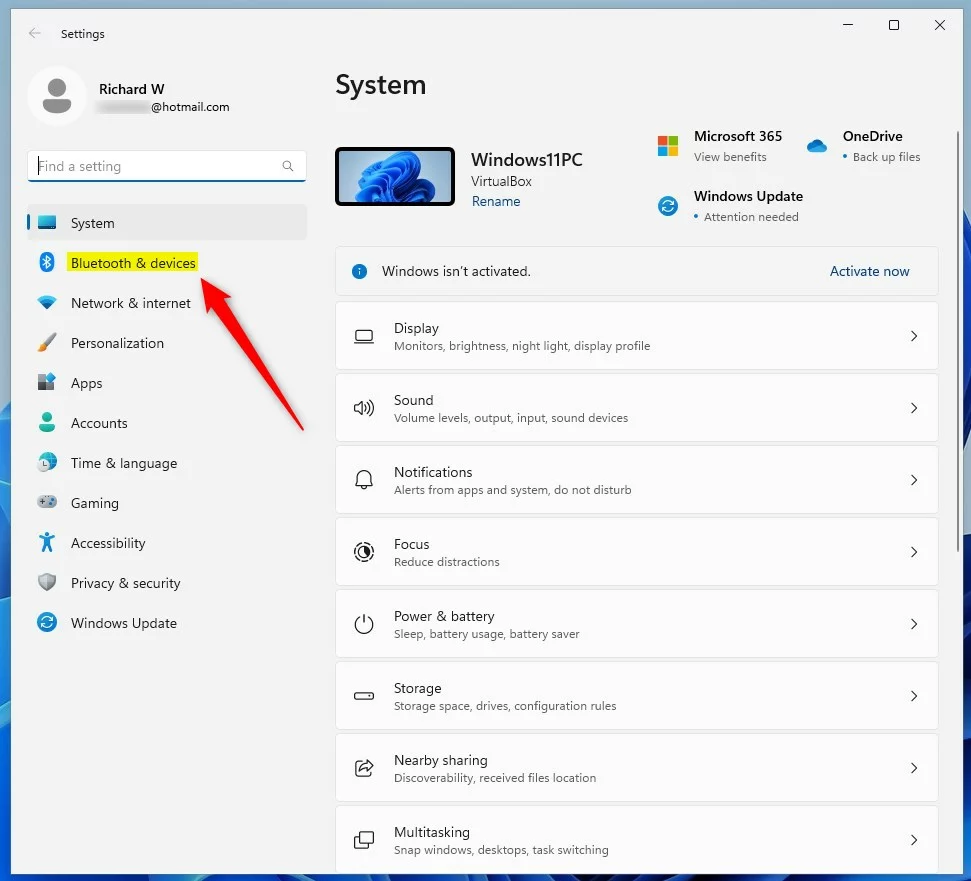
- On the left menu, click Bluetooth & devices. The device options appear on the right.
- On the right side, find and click Pen & Windows Ink. The pen settings page opens.
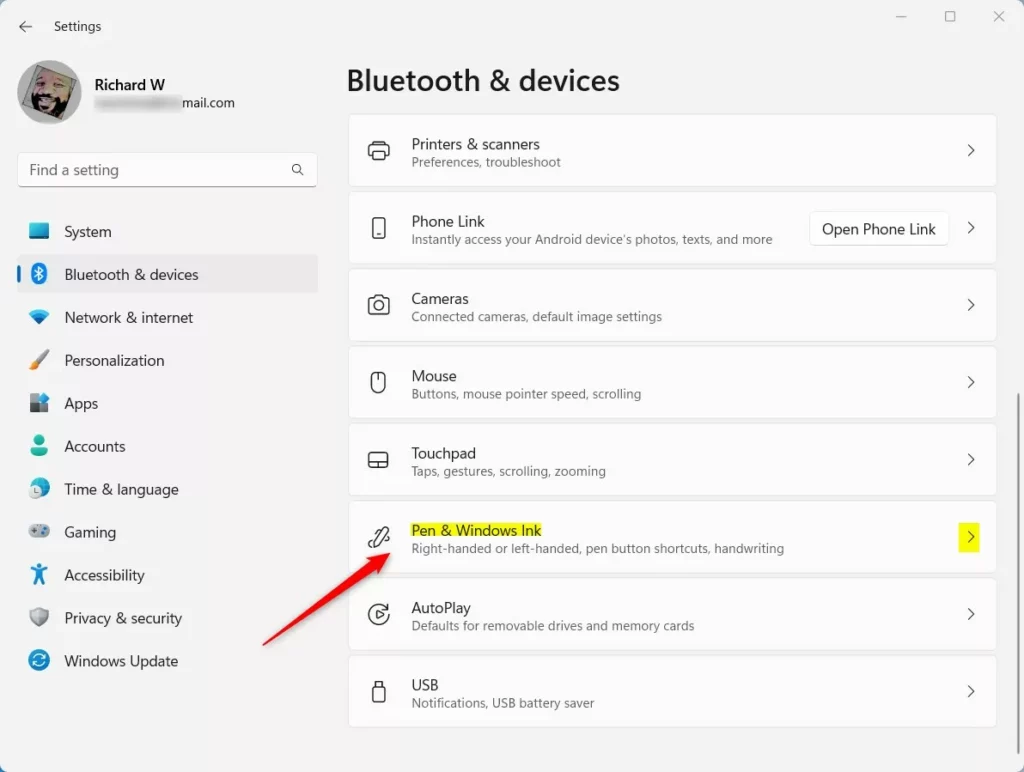
If you can't find Pen & Windows Ink, Windows probably hasn't detected pen-capable hardware. This page is normally shown only on devices with a pen-enabled screen or a connected pen. Check that the pen is paired and that the battery is charged, then look again.
Step 3Enable "Use the top of the pen to erase ink"
The Windows 11 pen eraser wipes away digital ink when you flip your stylus over, like a real pencil. You turn it on with one checkbox on the pen settings page. Once it's on, you can correct notes and drawings without clicking extra buttons on screen.
Step 1: On the Pen & Windows Ink page, locate the setting labeled Use the top of the pen to erase ink (when this option is available). On some devices the label is shortened to Use the top of the pen to erase ink.
Step 2: Select the checkbox next to it to activate the feature. A check mark should appear in the box.
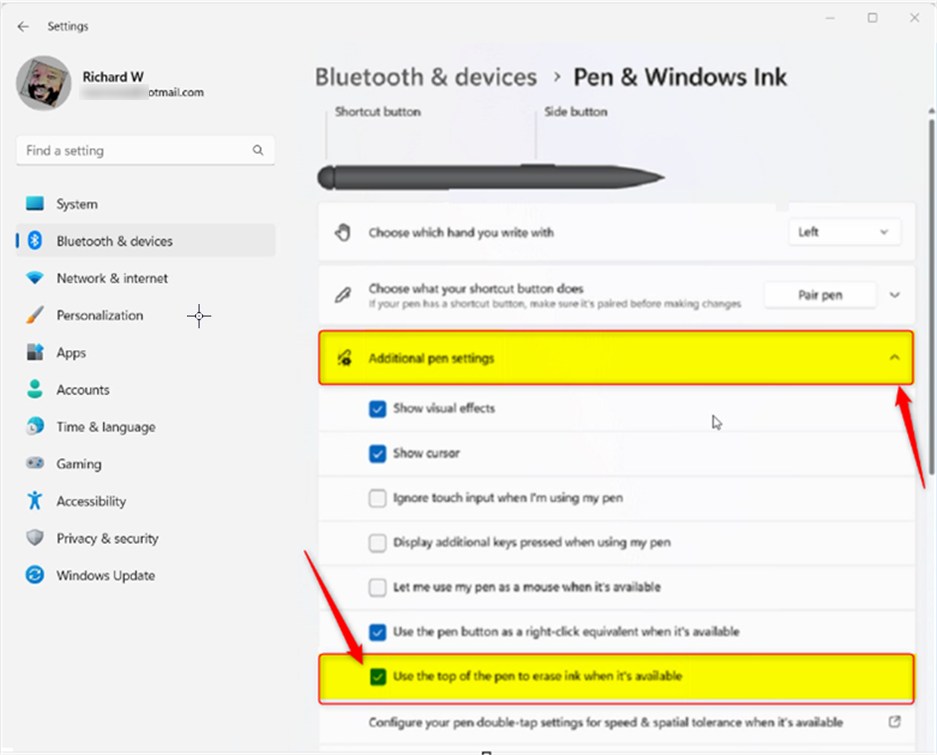
The words "when this option is available" matter. The option depends on your pen and your device. If the checkbox is missing or greyed out, your pen may not have an eraser end, or Windows may not be recognizing the pen. Re-pair the pen and check again. If the setting still doesn't show, use the registry method further down.
To undo the change, come back to this page and clear the checkbox. That turns the feature off again.
Close the Settings app to finish. The change normally takes effect right away, so you don't need to restart. To test it, open Microsoft Whiteboard or OneNote, write something with the pen tip, then flip the pen and drag the eraser end over the ink.
Optional: Use Windows Registry Editor to Turn This Feature On or Off
You can also use the Windows Registry Editor to turn this feature on or off. This method works on both Windows 11 Home and Pro. It's most useful when the setting isn't available in the Settings app.
[Verification Required: Registry path should be confirmed]How to Open Registry Editor
You open it with a keyboard shortcut and a run command. Be careful with this tool, because mistakes inside the registry can cause serious problems with your system. Before you edit anything, it's wise to back up the registry. In Registry Editor, click File, then Export, and save a copy you can restore later.
Step 1: Press the Windows key and R together to open the Run box, type 'regedit', and then press Enter. If Windows asks whether to allow the app to make changes, click Yes. Registry Editor then opens, with a folder tree on the left.
Step 2: Go to the following registry key. A key is one of the folders Windows uses to store system settings. You can expand the folders in the left pane one by one, or paste the path into the address bar at the top of the window:
HKEY_CURRENT_USER\Software\Microsoft\Wisp\Pen\SysEventParametersStep 3: Check whether a SysEventParameters key already exists under the Pen key. If it is missing, you need to create it:
- Right-click on the Pen folder in the left pane.
- Select New Key. A new folder appears under Pen with its name highlighted.
- Name the new key SysEventParameters and press Enter.
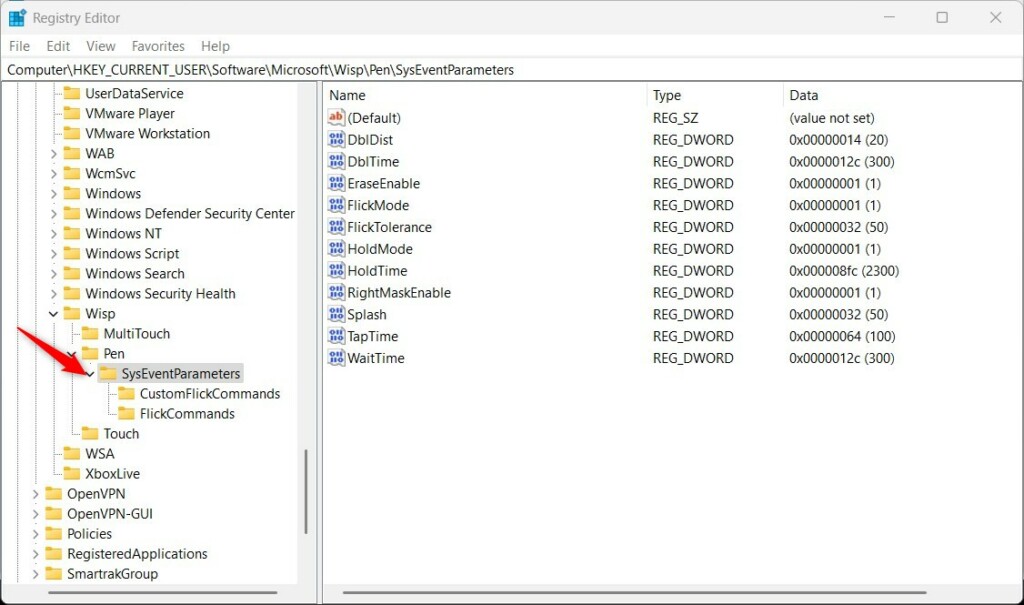
The SysEventParameters key should now be listed under Pen. Click it so it is selected and its (empty) contents show in the right pane.
Step 4: With the SysEventParameters key selected, add the value that controls the eraser:
- Right-click on an empty area in the right pane.
- Choose New DWORD (32-bit) Value.
- Name it EraseEnable and press Enter.
- Double-click EraseEnable, set the Base to Decimal, and enter:
1to turn ON the erase feature.0to turn OFF the erase feature.
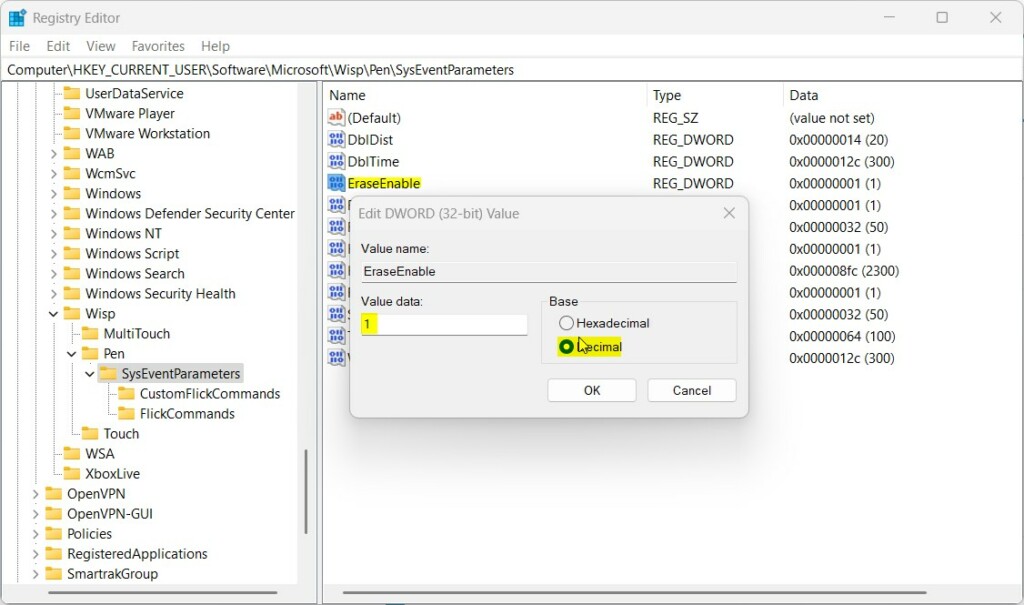
Click OK to save the value, then close Registry Editor. To undo the change later, open the same value again and enter the other number, or restore the registry backup you exported earlier.
Restart the computer after you edit the value. After the restart, the pen should erase ink in Windows 11 again if you set the value to turn the feature on. Test it in Whiteboard or OneNote by flipping the pen and dragging the eraser end across some ink.
Summary
Using the top of the pen as an eraser is a quick way to fix mistakes in notes or drawings across Windows 11. For most people the checkbox in Pen & Windows Ink is all that's needed. The registry method is there as a backup when the setting doesn't appear.
Have a question about this guide?
Answered by AI from this guide. Good questions may be added to this page — please don't include personal details.
Did this guide fix your problem?

About the Author
Richard
Tech Writer, IT Professional
Richard is a writer at Geek Rewind who turns complex IT tasks into clear, step-by-step guides. He draws on years of hands-on experience in system administration and enterprise IT operations, focusing on Windows, Linux and WordPress: the problems people actually run into, and the fixes that work. His server and WordPress guides come from systems he runs himself. Richard builds and maintains the platform behind Geek Rewind, from its Ubuntu servers and Nginx configuration to its custom WordPress plugins. Many new tutorials start with readers' questions, and he's always glad to answer them in the comments.
No comments yet — be the first to share your thoughts!