Windows 11 Updates and Backup: Pause, Roll Back, Restore

Windows 11 updates and backup cover how Windows installs its updates, how you pause or undo them, and how you protect your files before something goes wrong. Windows Update, Automatic Maintenance, Windows Backup, OneDrive and the recovery options each handle a different part of this, and they are often mixed up. Most readers need to pause an update, undo one that caused a problem, or move files to a new PC. The guides below are grouped by those tasks, so start with the pause guide and then go to the section that matches your problem.
Pause, delay, and install Windows 11 updates
Windows Update lets you hold updates for a set period, install optional updates yourself, and see why an update is blocked. A pause ends on its own after the set time. A safeguard hold is different: Windows blocks a feature update when Microsoft has found a known problem with your hardware or software.
 How to Pause Windows 11 Updates for up to 35 Days Pause Windows 11 updates for up to 35 days from the Pause updates calendar in Settings > Windows Update. Pick an end date, extend it later, and check the…
 How to Enable or Disable Pause Updates Feature in Windows 11 Control Windows 11 updates. Enable or disable pause updates in minutes using Group Policy or Registry. Simple steps for all Windows editions.
 How to Manually Download and Install Windows 11 Updates Download Windows 11 updates manually when automatic updates fail. Follow our step-by-step guide to ensure your system stays up-to-date.
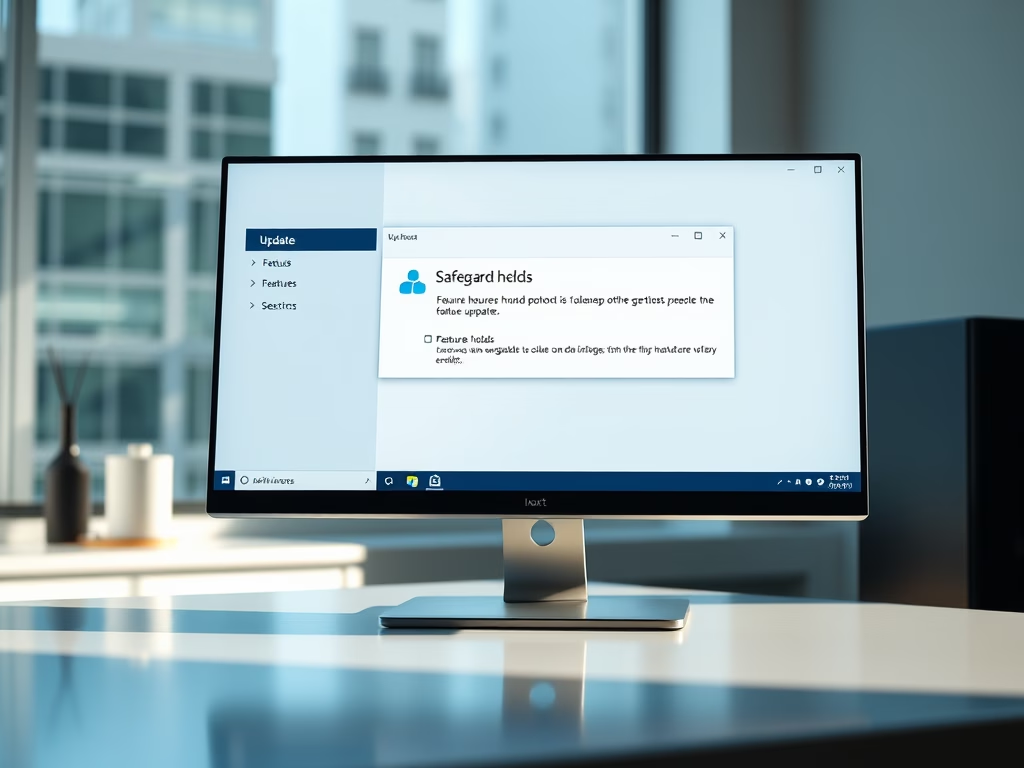 How to Enable or Disable Safeguard Holds in Windows 11 Enable or disable safeguard holds for feature updates in Windows 11. Control when your device receives OS updates and understand the risks of bypassing…
Set when Automatic Maintenance runs
Automatic Maintenance runs background tasks such as security scans and system checks, and it is separate from Windows Update installs. Its schedule decides when these tasks run, so you can move them away from your working hours. Use these guides if your PC slows down at odd times or you want the tasks to run at a set time.
 How to Start or Stop Windows Automatic Maintenance Gain control over Windows Automatic Maintenance in Windows 11. Learn to manually start or stop WAM anytime to suit your schedule and needs. How to Change Windows 11 Automatic Maintenance Time Change Windows 11 maintenance time to suit your schedule. Follow our step-by-step guide to adjust Automatic Maintenance for optimal performance.
 Where Are Windows Automatic Maintenance Tasks in Windows 11? List Windows Automatic Maintenance tasks in Windows 11 with our step-by-step guide.
 How to Schedule Automatic Maintenance on Windows 11 Optimize your PC's performance by scheduling Windows 11 automatic maintenance. Ensure updates and security scans run smoothly without interrupting your day.
Check your PC and try Insider Preview builds
Check that your PC meets the Windows 11 requirements before you plan an upgrade, and see which features are on by default in a new version. Insider Preview builds are early versions of Windows 11 that you can join through the Windows Insider Program. Feature flags let testers turn individual features on or off, and you can leave the program at any time.
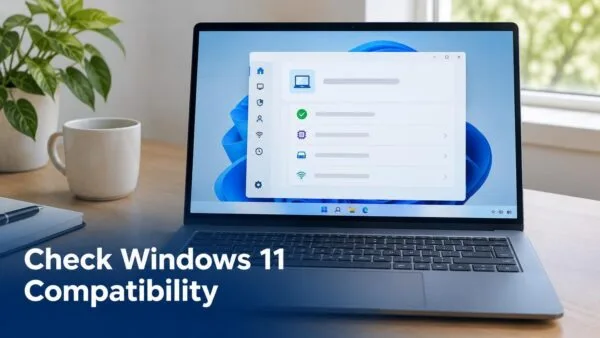 How to Check If Your PC Can Upgrade to Windows 11 Windows 11 won't install? Check your PC in Windows Update, or run PC Health Check to see which requirement failed: processor, TPM 2.0, Secure Boot or RAM.
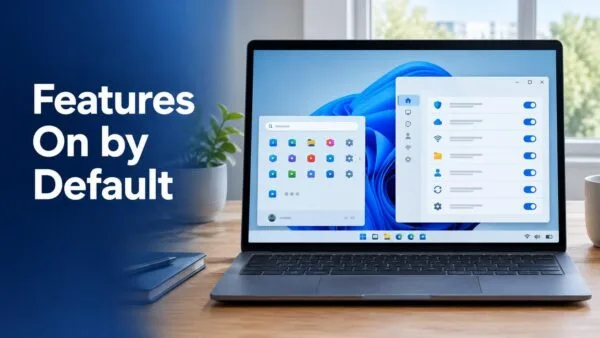 Which Features Are Turned On by Default in Windows 11 Version 26H2 Windows 11 26H2 features turned on by default include settings backup, taskbar app actions and File Explorer changes. Check each one on your PC.
 How to Filter Feature Flags in Windows Insider Settings Filter feature flags in Windows Insider Program settings by on or off state. Preview builds only, from 23 October 2026.
 How to Stop Getting Insider Preview Builds on Windows 11 PC Stop getting Windows 11 Insider Preview builds with our step-by-step guide. Disable insider preview builds via Settings or Registry Editor in minutes.
Back up files and move them to a new PC
Copy your files to a second location before a major update, a reset, or a move to a new PC. Windows Backup, OneDrive and Google Drive each store copies of your files, and each one works in a different way. If your drive is encrypted with BitLocker, save the recovery key somewhere safe before you change anything.
 How to Move Files and Settings to a New PC with Windows Backup in Windows 11 Move files and settings to a new Windows 11 PC with Windows Backup. Back up the old PC to your Microsoft account, then choose that backup in setup.…
 Back Up Your Folders with Google Drive Sync and Backup in Windows 11 Back up Windows 11 folders to Google Drive with Google Drive for desktop, which replaced Backup and Sync. Covers the 15 GB limit, the 30-day Trash rule and…
 Manage OneDrive Sync On This Laptop in Windows 11 Pause OneDrive sync, pick which folders sync, or stop it starting with Windows, all from the cloud icon's Help & Settings menu. No admin rights needed on…
 How to Back Up Your BitLocker Recovery Key in Windows 11 Secure your data by learning how to back up your BitLocker recovery key in Windows 11. Follow our simple steps to ensure you never lose access to your…
Undo an update or restore an earlier state
Rollback removes a recent Windows update, and restore points and Point-in-time Restore return system files and settings to an earlier date. Use these when an update, driver or app change has caused a new problem. Repair options cover damaged system files when rollback and restore do not fix the issue.
 How to Roll Back a Windows 11 Update When It Causes Problems Undo a bad Windows 11 update in Settings or Recovery depending on the type. Monthly updates go via Uninstall updates; version upgrades use Go back (10-day…
 How to Use Point-in-Time Restore in Windows 11 Learn how to enable or disable point-in-time restore in Windows 11 to fix PC issues by reverting to a previous system state.
 Should You Enable Windows 11 System Restore Points on Secondary Drives Should you enable Windows 11 system restore points on secondary drives? Find out how it affects storage space and why default settings matter.
 How to Recover & Repair Windows 11 System Problems Learn how to recover and repair Windows 11. Fix startup problems, restore your system, and create recovery tools.
Reset Windows 11 or diagnose repeated crashes
Reset this PC reinstalls Windows 11 and offers a choice between keeping your files and removing everything. Removing everything cannot be undone, so back up first. Crash dump logging records what Windows saw when it stopped with an error, which helps when a PC keeps crashing and you need to find the cause.
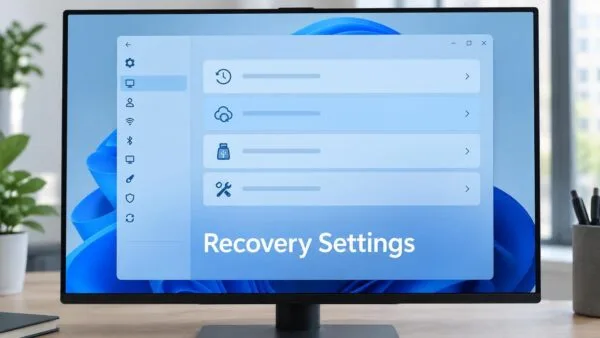 How to Access Recovery Settings and Reset This PC in Windows 11 Access recovery settings in Windows 11 through Settings > System > Recovery, or from the recovery menu if Windows won't start. Reset your PC, go back to a…
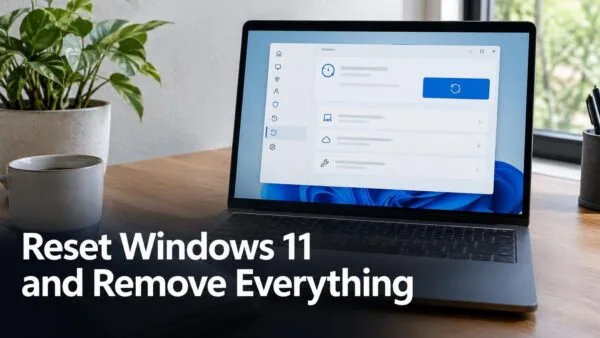 Reset Windows 11 and Remove Everything Remove everything from Windows 11 via Settings > System > Recovery. Your files and apps are wiped for good, so back up and find your BitLocker key first.
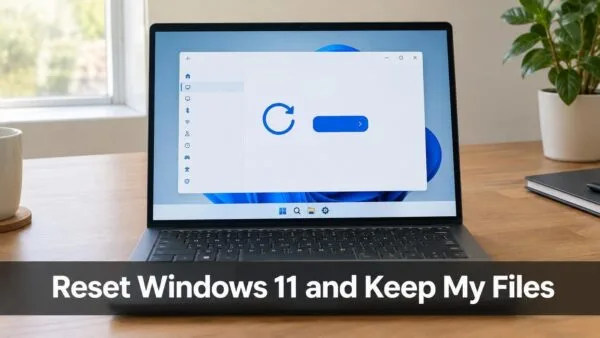 Reset Windows 11 and Keep My Files Reset Windows and keep my files from Settings > System > Recovery. Your documents and photos stay, but installed apps and changed settings are removed.…
 Should You Enable Advanced Crash Dump Logging In Windows 11 Advanced System Settings Should you enable advanced crash dump logging in Windows 11 Advanced system settings? Find out when it helps fix blue screen crashes and when to stick to…
Have a question about this guide?
Answered by AI from this guide. Good questions may be added to this page — please don't include personal details.

About the Author
Richard
Tech Writer, IT Professional
Richard is a writer at Geek Rewind who turns complex IT tasks into clear, step-by-step guides. He draws on years of hands-on experience in system administration and enterprise IT operations, focusing on Windows, Linux and WordPress: the problems people actually run into, and the fixes that work. His server and WordPress guides come from systems he runs himself. Richard builds and maintains the platform behind Geek Rewind, from its Ubuntu servers and Nginx configuration to its custom WordPress plugins. Many new tutorials start with readers' questions, and he's always glad to answer them in the comments.
No comments yet — be the first to share your thoughts!