How to Pause Windows 11 Updates for up to 35 Days

Pause Windows 11 updates for up to 35 days from the calendar in Settings Windows Update. Pick an end date, and Windows holds back updates until that day arrives.
The calendar replaced the older fixed-length pause choices. Now you pick the exact day the pause ends, up to 35 days out, and you can change that date later. Nothing here needs Registry Editor, Command Prompt, or extra software.
The steps come first. After that you get how to extend or end a pause, how to pick an end date, and what to check if the option is missing.
To pause Windows 11 updates for up to 35 days, open Settings with Win+I, click Windows Update in the left pane, and select the pause option to open the calendar. Choose an end date no more than 35 days ahead, and updates stay paused until that day. No restart is needed.
What the pause calendar does
The pause calendar is a date picker in Windows Update settings (the page where Windows downloads and installs patches). When you choose an end date, Windows holds back updates until that day. After the date passes, updating resumes on its own.
Two details matter in practice:
- The limit is 35 days. You cannot choose an end date further out than that from the day you pause.
- The pause is adjustable. You can select a different end date to extend it, and you can pause again when a pause ends.
A pause is temporary and affects only updates that have not installed yet. It does not remove anything already on your PC. To remove an update that is already installed, see how to uninstall Windows updates in Windows 11.
Before you pause updates
A pause blocks every update Windows Update would otherwise install, and that includes security fixes. Pause only for as long as you need. A PC that skips security updates for five weeks is exposed to any flaw those updates would have fixed.
Check for updates first if you are pausing because of a deadline rather than a problem. Installing pending updates now, at a time you choose, is safer than leaving them waiting. The post on how to check for Windows 11 updates shows how.
If your only goal is to avoid a restart at a bad moment, you may not need a pause at all. Scheduling the restart is less disruptive. The guide on pausing automatic updates for a convenient time covers that approach.
How to pause 🪟 Windows 11 updates for up to 35 days
Pick an end date on the calendar, up to 35 days away. Label wording and layout can shift slightly between Windows 11 builds (the numbered versions of the system), so look for the pause option near the top right of the Windows Update page.
- Open Settings by pressing Win+I. The Settings window opens with a list of categories on the left.

Start Menu - Click Windows Update in the left pane. On most builds it is the last item in the list. The page shows your update status and a Check for updates button.

Settings › Windows Update - Find the pause option on the page. It sits in the area with the other update controls, such as Pause updates. If you do not see it, scroll down or go to the section on missing options below.
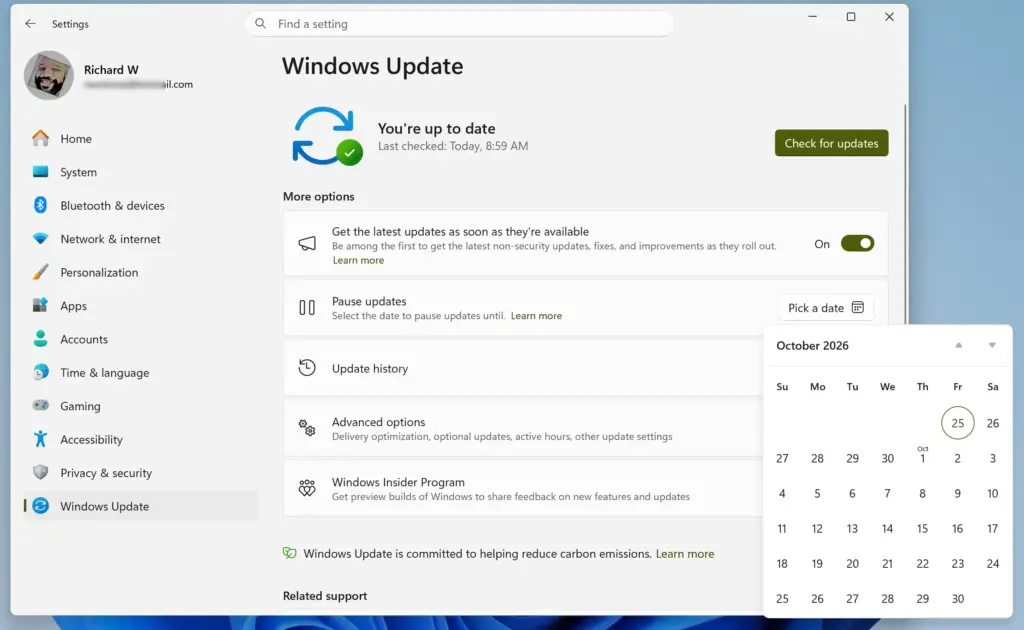
Settings > Windows Update - Open the calendar from the pause option. A calendar appears so you can choose the day the pause ends.
- Select an end date no more than 35 days from today. Click the day on the calendar. Dates beyond the 35-day limit do not work as an end date.
- Confirm your choice. If the calendar has a confirmation button, click it. The calendar closes and the page updates.
- Check the Windows Update page for the pause status. The page now shows that updates are paused and the date they resume. If it still shows normal update status, repeat the steps and confirm the date.
The pause takes effect straight away. No restart is needed, and the change applies to the whole PC.
How to extend a pause in 🪟 Windows 11
You can move the end date later if you need more time. Windows does not require you to wait for the pause to run out first. Select a different end date on the same calendar, and the new date replaces the old one.
To change the end date:
- Open Settings by pressing Win+I.
- Click Windows Update in the left pane. The page shows that updates are paused.
- Open the pause calendar again from the pause option. The calendar appears.
- Select a different end date. Choose a later day to extend the pause, or an earlier day to shorten it.
- Confirm the change. The page now shows the new resume date.
The 35-day limit still applies to whichever date you choose. If you pause again after a pause ends, you start a fresh pause with its own end date. Treat repeated pausing as a short-term fix, not a way to avoid updates altogether. If you want a longer-term approach, read about disabling automatic updates in Windows 11 and weigh the security trade-off first.
How to resume updates before the end date
You do not have to wait for the calendar date. If the reason for the pause is gone, end it early and let Windows catch up.
- Open Settings by pressing Win+I.
- Click Windows Update in the left pane.
- Click Resume updates. The button appears while a pause is active. The page then returns to its normal status.
- Click Check for updates if you want Windows to look right away. Windows downloads anything it held back.
After resuming, some updates may need a restart to finish. Windows shows a restart prompt on the Windows Update page when that happens. For a longer walkthrough of this process, see how to pause and resume updates for Windows 11.
Choosing a good end date
Pick the end date based on what you need to protect. A few common cases help with the decision.
If you are protecting a deadline, such as a presentation or an exam, choose a date shortly after it. That gives you time to restart and sort out any problems on your own schedule rather than during the event.
If you are waiting on a software vendor, pause until the vendor confirms support. That applies to a business app or a driver not yet tested with a recent update. Keep the pause as short as you can. You can always extend it with a new date.
Microsoft releases its monthly security updates on the second Tuesday of each month, known as Patch Tuesday. Start a pause shortly before Patch Tuesday and end it a few weeks later. That lets early problems show up before your PC installs the update. Other updates, such as optional ones, can arrive on other days, so the calendar is a rough guide rather than an exact schedule.
If the pause option is missing or greyed out
If you cannot find the pause option, or it is greyed out and does not respond, one of a few causes is usually responsible.
- Your build predates the calendar. The calendar arrives through a Windows 11 update (Microsoft lists it in its support article KB5095093). If your PC is far behind, the page may show the older pause controls or none at all. Install available updates, then check Settings Windows Update again.
- A work or school policy controls updates. On a managed PC, an administrator can hide or disable pausing. Settings may show a message such as “Some settings are managed by your organization”. Only your IT administrator can change that.
- The pause feature was switched off. Your PC’s settings can turn off the pause control. The post on enabling or disabling the Pause updates feature in Windows 11 explains how to switch it back on.
If the page layout looks different from the steps above, the label names may have moved. Look through the Windows Update page for any control that mentions pausing, and open it to see whether it offers a calendar.
How to undo a pause
You can reverse a pause at any point. Go to Settings Windows Update and click Resume updates. Windows goes back to its normal schedule, and a new check finds anything that was held back.
If you only want a different end date, you do not need to resume first. Open the calendar and select the new date, as described in the extension steps above.
What to do next
When the pause ends, open Settings Windows Update and run Check for updates so your PC catches up. If an update causes trouble after it installs, you can roll it back with the steps in how to uninstall Windows updates in Windows 11. For other update controls, the Windows 11 Updates and Maintenance Hub lists related guides in one place.
Have a question about this guide?
Answered by AI from this guide. Good questions may be added to this page — please don't include personal details.
Did this guide fix your problem?

About the Author
Richard
Tech Writer, IT Professional
Richard is a writer at Geek Rewind who turns complex IT tasks into clear, step-by-step guides. He draws on years of hands-on experience in system administration and enterprise IT operations, focusing on Windows, Linux and WordPress: the problems people actually run into, and the fixes that work. His server and WordPress guides come from systems he runs himself. Richard builds and maintains the platform behind Geek Rewind, from its Ubuntu servers and Nginx configuration to its custom WordPress plugins. Many new tutorials start with readers' questions, and he's always glad to answer them in the comments.
No comments yet — be the first to share your thoughts!