Windows 11 Memory and Performance Tuning Explained

Windows 11 memory and performance tuning covers the settings and tools that control how Windows uses RAM, processor time and disk space while you work. Most slowdowns trace back to a few causes: too many startup apps, background services, or a paging file (the disk space Windows uses when RAM runs low) set wrongly. This page groups the 23 guides by the job you are trying to do, from finding the cause to changing memory and graphics settings. Start with the diagnosis guides, then work through the fixes that match what you see.
Find out what is using your memory and CPU
Before you change anything, find the process or hardware that is under strain. Task Manager, Resource Monitor and Performance Monitor each show a different level of detail. These guides explain which tool to open and what the numbers mean.
 How to Fix High CPU and Memory Usage in Windows 11 Complete guide to How to Fix High CPU and Memory Usage in Windows 11 — covering everything you need to know.
 How to Open the Performance Monitor in Windows 11 Need to open Performance Monitor in Windows 11? Use Windows Search, the Run dialog, Task Manager, or three other ways to launch it now.
 How to Open Resource Monitor in Windows 11 Open Resource Monitor in Windows 11 with multiple methods. Get real-time insights into CPU, Memory, Disk, and Network resources today!
 How to Check Device Performance in Windows 11 Ensure optimal performance with a Windows 11 performance check. Discover how to view device health, manage updates, and monitor storage.
Free up memory and speed up startup
Most people get the biggest gain here, because apps that launch at sign-in use memory before you open anything. Trimming startup apps and controlling startup delay often helps more than any hidden setting. Start with these if your PC feels slow right after you turn it on.
 Windows 11 RAM Usage High? 8 Ways to Free Up Memory Windows 11 RAM usage high? Stop background apps, turn off fancy animations, and clear out memory with eight plain-English steps.
 How to Manage Startup Apps in Windows 11 to Improve Boot Speed Complete guide to How to Manage Startup Apps in Windows 11 to Improve Boot Speed — covering everything you need to know.
 How to Control Windows 11 Startup Delay for Apps Control Windows 11 startup app timing with simple registry commands. Enable or disable the startup delay to launch apps or maintain the default 10-...
 How to Optimize Windows 11 Performance: Speed Up Your PC Complete guide to How to Optimize Windows 11 Performance: Speed Up Your PC — covering everything you need to know.
Tune memory, paging and game settings
These settings change how Windows manages RAM, the paging file and the graphics pipeline. They can help on some PCs and do nothing on others, so test one change at a time. Gamers will find the frame-rate options in the last two guides of this group.
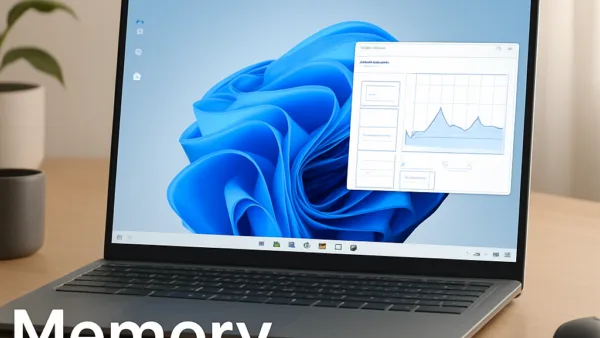 What Happens When You Enable Windows 11 Memory Compression What happens when you enable Windows 11 memory compression? See how Windows shrinks idle data in RAM to prevent slowdowns and slow hard drive paging.
 Should You Enable Hardware-Accelerated GPU Scheduling in Windows 11? Hardware-accelerated GPU scheduling in Windows 11 can boost frame rates or cause crashes. Learn when to turn it on and how to change the setting.
 How to Enable Automatic Page File Size in Windows 11 Boost your Windows 11 performance by enabling automatic page file size management.
 How to Turn On or off Paging File Encryption in Windows 11 Enable or disable paging file encryption in Windows 11 with three simple methods. Protect your virtual memory data or optimize performance using Command…
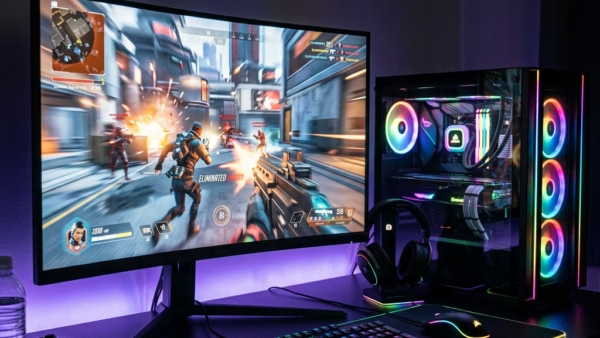 How to Optimize Windows 11 for Gaming Performance Complete guide to How to Optimize Windows 11 for Gaming Performance — covering everything you need to know.
 How to Enable Optimizations for Windowed Games in Windows 11 Enhance your gaming experience with windowed games optimization in Windows 11. Unlock features like Auto HDR and VRR by enabling this new setting.
Customise Task Manager and Resource Monitor
If you check Task Manager often, these guides show how to change what it displays and how often it updates. Each one changes only the display, so it does not affect how your PC runs. Use them to make the numbers you need easier to read.
 How to Reset All Task Manager Settings to Default in Windows 11 Reset Task Manager settings to default in Windows 11 with 3 easy methods. Use keyboard shortcuts, settings menu, or delete the settings file. Quick guide…
 How to Keep Windows 11 Task Manager Always on Top Keep Task Manager always on top in Windows 11 with simple steps. Monitor system performance without losing the window behind other apps.
 Change Real-Time Update Speed In Windows 11 Task Manager Control Task Manager update speed in Windows 11. Choose from High, Normal, Low, or Pause to customize real-time data refresh rates.
 Guide to Managing Columns in Windows 11 Task Manager Master Windows 11 Task Manager columns with our guide. add or remove columns to customize your experience and enhance productivity.
Cut background work and visual effects
Services, scheduled disk optimisation and window animations all use processor time and memory in the background. Turning them off can free resources, but some services are needed for basic features. Read each guide before you change a setting.
 How to Enable or Disable Windows 11 Services Enable or disable Windows 11 services with our step-by-step guide. Optimize your system's performance by managing background services.
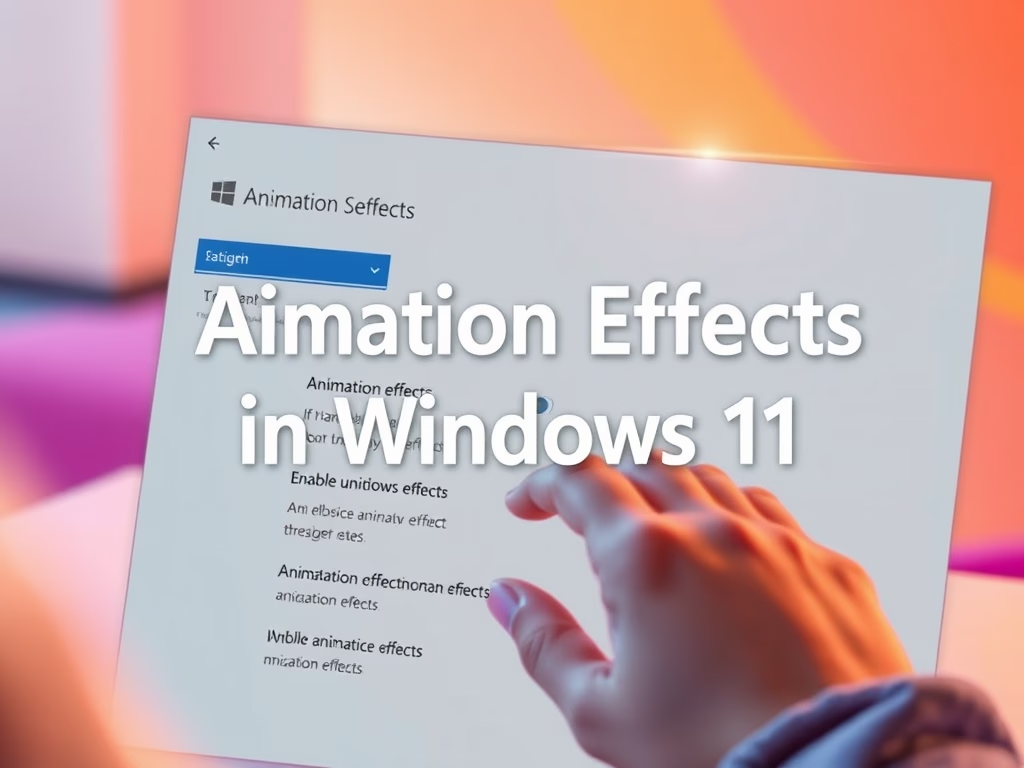 How to Turn On or off Animation Effects in Windows 11 Enable or disable Windows 11 animation effects to customize your visual experience. Enhance transitions or boost performance with simple settings.
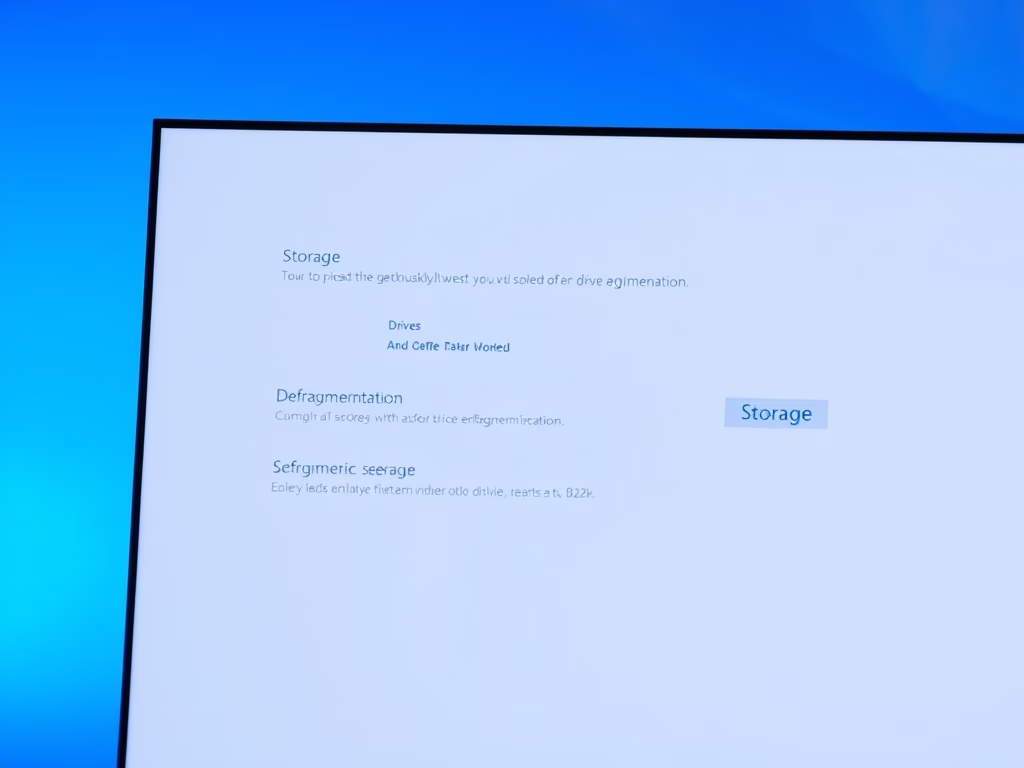 How to Defragment Windows 11 for Better Performance Boost your PC's speed by learning how to defragment Windows 11. Optimize your system drive for faster access and improved performance.
Fix Task Manager and laptop fan problems
Some performance problems show up as a frozen Task Manager or a laptop fan that runs all the time. These guides cover the causes of both and the fixes that usually work. Try them when the slowdown comes with a visible symptom like heat or an unresponsive window.
 Windows 11 Task Manager Not Responding? 7 Ways to Fix It Task Manager frozen on Windows 11? Try seven fixes, from alternate keyboard shortcuts like Ctrl + Shift + Esc to command-line tools.
 Why Is My Laptop Fan Always on in Windows 11 Is your laptop fan always on in Windows 11? Stop the loud hum and drain by checking background apps, power settings, and blocked vents.
Common questions
How much RAM does Windows 11 need?
Microsoft lists 4 GB as the minimum for Windows 11, but that leaves little room for apps. Many people find 8 GB workable for browsing and office work, and 16 GB more comfortable for heavy multitasking and games. Check how much RAM you use in Task Manager before you decide whether to upgrade.
Should I turn off the paging file to speed up Windows 11?
No. Turning off the paging file can make some apps crash, and Windows may not save crash information without it. Leave the setting on automatic and let Windows size it.
Are Windows 11 performance tweaks safe and reversible?
Most of the settings in these guides can be changed back in the same place they were changed. Create a restore point before you edit anything in the Registry Editor, because a wrong value there can cause problems that are harder to undo.
Do RAM cleaner or PC optimizer apps help?
They rarely help. Windows manages memory itself, and cleaner apps often clear data Windows was using on purpose. Some bundle unwanted extras, so the built-in settings in these guides are a safer first step.
Which change gives the biggest speed gain on Windows 11?
For most PCs, reducing startup apps and fixing what is using the processor or disk gives the largest improvement. Registry and service tweaks usually add little on their own. Find the cause in Task Manager first, then change only the setting that matches it.
My PC still feels slow after cleanup. What else should I check?
Check how full your storage is in Settings under System Storage, because a nearly full drive slows many tasks. An older hard drive or a laptop with a slow processor can also limit speed no matter what settings you change.
Have a question about this guide?
Answered by AI from this guide. Good questions may be added to this page — please don't include personal details.

About the Author
Richard
Tech Writer, IT Professional
Richard is a writer at Geek Rewind who turns complex IT tasks into clear, step-by-step guides. He draws on years of hands-on experience in system administration and enterprise IT operations, focusing on Windows, Linux and WordPress: the problems people actually run into, and the fixes that work. His server and WordPress guides come from systems he runs himself. Richard builds and maintains the platform behind Geek Rewind, from its Ubuntu servers and Nginx configuration to its custom WordPress plugins. Many new tutorials start with readers' questions, and he's always glad to answer them in the comments.
No comments yet — be the first to share your thoughts!